Role guide · Law firm ops · Microsoft 365 Copilot · Oct 2026
Microsoft 365 Copilot for law firm ops (Oct 2026): Outlook, Word, and Teams help for matter emails, engagement letters, and meeting notes
Law firm ops role guide for firms that already run on Microsoft 365. Copilot in Word drafts an engagement letter from your approved template, Copilot in Outlook summarizes long matter email threads with links back to each message, and Copilot in Teams recaps internal meetings. Copilot only shows what each user can already open, so the real work is getting permissions, ethical walls, and sensitivity labels right first. Copilot drafts; the responsible attorney checks every scope and fee term and signs every client-facing letter. Nothing here is legal advice. If your firm works mainly in a practice-management system, compare Clio AI and Smokeball AI, which also bring AI drafting into Word.
Who this guide is for
Firm administrators, IT and security leads, practice managers, legal assistants, and the attorneys they support — at a law firm that runs email, documents, and meetings in Microsoft 365 and is buying or already has Copilot licenses. If your documents live in a dedicated document-management system, see iManage AI for AI inside it; for research and citation checks, use your research platform (CoCounsel Legal vs Lexis+ with Protégé). Product deep-dive: Microsoft 365 Copilot.
Copilot sees what each user can see. Microsoft's Copilot privacy documentation (read 20 October 2026) says Copilot only surfaces organizational data the user has at least view permission to, honors usage rights on content encrypted by sensitivity labels, and does not use prompts, responses, or Microsoft Graph data to train foundation models. That means an over-shared SharePoint site or a missing ethical wall becomes visible through Copilot. Fix permissions before turning it on.
Ground rules for every section below: Copilot drafts and summarizes; it does not send a letter, give legal advice, calendar a deadline, or decide a conflict; a licensed attorney owns any filing, citation, demand, deadline, client message, or discovery response; the responsible attorney signs every engagement letter and client email, and the conflicts or risk manager owns ethical walls. Your state's rules govern client confidentiality and consent; this guide is not legal advice.
Major features (with how someone uses them)
Examples at a glance: each feature has a concrete example from a real job plus a short Try this you can run this week.
1. Copilot in Word: engagement letters from your approved template (primary)
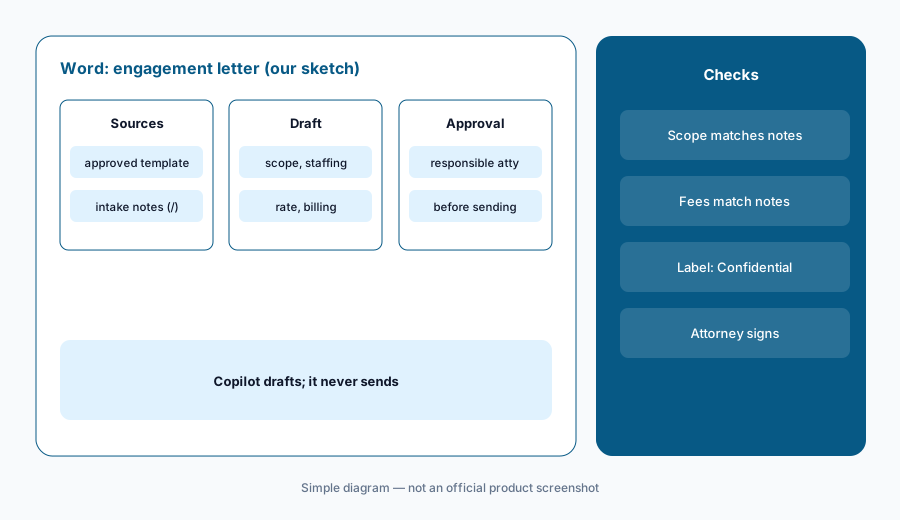
What it is: Open the firm's approved engagement-letter template in Word and open Copilot. Microsoft's Word drafting help says Copilot can draft from a template or existing document while keeping its formatting, and that you type / to choose a specific file as a source — here, the intake notes for the new matter. Ask it to fill the scope, staffing, rate, and billing sections from those notes only and to mark anything the notes do not say. Microsoft says Copilot applies the proper sensitivity label to the document. Review, then keep, discard, or regenerate.
Scope and fees are where an engagement letter goes wrong. If the notes say “custody only,” a draft that also mentions property division is a scope change the client never agreed to. The responsible attorney checks those terms line by line.
Primary workflow:
Ask Copilot in Word to draft an engagement letter from your approved template for one new matter. Have the responsible attorney compare every scope and fee term with the intake notes before it is sent.
2. Copilot in Outlook: matter email thread summaries
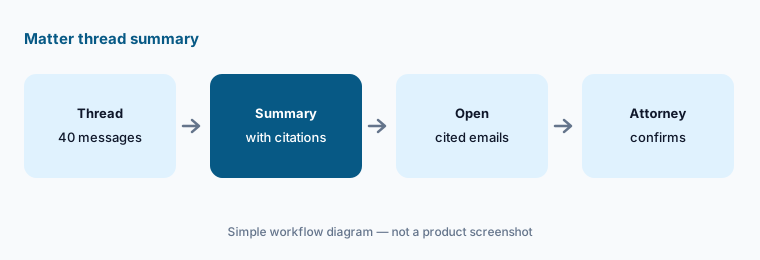
What it is: In Outlook, select a long thread and choose Summary by Copilot (or Summarize) at the top. Microsoft's Outlook help says the summary appears above the email and may include numbered citations that take you to the message each point came from. That makes it a fast way for an assistant or a covering associate to catch up on a matter thread before a call.
A summary can drop the one email that changed the deal. Before anyone relies on it for a deadline or an offer, open the cited message.
Open the citations:
Summarize three long matter threads in Outlook. Have the responsible attorney open the cited email behind every date, offer, or agreement before anyone relies on the summary.
3. Copilot in Teams: internal meeting recaps
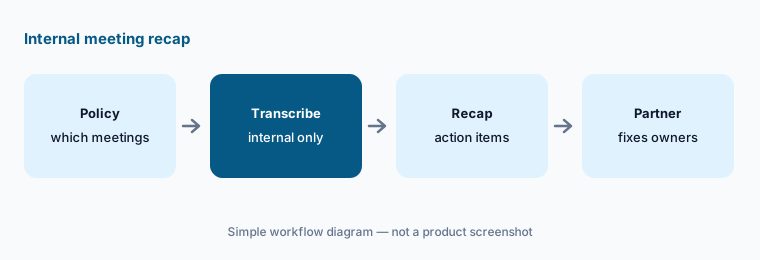
What it is: Microsoft's Teams meeting help says Copilot summarizes key points, who said what, and suggested action items during or after a meeting, and that transcription is needed to ask Copilot about the meeting afterward. The organizer can set Copilot to Off for a meeting, which also turns off recording and transcription. Copilot in Teams needs a Teams license (Microsoft).
Decide in a written policy which meetings may be transcribed — for example, internal staffing meetings yes, privileged client strategy calls only if the responsible attorney says so — and remember that transcripts and Copilot interactions can be retained and searched.
Check the owners:
Recap one internal docket meeting with Copilot. Have the supervising partner check every action item and its owner against the meeting before the list goes out, and keep client calls off unless the attorney approves.
4. Permissions and ethical walls before Copilot
What it is: Microsoft Purview Information Barriers restrict communication and collaboration between groups in Teams, SharePoint, and OneDrive; Microsoft's own example is keeping one client's data away from a lawyer at the same firm who represents another client. Because Copilot only shows what a user can already open, a wall enforced in permissions also limits Copilot — and a wall that exists only on paper does not.
Information Barriers do not cover email by themselves; Microsoft points to Exchange mail flow rules for that. If your firm keeps documents in a separate DMS, the walls there matter too.
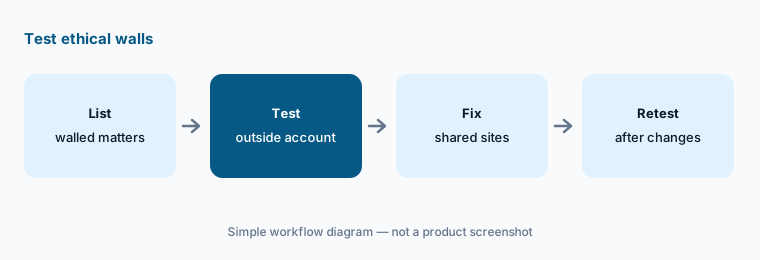
Test the walls:
Before licensing Copilot, have the risk manager ask Copilot about three walled matters from an account outside each wall, fix every hit, and repeat the test after each permission change.
5. Sensitivity labels, retention, and eDiscovery
What it is: Microsoft's Purview guidance for AI says a label that applies encryption requires the user to have both EXTRACT and VIEW rights for Copilot to return that content, and that Copilot prompts and responses can be audited, searched with eDiscovery, and kept or deleted with retention policies. The privacy documentation says admins can set retention for Copilot chat data.
Copilot prompts and responses become firm records. Decide retention for them the same way you decide it for email, with the records manager and a partner.
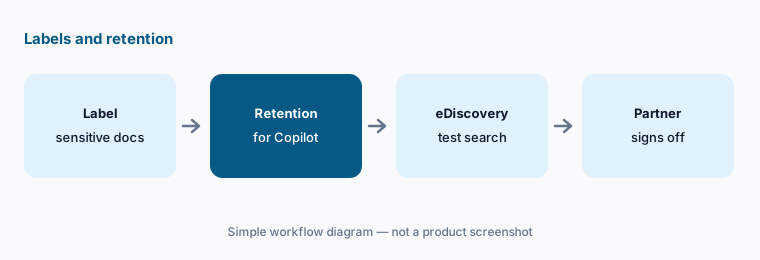
Set retention first:
Label your most sensitive document types and set a retention policy for Copilot prompts and responses. Have the records manager run a test eDiscovery search and a partner approve the settings before rollout.
6. Which license, and what costs extra
What it is: Microsoft's Copilot pricing page says Copilot Chat is included at no additional cost with eligible Microsoft 365 plans and also includes Copilot in Outlook, while a Copilot license or a plan with Copilot adds Work IQ, Copilot in Teams and in Word, Excel, and PowerPoint, and pre-built agents such as Researcher, Analyst, and Facilitator. Everyday chat and in-app help are included; Copilot Cowork, Code, Autopilot, and the Work IQ APIs are billed by usage with Copilot Credits, managed in Cost Management in the Microsoft 365 admin center.
Usage-based features can add charges beyond the license. Set spending controls before anyone tries the agentic features.
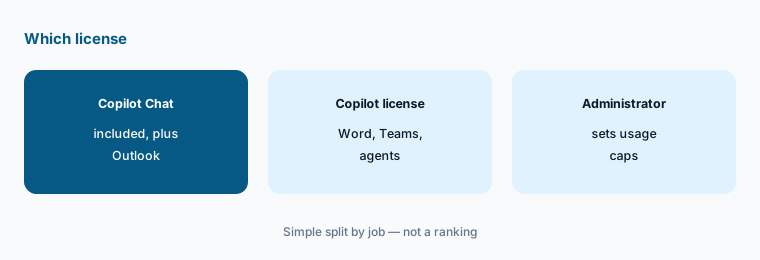
Cap usage:
License Copilot only for the people who draft letters and summaries most. Have the firm administrator set a usage cap in Cost Management and review use after 60 days.
Pricing context (October 2026)
As listed on Microsoft's Copilot plans and pricing page (U.S., read 20 October 2026): Microsoft 365 Business Premium with Copilot $32.00 per user per month, paid yearly; Business Standard with Copilot $23.50 per user per month, paid yearly; Microsoft 365 Copilot Business add-on $21.00 per user per month, shown at $18.00 paid yearly under a promotion that runs 1 July–31 December 2026, applies to the first year only, and is limited to existing customers with an eligible Business plan. Business plans cover up to 300 users. All are annual subscriptions, and some advanced features add usage-based charges.
For larger firms, Microsoft's enterprise Copilot page shows the Microsoft 365 Copilot add-on at $31.50 per user per month paid monthly on an annual commitment, on top of a qualifying Microsoft 365 plan; the paid-yearly figure did not show in our reader, so confirm it with Microsoft or your reseller. Prices are as of 20 Oct 2026 and can differ by region, reseller, and agreement.
Uncertainty: Microsoft's prices render in the browser, so we read them through a reader on 20 Oct 2026; the enterprise paid-yearly figure did not appear and is not printed. Promotions end and usage-based billing changes, so confirm on the live page and your quote. Whether Copilot fits your confidentiality duties is a decision for your firm and its ethics counsel, not this page.
When it’s useful (honest take)
Useful when your firm already runs on Microsoft 365, has cleaned up SharePoint and Teams permissions, enforces ethical walls in permissions, and has a responsible attorney who checks every engagement letter and client email Copilot drafts.
Less useful when permissions are messy (fix them first), your documents live in a separate DMS (iManage AI), you need legal research with citator checks (CoCounsel Legal, Lexis+ with Protégé), or you want sanitized drafting outside Microsoft 365 (ChatGPT for law firm ops).
Paying for Microsoft 365 Copilot and a few other AI tools? The $9 AI toolkit spreadsheet lists every AI subscription you have, what each one costs, and how fast it pays for itself, so you can see which ones are worth the money.
Want someone to do it for you? AI toolkit audit — $19
Related options (educational)
| Need | Better home | Why |
|---|---|---|
| Engagement letters, thread summaries, meeting recaps | Microsoft 365 Copilot for law firm ops (this page) | Copilot license or plan |
| Sanitized billing, intake, policy drafts | ChatGPT for law firm ops | Business seats |
| Agentic search and AI inside the DMS | iManage AI | Quote only |
| Matter assistant in Word and Outlook | Smokeball AI | Quote only |
| Product deep-dive | Microsoft 365 Copilot | See pricing |
FAQ
Can Copilot see matters a user is walled off from?
Microsoft says Copilot only shows content the user can already open. If the wall is enforced in permissions or Information Barriers, Copilot respects it; if a site is shared firm-wide, Copilot can surface it. Test walls before rollout.
Does Microsoft train its models on our prompts and documents?
Microsoft's privacy documentation says prompts, responses, and Microsoft Graph data are not used to train foundation models. Retention and eDiscovery of Copilot interactions are set by your firm in Purview.
Can Copilot send an engagement letter or client email?
This guide never lets it. Copilot drafts; the responsible attorney checks every scope and fee term and signs and sends every client-facing letter.
Which license do we need?
Copilot Chat, which also includes Copilot in Outlook, is included with eligible Microsoft 365 plans. Copilot in Word and Teams needs a Copilot license or a plan with Copilot; Copilot in Teams also needs a Teams license. Some advanced features are billed by usage.
Who approves outputs?
The responsible attorney for every engagement letter and client email, the supervising partner for meeting action items, the risk manager for ethical walls, and the records manager and a partner for retention. Nothing here is legal advice.
Optional next step (if seats overlap)
If your firm pays for Microsoft 365 Copilot, ChatGPT, and AI add-ons in its practice-management system and DMS that all draft the same letters, map that overlap before adding another seat. Map the overlap with the $19 AI toolkit audit or the $9 AI toolkit spreadsheet. Email Audit $19 or Toolkit spreadsheet $9.
Checkout is live via Stripe. After you pay, we email delivery (spreadsheet) or intake next steps (audit).