Tool · Finance · Cube · Oct 2026
Cube review (Oct 2026): spreadsheet-native FP&A with AI assists
Cube is an FP&A platform built for teams that want to keep working in Excel or Google Sheets: a central data layer pulls actuals from accounting, CRM, and HR systems, and a sidebar add-in fetches and publishes numbers in your own spreadsheets. In 2026 its AI grew into Charlie (the assistant formerly called AI Analyst), Smart Analysis for variances, a Planner Agent that builds scenarios, and a Cube MCP Server for Claude and ChatGPT. This page walks through each with a real job, a Try this, and where finance still checks the claim.
What this Cube page covers
This page covers Cube the FP&A platform at cubesoftware.com (Cube Planning, Inc.) — not Cube.dev, the unrelated semantic-layer company. It is for the FP&A manager or finance lead whose budgets and reports already live in spreadsheets and who wants AI help without moving the team into a new modeling tool. The question it answers: which Cube AI features do real work today, what each one may change, and how the credit meter works.
On naming: Cube’s Q3 2026 product update says “The AI Analyst is now Charlie: same agent, new name.” Some surfaces (the Excel and Google Sheets sidebar, Slack, Teams) may still say AI Analyst. Cube also groups its prompts into four agent teams — Analysts, Planners, Business Partners, and Data Managers — on a new AI Hub page.
Everything below comes from Cube’s website and help center as we read them on 7 October 2026. Cube’s help center says it does not warrant the accuracy of AI output and that every AI surface carries a reminder to check results; we treat Cube’s claims about traceability as its statements, not something we tested.

Major features (with how someone uses them)
Examples at a glance: each feature has a concrete example from a real job plus a short Try this you can run this week.
1. Charlie in Excel and Google Sheets: a variance note you can trace (primary)
What it is: Inside the Cube sidebar in Excel or Google Sheets, Charlie (still labeled AI Analyst there) answers plain-English questions about forecasts, budgets, and variances. Cube says it reads the governed data already in Cube — your formulas, hierarchies, and currency conversions — and can drill to transaction-level line items from source systems. Results come back as a narrative plus a card you can Add to Sheet or Add to New Sheet; the data lands as live Cube ranges you can fetch, filter, drill, and publish like any range you built by hand.
Each message to Charlie, including follow-ups, uses AI credits; working with the report it returns (filtering, drilling, fetching) does not. Access follows the user’s Data Access Scope, so a department head only gets answers about data they can already open.
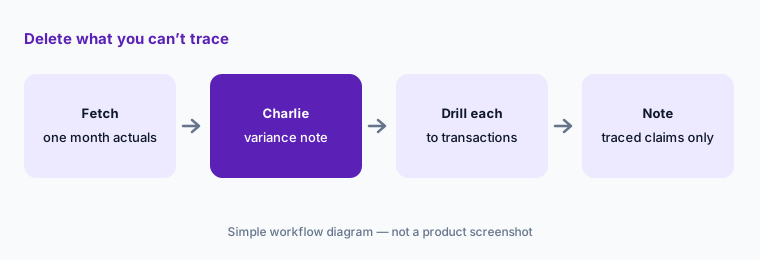
Primary workflow:
Pull one month of actuals into your Sheet through Cube. Ask its AI for a variance note and delete any claim you can’t trace. Use Add to New Sheet so the AI’s ranges land on their own tab, and drill into each number before the note goes out.
2. Smart Analysis: the top five variances with drivers
What it is: Smart Analysis (Smart Variance) compares two scenarios — say Actuals and Budget — across dimensions you pick, such as Department or Entity. You choose absolute or percentage variance and a minimum threshold to filter out small moves; Analyze returns the top five variances by amount and percentage plus AI insights on the drivers, and a Report tab lets you drill dimension by dimension. Each Analyze run uses credits; changing filters and re-running is a new run.
Your threshold, your words:
Run Smart Analysis on Actuals versus Budget for one month with the threshold your team actually reports on. For each of the top five, open the Report tab and write the driver in your own words before you reuse the AI insight.
3. Planner Agent: scenarios that never overwrite the budget
What it is: The Planner Agent builds a scenario from a description: “Start from our 2026 Budget and add 5 new hires across Engineering, Sales, Product, and CS starting in July.” It pulls the data, does the math, and saves a real Cube scenario, with four tabs: Overview (headline numbers and assumptions), Analysis (the data behind each), Updates (every changed value against the baseline), and Impact (charts). Cube says the Planner never modifies your Budget, Forecast, or Actuals — everything it creates is a new scenario under a Planner Scenarios parent with AI Write Protection — and assumptions are tagged User or AI so a reviewer knows what to double-check.
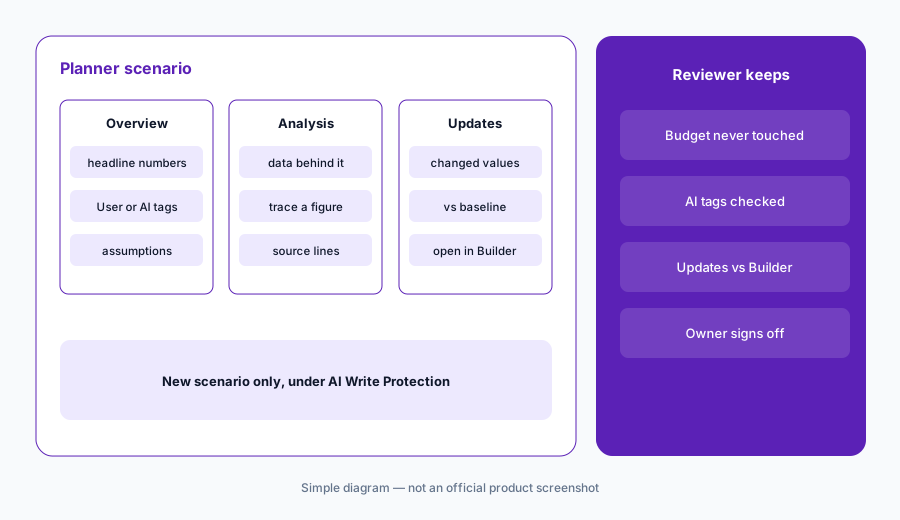
Check the AI-tagged assumptions:
Ask the Planner for one hiring scenario from your current Budget. Check every assumption tagged AI on the Overview tab, compare the Updates tab against Builder, and fix anything off before anyone presents it.
4. Cube MCP Server: read access, write access, and write-back rules
What it is: The Cube MCP Server connects Cube data to Claude (Pro, Team, or Enterprise, per Cube’s doc), ChatGPT (paid plans with connectors), and other MCP tools. Two permissions control it: Use MCP (Read Only) to query, drill, and read Boards, Tables, and change history, and Use MCP (Write) to publish figures into scenarios, populate planning Tables, create scenarios and formula members, and build Boards. Cube says a publish lands only in scenarios opened for AI write-back or created by the AI, and every write is attributed to you and flagged as AI-originated in the audit trail.
Read the defaults carefully. Cube’s doc says Use MCP (Write) is on by default for Admin and Finance users (only they can hold it) and off for Business users. And write_planning_table_data replaces the full dataset for that Table and scenario — “rows the AI does not resend are removed.” For a headcount roster, that is the difference between an update and a wipe.
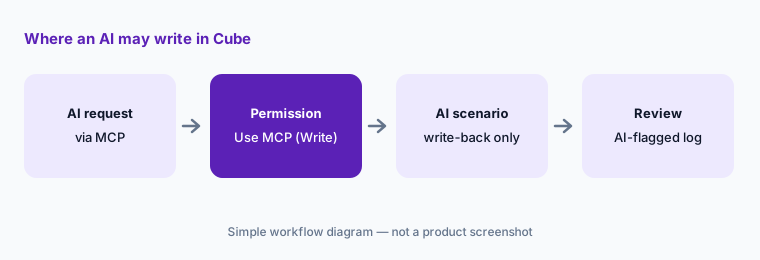
Narrow write access:
List who holds Use MCP (Write). For the first month, keep it to one or two Finance users, let AI write only into scenarios it created, and review AI-flagged entries in the change history each week.
5. AI credits, the Usage page, and Custom Context
What it is: Every Cube AI feature draws on one shared pool of AI credits, set as an annual allotment in your contract and reset on your subscription start date. When it runs out, AI features pause and the rest of Cube keeps working. A Usage page (added Q3 2026) shows the balance split across Charlie, building, and MCP, usage by user, and alerts at 50%, 75%, 90%, and 100%. MCP calls are metered too: Cube’s doc lists 5 credits per data-retrieval call and 125 per build or write call, with the example of 20 data calls plus one publish using 225 credits.
Users with the Administer AI permission can also set Custom Context — standing instructions such as your fiscal calendar, which scenarios matter, or “always give budget vs actuals” — that Charlie uses for everyone. Cube says it doesn’t change what a message costs.
Meter and context first:
Open the Usage page, send credit alerts to the finance lead, and write a two-line Custom Context (fiscal calendar and the scenario names that matter) before rolling Charlie out to more users.
6. Where Cube fits against other options
What it is: Cube suits teams that want to keep spreadsheets as the front end and add a governed data layer and AI on top. Datarails is the closest alternative for Excel-only teams that also want consolidation and close modules. Pigment, Abacum, and Planful move planning into their own model. A small team with one well-built Sheet may get enough from Gemini in Sheets or Gemini for finance for now.
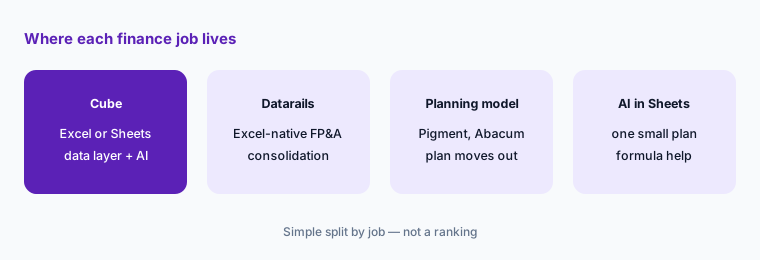
Spreadsheets you rebuild:
Write the three spreadsheets your team rebuilds most often. In a Cube demo, ask which ones would refresh from live Cube ranges, which AI features use credits for each, and what still needs manual work.
Pricing context (October 2026)
Cube does not publish prices. On 7 October 2026, its pricing page said “Get Custom Quote” and showed three plans, each with “Get quote”: Bronze (full platform access, custom roles, unlimited dimensions, users, and dashboards), Silver (adds Slack/Teams, workflow automation, PowerPoint/Slides, and MCP integration), and Gold (adds premium support and all integrations and workflows). Add-ons are Premium Support+, additional modules, and API access.
One inconsistency to raise on a call: the same page lists “MCP Integration” only under Silver and Gold, yet says the agent teams and the Cube MCP Server are included in “Every tier.” Cube’s help center says AI features are available to all customers and draw on a contracted AI credit allotment; extra credits can be bought from the Usage page, but no credit price is public.
Uncertainty: Cube publishes no plan or AI credit prices, so we quote none; any figure you see elsewhere is someone’s quote, not a list price. MCP availability by tier is inconsistent on Cube’s own pricing page as of 7 October 2026, so confirm it in writing. Cube’s customer outcomes are vendor claims, not our measurement.
When it’s useful (honest take)
Useful when the team’s models and reports already live in Excel or Google Sheets, actuals come from a handful of systems, and the same variance questions come up every month. Charlie in the sidebar and Smart Analysis shorten first drafts, and the Planner Agent lets you test a scenario without touching the budget.
Less useful when your spreadsheets are the problem rather than the front end — Cube keeps them, so a tangled model stays tangled. Less useful if you want planning to live in one shared model, or if nobody will own the credit meter and MCP write permissions. And if your dimension mappings are inconsistent, AI answers inherit the inconsistency.
Paying for Cube and a few other AI tools? The $9 AI toolkit spreadsheet lists every AI subscription you have, what each one costs, and how fast it pays for itself, so you can see which ones are worth the money.
Want someone to do it for you? AI toolkit audit — $19
Related options (educational)
| Need | Better home | Why |
|---|---|---|
| Excel or Sheets as the front end | Cube (this page) | Charlie, Smart Analysis, Planner Agent, MCP |
| Excel-native FP&A with consolidation | Datarails | FinanceOS, close modules, AI Connector |
| One planning model with AI agents | Pigment AI or Abacum | Planning moves out of the spreadsheet |
| One small plan in a single Sheet | Gemini in Sheets | Formula help and notes in place |
| Close and reconciliations | FloQast AI or Numeric | Accounting close, not planning |
| Inventory of finance AI seats | Stack map for finance ops | Overlap check before adding another tool |
FAQ
Is this Cube the same as Cube.dev?
No. This page covers Cube the FP&A platform at cubesoftware.com (Cube Planning, Inc.). Cube.dev is an unrelated semantic-layer and analytics company.
What is Charlie in Cube?
Charlie is Cube’s AI assistant, renamed from AI Analyst in Q3 2026. It answers questions from the governed data in your Cube in the Workspace, the Excel and Google Sheets sidebar, Slack, and Teams, under each user’s data access.
Can Cube’s AI overwrite my budget?
Cube says the Planner Agent never modifies Budget, Forecast, or Actuals; it saves new scenarios with AI Write Protection. Through MCP, an AI with Use MCP (Write) can publish only into scenarios opened for AI write-back or created by the AI, and each write is flagged in the audit trail.
How are Cube’s AI features billed?
With AI credits from a shared annual allotment set in your contract. Charlie messages, Smart Analysis runs, Planner work, and MCP calls use credits; when they run out, AI pauses and the rest of Cube keeps working. Cube publishes no credit price.
How much does Cube cost?
Cube publishes no prices. As of 7 October 2026 its pricing page lists Bronze, Silver, and Gold plans with a “Get quote” button on each, plus add-ons for premium support, extra modules, and API access.
Optional next step (if seats overlap)
If finance pays for Cube, a separate BI seat, and several chat assistants connected to the same numbers, that overlap is worth mapping. Map the overlap with the $19 AI toolkit audit or the $9 AI toolkit spreadsheet. Email Audit $19 or Toolkit spreadsheet $9.
Checkout is live via Stripe. After you pay, we email delivery (spreadsheet) or intake next steps (audit).