How-to · FP&A / planning · Cube · Oct 13, 2026
Build a what-if in Cube's Planner Agent without touching the live plan
"What if we push three sales hires to Q1?" In a spreadsheet, the fast answer is to edit a copy of the budget and hope nobody saves over the original. This page shows an FP&A lead on Cube how to let the Planner Agent build that what-if as its own scenario, check the assumptions it made up, and tighten who can let an AI write before the scenario is shared.
Who this is for
FP&A managers and finance leads whose budgets and reports already live in Excel or Google Sheets on Cube (the FP&A platform at cubesoftware.com, not Cube.dev), who get asked for what-ifs and want to test them without risking the budget. If you're still choosing a spreadsheet-first tool, Datarails vs Cube compares what each AI may write.
How to do it
This is a how-to, not a ranking of FP&A tools. Feature detail lives on the Cube review. Cube says the Planner Agent never modifies your Budget, Forecast, or Actuals: everything it creates is a new scenario under a Planner Scenarios parent with AI Write Protection. The steps below check that the scenario itself is right, and that nothing else connected to Cube writes where it shouldn't.

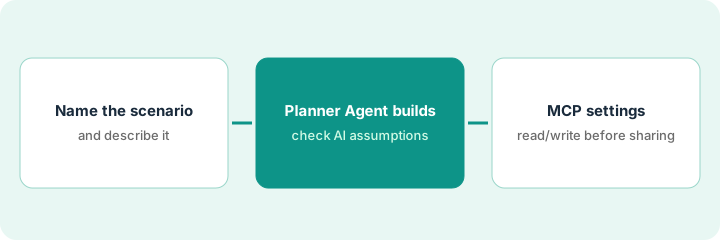
1. Step 1 — Name the scenario and write its description
What it is: Before you ask the agent anything, write down what the scenario is for, what it starts from, and what changes. That description becomes your request, and the name makes it easy to find later.
- Pick a name that says what changed: "Delay 3 sales hires to Q1," not "Scenario 4."
- Say what it starts from: your current Budget, or the latest Forecast.
- List the changes you know (hire dates, roles, regions) and the ones you don't (ramp time, commission). The ones you don't know are where the agent will fill in its own.
The CFO asks what happens if three sales hires slip to January. The head of FP&A writes: "Name: Delay 3 AE hires to Q1. Start from: 2026 Budget. Change: three account executives move from October to January start. Unknown: ramp time."
Use the same four lines for every what-if: Name | Starts from | Changes (known) | Unknown. Paste the first three into the Planner as your request.
2. Step 2 — Let the Planner Agent build it, then check the AI-tagged assumptions
What it is: The Planner Agent pulls the data, does the math, and saves a real Cube scenario with four tabs: Overview (headline numbers and assumptions), Analysis (the data behind each), Updates (every changed value against the baseline), and Impact (charts). Cube tags each assumption User or AI, so you know which ones it filled in.
- Open the Overview and read every assumption tagged AI first. Those are the "Unknown" items from Step 1, answered by the agent.
- Correct any AI assumption that doesn't match how your business works.
- Compare the Updates tab against Builder to confirm only the values you expected changed.
The Overview shows the three hires moved correctly (User-tagged), plus an AI-tagged assumption that new reps ramp to full quota in two months. The team's real ramp is five months. She corrects it, compares Updates against Builder, and sees only the three hires' costs and the bookings line moved.
Ask the Planner for one hiring scenario from your current Budget. Check every assumption tagged AI on the Overview tab, compare the Updates tab against Builder, and fix anything off before anyone presents it.
3. Step 3 — Check MCP read and write settings before sharing
What it is: The Planner keeps its own work away from the budget. The Cube MCP Server is a second door: it lets Claude, ChatGPT, and other MCP tools work with Cube data, and two permissions control it. Use MCP (Read Only) queries, drills, and reads Boards, Tables, and change history. Use MCP (Write) can publish figures into scenarios, populate planning Tables, create scenarios, and build Boards.
- Cube's doc says Use MCP (Write) is on by default for Admin and Finance users, and off for Business users. List who holds it.
- Cube says an AI publish lands only in scenarios opened for AI write-back or created by the AI, and every write is attributed to you and flagged as AI-originated in the audit trail.
- Don't open the shared what-if for AI write-back unless someone needs to.
- Watch one tool in particular: Cube's doc says write_planning_table_data replaces the full dataset for that Table and scenario, and "rows the AI does not resend are removed."
Before sharing, she checks Use MCP (Write): five Finance users have it by default. She keeps it for herself and the FP&A analyst only, confirms the hiring scenario isn't open for AI write-back, and finds no AI-originated writes in its change history.
List who holds Use MCP (Write). For the first month, keep it to one or two Finance users, let AI write only into scenarios it created, and review AI-flagged entries in the change history each week.
Pricing context (October 2026)
This how-to isn't a price sheet. Cube doesn't publish prices. When the Cube review checked on 7 October 2026, its pricing page said "Get Custom Quote" and showed Bronze, Silver, and Gold plans, each with "Get quote." The same page lists MCP Integration only under Silver and Gold, yet says the Cube MCP Server is included in "Every tier," so confirm which applies to you. AI features draw on a shared annual AI credit allotment set in your contract; Cube's doc lists 5 credits per MCP data-retrieval call and 125 per build or write call. No credit price is published. Dated October 2026.
Checked Oct 13, 2026 on the vendor’s own pricing page: Cube shows no public list price. Cube’s pricing page lists Bronze, Silver, and Gold plans, each with “Get quote,” and add-ons configured through sales; no dollar figures are shown. MCP credit counts mentioned above are usage units, not prices.
Uncertainty: MCP availability by tier is inconsistent on Cube's own pricing page. If your contract and our review disagree, trust your contract. The only prices this site sells here are the optional $9 AI toolkit spreadsheet and $19 AI toolkit audit.
When this helps (honest take)
Useful when your plan lives in spreadsheets on Cube, leadership asks for what-ifs often, and you want each one as its own scenario instead of a copied tab.
Not useful when nobody will own the Use MCP (Write) list or the credit meter, or when your model is tangled to begin with. Cube keeps your spreadsheets, so a tangled model stays tangled.
Related options (educational)
| Need | Where to look | Why |
|---|---|---|
| Cube AI features | Cube | Primary path on this page |
| Comparing spreadsheet-first tools | Datarails vs Cube | What each AI may write |
| Excel-native FP&A with consolidation | Datarails | MCP tools read-only today, not an enforced scope |
| Scenarios in a planning model | Drivetrain | Approval before changes, with an impact log |
| Finance AI seats in one view | Stack map for finance ops | Job, tool, and owner in one view |
FAQ
Can Cube's Planner Agent overwrite my budget?
Cube says no: it never modifies Budget, Forecast, or Actuals, and saves new scenarios under Planner Scenarios with AI Write Protection.
What's the difference between the two MCP permissions?
Use MCP (Read Only) lets a connected AI query and read. Use MCP (Write) lets it publish into scenarios opened for AI write-back or created by the AI, populate planning Tables, and build Boards. Cube says Write is on by default for Admin and Finance users.
Where do current prices live?
With Cube's sales team. Cube published no prices when we checked on 7 October 2026, and this page doesn't invent any. Our Oct 13, 2026 check of the vendor’s own pricing page is summarized in the pricing section above.
Can a what-if scenario change the live plan?
It shouldn’t in this routine. Build it as a separate, protected scenario and check MCP write settings before anyone shares it.
Optional next step
Free reviews stay free. If finance pays for Cube, a separate BI seat, and several chat assistants connected to the same numbers, the $9 AI toolkit spreadsheet helps you lay them out, or the $19 AI toolkit audit gets you a written memo.