Role guide · IT ops · Gemini · Workspace · Oct 2026
Gemini for IT ops (Oct 2026): Workspace drafts for asset sheets, access requests, and onboarding
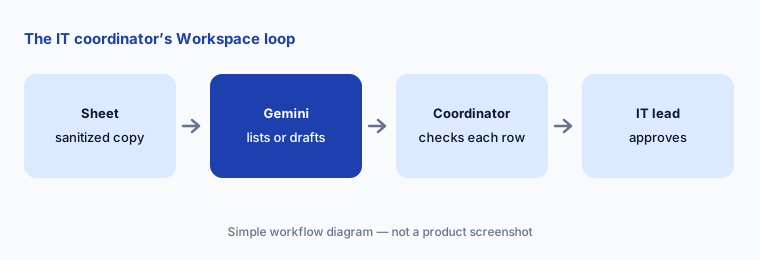
IT ops role guide — Gemini inside the Google Workspace apps an IT coordinator already uses: Sheets for questions about the asset list, Docs and Gmail for access-request summaries and onboarding emails. Gemini lists and drafts; the IT lead and each system owner approve access, and technicians make the changes in your identity and device tools. Companion to Claude for IT ops and ChatGPT for IT ops.
Who this guide is for
IT coordinators, help-desk leads, and the one-person IT team at a company that runs on Google Workspace — the asset list is a Sheet, access requests arrive by email, and onboarding notes live in Docs. The goal is a faster read of the asset Sheet and cleaner drafts, not an AI that grants access. If your team drafts in Claude or ChatGPT instead, see Claude for IT ops or ChatGPT for IT ops. Product deep-dive: Gemini. Sibling role guides: Gemini for ops, Gemini for support, Gemini for HR.
What Google documents (help center, read 7 October 2026): in Sheets, the Ask Gemini side panel can create tables and formulas, generate data analysis and insights, build charts, summarize Drive files and Gmail emails, and take actions such as filters, sorting, conditional formatting, and pivot tables — each action shows a preview card you apply, with Undo. You can focus it on specific tabs, and the help page recommends native Google Sheets files (save an .xlsx as a Google Sheet first). In Gmail, Help me write drafts a new email or refines one, with Formalize, Friendly, and Shorten options. Google’s pricing page lists Gemini in Gmail on every Business plan, and Gemini in Docs and Sheets on Business Standard and above.
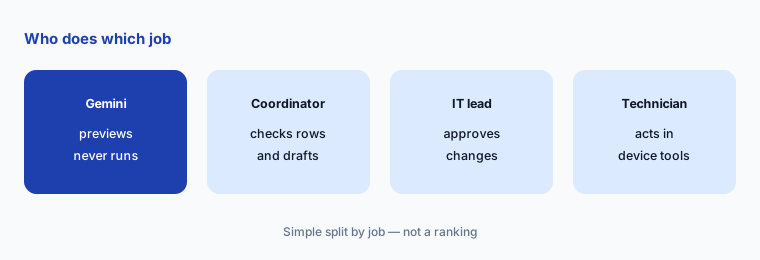
Ground rules for this guide: Gemini never runs a device action or an access change — it lists and drafts, and nothing it suggests is applied until a person approves it. The system owner approves access, the IT lead approves any change to the asset list, and a technician makes the change in your identity or device tool. Never paste passwords, API keys, tokens, recovery codes, or license keys; replace them with <REDACTED>, and rotate anything that slips in. Keep IT work out of personal accounts: use the company Workspace account, and work from a sanitized copy of the asset Sheet when names and serial numbers aren’t needed.
Major features (with how someone uses them)
Examples at a glance: each feature has a concrete example from a real job plus a short Try this you can run this week.
1. Asset Sheet: laptops past four years (primary)
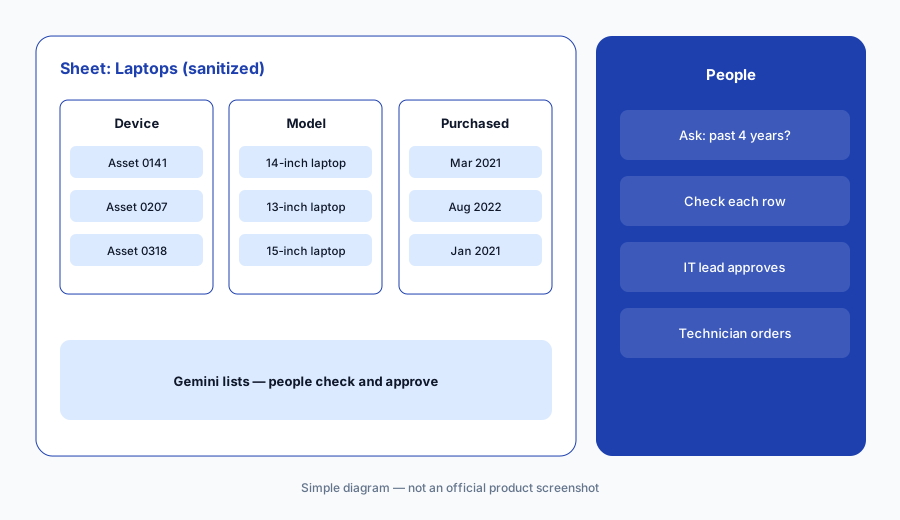
What it is: Many small IT teams track hardware in a Sheet: one row per device, with a model, an assigned team, and a purchase date. Make a sanitized copy (asset tags instead of names and serial numbers if they aren’t needed), open Ask Gemini, and ask which laptops are past four years old. Gemini can answer with a list, a formula, or a filter, and for an analysis you can open Analysis steps to see how it got there. Then check every row yourself — a purchase date typed as text, a blank cell, or a device that was already replaced changes the answer. The output is a refresh list for the IT lead to approve, not a purchase order.
Primary workflow:
In a sanitized asset Sheet, ask Gemini which laptops are past four years old. Check each row.
2. Access-request summaries for the approver
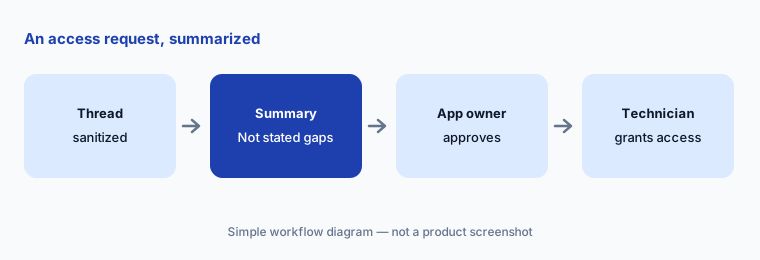
What it is: Access requests arrive as long email threads: a manager asks for a tool, someone forwards it, a second person asks for the same thing. Paste a sanitized thread into a Doc and ask Gemini for a short summary in fixed fields: who needs access, to which app or group, what level, why, for how long, and who should approve. Ask it to write “Not stated” for anything the thread doesn’t say and to list those gaps as questions. Gemini summarizes; the app owner approves, and a technician grants access in your identity provider — Gemini never grants anything.
Summarize, then ask the approver:
Paste one sanitized access-request thread into a Doc. Ask Gemini for who, what app, what level, why, how long, and approver — writing “Not stated” for gaps. Send the gaps to the manager before anyone grants access.
3. Onboarding emails from confirmed facts
What it is: New-hire IT emails repeat every week: when the laptop arrives, how to sign in the first time, which apps they get, and where to ask for help. In Gmail, Help me write drafts from a short prompt and can make a draft more formal, friendlier, or shorter. Give it only facts you have already confirmed — the date, the device, the apps the role was approved for — and check every line before sending. Google’s help page says Help me write can proactively pull details from your other emails and Drive files to personalize a draft, and a Sources button shows which ones it used; check Sources so nothing from an unrelated thread lands in a new hire’s inbox. Never put a password or one-time code in the email — send sign-in steps, not secrets.
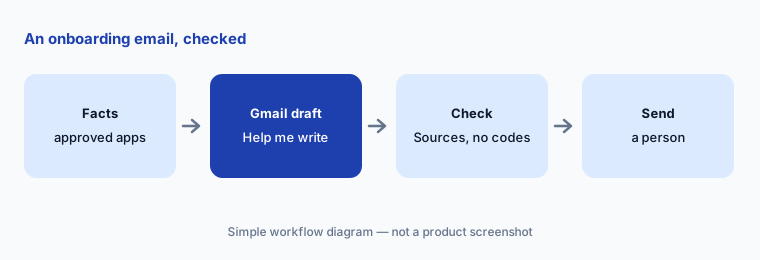
Draft from approved access only:
In Gmail, use Help me write for one new-hire IT email using only the apps that role was approved for. Open Sources, remove anything from unrelated threads, and confirm the email contains no password or code.
4. Sheet actions you apply (and undo)
What it is: Gemini in Sheets can do more than answer: ask it to highlight devices past a date, add a status dropdown, sort by team, or build a pivot table of laptops by model and age. Google’s help page says each action appears as a preview card that you click Apply on, and Undo is available until you make further changes. Use that on a copy first. The asset list is a record other people rely on, so the IT lead approves any change to the shared version — and Gemini’s side-panel history is lost if you reload or close the file, so insert anything you need to keep.
Preview on a copy:
On a copy of your asset Sheet, ask Gemini to add a refresh-status dropdown and highlight laptops older than four years. Check the preview card before Apply, use Undo if a rule is wrong, and have the IT lead approve before you change the shared Sheet.
5. Accounts, plans, and data controls
What it is: Google’s Workspace privacy hub (read 7 October 2026) says Gemini in Workspace only accesses content the user already has permission to see, that your content is not human reviewed or used for generative AI model training outside your domain without permission, and that existing Workspace protections apply — including DLP on generated text inserted into Gmail and Drive for supported editions. Gemini in Workspace prompts and responses are retained from 90 days to indefinitely, as admins decide. When a Sheet is shared outside your domain, the side panel shows a warning that content added by Gemini may be visible to outside users. Help me write is also offered on personal Google Accounts (US only), which is exactly why the rule below matters.
Practical rule for IT: no asset lists, access requests, or onboarding details in a personal Gmail or personal Gemini account. Use the company Workspace account, keep the asset Sheet shared only with IT, and never paste a password, API key, or token — replace it with <REDACTED>. If a secret is pasted by mistake, rotate it; deleting the conversation does not undo the exposure.
Check the account and plan first:
List everyone who uses Gemini for IT work, which account they use, and which Workspace plan it is on. Move IT data out of personal accounts, and confirm anyone using Gemini in Sheets is on Business Standard or above.
6. One home per job: Gemini, Claude, ChatGPT, or your IT tools
What it is: Gemini fits when the work already lives in Sheets, Docs, and Gmail — there is no copy-paste into another tool. Claude Projects suit long runbooks and reading scripts; ChatGPT Business suits shared help-desk macros and KB drafts. Answers employees see belong in your service desk or a front door such as Moveworks or Atomicwork; device actions are approved in your RMM or MDM — Atera, NinjaOne, Jamf — and access changes in your identity tool, such as JumpCloud. Paying for two assistants to draft the same onboarding emails is seat overlap.
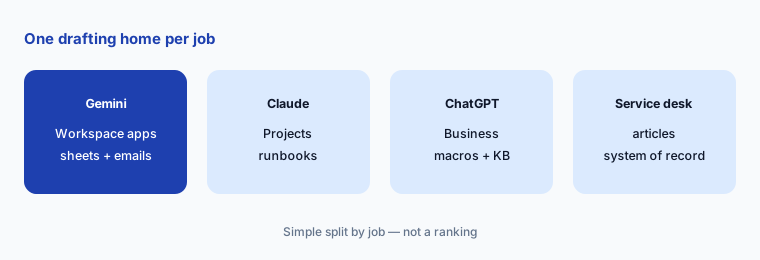
One home per job:
List your IT drafting jobs — asset questions, access-request summaries, onboarding emails, runbooks, macros — and which tool each person used last month. Pick one home per job for 30 days, then check which seats nobody missed.
Pricing context (October 2026)
On Google’s Workspace pricing page (as of 7 October 2026, USD, monthly billing view, before tax and before introductory offers for new customers): Business Starter $7 per user per month; Business Standard $14; Business Plus $22; Enterprise through sales. Google says a one-year commitment saves 16%, and Starter, Standard, and Plus can be bought for up to 300 users.
What matters for this guide: the same page lists Gemini in Gmail on every plan, but Gemini in Docs, Sheets, and Drive on Business Standard and above. A coordinator on Business Starter gets Help me write in Gmail but not the Ask Gemini panel in Sheets from section 1. Dated notes on Gemini plans are on the Gemini deep-dive.
Uncertainty: Google shows introductory and promotional prices for new customers that change often, and prices vary by country and currency. Gemini features roll out gradually, and the Sheets help page also describes a Workspace Experiments version for personal accounts with different data terms. This is product education, not security advice for your environment.
When it’s useful (honest take)
Useful when your IT team already works in Google Workspace on Business Standard or above, the asset list is a Sheet, and a person checks every row and every draft before anything changes.
Useful when access requests arrive as messy email threads and approvers need the same six fields every time.
Less useful when IT data would end up in personal accounts, your service desk or MDM already answers these questions from live data, or anyone expects Gemini to grant access or change devices. People run things: owners approve, technicians act.
Paying for Gemini and a few other AI tools? The $9 AI toolkit spreadsheet lists every AI subscription you have, what each one costs, and how fast it pays for itself, so you can see which ones are worth the money.
Want someone to do it for you? AI toolkit audit — $19
Related options (educational)
| Need | Better home | Why |
|---|---|---|
| Runbooks, checklists, and script reviews in a shared project | Claude for IT ops | Projects with instructions and knowledge |
| Help-desk macros and KB drafts in a Business workspace | ChatGPT for IT ops | GPTs (moving to plugins) and Projects |
| Live device inventory and refresh data | Jamf AI or NinjaOne vs Atera | System of record for devices |
| Access requests with approvals and audit trail | Zluri or JumpCloud AI | Identity and SaaS access |
| Inventory every IT AI seat | Stack map for IT ops | Jobs, tools, owners, overlaps |
FAQ
How should an IT coordinator start with Gemini?
Start with the asset Sheet. Make a sanitized copy, ask Gemini which laptops are past four years old, and check each row against the purchase dates. Then draft access-request summaries and onboarding emails from confirmed facts, and have the owner approve before anything changes.
Can Gemini grant access or change devices?
Not in this guide. Gemini lists, summarizes, and drafts; in Sheets it can apply actions you preview and approve, but it never runs anything in your identity or device tools. The system owner approves and a technician makes the change.
What if someone pastes a password or token into Gemini?
Rotate it. Deleting the conversation does not undo the exposure. Replace secrets with <REDACTED> before any prompt, and keep IT work in the company Workspace account, not a personal one.
Which Workspace plan do I need for Gemini in Sheets?
As of 7 October 2026, Google’s pricing page listed Gemini in Docs and Sheets on Business Standard ($14 per user per month on the monthly view), Business Plus ($22), and Enterprise, but not on Business Starter ($7). Check workspace.google.com/pricing before budgeting.
Is IT data used to train Gemini?
Google says Gemini in Workspace only accesses content the user can already see, and that your content is not human reviewed or used for generative AI model training outside your domain without permission. That applies to the company Workspace account; personal accounts and Workspace Experiments have different terms.
Optional next step (if seats overlap)
If IT pays for Workspace with Gemini, a second assistant, a help-desk AI add-on, and device-tool AI that all draft the same onboarding emails and summaries, fix that overlap before adding another seat. Map the overlap with the $19 AI toolkit audit or the $9 AI toolkit spreadsheet. Email Audit $19 or Toolkit spreadsheet $9.
Checkout is live via Stripe. After you pay, we email delivery (spreadsheet) or intake next steps (audit).