What’s new · IT ops · JumpCloud · Sep 2026
What’s new in JumpCloud (Sep 2026): AI Assistant knowledge uploads, AI Gateway dashboard, and MCP for users
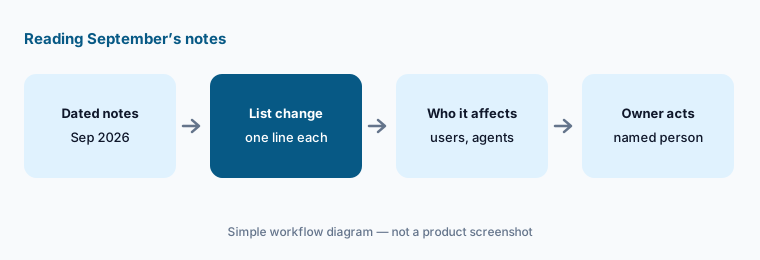
JumpCloud keeps one running release-notes page for 2026, with September entries dated from the 7th to the 30th. This page pulls out the changes an IT admin should act on — the AI Assistant’s new knowledge base, AI-agent and MCP controls, patch reporting, and Password Vault — and who should approve each. It isn’t a review; for that, see our JumpCloud AI review. Every item below comes from the public JumpCloud release notes we opened on 7 October 2026.
What this page covers
This page is for the JumpCloud admin or IT lead who wants September’s changes without reading the whole page — especially anything that changes what AI tools and agents can reach, what users can connect on their own, or how patches are tracked.
We list only entries dated September 2026 on JumpCloud’s release notes. We don’t speculate about roadmap items, and we mention August entries only where September builds on them (Agent Identities arrived on 31 August as a public preview). The agent and bug-fix reports JumpCloud publishes separately are not covered.
The IT guardrails stay the same whatever the tool does: AI suggests, and a named admin approves any access change or device action; no passwords, API keys, or tokens go into an AI prompt or an uploaded document.
Major features (with how someone uses them)
Examples at a glance: each feature has a concrete example from a real job plus a short Try this you can run this week.
1. Five changes an IT admin should act on (primary)
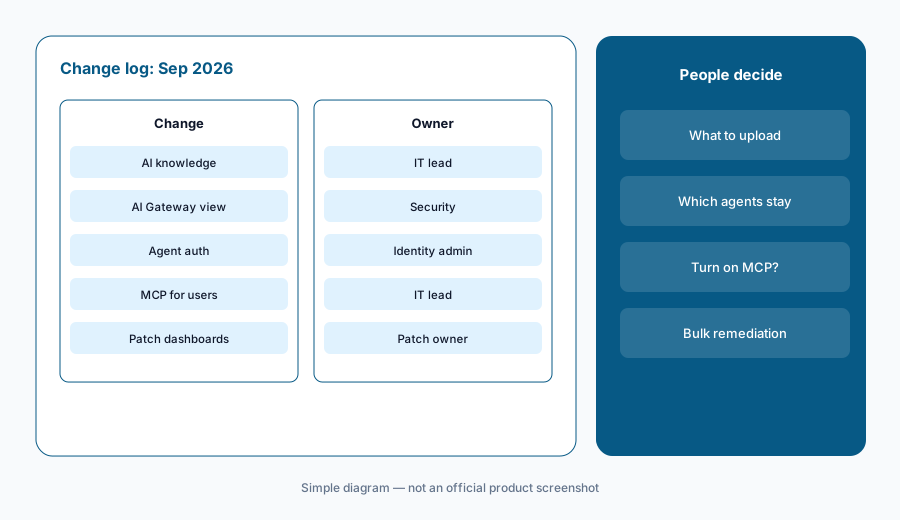
What it is: From the September notes, these five need a decision from someone, not just awareness: (1) knowledge-base uploads for AI Assistant (16 September); (2) the AI Gateway Dashboard for MCP server usage, tool calls, and errors (16 September); (3) a client authentication type setting for AI agents’ OAuth credentials (16 September); (4) the JumpCloud MCP Server for Users, which lets users connect their own AI clients to User Portal tasks (30 September); and (5) Patch Management dashboards (24 September) plus a Windows Device Patch Report (21 September). Each is linked to the same dated source: JumpCloud Release Notes 2026.
Primary workflow:
From JumpCloud’s Sep 2026 release notes, list 5 changes an IT admin should act on — cite sources.
2. AI Assistant: upload your own runbooks
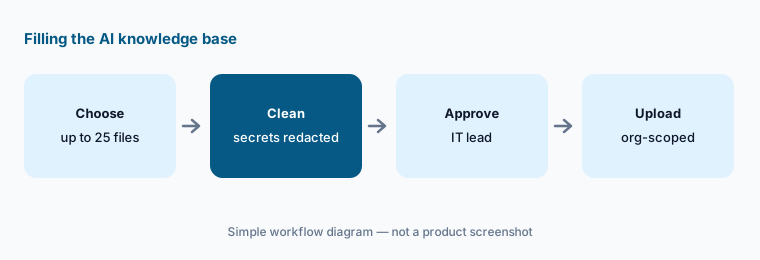
What it is: On 16 September JumpCloud added a private, org-scoped knowledge base for its AI Assistant. Admins upload internal documentation — runbooks, SOPs, policies — and the assistant uses it to answer questions about organization-specific processes, naming the source document in the chat when it does. Supported formats are PDF, TXT, DOCX, and MD, with a 10 MB limit per file and 25 files per organization. Twenty-five files is a small budget, so choose the documents that answer the most questions, and check them for secrets first: a runbook that still contains a service-account password or Wi-Fi key would now be quoted back to anyone who asks.
Pick the 25 files:
List the runbooks and SOPs your team opens most. Pick up to 25, replace any secret with <REDACTED>, and have the IT lead approve the list before anything is uploaded to the AI Assistant.
3. AI Gateway dashboard and agent authentication
What it is: Also on 16 September, the AI Gateway gained a Dashboard tab with org-wide views of MCP server usage, tool call volume, and error rates — summary cards, trend charts, and lists of the busiest servers, clients, and users — with a drill-down per MCP server. Separately, an agent’s Authentication tab now lets you choose how the agent platform sends its OAuth client ID and secret: client secret basic (the default, in the authorization header) or client secret post (in the request body), to match platforms such as Amazon Bedrock AgentCore. Both build on Agent Identities, which JumpCloud introduced on 31 August as a public preview to manage AI agents separately from employee accounts.
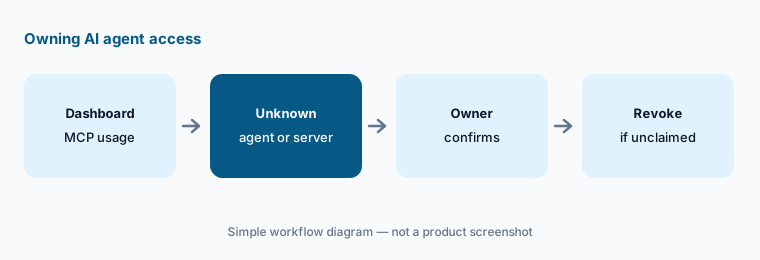
Name an owner for every agent:
Open the AI Gateway dashboard and list every agent and MCP server with traffic last month. Write an owner next to each, and ask owners to approve or revoke anything nobody claims.
4. MCP Server for Users: off until you decide
What it is: The 30 September notes add the JumpCloud MCP Server for Users, which lets users connect their preferred AI clients to supported User Portal capabilities over OAuth sessions, so they can do routine tasks without leaving their AI tool. Admins turn it on under Settings > JumpCloud AI (toggle MCP Server for Users), can review and revoke active client sessions, and can set an automatic expiration window; users can see and revoke their own sessions under Security > JumpCloud MCP in the User Portal. The notes don’t list which User Portal tasks are supported, so check JumpCloud’s get-started article before deciding.
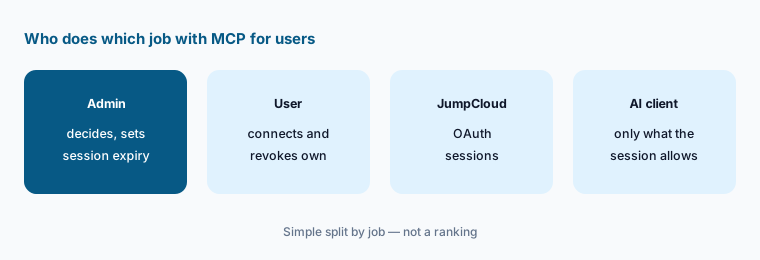
Decide before you toggle:
Before turning on MCP Server for Users, write which AI clients are approved, the session expiry you want, and who reviews active sessions each month. Have the IT lead and security approve, then pilot with one group.
5. Patch dashboards and the Windows patch report
What it is: On 24 September Patch Management gained a unified dashboard with Overview, Apple, and Windows tabs: pending updates by severity, devices with failures, the age of missing updates, a KB-centric Windows list where admins can approve awaiting updates, retry failed installs, and export to CSV or JSON, bulk remediation of missing critical patches, and Apple OS rollout progress against update policies. On 21 September a Device Patch Report (Windows) arrived, with installed, pending, and failed status per KB per device, a 500-row preview, and a full CSV export. Bulk remediation is a device action, so the person who owns patching approves it.
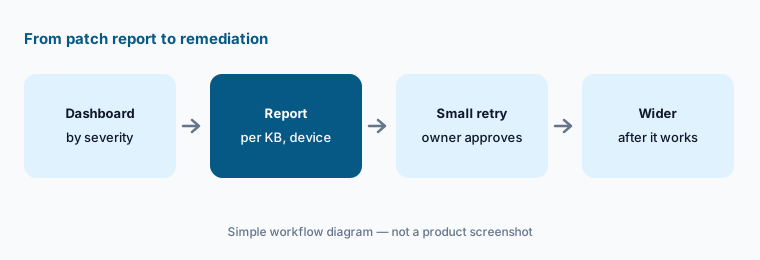
Small retry first:
Export the Device Patch Report (Windows), list the KBs failing on more than five devices, and ask the patch owner to approve a retry on a small group before any bulk remediation.
6. Also in September: Password Vault, risk policies, devices
What it is: On 9 September Password Vault arrived across the Admin Portal, User Portal, the JumpCloud Go browser extension (required for Vault autofill), and the JumpCloud Protect mobile app. On 30 September JumpCloud added Custom Risk Policies for Access Risk, a Custom Banned Password List, automatic JumpCloud Go registration for managed devices bound to a user, User Portal folders, asset visibility and acknowledgement in the User Portal, and App Settings Privacy policies for Apple devices on macOS, iOS, and iPadOS 27. Other dated entries: Dormant Application Access now flags a return after inactivity rather than first-time access (25 September), Android policy expansion (29 September), version updates for Private Repository apps (18 September), and refreshed Settings tabs (7 September).
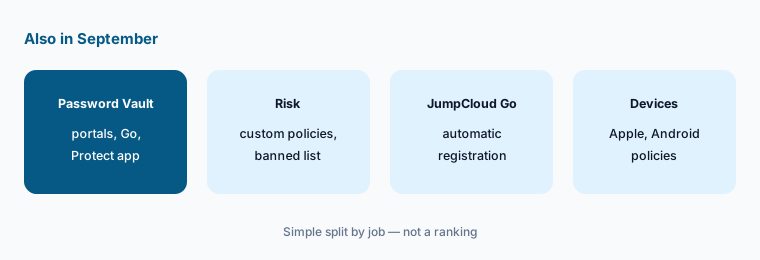
One owner per change:
Pick three of the other September changes your team would use. For each, name an owner, a pilot group, and a review date, and have the IT lead approve before anything is turned on for everyone.
Pricing context (October 2026)
September’s release notes didn’t mention price changes. JumpCloud publishes per-user prices on its pricing page; as of 7 October 2026: Device Management $9 per user per month billed annually ($11 monthly), SSO $11 ($13), and Device Identity Management $13 ($15). The Platform Essentials, Platform, and Platform Prime packages were contact-sales, with the full AI & SaaS Management set listed in Platform Prime. We found no separate price for the AI Assistant, the AI Gateway, or the MCP Server for Users.
For our dated notes on JumpCloud’s AI features and packaging, see the JumpCloud AI review.
Uncertainty: We read only JumpCloud’s 2026 release-notes page and pricing page on 7 October 2026. Agent Identities was a public preview when introduced, and plan availability for the AI features isn’t spelled out on the pricing page — check your Admin Portal and the live notes. This is product education, not security advice for your environment.
When it’s useful (honest take)
Useful when you administer JumpCloud and want September’s changes with an owner and an action for each, especially the ones that touch AI agents, MCP, and patching.
Useful when you are deciding whether to let users connect AI clients to JumpCloud, or what to upload to the AI Assistant.
Less useful when you want a review of JumpCloud as a whole — read JumpCloud AI — or you don’t use the AI Assistant, AI Gateway, or Patch Management.
Paying for JumpCloud and a few other AI tools? The $9 AI toolkit spreadsheet lists every AI subscription you have, what each one costs, and how fast it pays for itself, so you can see which ones are worth the money.
Want someone to do it for you? AI toolkit audit — $19
Related options (educational)
| Need | Better home | Why |
|---|---|---|
| Full review of JumpCloud’s AI features | JumpCloud AI | Not a changelog |
| Another IT tool’s September changes | What’s new in Zluri (Sep 2026) | Same format |
| Device and patch tools with AI | NinjaOne vs Atera · Jamf AI | Device actions approved in the RMM or MDM |
| SaaS and shadow-AI discovery | Torii · Zluri | Seat and app sprawl |
| Inventory IT AI seats | Stack map for IT ops | Jobs, tools, overlaps |
FAQ
What did JumpCloud change in September 2026?
Per JumpCloud’s 2026 release notes: AI Assistant knowledge-base uploads, an AI Gateway dashboard, an agent client authentication setting, the MCP Server for Users, Patch Management dashboards and a Windows patch report, Password Vault across portals and apps, Custom Risk Policies, a Custom Banned Password List, automatic JumpCloud Go registration, and several device-policy updates.
What can I upload to the JumpCloud AI Assistant?
Per the 16 September notes: PDF, TXT, DOCX, and MD files, up to 10 MB each and 25 per organization, into a private, org-scoped knowledge base. Remove secrets first — the assistant quotes the source document in its answers.
Is the MCP Server for Users on by default?
The notes say admins enable it under Settings > JumpCloud AI by toggling MCP Server for Users, can review and revoke sessions, and can set an automatic expiration window. Users can revoke their own sessions in the User Portal.
Who should approve patch remediation?
The person who owns patching. The new dashboard lets admins approve awaiting updates, retry failed installs, and run bulk remediation; retry on a small group first.
Did JumpCloud change prices in September 2026?
The notes don’t mention price changes. As of 7 October 2026 the pricing page listed Device Management at $9 per user per month billed annually, SSO at $11, and Device Identity Management at $13, with packages through sales.
Optional next step (if seats overlap)
If IT pays for JumpCloud’s AI features, a separate SaaS-management tool, and chat assistants that all answer the same how-do-I questions, fix that overlap before adding another seat. Map the overlap with the $19 AI toolkit audit or the $9 AI toolkit spreadsheet. Email Audit $19 or Toolkit spreadsheet $9.
Checkout is live via Stripe. After you pay, we email delivery (spreadsheet) or intake next steps (audit).