Role guide · Field service ops · Gemini · Workspace · Oct 2026
Gemini for field service ops (Oct 2026): Sheets routing logs, Docs SOPs, and Gmail customer updates
Field service ops role guide for dispatchers and service coordinators whose company runs on Google Workspace — Gemini lists overlapping stops in a sanitized routing log in Sheets, turns approved procedures into SOP drafts in Docs, and drafts running-late and parts-on-order updates in Gmail. You check ten rows by hand before anyone moves a job, the dispatcher makes every schedule change in the FSM, the service manager approves every SOP, and a named person sends every customer email. Companion to ChatGPT for field service ops.
Who this guide is for
Dispatchers, service coordinators, and office managers at trade and facilities companies — the person who exports tomorrow’s routes into a Sheet to look for problems, keeps the warranty-callback procedure in a Doc, and emails customers when a tech is running late or a part is on order — at a company that already pays for Google Workspace. The goal is a faster first pass on the Sheet and cleaner drafts, not an AI that dispatches. If your FSM already flags conflicts on its own dispatch board or drafts customer messages from the live job, use that first: see ServiceTitan AI, Jobber AI, Housecall Pro AI, or Dynamics 365 Field Service AI. If your team drafts in ChatGPT instead, see ChatGPT for field service ops.
What Google documents (its Gemini in Sheets, Gemini in Docs, and Help me write help pages and its pricing page, read 12 October 2026): in Sheets, the Ask Gemini side panel can create tables and formulas, analyze the sheet, and take actions — conditional formatting, pivot tables, sorting, and filters — each shown first as an action preview card you Apply, with Undo. In Docs, Gemini proposes edits as suggestions you accept or reject, and you can add your own files as Sources. In Gmail, Help me write drafts or polishes a message and can pull details from your other emails and Drive files. Google’s pricing page lists Gemini in Gmail on every Business plan, and Gemini in Docs and Sheets on Business Standard and above.
Ground rules for every section below: Gemini never books, moves, or cancels a job, never assigns a technician, and never sends a customer message. It lists, drafts, and suggests; the dispatcher makes each change in the FSM, the service manager approves procedures, and a named person sends each email. Work from a sanitized copy of the routing export — stop ID, job type, technician code, arrival window, planned start, and duration — with no customer names, phone numbers, street addresses, gate codes, or payment details. A drafted SOP is not a licensed technician’s judgment, and vendor figures about drive time or callbacks are the vendor’s claims, not our measurement.
Major features (with how someone uses them)
Examples at a glance: each feature has a concrete example from a real job plus a short Try this you can run this week.
1. Routing Sheet: stops that overlap by more than 30 minutes (primary)
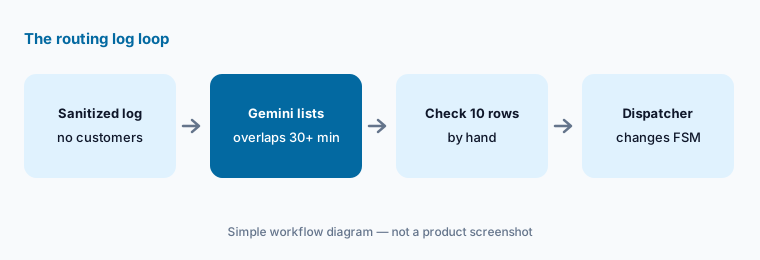
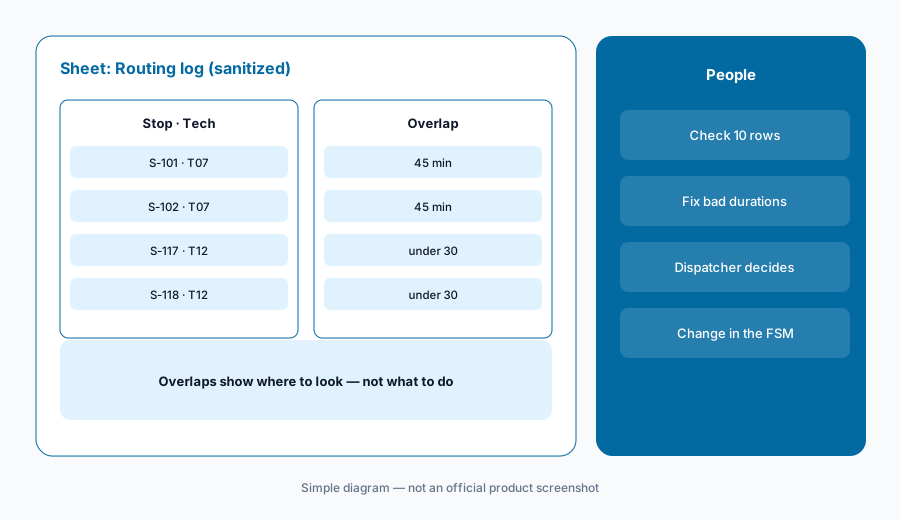
What it is: Export tomorrow’s visits from the FSM, open them as a native Google Sheet (Google’s help page says Gemini works best with native Sheets files, so save an .xlsx as Google Sheets first), and strip it down to stop ID, job type, technician code, planned start, and planned duration — no names or addresses. Then open Ask Gemini and ask it to list stops for the same technician whose planned times overlap by more than 30 minutes, with the size of each overlap. Ask for the formula it used as well, so the check can be repeated tomorrow. Before anyone touches the schedule, check ten rows by hand against the export: pick some it flagged and some it didn’t.
An overlap in the Sheet is a question, not a decision. Two stops can overlap on paper because one is a five-minute filter drop on the same street, because a helper is riding along, or because the export rounded a duration. The dispatcher knows which, and the dispatcher makes the change in the FSM — the Sheet is a copy, not the schedule.
Primary workflow:
In a sanitized routing Sheet, ask Gemini to list stops that overlap by more than 30 minutes. Check ten rows by hand.
2. Sheet actions: highlight, sort, and a decision column
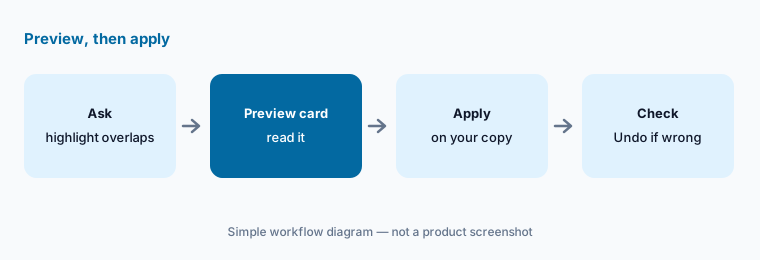
What it is: On your own copy, ask the side panel to highlight the overlapping rows, sort by technician and planned start, and add a Dispatcher decision column with values such as Leave, Move later, Swap tech, and Call customer. Each change arrives as an action preview card; click Apply, look at the result, and use Undo if it touched the wrong rows. Google’s help page says the side panel’s conversation history is lost when you reload the browser, close the file, or go offline — keep the overlap list in the Sheet itself, not only in the chat.
Watch the sharing warning. Google says Sheets shows a message that content added by Gemini may be visible to users outside your domain when the file has an outside viewer or editor, or was created by someone outside your domain. Route sheets shared with a subcontractor or a property manager often qualify — copy the data into a file your company owns before you prompt.
Preview before Apply:
On a copy of the sanitized routing Sheet, ask Gemini to highlight overlapping stops and add a Dispatcher decision column. Read each preview card before Apply and Undo anything that touches on-call or standby rows.
3. SOP drafts in Docs from approved sources
What it is: Field-service SOPs drift: the warranty-callback steps live in one person’s head, the startup checklist is a photo of a clipboard. In Docs, add the approved sources — the manufacturer’s installation manual section, the current company procedure, last quarter’s callback notes with customer details removed — as Sources, and ask Gemini for an SOP draft: numbered steps, the source section under each step, and a list of anything a tech would need that the sources don’t cover. Google’s Docs help page says Gemini shows its edits as suggestions you accept or reject. The service manager approves the SOP before it becomes a checklist in the FSM.
Mark, don’t fill. Ask Gemini to label any step it cannot tie to a source as “Not in sources — manager to confirm.” Safety steps — lockout, gas, refrigerant handling, electrical isolation — come from the manufacturer and your licensed lead, never from a draft. The same rule runs through Procore AI and Buildertrend AI: a drafted document isn’t accurate until its owner checks it.
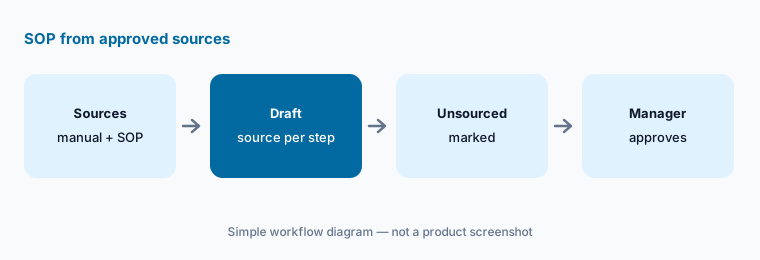
Source every step:
Add one approved procedure and one manual section as Sources in Docs and ask Gemini for an SOP that names the source under every step. Have the service manager confirm every step marked not in sources before it goes into the FSM.
4. Customer updates in Gmail that a person sends
What it is: For running-late, parts-on-order, and next-visit emails, open a draft to the customer and use Help me write with only the facts you already checked in the FSM — the new arrival window, what the part is waiting on, and the next step — and refine it with Formalize or Shorten. Keep the prompt itself free of names, addresses, and account details; the To line and greeting are yours to fill. Google’s Gmail help page says Help me write can pull details from your other emails and Drive files to personalize a draft, and that Sources shows which ones it used. Click it before sending: in a shared office inbox, the wrong thread can carry another customer’s details into this email.
Never promise what the FSM doesn’t show. If the draft says “the technician will arrive by 2 p.m.” and the dispatch board says 2–4 p.m., the dispatch board wins. A named coordinator reads every update and sends it; Gemini never sends.
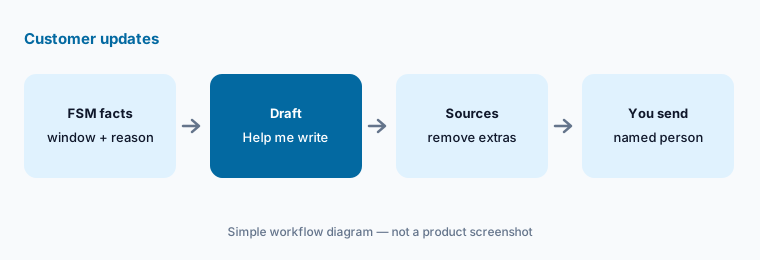
Draft, check Sources, send yourself:
Write one running-late update with Help me write using only the new arrival window and the reason. Open Sources, delete anything Gemini pulled from another customer’s thread, confirm the window in the FSM, then send it yourself.
5. Weekly callback review in Sheets
What it is: Callbacks — a return visit for the same problem — are where SOP gaps show up. Export last month’s callbacks with job type, equipment category, technician code, days since the first visit, and the reason code the office already assigned; no customer columns. Ask Gemini for a pivot of callbacks by job type and reason code, and a short list of the three largest groups. The service manager reads the list next to the SOPs from section 3 and decides what changes: a step, a part stocked on the truck, or a training conversation that happens in person, not in a Sheet.
Technician codes are there to group work, not to rank people. If a single technician’s callbacks stand out, that is a conversation for the service manager with the full job history in the FSM, not a column to share with the office.
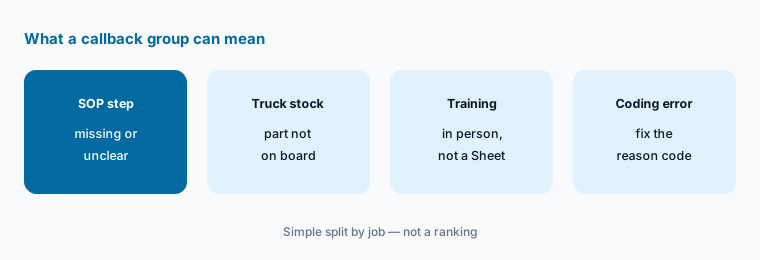
Group, check, decide:
Paste last month’s sanitized callbacks into a Sheet and ask Gemini for a pivot by job type and reason code. Check ten rows against the FSM before the service manager decides any SOP or stocking change.
6. Plan and data check before you start
What it is: Two checks first. The plan: Google’s pricing page lists Gemini in Gmail on every Business plan but Gemini in Docs and Sheets only on Business Standard and above, so a coordinator on Business Starter gets Help me write but not the routing-Sheet work in sections 1, 2, and 5. The account: routing and customer work belongs in the company Workspace account, never a personal Gmail. Google’s generative AI privacy page says your data is not reviewed by humans or used for generative AI model training outside your domain without permission — a statement about the company account, not about personal accounts or Workspace Experiments.
Then decide which system owns each job. Customer records and the live schedule belong in the FSM; fleet routes and driver coaching in telematics such as Samsara or Geotab; work orders for your own equipment in a CMMS such as MaintainX. A Sheet copy is a second home for the same job — that overlap is what the Stack map for field service ops is for.
Plan and account check:
List each person who handles routing or customer emails, their Workspace edition, and whether they have used a personal account for it. Move the work to Business Standard or above and delete personal copies before you start.
Pricing context (October 2026)
On Google’s Workspace pricing page (as listed 12 October 2026, USD, per user per month, not including tax): Business Starter $7; Business Standard $14; Business Plus $22; Enterprise through sales. The page showed a 16% saving with a one-year commitment, a 300-user maximum on the three Business plans, and a new-customer introductory offer that has changed since last week — on 12 October it read 30% off the first three months on Starter and 50% off on Standard and Plus, for the first 20 users.
What matters for this guide: the same page lists Gemini in Gmail and Vids on every plan (Starter shows Gemini in Workspace apps as “Limited”), and Gemini in Docs, Sheets, Drive, Meet, and Chat on Business Standard and above. Google lists no field-service-specific Gemini package, and we did not verify standalone Gemini Enterprise prices today, so none are quoted here. Dated notes on Gemini plans are on the Gemini deep-dive.
Uncertainty: Google’s introductory and promotional prices change often (this one changed between 11 and 12 October 2026) and vary by country and currency. The Sheets help page we read is labelled as the Workspace Experiments version, so the exact panel and actions you see depend on your plan, admin settings, and rollout. We did not test Gemini against any specific FSM’s export format. Overlap logic in a Sheet copy can disagree with the FSM’s own dispatch rules; the FSM is the schedule.
When it’s useful (honest take)
Useful when your office already works in Google Workspace on Business Standard or above, route and callback exports can be sanitized, and a dispatcher checks every flagged row before anything moves.
Useful when SOPs live in Docs and customer updates go out by email, and you want the same checked facts in every update.
Less useful when your FSM already flags conflicts and drafts customer messages from the live job, exports can’t be stripped of customer details, or anyone expects Gemini to dispatch, quote, or send.
Paying for Gemini and a few other AI tools? The $9 AI toolkit spreadsheet lists every AI subscription you have, what each one costs, and how fast it pays for itself, so you can see which ones are worth the money.
Want someone to do it for you? AI toolkit audit — $19
Related options (educational)
| Need | Better home | Why |
|---|---|---|
| Quote outlines from a sanitized pricebook | ChatGPT for field service ops | A Business workspace project |
| Conflicts and messages inside the FSM | ServiceTitan AI · Jobber AI | Live schedule, its own permissions |
| Routes and driver coaching | Samsara vs Motive · Geotab AI | Telematics, not a Sheet |
| September changes in your FSM | ServiceTitan · Jobber | Dated notes |
| Inventory every field-ops AI seat | Stack map for field service ops | Jobs, tools, owners, overlaps |
FAQ
How should a dispatcher start with Gemini?
Start with a sanitized routing export in a native Google Sheet: stop ID, job type, technician code, planned start, and duration, with no customer details. Ask Gemini to list same-technician stops that overlap by more than 30 minutes and check ten rows by hand. The dispatcher makes any change on the FSM’s dispatch board.
Can Gemini send customer updates or move appointments for us?
Not in this guide. Gemini drafts with Help me write; a named coordinator checks the facts in the FSM, opens Sources, reads the email, and sends it. Schedule changes happen in the FSM, made by the dispatcher.
Which Workspace plan do we need for Gemini in Sheets?
As listed on 12 October 2026, Google’s pricing page shows Gemini in Docs and Sheets on Business Standard ($14 per user per month), Business Plus ($22), and Enterprise, but not on Business Starter ($7), which gets Gemini in Gmail. Check workspace.google.com/pricing before budgeting.
Is our routing data used to train Gemini?
Google’s privacy page says Workspace data is not reviewed by humans or used for generative AI model training outside your domain without permission. That covers the company account; personal accounts and Workspace Experiments have different terms. See Google’s generative AI privacy page.
What if someone pastes customer addresses or phone numbers into a prompt?
Delete the copy, tell the office manager or whoever owns customer data, and re-export a sanitized file. Deleting a prompt doesn’t undo the exposure. Customer records belong in the FSM and CRM; the Sheet should hold stop IDs and technician codes only.
Optional next step (if seats overlap)
If field ops pays for Gemini, a chat assistant, an FSM with its own AI, and a telematics platform that all look at the same routes and draft the same customer messages, fix that overlap before adding another seat. Map the overlap with the $19 AI toolkit audit or the $9 AI toolkit spreadsheet. Email Audit $19 or Toolkit spreadsheet $9.
Checkout is live via Stripe. After you pay, we email delivery (spreadsheet) or intake next steps (audit).