Role guide · Learning ops · Gemini · Workspace · Oct 2026
Gemini for learning ops (Oct 2026): Docs, Sheets, and Gmail help for training coordinators
Learning ops role guide for training coordinators whose company runs on Google Workspace — Gemini groups a sanitized training log by team, turns approved source documents into a course outline in Docs, and drafts the reminder emails team leads get about overdue courses. You check twenty rows by hand before anyone acts on a grouping, the course owner approves every outline, and a named person sends every email. Companion to ChatGPT for learning ops.
Who this guide is for
Training coordinators, L&D generalists, and enablement coordinators — the person who exports completions from the LMS into a Sheet every Monday, writes course outlines in Docs before anything gets built, and emails team leads when mandatory training is overdue — at a company that already pays for Google Workspace. The goal is a faster first pass on the Sheet and cleaner drafts, not an AI that decides who needs training. If your team drafts in ChatGPT instead, see ChatGPT for learning ops. If the LMS itself has an AI assistant that can answer the same questions inside the platform — Docebo AI or 360Learning AI, for example — check that first. People-team neighbours: Gemini for HR and Stack map for people ops.
What Google documents (its Gemini in Sheets, Gemini in Docs, and Help me write help pages and its pricing page, read 11 October 2026): in Sheets, the Ask Gemini side panel can build tables and formulas, summarize the sheet, and take actions — conditional formatting, pivot tables, dropdowns, sorting, and filters — each shown first as an action preview card you Apply, with Undo. In Docs, Gemini writes or refines text as suggestions you accept or reject, and you can add your own files as Sources. In Gmail, Help me write drafts or polishes a message. Google’s pricing page lists Gemini in Gmail on every Business plan, and Gemini in Docs and Sheets on Business Standard and above.
Ground rules for every section below: Gemini never assigns training, marks anyone compliant, or sends a reminder. It groups, drafts, and suggests; the course owner approves content, the team lead decides what happens about an overdue course, and a named person sends each email. Work from a sanitized copy of your training log — team, course, due date, and status, with a row number in place of each person’s name. Never paste employee names, performance notes, HR cases, assessment results tied to a person, or customer data. Vendor figures about completion or time saved are the vendor’s claims, not our measurement, and completion is not competence: a finished course says nothing about whether the work is done right.
Major features (with how someone uses them)
Examples at a glance: each feature has a concrete example from a real job plus a short Try this you can run this week.
1. Training log Sheet: overdue courses by team (primary)
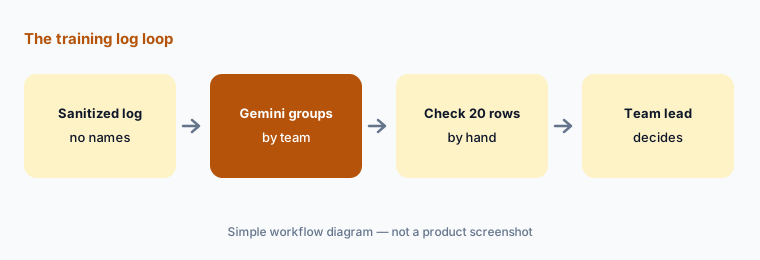
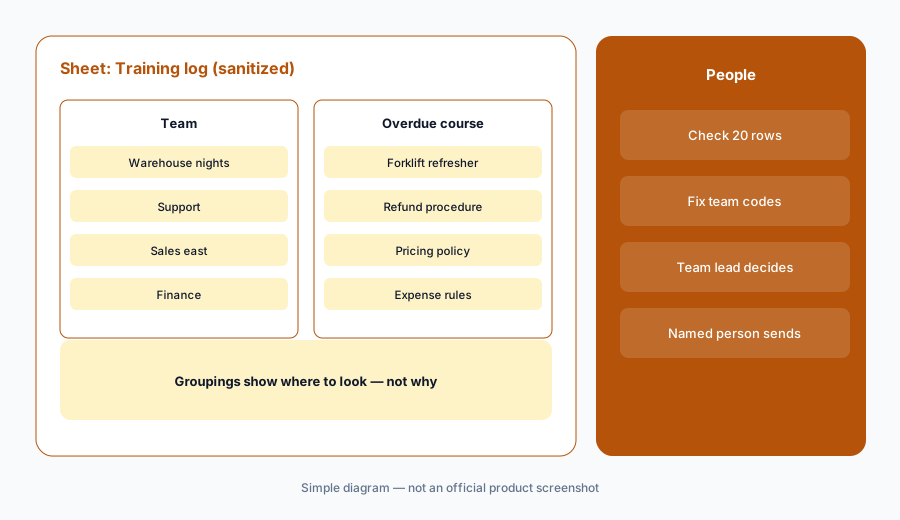
What it is: Export last month’s assignments from the LMS, open them as a native Google Sheet (Google’s help page says Gemini works best with native Sheets files, so convert an .xlsx first), and strip it down: keep team, course, due date, and status, and replace each name with a row number. Then open Ask Gemini and ask it to group the overdue courses by team — a pivot table or a filtered summary showing each team, each overdue course, and how many rows. Before anyone emails a team lead, check twenty rows by hand against the original export, picked from the top, middle, and bottom. The grouping tells you where to look; it doesn’t tell you why a course is late.
Overdue is a status, not a verdict. A course can show as overdue because someone joined last week, changed teams, is on leave, or was assigned the wrong version — which is exactly why the team lead, not the Sheet, decides the follow-up. If the export has several tabs, Google’s help page describes a dropdown in the prompt box for choosing which tabs Gemini looks at; pick only the sanitized one.
Primary workflow:
In a sanitized training tracker Sheet, ask Gemini to group overdue courses by team. Check twenty rows by hand.
2. Sheet actions: highlights, status dropdowns, filters
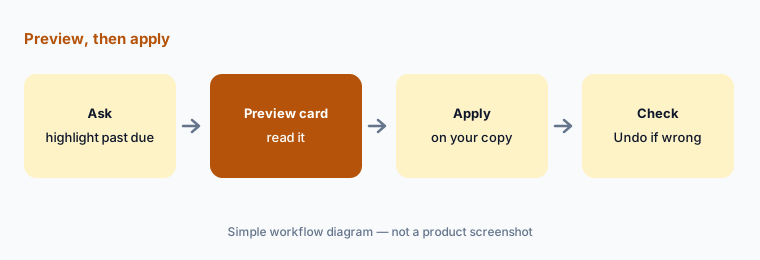
What it is: The same panel can do the bookkeeping on your own copy. Ask it to highlight rows whose due date has passed, add a Follow-up dropdown with values such as Not contacted, Lead emailed, Extension agreed, and Reassigned, and filter to one region. Each change arrives as an action preview card; click Apply, look at the result, and use Undo if it’s wrong. Google’s help page also says the side panel’s conversation history disappears when you reload the browser, close the file, or go offline, so insert anything you want to keep into the Sheet itself.
Watch for the sharing warning. Google says Sheets shows a message that content added by Gemini may be visible to users outside your domain when the file has an outside viewer or editor, or was created by someone outside your domain. Training exports shared by an outside training provider or a partner portal can carry that flag — copy the data into a file your company owns before you prompt.
Preview before Apply:
On a copy of your sanitized log, ask Gemini to highlight past-due rows and add a Follow-up dropdown. Read each preview card before Apply, and Undo anything that touches rows marked Waived or Exempt.
3. Course outlines in Docs from approved sources
What it is: When a team asks for a new course, the outline is where mistakes are cheapest to fix. In Docs, add the approved source documents — the current procedure, the policy, last year’s course notes — as Sources, and ask Gemini for an outline: modules, one learning objective each, and which source section each module comes from. Google’s Docs help page says Gemini shows its edits as suggestions you accept or reject. Ask it to mark any module it can’t tie to a source, then send the outline to the course owner, who approves or cuts each module before anyone builds slides, video, or quizzes.
An outline drafted from sources is still a draft. Procedures change faster than documents, so the person who does the work checks whether each step still matches reality — the same rule our Articulate 360 AI and Easygenerator AI reviews apply to AI-built courses.
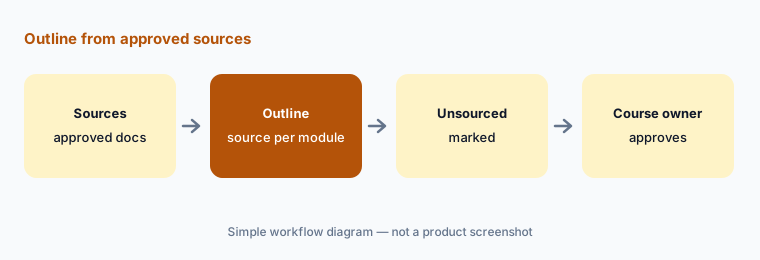
Outline with sources named:
Add one approved procedure as a Source in Docs and ask Gemini for a course outline that names the source section under every module. Send it to the course owner and build nothing they haven’t approved.
4. Reminder emails in Gmail that a person sends
What it is: For overdue training, email the team lead, not the whole team. Open a draft to the lead, use Help me write with the facts you already checked — course name, due date, how many people, and the agreed next step — and refine it with Formalize or Shorten. Google’s Gmail help page says Help me write can pull details from your other emails and Drive files to personalize a draft, and that Sources shows which ones it used. Click it before you send: a reminder should hold only what you put there on purpose. Then you read it and you send it.
Keep reminders about the course, not the person. No names of individuals who are behind, no reasons someone gave you in confidence, and no comparisons between teams in an email that will be forwarded.
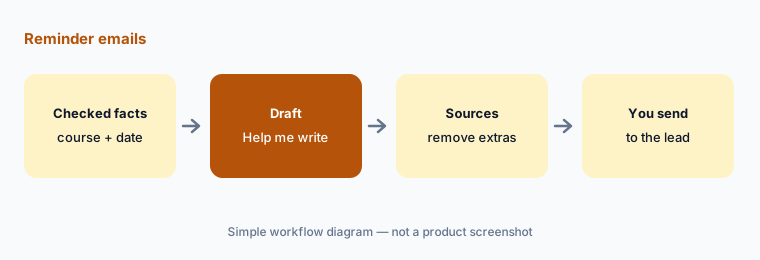
Draft, check Sources, send yourself:
Write one overdue-course reminder to a team lead with Help me write, using only the course, due date, and head count. Open Sources, remove anything Gemini pulled in that you didn’t choose, then send it yourself.
5. Sort training requests with the AI function (if you have it)
What it is: Training requests often arrive as free text in a form: “new hires don’t know the returns system,” “can we get Excel training.” Google’s AI function help page describes =AI() (also =Gemini()), which can categorize a cell or range — for example into your own fixed list: new course, update existing course, job aid, coaching, or not a training need. Run it only on request text with names and team details removed, and give it your categories in the prompt rather than letting it invent them.
Read the limits before you rely on it. Google says the function is currently available only to users in Workspace Experiments and Beta programs, it can’t be undone (you regenerate instead), its edits are attributed to you in version history, and it has generation limits. If “AI function not available” appears, the side panel from section 1 is the fallback. Either way, the L&D lead decides which requests get a course; a category is a suggestion.
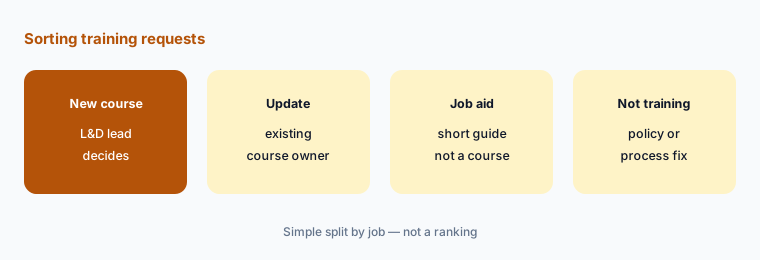
Fixed categories only:
Paste ten anonymized training requests into a Sheet and ask Gemini to sort each into new course, update existing course, job aid, coaching, or not a training need. Have the L&D lead check every one before planning.
6. Plan and data check before you start
What it is: Two checks save a lot of confusion. First, the plan: Google’s pricing page lists Gemini in Gmail on every Business plan but Gemini in Docs and Sheets only on Business Standard and above, so a coordinator on Business Starter gets Help me write but not the Sheet grouping from section 1. Second, the account: learning data belongs in the company Workspace account, not a personal Gmail. Google’s generative AI privacy page says Workspace data is not reviewed by humans or used for generative AI model training outside your domain without permission — a statement about the company account, not about personal accounts or Workspace Experiments.
Then decide where each learning-ops job lives. If the LMS already has an AI assistant that answers “who is overdue” inside the platform with its own permissions, a Sheet copy may be the second home for the same job — that overlap is what the Stack map for learning ops is for.
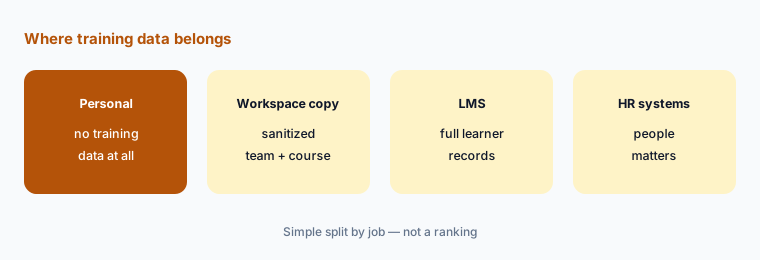
Plan and account check:
List each person who handles training data, their Workspace edition, and whether they have ever used a personal account for it. Move the work to Business Standard or above and delete personal copies before you start.
Pricing context (October 2026)
On Google’s Workspace pricing page (as listed 11 October 2026, USD, per user per month, not including tax): Business Starter $7; Business Standard $14; Business Plus $22; Enterprise through sales. The page also showed a new-customer introductory offer (50% off the first three months on Starter, 20% off on Standard and Plus, for the first 20 users), a 16% saving with a one-year commitment, and a 300-user maximum on the three Business plans.
What matters for this guide: the same page lists Gemini in Gmail on every plan (Starter shows Gemini in Workspace apps as “Limited”), and Gemini in Docs, Sheets, Drive, and Meet on Business Standard and above. It also lists Gemini in Vids on every plan, which matters if you make training videos — a separate job from this guide; see Synthesia and Colossyan for video tools. Dated notes on Gemini plans are on the Gemini deep-dive.
Uncertainty: Google’s introductory and promotional prices change often and vary by country and currency. The Sheets help page we read is labelled as the Workspace Experiments version, and the AI function page says the function is limited to Experiments and Beta participants, so what you see depends on your plan and admin settings. Gemini features roll out gradually. We did not test Gemini with your LMS export format. This is product education, not HR, legal, or compliance advice.
When it’s useful (honest take)
Useful when your training team already works in Google Workspace on Business Standard or above, completions arrive as exports you can sanitize, and a person checks every grouping and draft before anyone acts.
Useful when course outlines start in Docs and overdue reminders go to team leads by email, and you want the same facts in every reminder.
Less useful when the LMS’s own AI already answers the same questions with proper permissions, the work would end up in personal accounts, or anyone expects Gemini to decide who needs training or who is competent.
Paying for Gemini and a few other AI tools? The $9 AI toolkit spreadsheet lists every AI subscription you have, what each one costs, and how fast it pays for itself, so you can see which ones are worth the money.
Want someone to do it for you? AI toolkit audit — $19
Related options (educational)
| Need | Better home | Why |
|---|---|---|
| Quiz drafts and outlines from one approved policy | ChatGPT for learning ops | A Business workspace project |
| Overdue lists inside the platform | Docebo AI or 360Learning AI | LMS assistant with its own permissions |
| Course drafts and quizzes from documents | Articulate 360 AI or Easygenerator AI | Authoring tool, SME review |
| September changes in your LMS | Docebo · 360Learning | Dated notes |
| Inventory every learning-ops AI seat | Stack map for learning ops | Jobs, tools, owners, overlaps |
FAQ
How should a training coordinator start with Gemini?
Start with a sanitized training log in a native Google Sheet: team, course, due date, status, and a row number instead of each name. Ask Gemini to group overdue courses by team and check twenty rows by hand. Then draft outlines in Docs from approved sources and reminders in Gmail that you send yourself.
Can Gemini send training reminders for us?
Not in this guide. Gemini drafts with Help me write; a named person checks Sources, reads the email, and sends it — to the team lead, about the course, without naming individuals who are behind.
Which Workspace plan do we need for Gemini in Sheets?
As listed on 11 October 2026, Google’s pricing page shows Gemini in Docs and Sheets on Business Standard ($14 per user per month), Business Plus ($22), and Enterprise, but not on Business Starter ($7), which gets Gemini in Gmail. Check workspace.google.com/pricing before budgeting.
Is our training data used to train Gemini?
Google’s privacy page says Workspace data is not reviewed by humans or used for generative AI model training outside your domain without permission, and Gemini works within existing Workspace data controls. That covers the company account; personal accounts and Workspace Experiments have different terms. See Google’s generative AI privacy page.
What if someone pastes employee names or performance notes into Gemini?
Tell the data owner and your HR or privacy lead, and delete the copy. Deleting a prompt doesn’t undo the exposure. Work only from sanitized logs, keep people matters in HR systems, and keep full learner records in the LMS.
Optional next step (if seats overlap)
If learning ops pays for Gemini, a chat assistant, an authoring tool’s AI, and an LMS assistant that all draft the same outlines and reminders, fix that overlap before adding another seat. Map the overlap with the $19 AI toolkit audit or the $9 AI toolkit spreadsheet. Email Audit $19 or Toolkit spreadsheet $9.
Checkout is live via Stripe. After you pay, we email delivery (spreadsheet) or intake next steps (audit).