Tool · User research · UserTesting · Oct 2026
UserTesting AI review (Oct 2026): AI insight summaries for video-based user research
UserTesting is a video-first research platform: participants from its panel record themselves using your site, app, or prototype and thinking out loud, or join a live conversation. Its AI now writes insight summaries across sessions, marks friction, sentiment, and smart tags in the video player, drafts tests with AI-powered test creation, answers questions across studies with Insights Discovery, and — in betas — moderates follow-ups and connects to AI tools through an MCP server. This page is about using those features to watch less video without trusting a summary you haven’t checked: researchers watch the clips behind every claim. Each section has a Try this.
What this UserTesting page covers
This page is for a UX researcher, CX lead, or product manager in a company that already buys UserTesting — or is weighing it — and wants to know what the AI does to the hours spent watching session videos. The question it answers: which AI features shorten analysis, which only help you find the right moment faster, and where a person still has to watch the clip before a finding goes into a report.
UserTesting’s naming is current as of 9 October 2026. Its Knowledge Base splits the AI into two kinds. Generative features — AI insight summaries at task and test level, Insights Discovery, AI-powered test creation, AI survey themes, AI report summaries, and AI-enriched video upload — can be switched off if your organization opts out of generative AI. Non-generative machine learning — friction detection, sentiment analysis, smart tags, sentiment and intent paths, keyword maps, and question recommendations — stays on as part of the core platform. Two newer items are betas: AI Moderation (closed beta, article dated 22 September 2026) and the UserTesting MCP (open beta, updated 5 October 2026). UserTesting also acquired User Interviews, the participant recruitment company, on 7 January 2026; User Interviews says it remains available on its own.
Ground rules: AI never launches a test or publishes findings without a named researcher approving it; participant personal data stays out of general chat tools; and an AI-written theme is never presented as a participant’s words — only what you hear in the clip counts. UserTesting’s own Knowledge Base says customers remain responsible for reviewing AI-generated outputs before using or publishing them. Everything below comes from UserTesting’s plans page, AI page, press release, and Knowledge Base as read on 9 October 2026; no third-party price estimates.
Major features (with how someone uses them)
Examples at a glance: each feature has a concrete example from a real job plus a short Try this you can run this week.
1. AI insight summaries, then watch the friction clips (primary)
What it is: In UserTesting’s updated experience, AI-generated insight summaries appear automatically on the Results → Summary tab for completed think-out-loud tests, Interaction tests, and surveys: an overview, then the top themes, each with the number of sessions behind it and a Sources link to those sessions. The Knowledge Base notes two limits: summaries can’t be edited, and they’re generated in English only, whatever language participants spoke. In the classic experience, the AI insight summary is on demand per task from the Metrics page, for studies with up to 25 contributors, with a View source link per insight.
A theme that says “4 sessions” is a pointer, not a finding. Before you report it, watch the moments that support it — especially the biggest friction points, because those are the ones that change roadmaps. Note in your report which clips you watched; if a theme falls apart when you watch, drop it.
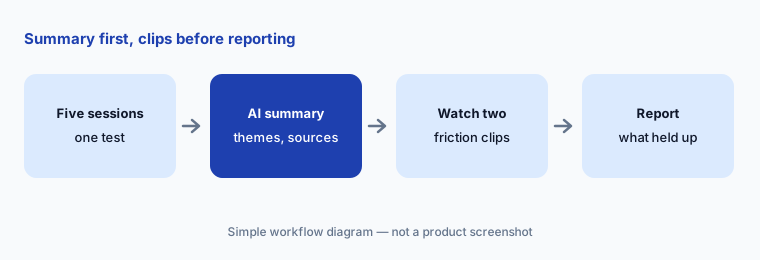
Primary workflow:
Run AI summaries on five sessions from one test. Watch the two clips it flags as biggest friction before you report them.
2. Friction detection, sentiment, and smart tags
What it is: Friction detection is a machine-learning marker for where participants had difficulty with a website or prototype; UserTesting says it relies on what people do — repeated clicks, lots of scrolling — rather than what they say. Sentiment analysis shows green and red bands under the video for positive and negative moments, and hovering shows the phrase behind each band; you can tell UserTesting when a phrase was mislabelled. Smart tags mark themes such as easy, pain point, or suggestion in video and written answers. These are non-generative features, so they stay on even if your organization opts out of generative AI. UserTesting says it improves these models with anonymized, de-identified, aggregated participant data.
Treat the markers as an index into the video. Jump to a friction marker, watch 30 seconds either side, and decide yourself whether it was confusion, a slow page, or someone exploring on purpose. Sentiment bands are useful for finding quotes; they aren’t a measure of how users feel about the product overall.
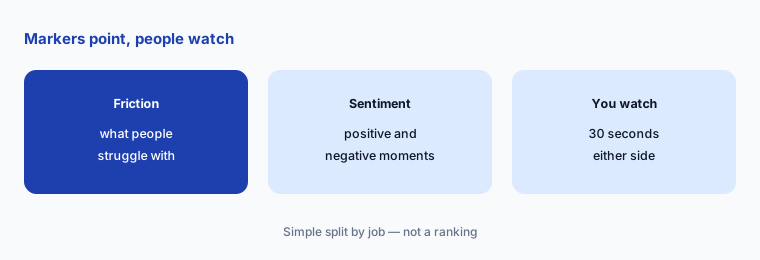
Markers as an index:
Open three sessions and watch 30 seconds around every friction marker. Write down how many were real confusion before you count markers in a report.
3. AI-powered test creation: draft, then a researcher edits
What it is: AI-powered test creation drafts a test from a goal you describe plus optional assets — a Figma prototype, a URL, or an image — and opens it in the Test Builder with instructions, tasks, and question types filled in. You can also import a prewritten test and let AI format it. UserTesting’s Knowledge Base says it is available on Ultimate, Ultimate+, and Unlimited plans with generative AI enabled, and warns: “AI generates a starting point. Always review and refine your test before launching.” The same flow powers the UserTesting for Figma plugin, which drafts a think-out-loud test from inside Figma.
Write the goal as the decision you need to make, not the feature you built. Then cut tasks that don’t serve that decision, check every question for leading wording, and run the draft yourself once. If your workspace has an approval flow (listed on Ultimate), make the researcher the approver.
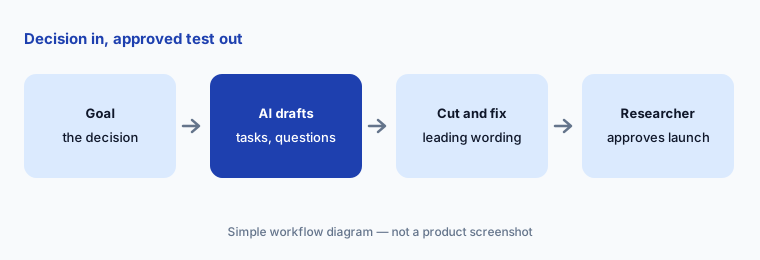
Decision first:
Write your next test goal as the decision it supports and let AI draft the test. Cut any task that doesn’t serve that decision and have a researcher approve before launch.
4. Insights Discovery: questions across past studies, with citations
What it is: Insights Discovery lets you ask natural-language questions across past research in your workspace and get answers with links to the specific video timestamp or survey theme behind them. You can narrow the scope by date range and test. Coverage depends on test type and date — for written responses, UserTesting lists new surveys, think-out-loud, and Interaction tests created August 2024 onward. It is listed on Ultimate and Ultimate+ and as an add-on on Advanced, and it is a generative feature, so it isn’t available if your organization opts out.
Insights Discovery is good at “have we studied this before?” Use it to find old evidence, then watch the cited moments. An answer that draws on two-year-old sessions about a page you’ve since redesigned is history, not a current finding — check the test dates in the citations.
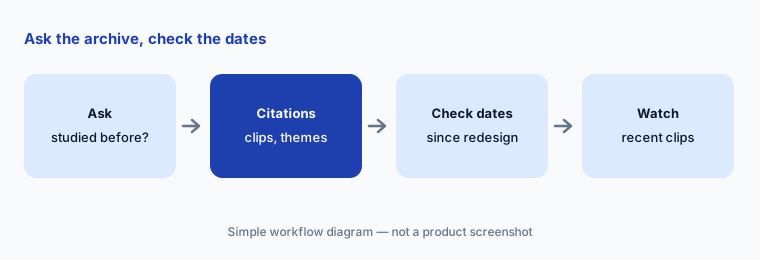
Before the next study:
Ask Insights Discovery whether your next research question has been studied before. Watch only the cited clips from after your last redesign and add them to the brief.
5. AI Moderation (closed beta): follow-ups on verbal answers
What it is: AI Moderation is a closed beta for nominated customers, switched on per account (Knowledge Base article created 22 September 2026). It adds an AI moderator to the new think-out-loud test type: the moderator reads the test aloud and, after each verbal-response question, asks up to three follow-up questions within a three-minute limit, steered by an optional prompt of up to 1,000 characters per question. At beta it supports English only, desktop sessions with the UserTesting browser extension, and isn’t available to accounts that opted out of generative AI. Participants are told before they start that the test is AI-moderated, and the follow-up audio, transcript, and themes appear with the other sessions.
UserTesting says its own safety and tone instructions win if your prompt conflicts with them, and that behavior will change during the beta. Preview every prompt, keep it to research intent rather than a script, and read the follow-ups in the first few sessions before you rely on the themes they feed.
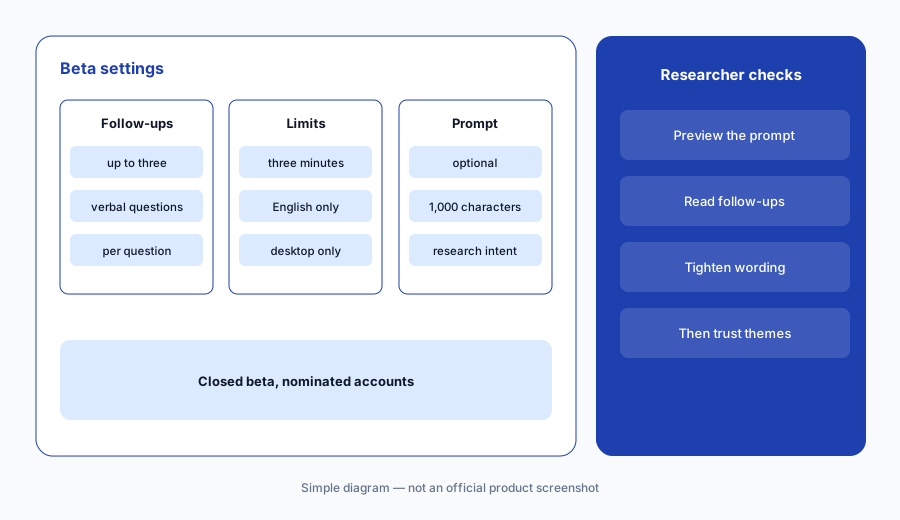
Preview the prompt:
If your account is in the beta, write a one-line research-intent prompt for one verbal question. Preview it twice and read every follow-up from the first six sessions before trusting the themes.
6. UserTesting MCP (open beta): drafts, launches, and summaries
What it is: The UserTesting MCP (open beta; article created 13 August, updated 5 October 2026) connects AI tools — UserTesting lists Claude, Claude Code, ChatGPT, Codex, Cursor, GitHub Copilot CLI, Gemini CLI, VS Code, Figma Make, and others — to your account. It can turn a plain-language description into a draft test, launch a draft as a separate step subject to your permissions and workspace approval, find tests, read test-level AI summaries with links to source tasks, and return timestamped session transcripts with video links. It can’t yet search across past research or handle Live Conversation tests. Access is by request, your account needs generative AI enabled, and sign-in is per user with your own UserTesting credentials.
Launching spends panel budget and reaches real people, so keep reviewer approval on in any workspace connected to an AI tool. Ask the AI client for drafts only, open each draft in the Test Builder, and launch from UserTesting yourself until your team trusts the flow.
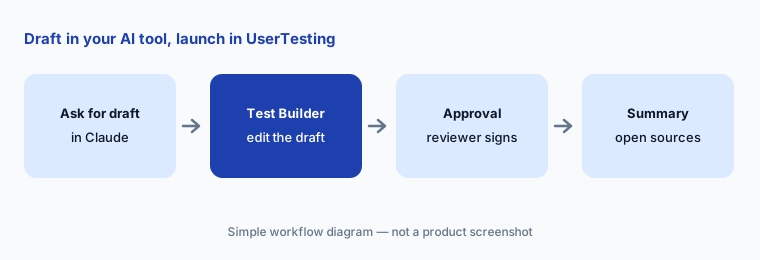
Drafts only:
Connect the UserTesting MCP with reviewer approval on. Ask your AI tool for one draft test, edit it in the Test Builder, and launch it from UserTesting yourself.
Pricing context (October 2026)
UserTesting’s plans page (as listed 9 Oct 2026) shows no prices. It offers two plan types — Test-based Consumption (pay by test usage, unlimited users, no per-seat charges) and Team-based Unlimited (unlimited tests within a defined scope, predictable pricing) — each at three editions, every one marked “Request pricing.” Advanced lists AI-generated insight summaries, sentiment analysis, transcripts, Live Conversation, and the panel across 60+ countries. Ultimate adds AI-generated test creation, AI-powered analysis and insights, smart tags, Insights Hub with AI-powered Insight Discovery, approval flow, and card sorting and tree testing. Ultimate+ adds the unlimited plan and custom insight services.
The page’s FAQ says the price varies by number of users, types, and features and points you to the account team; a trial is available on request. This is quote-only pricing, so ask for the quote to separate edition, test volume or scope, Insights Hub, the Figma plugin (included with Team-based Unlimited, an add-on otherwise), and any services.
Uncertainty: UserTesting publishes no prices. Its Sentiment analysis article still names older plans (“Ultimate edition of the Flex plan,” “Premium edition of the Seat-based plan”) for friction detection, so confirm which current edition includes it. AI Moderation is a closed beta and the MCP an open beta; both will change. Generative features disappear if your organization opts out of generative AI, while the machine-learning markers stay on. Dates are as shown in UserTesting’s Knowledge Base on 9 October 2026.
When it’s useful (honest take)
Useful when your team already watches lots of recorded sessions, needs a large panel (now including User Interviews’ recruiting), and wants summaries and markers that point straight to the moments worth watching — with a researcher who watches those moments before reporting.
Less useful when you run a few tests a year, mostly need quick unmoderated prototype checks, or want an AI that interviews without supervision. It also won’t help much if nobody will watch clips: uneditable, English-only summaries are a starting point, not a report.
Paying for UserTesting AI and a few other AI tools? The $9 AI toolkit spreadsheet lists every AI subscription you have, what each one costs, and how fast it pays for itself, so you can see which ones are worth the money.
Want someone to do it for you? AI toolkit audit — $19
Related options (educational)
| Need | Better home | Why |
|---|---|---|
| Recorded think-out-loud video with a large panel | UserTesting AI (this page) | Summaries, friction, Insights Discovery |
| Fast prototype tests and AI-moderated interviews | Maze AI | Study builder, AI Moderator |
| In-product surveys with AI themes | Sprig AI | Targeted surveys, open-text themes |
| Repository across interviews and feedback | Dovetail AI | Chat, Channels, MCP |
| Feature requests from calls and tickets | Canny AI | Autopilot inbox |
| Session replay of real product usage | Fullstory AI or LogRocket AI | Behavior at scale, not recruited tests |
FAQ
What AI features does UserTesting have in October 2026?
Generative features include AI insight summaries (task and test level), Insights Discovery, AI-powered test creation, AI survey themes, and AI report summaries. Machine-learning markers include friction detection, sentiment analysis, and smart tags. AI Moderation is a closed beta and the UserTesting MCP is an open beta.
How much does UserTesting cost?
UserTesting doesn’t publish prices. As listed on 9 October 2026, its plans page offers Test-based Consumption and Team-based Unlimited plans at Advanced, Ultimate, and Ultimate+ editions, all by request. See usertesting.com/plans.
Can I edit UserTesting’s AI summaries?
Not the newer AI-generated insight summaries — UserTesting says they can’t be edited and are English-only. Use the Sources link to watch the sessions behind each theme and write your own notes or report.
Does turning off generative AI remove friction detection?
No. UserTesting says friction detection, sentiment analysis, smart tags, and similar machine-learning markers are part of the core platform and aren’t disabled by a generative AI opt-out. Summaries and Insights Discovery are.
Can the UserTesting MCP launch tests from Claude or ChatGPT?
It can, as a separate step after creating a draft, subject to your workspace permissions and approval settings. Keep reviewer approval on so a researcher signs off before any test reaches participants.
Optional next step (if seats overlap)
If you pay for a video testing platform, a research repository, survey tools, and general chat seats that all summarize the same sessions, that overlap is worth a look. Map the overlap with the $19 AI toolkit audit or the $9 AI toolkit spreadsheet. Email Audit $19 or Toolkit spreadsheet $9.
Checkout is live via Stripe. After you pay, we email delivery (spreadsheet) or intake next steps (audit).