Ops · Product · Design handoff
Figma AI review (Sep 2026): design assists for ops/product handoff
When Figma AI helps small teams already in Figma for mocks/handoff — layout variants and eng notes — and when it is not a reason to buy Figma alone. Sep 2026 pricing and AI credits honesty included.
Who this page helps
Ops and product people on small teams that already use Figma for mocks and eng handoff, deciding whether built-in Figma AI speeds layout exploration — or whether Canva / Gamma / a designer covers the job without another Figma seat. If you do not live in Figma today, start with Canva Magic Studio or Gamma instead of buying Figma only for AI.
What Figma AI is
Figma AI is Figma’s built-in AI layer inside design files: helpers for layouts, content, images, and related assists, metered with AI credits that differ by plan and seat type. Public packaging in 2026 folds monthly credits into Starter / Professional / Organization / Enterprise seats, with optional extra credit purchases. This review focuses on the ops/product handoff job — not a full Figma Design catalog.

Major features (with how someone uses them)
Examples at a glance: each feature has a concrete ops/product example plus a Try this mini-workflow.
1. Layout variants from a brief
What it is: Describe a simple screen and ask Figma AI for a few layout directions so you explore options before polishing. Best when the frame already sits in a Figma file your team owns.
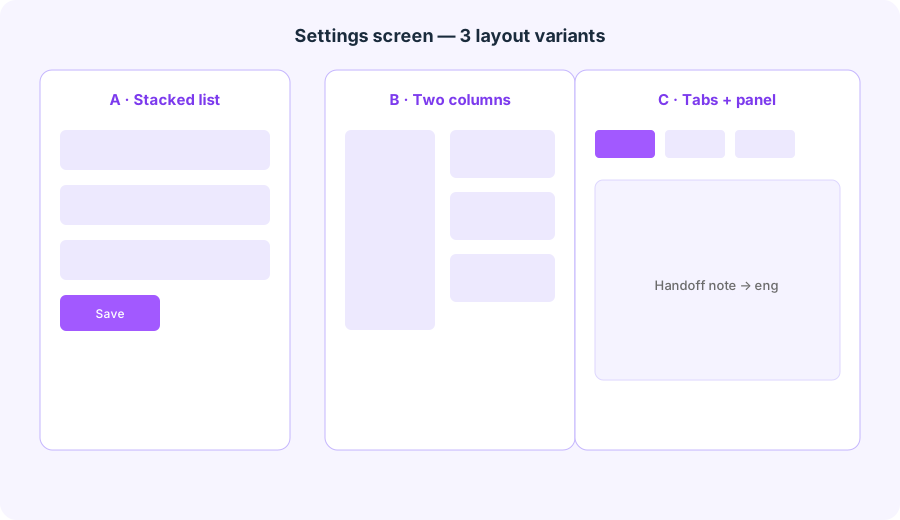
Describe a simple settings screen. Ask Figma AI for 3 layout variants and a short handoff note for eng (components, states).
Describe a simple settings screen. Ask Figma AI for 3 layout variants and a short handoff note for eng (components, states).
2. Eng handoff notes (components & states)
What it is: Turn a chosen layout into a short note for engineering: which components, empty/loading/error states, and what is still Unknown. AI drafts; humans check the design system.
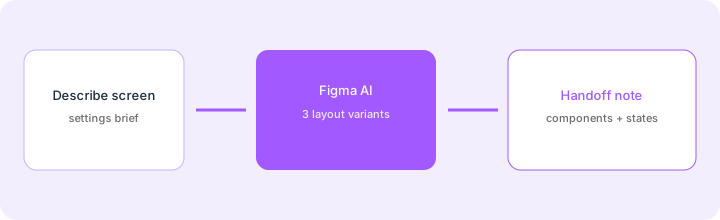
After you pick one layout:
From only this Figma frame, draft a short eng handoff: components used, states (default / empty / error / loading), and open questions. Mark Unknown for any component not in our library. Do not invent API fields.
3. Already-in-Figma vs buy-for-AI
What it is: The buying rule for this page: Figma AI helps when mocks and handoff already live in Figma. Buying a Full seat solely to try AI for one settings screen is rarely cheaper than Canva/Gamma for one-offs or a designer hour for high-stakes UI.
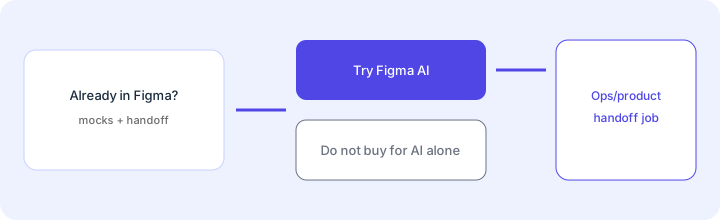
Before adding Figma seats for AI:
List last month’s design artifacts by tool (Figma / Canva / Gamma / other). If Figma already owns product mocks and eng handoff, pilot Figma AI on one settings screen. If most work is one-pagers or decks, try Canva or Gamma first — do not buy Figma solely for AI.
4. AI credits & plan gates
What it is: Figma meters AI with monthly credits per seat. Full seats on paid plans get larger allotments; Starter and lighter seats get smaller caps (and Starter often has a daily cap). Extra usage needs admin-purchased credits. Heavy generation can burn credits faster than a quiet edit pass.
In your Figma admin / AI credits view:
Write: plan ____, seat type ____, included AI credits/month ____, extra credits enabled? Y/N. Estimate how many layout-variant prompts your team ran last week. If Unknown, do not assume unlimited AI — confirm figma.com/pricing and the credits help article before budgeting.
Public pricing (September 2026)
From figma.com/pricing and Figma’s AI credits help pages we cross-checked in September 2026 (per seat where listed; confirm live):
- Starter (Free): $0 — limited AI credits (public cards often cite about 150/day up to about 500/month). Confirm live caps.
- Professional: Full seat about $16/user/month on annual public cards (about $20 monthly); Dev and Collab seats lower. Full seats commonly include about 3,000 AI credits/month; other seats often about 500/month.
- Organization / Enterprise: Full seats higher (Organization often cited near $55/mo annual; Enterprise near $90/mo annual) with larger Full-seat credit allotments (about 3,500 / 4,250 on public tables). SSO, libraries, and governance differ by plan.
- Extra AI credits: subscription and/or pay-as-you-go via admin — rates shown in the dashboard; credit costs per feature can change.
Uncertainty flags: Seat names, included credits, daily caps, and which AI features consume how many credits moved through 2025–2026 (including mid-2026 credit updates). Regional pricing and education/nonprofit discounts vary. Never budget from this page alone — check figma.com/pricing and your admin console.
When Figma AI is useful (honest take)
- Useful when: Product mocks and eng handoff already live in Figma; you need a few layout directions fast; someone will check components against the real library.
- Less useful when: You do not use Figma today and only need Canva-style one-pagers; you expect AI to replace a design system; you buy Full seats solely to burn credits on one experiment.
If AI seats across chat + design + notetakers overlap on the same weekly jobs, a light trim pass may help — see the AI stack trim playbook. This Figma review stands alone.
Paying for Figma AI and a few other AI tools? The $9 AI toolkit spreadsheet lists every AI subscription you have, what each one costs, and how fast it pays for itself, so you can see which ones are worth the money.
Want someone to do it for you? AI toolkit audit — $19
Alternatives compared
| Axis | Figma AI | Canva Magic Studio | Gamma |
|---|---|---|---|
| Best when… | Mocks + eng handoff already in Figma. | Brand-kit one-pagers and social sizes. | Fast multi-card decks from bullets. |
| Less useful when… | You would buy Figma only for AI. | You need component-level eng specs. | You need a design-system file in Figma. |
See Canva Magic Studio, Gamma, Beautiful.ai, v0 (code-forward UI), stack trim playbook, and the ops & automation hub.
FAQ
What is Figma AI?
Figma’s built-in AI layer for design assists inside Figma, metered with AI credits. Strongest when the team already uses Figma for mocks and handoff.
How much does Figma AI cost in September 2026?
Credits are included with seats; Professional Full is often about $16/user/month annual with roughly 3,000 credits/month on Full seats. Confirm figma.com/pricing — meters change.
Should we buy Figma just for AI?
Usually no. Prefer Figma AI when mocks and eng handoff already live in Figma. Otherwise try Canva or Gamma for lighter visual jobs.
How do ops/product teams use Figma AI for handoff?
Describe a simple screen, ask for a few layout variants, draft a short eng note covering components and states, then have a human check the design system before build.