How-to · User research · UserTesting · Oct 18, 2026
Use UserTesting's AI insight summaries, and have the researcher watch the clip behind every claim
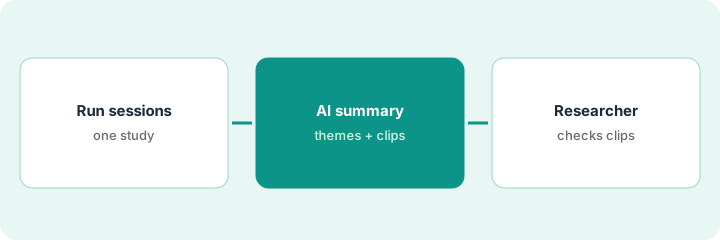
UserTesting's AI insight summaries list themes with a session count and a Sources link, and friction detection, sentiment bands, and smart tags mark moments in the video. That saves hours of watching. But a theme that says “4 sessions” is a pointer, not a finding. This page shows how to run one test and report only claims a researcher has watched.
Who this is for
UX researchers, customer research leads, and product managers at companies that already buy UserTesting and want the AI to shorten analysis without putting unchecked summaries in a readout. The job here is checking recorded-video claims clip by clip. For building a Maze study with the AI study builder and having a researcher approve it before AI Moderator runs — a different job — see Maze AI Moderator study approval.
How to do it
This is a how-to, not a ranking of research tools. Per the UserTesting AI review, the newer AI insight summaries can't be edited and are generated in English only, friction detection and sentiment are machine-learning markers that stay on even if your organization opts out of generative AI, and AI Moderation is a closed beta while the UserTesting MCP is an open beta. This routine uses neither beta. The ground rule: only what a researcher has heard in the clip goes in the report.
1. Draft one test with AI-powered test creation
What it is: Describe the decision you need to make, attach the prototype or URL, and let AI-powered test creation draft the test in the Test Builder — then a researcher edits and approves it.
- Write the goal as a decision, such as “decide whether the new filter panel replaces the old one”.
- Attach the Figma prototype, URL, or image you want tested.
- Cut any task that does not serve that decision and fix leading questions.
- Run the draft yourself once before launch.
- If your plan has an approval flow, make the researcher the approver. Per our review, test creation is listed on Ultimate, Ultimate+, and Unlimited plans with generative AI on.
A product manager attaches the onboarding prototype and asks for a five-session think-out-loud test. The draft has seven tasks; she cuts two that test unrelated pages and rewrites “How much easier is the new flow?” The research lead approves the shorter test.
Write the decision at the top of the test notes and delete every task that does not help make it.
2. Read the AI summary and the friction markers
What it is: When the sessions are in, open Results → Summary for the AI insight summary, then use friction, sentiment, and smart tags as an index into the video — not as findings.
- List every theme and the number of sessions behind it.
- Note which themes sit on a step with friction markers.
- Remember the summary is English-only and cannot be edited; your notes live elsewhere.
- Treat sentiment bands as a way to find quotes, not a measure of how users feel overall.
- Mark the themes you plan to report as “to watch”.
The summary lists three themes; the top one says participants struggled to find the import button. Two sessions carry friction markers on that step.
Copy each theme into a three-column sheet: theme, sessions cited, clip watched (yes or no).
3. Researcher watches the clip behind each claim
What it is: Before any theme goes into a readout, the researcher opens Sources, watches the moments behind it, and keeps, rewrites, or drops the claim.
- Watch 30 seconds either side of every friction marker behind a theme.
- Decide whether it was real confusion, a slow page, or someone exploring on purpose.
- Drop any theme that falls apart when you watch.
- Quote only words you heard in a clip, never the AI's wording.
- Note in the report which clips you watched.
She watches the two import-button sessions: one is a real miss, the other is a page that loaded slowly. She reports the theme with one clip and a caveat, and leaves the slow page to engineering.
Watch the two clips flagged as the biggest friction before you report them, and add the clip links to your readout.
Pricing context (October 2026)
This how-to isn't a price sheet. Per the UserTesting AI review and UserTesting's plans page (checked Oct 18, 2026), UserTesting publishes no prices; plans are sold by request. Dated October 2026.
Checked Oct 18, 2026 on the vendor’s own pricing page: UserTesting shows no public list price. UserTesting’s plans page lists its plans with a request to contact sales; AI features are not priced separately. This page quotes no UserTesting dollar figure; confirm what your contract includes with UserTesting or your admin.
Uncertainty: The only prices this site sells here are the optional $9 AI toolkit spreadsheet and $19 AI toolkit audit.
When this helps (honest take)
Useful when your team already watches lots of recorded sessions and wants summaries and markers that point straight to the moments worth watching.
Not useful when you run a few tests a year, nobody will watch clips before reporting, or you want an AI that interviews without supervision.
Related options (educational)
| Need | Where to look | Why |
|---|---|---|
| UserTesting AI features | UserTesting AI | Primary path |
| AI-moderated studies in Maze | Maze AI Moderator study approval | A different job |
| Maze and UserTesting side by side | Maze vs UserTesting | Compare the two platforms |
| Repository checks across interviews | Dovetail Chat source check | Insights against highlights |
| Research stack map | Stack map: research ops | Where UserTesting fits |
FAQ
Can I edit UserTesting's AI insight summaries?
Not the newer AI-generated summaries — per our review they can't be edited and are English-only. Use the Sources link to watch the sessions and write your own notes.
Should we use AI Moderation or the MCP for this?
Not in this routine. Per our review, AI Moderation is a closed beta for nominated customers and the UserTesting MCP is an open beta; both will change.
How much does UserTesting cost?
UserTesting publishes no prices; its plans page asks you to request pricing. See the pricing section.
Does this use UserTesting’s AI Moderation or MCP?
No. Per our review, AI Moderation was a closed beta and the MCP server an open beta. This routine uses neither.
Optional next step
If you want a one-page toolkit map for the tools you already pay for, use the optional $9 AI toolkit spreadsheet. If you want a short review of seat waste and unused tools, use the optional $19 AI toolkit audit. Neither is required to follow this how-to.