Role guide · Product ops · Gemini · Workspace · Oct 2026
Gemini for product ops (Oct 2026): Sheets, Docs, and Gmail drafts for launches and feedback
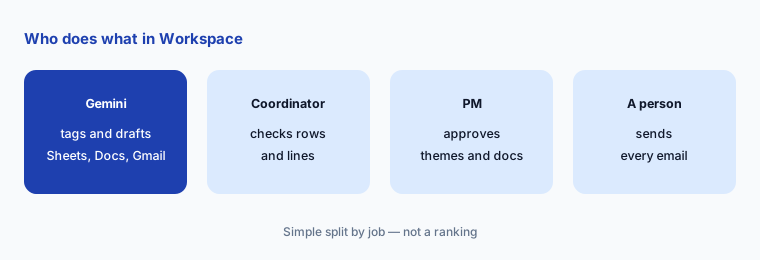
Product ops role guide for teams that live in Google Workspace — Gemini tags a sanitized feedback Sheet by theme, drafts launch docs in Docs from files you point it at, and drafts customer update emails in Gmail. You check twenty rows by hand before any count leaves the sheet, the PM approves the doc, and a person reads and sends every email. Companion to Claude for product ops and ChatGPT for product ops.
Who this guide is for
Product ops coordinators, launch managers, and PMs at companies that run on Google Workspace — feedback lands in a Sheet, launch plans live in Docs, and customer updates go out from Gmail. If your team works in Claude or ChatGPT, see Claude for product ops or ChatGPT for product ops. Product deep-dive: Gemini. Sibling role guides: Gemini for ops, Gemini for support, Gemini for marketing ops.
What Google documents (help center, read 9 October 2026): in Sheets, the Ask Gemini side panel can create tables and formulas, analyze data, build charts, summarize Drive files and Gmail emails, and take actions such as filters, sorting, conditional formatting, and pivot tables, with Undo; you can focus it on specific tabs. The AI function (=AI() or =Gemini()) can generate text, summarize, categorize, and analyze sentiment cell by cell, and an AI column can be added to a table. In Docs, Gemini drafts and edits from a prompt and can reference other files, showing suggestions you accept or reject. In Gmail, Help me write drafts or refines an email. Google’s pricing page lists the Gemini assistant in Gmail on Business Starter and in Gmail, Docs, Meet, and more from Business Standard.
Ground rules: Gemini never sends an email, publishes a doc, or changes a roadmap — a person reads and sends every email, and the PM approves docs and themes. Work on a sanitized copy of the feedback Sheet: remove names, emails, and account IDs and keep a row number. Google’s generative AI privacy hub says your content is not human reviewed or used for generative AI model training outside your domain without permission; that covers training, not who in your company can open the Sheet, so keep sharing tight.
Major features (with how someone uses them)
Examples at a glance: each feature has a concrete example from a real job plus a short Try this you can run this week.
1. Tag a sanitized feedback Sheet by theme (primary)
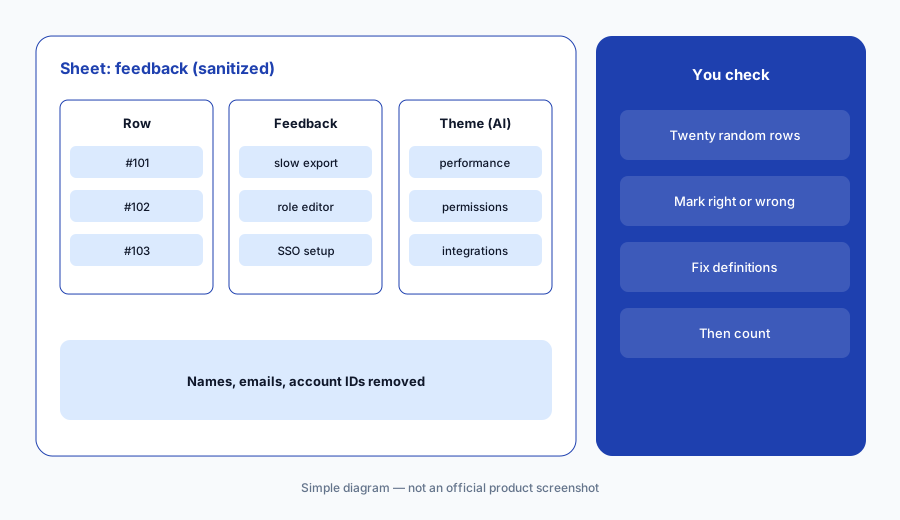
What it is: Make a copy of your feedback Sheet with names, emails, and account IDs removed and a row number in column A. Write your theme list in a separate tab (for example: onboarding, permissions, performance, billing, integrations, other) with one line defining each. Then either ask Gemini in the side panel to tag each row with one theme from that list, or add a column with the AI function, such as =AI("Tag this feedback with one theme from: onboarding, permissions, performance, billing, integrations, other. Reply with the theme only.", C2), and fill it down. Google’s help page says the function only sees the range you give it, so pass the feedback cell (and your definitions) explicitly.
Then check by hand. Filter to a random twenty rows, read each comment, and mark whether the tag is right in a new column. If more than two or three are wrong, tighten the theme definitions and regenerate before you count anything. Google notes that you can’t undo an AI function result (you regenerate it instead), and that generated content is attributed to you in version history — another reason to check before sharing.
Primary workflow:
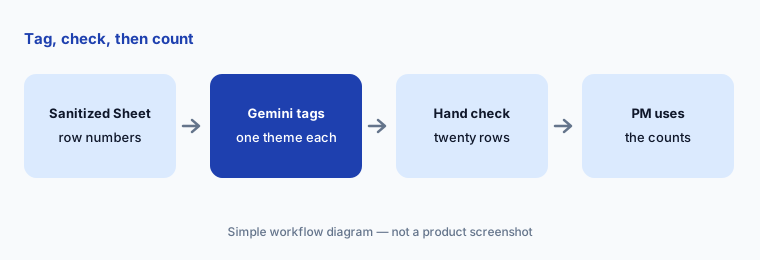
In a sanitized feedback Sheet, ask Gemini to tag each row by theme. Check twenty rows by hand.
2. Theme counts with a pivot table you can trace
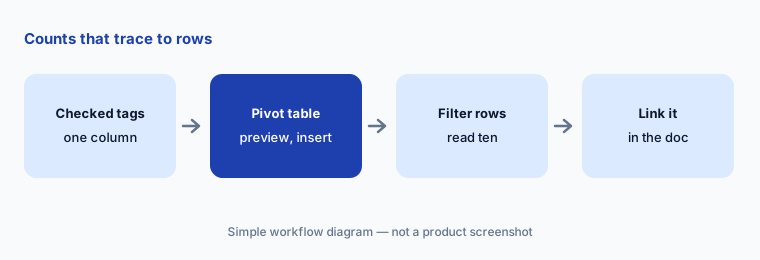
What it is: Once the tags hold up, ask Gemini in the side panel to create a pivot table of themes by month (or by plan, if that column survived sanitizing). Gemini shows a preview you insert, and Undo reverses the action. Because the pivot table is built from the tag column, every number traces back to rows you can open — which a chat summary of the same feedback can’t offer.
Keep the counts in the Sheet and link to it from the launch doc or roadmap note. If someone asks “how many customers said that?”, the answer is a filter on the tag column, not a sentence from a chat.
Trace one number:
Ask Gemini for a pivot table of themes by month from your checked tag column. Pick the biggest change, filter to those rows, and read ten before you mention it in a meeting.
3. Launch docs in Docs from your own files
What it is: Open your launch doc template in Docs, click Gemini, and ask it to fill the sections from files you name — the feature brief, the pricing note, the support FAQ draft. Google’s help page says Gemini can use your own documents as sources and shows suggestions you accept one by one or all at once. Ask it to write “owner needed” where the sources don’t name an owner and “date needed” where they don’t give one.
Accept suggestions one by one. A suggestion that sounds right but cites the wrong file is easy to miss with Accept all. The PM approves the doc before it goes to the launch review; Gemini doesn’t decide dates, owners, or whether to launch.
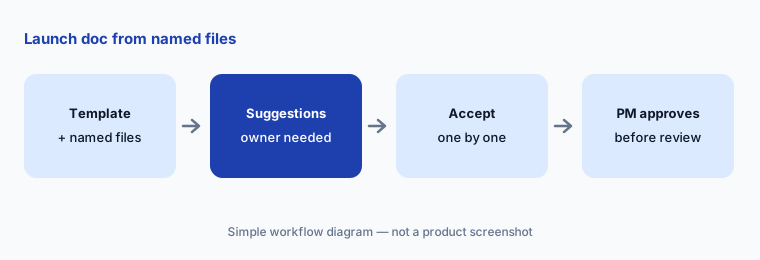
Name the files:
Open your launch template in Docs, ask Gemini to fill two sections from two named files, and accept suggestions one at a time. Count how many you had to edit.
4. Customer update emails in Gmail — humans send
What it is: For a launch announcement or a “we fixed it” note to customers who asked for something, open Compose in Gmail and use Help me write with a short prompt: who it’s for, what changed, the one action they should take, and the link. Refine with options such as Formalize or a follow-up instruction (“Mention the Friday deadline”). Google’s help page describes drafting and refining only — the draft sits in your compose window until you send it.
Read every line before sending: check plan names, dates, and anything that sounds like a promise. For a list of customers, write and approve one email first, then send it from your usual tool; don’t paste customer lists into a prompt.
One email, checked:
Use Help me write for one customer update about your last release. Check every plan name and date against the release note, get the PM’s OK, then send it yourself.
5. Limits worth knowing before you rely on it
What it is: From Google’s AI function help page (read 9 October 2026): responses are text only; the function doesn’t see your whole spreadsheet or Drive, only the range you pass; only the first 350 selected cells generate at a time; there are short- and long-term generation limits (hit the long-term one and you wait about 24 hours); results can’t be undone, only regenerated; and if a range changes inside a concatenated prompt, you have to refresh it yourself. “AI function not available” can mean your plan, admin settings, or language setting don’t include it. The same page notes that some features, such as viewing web sources, are limited to Workspace Experiments and beta programs.
Plan around the 350-cell batch for large Sheets, and keep a copy of the untagged data so a regenerate never overwrites the only version.
Batch and check:
Tag your next large feedback Sheet in batches of 350 rows, check twenty rows per batch, and keep an untagged copy in another tab.
6. Which Workspace plan you need
What it is: Google’s pricing page (as listed 9 Oct 2026) lists the Gemini assistant in Gmail and Gemini chat on Business Starter, and “Gemini AI assistant in Gmail, Docs, Meet, and more” from Business Standard up. For this guide — Sheets tagging and Docs drafting — plan on Business Standard or higher, and confirm with your admin that Gemini features are turned on for your group. The AI function help page says it needs an eligible Workspace or Google AI plan.
Before budgeting, check what your company already pays for. Many Workspace customers already have Gemini in the apps; the cheapest step is often turning it on for product ops rather than buying another assistant.
Check before buying:
Ask your Workspace admin which edition you have and whether Gemini in Sheets and the AI function are on for your group, before anyone buys a separate AI seat for feedback tagging.
Pricing context (October 2026)
On Google’s Workspace pricing page (as listed 9 Oct 2026, USD, monthly billing view, per user per month before tax and before introductory discounts for new customers): Business Starter $7; Business Standard $14; Business Plus $22; Enterprise through sales. Google says a one-year commitment saves 16%, and Starter, Standard, and Plus can be bought for up to 300 users.
The page also showed time-limited introductory discounts for new customers (for the first three months, on up to 20 users). Existing customers pay the standard price.
Uncertainty: Google changes which Gemini features each edition includes, and some AI function features are limited to Workspace Experiments and beta programs; check your admin console and the help pages before you build a process on a feature. Introductory discounts and regional prices vary.
When it’s useful (honest take)
Useful when feedback already lands in Google Sheets, launch plans live in Docs, your Workspace edition includes Gemini, and someone will check twenty rows and every email line by hand.
Useful when you want counts that trace back to rows — a tag column plus a pivot table — instead of a summary nobody can audit.
Less useful when feedback can’t be sanitized before it reaches a shared Sheet, your feedback tool already tags themes with links to the source, your volume is far beyond 350-row batches, or anyone expects Gemini to send customer emails on its own.
Paying for Gemini and a few other AI tools? The $9 AI toolkit spreadsheet lists every AI subscription you have, what each one costs, and how fast it pays for itself, so you can see which ones are worth the money.
Want someone to do it for you? AI toolkit audit — $19
Related options (educational)
| Need | Better home | Why |
|---|---|---|
| Readout checks and release notes in Claude | Claude for product ops | Projects with “not in the source” gaps |
| Launch checklists and survey summaries in ChatGPT | ChatGPT for product ops | Business workspace; GPTs moving to plugins |
| Feedback themes with source highlights at volume | Dovetail AI | Channels and Chat over interviews and tickets |
| Feedback linked to roadmap features | Productboard AI | Insights tied to features |
| In-app surveys and guides | Pendo AI or Userpilot AI | Collect feedback where users are |
| Inventory before adding a seat | Stack map for product ops | One row per job and tool |
FAQ
Can Gemini tag customer feedback in Google Sheets?
Yes. Ask Gemini in the side panel, or use the AI function (=AI() or =Gemini()) in a column, to tag each row with one theme from a list you define. Check twenty rows by hand before you count, and tighten the definitions if more than a few are wrong.
Does Gemini send emails for me in Gmail?
No. Help me write drafts or refines an email in your compose window; you read it, fix plan names and dates, and send it yourself. For a list of customers, approve one email and send from your usual tool.
Which Google Workspace plan includes Gemini in Docs and Sheets?
As listed on 9 October 2026, Google’s pricing page shows the Gemini assistant in Gmail on Business Starter ($7 per user per month, monthly view) and in Gmail, Docs, Meet, and more from Business Standard ($14). Check workspace.google.com/pricing and your admin settings.
Is our feedback data used to train Google’s models?
Google’s Workspace generative AI privacy hub says your content is not human reviewed or used for generative AI model training outside your domain without permission. Still remove names, emails, and account IDs before tagging, and keep the Sheet’s sharing tight.
What are the limits of the Sheets AI function?
Per Google’s help page: text-only responses, it only sees the range you pass, 350 selected cells generate at a time, there are generation limits, and results can’t be undone, only regenerated. See Use the AI function in Google Sheets.
Optional next step (if seats overlap)
If product ops pays for Workspace with Gemini, a separate chat assistant, and a feedback tool that all tag the same comments, that overlap is worth a look. Map the overlap with the $19 AI toolkit audit or the $9 AI toolkit spreadsheet. Email Audit $19 or Toolkit spreadsheet $9.
Checkout is live via Stripe. After you pay, we email delivery (spreadsheet) or intake next steps (audit).