How-to · Meetings · Microsoft Teams Copilot · Oct 10, 2026
Draft a Teams meeting recap that marks Unknown owners
“Unknown owners” here means action items stay unassigned until a person names someone. It is not letting AI invent owners, due dates, or decisions the room never made.
Who this is for
Ops leads whose meetings and channels already live in Microsoft Teams and who have Copilot in Teams available through a Microsoft 365 Copilot license. If Slack is the channel home, Catch up on a Slack channel without exporting the transcript is the closer routine. If you only need drafting in Excel or Word, see Microsoft 365 Copilot; this page is about meeting recaps. Before adding a second notetaker bot to Teams meetings, read Cancel the second notetaker and Three checks before you add another AI seat.
How to do it
This page is a how-to. It is not a ranking of meeting AI products. The Microsoft Teams Copilot review covers the recap features and packaging; this page is the narrower routine: one recurring meeting, a three-section recap, owners left Unknown, and one person who posts. Confirm transcription, Copilot in Teams, and how long recordings are kept with IT before you turn recaps on for sensitive meetings.

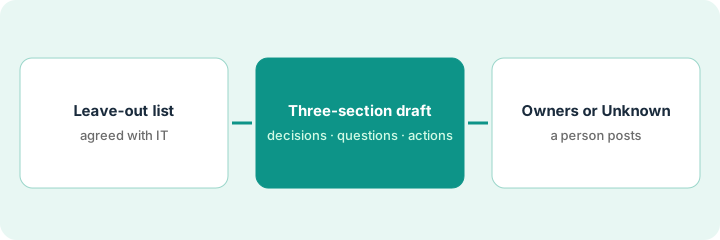
1. Step 1 — Agree what stays out before Copilot runs
What it is: Decide which meeting (or channel thread) is in scope and what must never appear in a shared recap: customer contract values, salaries, passwords, individual performance.
- Pick one recurring meeting with a clear purpose (weekly ops, vendor review).
- List topics that are always left out or handled offline.
- Confirm recording and transcript consent, and how long they are kept, with IT.
- Name the person who will post the recap.
Copilot’s recap after the meeting depends on how transcription is set for that meeting, so check the setting with IT. Leaving transcription off is a fine choice for sensitive meetings; write those notes by hand.
Meeting: Ops Weekly, Thursdays. Always left out: customer contract values and individual performance. Poster: the ops lead. Transcription on; external guests are not invited to this series.
Write a one-line rule in the channel description: “Recaps mark Unknown owners; no invented dates; leave out ___.” If IT has not approved transcripts for this series, stop here.
2. Step 2 — Draft decisions, open questions, and actions
What it is: After the meeting, ask Copilot in Teams for a short recap and action list grounded in the transcript, split into decisions, open questions, and actions.
- Prompt: three sections — Decisions, Open questions, Actions. Quote lightly. Do not invent decisions.
- If a topic was skipped, list it under Open questions, not Decisions.
- Use bullets, not a long story nobody reads.
- Keep the draft in the chat or a Loop page (Microsoft’s shared-notes page) that the poster edits.
If the recap feeds a spreadsheet explanation, Draft a variance note inside Excel with Microsoft 365 Copilot uses the same rule: causes stay Unknown until a person sources them.
Decisions: ship the vendor webhook monitor by Friday (said by the engineering lead). Open questions: who owns the pricing page. Actions: “Update runbook,” owner Unknown; “Send vendor email,” owner Unknown until names are confirmed.
Generate the three-section draft. Delete any “decision” that was only a side comment. Move vague “we should…” lines to Open questions unless someone clearly committed.
3. Step 3 — Mark owners Unknown and have a person post
What it is: Every action gets a real person or Unknown. The named poster publishes; Copilot does not assign work.
- Fill owners from the attendee list, or leave Unknown.
- Add due dates only when someone said them or they are already in the tracker. Otherwise Unknown.
- Post the recap in the Teams channel (or link the tracker tasks you create by hand).
- Do not add a second meeting bot to the same series if Copilot already covers the recap — see Cancel the second notetaker.
The same habit works outside Teams: Turn one messy call into owners and dates covers owners and dates before you leave the room, and Turn meeting notes into Notion tasks without inventing owners covers the move from notes to tasks.
Actions: Maya — update runbook (Friday); Unknown — pricing page owner (still an open question). The ops lead posts the recap. A parallel Fireflies or Otter seat for this same Teams series is cancelled as overlap.
Before posting, scan for made-up names. Replace blanks with Unknown. Create tracker tasks only for actions with real owners. Link the channel message.
Pricing context (October 2026)
This how-to is not a price sheet. Plan detail for Microsoft Teams Copilot and Microsoft 365 Copilot lives on those reviews. Recheck each vendor’s site before you budget. Dated October 2026.
Checked Oct 10, 2026 on the vendor’s own pricing page: Microsoft’s Copilot for business page lists the Microsoft 365 Copilot Business add-on at $21 per user per month paid yearly, shown at $18 as a first-year promotional price on annual subscriptions bought between Jul 1 and Dec 31, 2026, or $25.20 paid monthly. It needs an eligible Microsoft 365 Business plan (up to 300 users). Bundles with Copilot built in are listed at $23.50 (Business Standard with Copilot) and $32 (Business Premium with Copilot) per user per month paid yearly. The enterprise page lists Microsoft 365 Copilot at $30 per user per month paid yearly, or $31.50 paid monthly on an annual commitment, on top of a qualifying Microsoft 365 plan. Copilot Chat (web-grounded chat with file uploads) is listed at no extra cost with an eligible subscription; the paid license is what connects it to your work data. Microsoft’s footnote says a Teams license is required for Copilot in Teams, and the page also sells plans without Teams.
Uncertainty: Which Copilot plans include Teams recaps, how transcripts are stored, and how meetings with guests behave change by organization and plan. If an invoice and a review disagree, trust the invoice. Do not paste a marketing list price you did not pay. The only prices this site sells here are the optional $9 AI toolkit spreadsheet and $19 AI toolkit audit.
When this helps (honest take)
Useful when Teams is already the meeting home, Copilot is licensed, and a person posts with Unknown owners allowed.
Not useful when there is no transcript consent, you want AI to invent assignees, or Slack or Zoom plus another notetaker is already the system of record. Stacking Teams Copilot and a second bot on the same meetings usually wastes seats; Keep meeting notes inside Zoom and drop the extra bot covers the Zoom side.
Related options (educational)
| Need | Where to look | Why |
|---|---|---|
| Teams meeting and channel Copilot | Microsoft Teams Copilot | When Teams is the system of record |
| Copilot in the rest of Microsoft 365 | Microsoft 365 Copilot | Excel, Word, Outlook context |
| Drop a second bot | Cancel the second notetaker · Keep meeting notes inside Zoom and drop the extra bot | Live how-tos |
| Slack instead of Teams | Catch up on a Slack channel without exporting the transcript | Live how-to |
| Before another seat | Three checks before you add another AI seat · See which AI tools you pay for and never open | Live how-tos |
Related reviews: Microsoft Teams Copilot · Microsoft 365 Copilot · Fireflies. Related how-tos: Cancel the second notetaker · Turn one messy call into owners and dates · Draft a variance note inside Excel with Microsoft 365 Copilot. Free: seat-waste calculator if Teams Copilot and another notetaker cover the same meetings.
FAQ
Can Copilot assign owners with this routine?
No. A person names owners or leaves them Unknown.
Should every Teams meeting get an auto-posted recap?
No. Start with one series. Sensitive meetings may need transcription off or notes written by a person.
Does Copilot Chat alone recap Teams meetings?
Check your license. On Oct 10, 2026, Microsoft listed Copilot in Teams inside the paid Copilot plans (the Business add-on at $21 per user per month paid yearly, and the enterprise Microsoft 365 Copilot at $30), and said a Teams license is required. Copilot Chat was listed at no extra cost, with the paid license adding your work data.
Where do dated prices live?
On the Microsoft Teams Copilot review and Microsoft 365 Copilot plus Microsoft’s Copilot pricing pages. This October 2026 how-to only repeats prices we checked on the vendor’s own pricing page on Oct 10, 2026.
Optional next step
Free reviews stay free. Neither offer is required to use this page. If Teams Copilot and another meeting AI seat already recap the same series, optional help: $9 AI toolkit spreadsheet (seats, spend, owner, cancel-by, overlap) or $19 AI toolkit audit when you want a written memo.