How-to · Meetings & notes · Oct 4, 2026
Three steps to keep meeting notes inside Zoom and drop the extra bot
If the company already pays Zoom, a second bot on every Zoom call is often overlapping the same owners-and-dates job.
Who this is for
Ops leads on Zoom-centered companies who also pay Fireflies, Otter, or Fathom. If most calls are Meet or Teams, Companion will not follow you there — do not move platforms just to justify Companion.
How to do it
Read the Zoom AI Companion review before you cancel anything. Success means you can name owners and dates from Companion’s notes without a second archive.

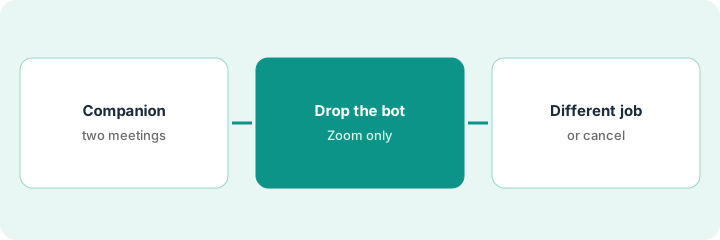
1. Step 1 — Confirm Companion is on and notes are good enough
What it is: Read Zoom AI Companion. Run Companion on one recurring Zoom meeting for two weeks. Success means you can name owners and dates from Companion’s notes without a second archive.
After two Companion-only standups, the ops lead writes the owner list from Companion alone. If a date is missing, Companion is not covering the job yet.
After two Companion-only meetings, write Owner — task — date from Companion alone. If you cannot, Companion is not covering the job yet — fix that before you cancel anything.
2. Step 2 — Stop the extra bot on Zoom meetings only
What it is: Remove the third-party bot from Zoom calendar events where Companion is enough. Leave non-Zoom meetings alone for now.
Export anything you still need from the bot before you lose access.
The recurring Zoom series loses the bot invite and keeps Companion. A 30-day calendar check asks whether owners are still coming from Companion.
Edit the recurring Zoom series: remove the bot invite, keep Companion. Put a 30-day check titled “Still getting owners from Companion?”
3. Step 3 — Keep a different tool only for a different job
What it is: Allowed exceptions (different jobs, not “backup transcript”):
- Granola when a bot in the room is unacceptable
- tl;dv when you need coaching clips / a few CRM fields, not a notes archive
- A notetaker on Meet/Teams calls Companion does not cover
Same job on Zoom + bot = overlap. Different job = maybe keep.
The spreadsheet row for the Zoom bot says the job is owners-and-dates, same as Companion. That row is the cancel. The Granola row says no-bot founder calls. That row stays.
Fill one row per tool in the $9 AI toolkit spreadsheet: job, owner, spend, overlap note. Cancel only where the job matches.
Pricing context (October 2026)
This how-to is not a price sheet. Public list prices for Fireflies, Otter, Fathom, Granola, tl;dv, and Zoom AI Companion live on those reviews. Recheck each vendor’s site before you budget. Dated October 2026.
Uncertainty: Free tiers, seat minimums, bot add-ons, and CRM connectors change. If an invoice and a review disagree, trust the invoice. Do not paste a marketing list price you did not pay. The only prices this site sells here are the optional $9 AI toolkit spreadsheet and $19 AI toolkit audit.
When this helps (honest take)
Useful when Zoom is already the meeting home and Companion notes name owners.
Not useful when you are using the bot for clip libraries or CRM push Companion does not cover — that is a different job; read tl;dv or Fathom before canceling.
Related options (educational)
| Need | Where to look | Why |
|---|---|---|
| Notes stay in Zoom | Zoom AI Companion | You already pay Zoom |
| Duplicate bot on the same job | Cancel the second notetaker | Four-step cancel with a date |
| No bot in the room | Granola | Different job — maybe keep |
| Clips or CRM fields | tl;dv or Fathom | Do not cancel a different job by accident |
| Bot still covers Meet or Teams | Fireflies or Otter | Companion does not follow you there |
Related: Zoom AI Companion · Fireflies · Otter · Cancel the second notetaker.
FAQ
Should we move Meet or Teams calls to Zoom to use Companion?
No. If most calls are not on Zoom, Companion will not cover them. Do not move platforms just to justify it.
When is it safe to remove the extra bot?
After two Companion-only meetings where you can still write owners and dates, and after you export anything you still need.
Can Granola or tl;dv stay?
Yes, when the job is different: no bot in the room, or clips and CRM fields rather than a notes archive.
Where are Zoom prices?
On the Zoom AI Companion review and Zoom’s site. This October 2026 how-to does not invent them.
Optional next step
$9 spreadsheet for one row per tool: job, owner, spend, overlap note. $19 audit when several meeting seats overlap and you want a written memo. Neither is required to turn Companion on.