How-to · Chat · Slack · Oct 6, 2026
Catch up on a Slack channel without exporting the transcript
“Catch up” here does not mean downloading a file of every message. It means you leave the channel with decisions, open questions, and owners you can act on — using the Slack AI you already pay for.
Who this is for
Ops people returning from time off (or a deep-work week) who already live in Slack and have Slack AI on their plan. If the decision lives only in a private DM you cannot see, no summary will invent it. If the canonical answer should be a wiki card, Slack is the wrong long-term home.
How to do it
This page is a how-to. It is not a ranking of chat AI products. Product detail and dated pricing live on the Slack AI review.
1. Step 1 — Pick the channel and time range
What it is: Choose one channel (or one thread) and a bounded window — for example “since I left Friday” or “last seven days” — before you ask for a summary.
- Prefer the channel where decisions are supposed to land, not every related side channel at once.
- Confirm you have access to the messages you need summarized.
- Check which AI features your plan includes. Slack lists summaries, recaps, and AI search by plan on its pricing page, and admins can turn features off.
- Do not export a transcript “just in case” before you try the summary inside Slack.
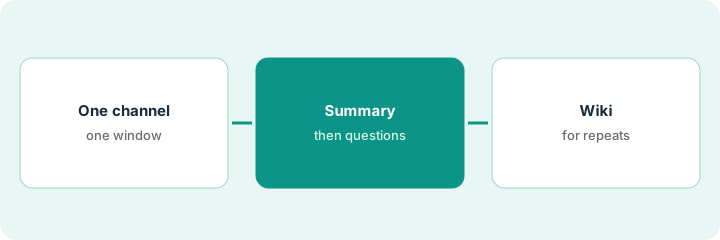
An ops lead was out Monday through Thursday. They open #ops-vendors, set the window to those four days, and skip #random and three side threads. One channel, one window.
Write the channel name, start date, and end date on a sticky. Run one channel or thread summary for that window only. Do not batch five channels into the first catch-up.
2. Step 2 — Summary, then open questions
What it is: Read the Slack AI summary, then make a second pass for open questions and owners. AI will not invent a clean owner list if nobody named one in the thread.
- Skim decisions that were explicitly stated.
- List open questions the summary still leaves hanging.
- Rewrite actions as
Owner — question or task — due if stated. Lines with no owner get marked Unknown. - Use AI search or recaps only if your plan includes them and the question is specific (“Who owns the Ramp renewal thread?”).
The summary says “pricing discussion continued.” The second pass finds three messages: Maya will send the counter by Wednesday; Jordan asked about SOC 2; nobody answered Jordan. The share becomes two lines plus one Unknown — not an essay.
After the summary, write at most seven lines: decisions, open questions, Unknown owners. Paste that short list to yourself or the channel — not the full AI summary.
3. Step 3 — Know when to leave Slack for a wiki
What it is: If the same how-to keeps getting re-asked in Slack, the catch-up habit is a symptom. Move the canonical answer to a verified card or doc — then Slack summaries stay for discussion, not policy.
- Recurring “how do we…?” questions → Guru AI, Notion, Confluence, or whichever wiki is your system of record.
- One-off decisions with clear owners can stay in Slack.
- Huddle notes (if enabled) are drafts — same owner rule as meeting notes.
Three people back from time off asked for the same vendor-intake steps. The lead stops pasting Slack summaries and publishes one Guru card. The next catch-up links the card.
From today’s open questions, mark any that came up twice in 30 days. Create or update one wiki page or card for the worst repeat. Next catch-up starts with that link, then Slack AI for what changed since.
Pricing context (October 2026)
This how-to is not a price sheet. Plan detail for Slack AI lives on that review. Recheck the vendor’s site before you budget. Dated October 2026.
Checked Oct 6, 2026 on the vendor’s own pricing page: slack.com/pricing lists thread and channel summaries, daily recaps, and AI search among the AI features, with access varying by plan. On Oct 6, 2026 the page showed a discounted Pro rate, so we are not restating a seat price here. Check the page and your invoice before you budget.
Uncertainty: Which AI features sit on which plan, admin toggles, and renewal terms change. Turning AI features off in admin does not by itself lower the seat price. If an invoice and a review disagree, trust the invoice. Do not paste a marketing list price you did not pay. The only prices this site sells here are the optional $9 AI toolkit spreadsheet and $19 AI toolkit audit.
When this helps (honest take)
Useful when Slack is already where work chat lives, your plan includes summaries, and someone named decisions in the channel.
Not useful when you need a permanent SOP, the thread never named an owner, or you are exporting transcripts into another AI tool “just in case” while Slack AI already covers catch-up. That overlap is a trim problem — see Three checks before you add another AI seat or the stack trim playbook.
Related options (educational)
| Need | Where to look | Why |
|---|---|---|
| Channel and thread summaries, search, recaps | Slack AI | Catch-up inside Slack |
| Verified how-to cards | Guru AI | When the answer should cite a card |
| Wiki already in Notion | Notion AI for ops | Canonical doc, not chat |
| Email-first renewals triage | Shortwave | A different surface than Slack |
Related reviews: Slack AI · Guru AI · Notion AI for ops. Free: seat-waste calculator if you are adding a second chat-AI seat for the same catch-up job.
FAQ
Do I need to export the channel transcript?
No. Start with Slack AI summaries (and search or recaps if your plan includes them). Export is a different job — compliance, legal, or a tool that is not Slack.
Will the summary invent owners?
It should not invent a clean owner list. If nobody named an owner in the thread, mark Unknown and ask in the channel.
What if my workspace turned AI features off?
Admin settings win. Turning features off does not by itself lower the seat price — read the plan section of the Slack AI review and talk to your admin.
Where do dated prices live?
On the Slack AI review and slack.com/pricing. This October 2026 how-to only repeats prices we checked on the vendor’s own pricing page on Oct 6, 2026.
Optional next step
Free reviews stay free. Neither offer is required to use this page. If two seats already cover the same catch-up job, optional help: $9 AI toolkit spreadsheet or $19 AI toolkit audit when you want a written memo.