Ops · Slack · Channel AI
Slack AI review (Sep 2026): channel summaries and search for ops teams already in Slack
Educational look at Slack AI when your ops team already lives in channels: summaries, search/recaps by plan, pricing honesty after the AI add-on sunset, and when a Project or wiki is still clearer.
Who this page helps
Ops leads on small teams already living in Slack who need catch-up summaries, search answers, and recaps without exporting every busy channel into another chat seat. If Slack is not where work conversations happen, this page is the wrong buy question — evaluate AI inside the wiki, tracker, or chat home you actually use.
What Slack AI is
Slack AI is Slack’s native AI layer on messages and files you already have permission to see: conversation and thread summaries, huddle notes, and on higher plans AI search, daily recaps, file summaries, translations, workflow assists, and related features. Public Slack docs (2025–2026) moved AI from a separate add-on into plan tiers. This review focuses on summaries and search for ops already in Slack — not a pitch to migrate your company to Slack for AI alone.
Major features (with how someone uses them)
Examples at a glance: each feature has a concrete ops example plus a Try this mini-workflow.
1. Channel & thread summaries
What it is: Summarize a channel, DM, or thread so you can catch up without reading every message. Public Slack plan tables list conversation and thread summaries on paid plans (Pro and above). Best when decisions and owners are actually named in the thread — AI will not invent a clean RACI for you.
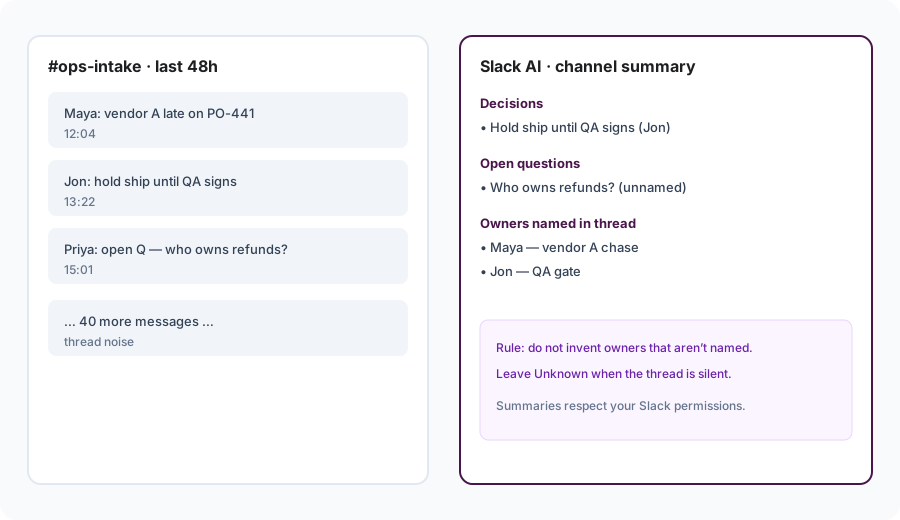
In a busy channel transcript paste:
In a busy channel transcript paste: Summarize last 48 hours into decisions, open questions, and owners. Do not invent owners that aren’t named.
2. AI search & recaps
What it is: Ask natural-language questions over Slack messages and files you can access, and get daily recaps of selected channels. Public Slack help (plan AI updates) places search, recaps, file summaries, translations, and related AI on Business+ and Enterprise+, with enterprise search across connected apps on Enterprise+. Confirm the live feature matrix for your workspace — renewals after mid-2025 changed what “Slack AI” meant.
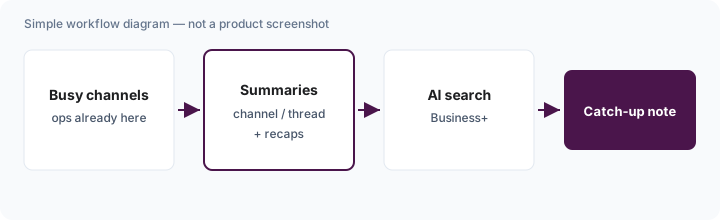
On Business+ (or equivalent) with AI search enabled:
Using only channels I can access, answer: What did we decide about vendor A refunds in the last 7 days? List decisions, open questions, and named owners. Say Unknown when no owner is named.
3. Huddle notes
What it is: AI notes from Slack huddles (transcripts, takeaways, action items where enabled). Public tables list huddle notes on paid plans alongside conversation summaries. Treat them like meeting notes: useful draft, human owner still required for assignments.
After a real huddle:
From these huddle notes only: list decisions, open questions, and owners who were named aloud. Mark Unknown for any action without a named owner. Do not add tasks that were not discussed.
4. Plan gates after the add-on
What it is: Slack’s public help states the Slack AI add-on is no longer sold on the website; AI features now ride on Free/Pro/Business+/Enterprise+ mixes. Summaries + huddle notes on paid plans; advanced AI (search, recaps, file summaries, etc.) on Business+/Enterprise+; enterprise search on Enterprise+. Admins can turn features off — turning them off does not lower the seat price.
Before upgrading for AI search:
List the three catch-up jobs we do weekly. Map each to: (1) Pro summaries, (2) Business+ search/recaps, or (3) a Project/wiki page. If most jobs need durable SOPs, keep Slack summaries and write the SOP elsewhere.
Public pricing (September 2026)
Slack AI is not a separate public add-on anymore — it is bundled into Slack plans. From public slack.com/pricing and plan AI updates (Sep 2026 context):
- Seats: Free vs Pro / Business+ / Enterprise+. Public list prices commonly show Pro around ~$7.25–$8.75/user/mo and Business+ around ~$15–$18/user/mo depending on annual vs monthly and promotions — confirm live in Slack’s configurator.
- AI on paid plans: Conversation/thread summaries and huddle notes listed on Pro+.
- Advanced AI: Search, recaps, file summaries, translations, workflow AI, and related features listed on Business+ / Enterprise+; enterprise search on Enterprise+.
- Legacy add-on: Customers who bought the old Slack AI add-on were migrated at renewal (public note: renewals after Aug 17, 2025). Do not budget as if the add-on is still a clean SKU.
Uncertainty flags: Promotional seat prices, which AI features your exact plan version includes, and Enterprise+ contract pricing vary. Never budget from a blog table alone — open slack.com/pricing and Admin → AI feature access.
When Slack AI is useful (honest take)
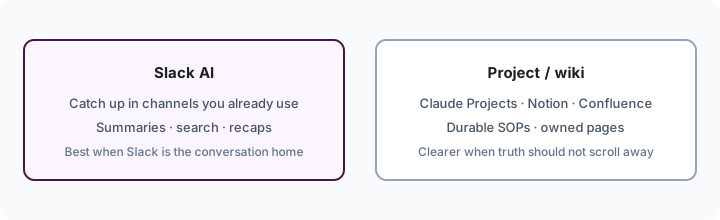
Slack AI tends to help when Slack is already the conversation home, channels are noisy but decisions are sometimes named, and you want catch-up without exporting transcripts every Monday. It tends not to help when you hoped AI would invent owners, when durable SOPs belong in a wiki/Project, when work mostly lives in email/Sheets, or when you are shopping Slack “for the AI” while the team chats elsewhere. A Project or wiki is still clearer when the answer should not scroll away.
Paying for Slack AI and a few other AI tools? The $9 AI toolkit spreadsheet lists every AI subscription you have, what each one costs, and how fast it pays for itself, so you can see which ones are worth the money.
Want someone to do it for you? AI toolkit audit — $19
Alternatives compared: stay in Slack vs Project/wiki
| Axis | Slack AI | Claude Projects / Notion / Confluence | Export → ChatGPT/Claude |
|---|---|---|---|
| Best when… | Ops already lives in Slack channels. | Durable SOPs / runbooks should not scroll. | One-off paste with a preferred model. |
| Cost shape (Sep 2026) | Slack seats (AI bundled by plan). | Claude / Notion / Confluence seats. | Chat seat + copy/paste time. |
| Less useful when… | Truth belongs in a wiki, not a channel. | You only need a 48h channel catch-up. | You need permission-aware Slack search. |
Also see Claude Projects, Claude for ops, Notion AI for ops, Confluence AI, Claude Artifacts dashboards, and the ops & automation hub.
FAQ
What is Slack AI?
Slack’s native AI layer: summaries, huddle notes, and on higher plans AI search, recaps, file summaries, and related assists — on messages and files you can already access.
How much does Slack AI cost in September 2026?
No separate public add-on. AI features are bundled by Slack plan. Summaries on paid plans; advanced AI on Business+/Enterprise+. Confirm on slack.com/pricing.
When is a Project or wiki clearer?
When the answer should live in a durable SOP or owned page. Use Slack AI to catch up on channel noise; write lasting truth elsewhere.
Should we buy Slack just for AI?
Rarely for this page’s job. Prefer AI inside the chat home you already run.
Optional next step (if seats overlap)
If Slack AI is one of several AI seats and you want a written pass across the whole list, the optional $19 AI toolkit audit produces a short memo. Prefer an editable grid? The $9 AI toolkit spreadsheet is a one-time CSV. Soft offer only — this deep-dive stands alone.
Checkout is live via Stripe. After you pay, we email delivery (spreadsheet) or intake next steps (audit). Or email hello@ with subject Audit $19 / Toolkit spreadsheet $9.