Role guide · Recruiting · Gemini · Workspace · Oct 2026
Gemini for recruiting (Oct 2026): Workspace drafts for job posts, scheduling notes, and pipeline sheets
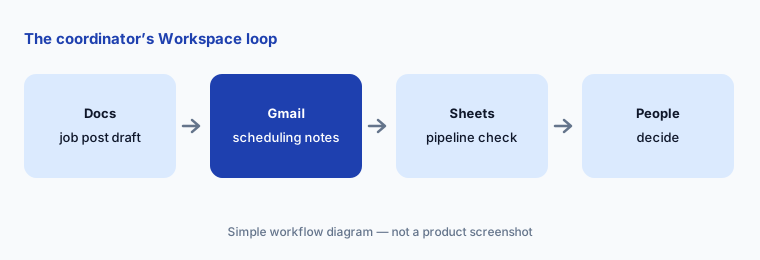
Recruiting role guide — Gemini inside the Google Workspace apps a coordinator already uses: Docs for job post drafts, Gmail for scheduling and status notes, and Sheets for a quick read of the pipeline. Gemini drafts and summarizes; recruiters and hiring managers decide. Companion to Claude for recruiting and ChatGPT for recruiting.
Who this guide is for
Recruiting coordinators, recruiters, and small-company hiring managers whose day already runs in Google Workspace — job posts in Docs, candidate emails in Gmail, and a pipeline sheet in Sheets next to (or instead of) an ATS. The goal is faster drafts and a quicker read of the pipeline sheet, not an AI that picks candidates. If your team drafts in Claude or ChatGPT instead, see Claude for recruiting or ChatGPT for recruiting. Product deep-dive: Gemini. Sibling role guides: Gemini for HR, Gemini for ops.
What Google documents (help center, read 6 October 2026): in Sheets, an Ask Gemini side panel can create tables and formulas, generate data analysis and insights, build charts, and take actions such as applying a filter or conditional formatting; you can focus it on specific tabs. In Gmail, Help me write generates a new draft or refines one for tone and length. Google’s pricing page lists Gemini in Gmail on every Business plan, and Gemini in Docs and Sheets on Business Standard and above — not on Business Starter.
Ground rules for this guide: Gemini never decides who advances, gets an offer, or is rejected — the hiring manager and interview panel do, and the recruiter runs the process. Use only job-related requirements and never ask Gemini to guess or infer age, gender, race, disability, family status, or any other protected trait. Keep candidate names, resumes, and notes out of personal accounts; use your company’s Workspace account, and work from a sanitized copy of the pipeline sheet wherever names aren’t needed.
Major features (with how someone uses them)
Examples at a glance: each feature has a concrete example from a real job plus a short Try this you can run this week.
1. Pipeline Sheet: who has waited too long (primary)
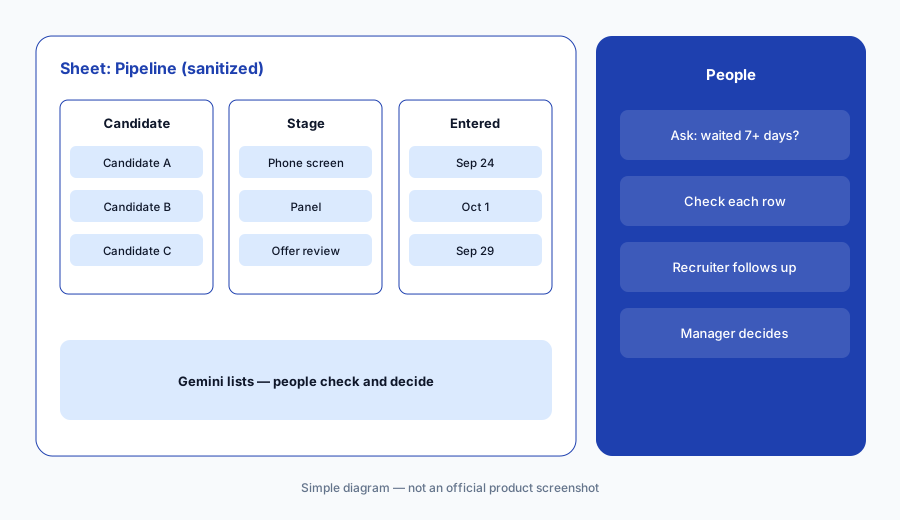
What it is: Many small teams track candidates in a Sheet: one row per candidate, with the stage and the date they entered it. Make a sanitized copy (Candidate A, B, C or initials; no emails, phone numbers, or resume links), open Ask Gemini, and ask which candidates have been in one stage for more than seven days. Gemini can return a list, a formula, or a filter. Then check every row yourself against the dates — a wrong date format or a blank cell changes the answer. The output is a follow-up list for the recruiter, not a judgment about any candidate.
Primary workflow:
In a sanitized pipeline Sheet, ask Gemini which candidates have waited more than 7 days at one stage. Check each row.
2. Job post drafts in Docs
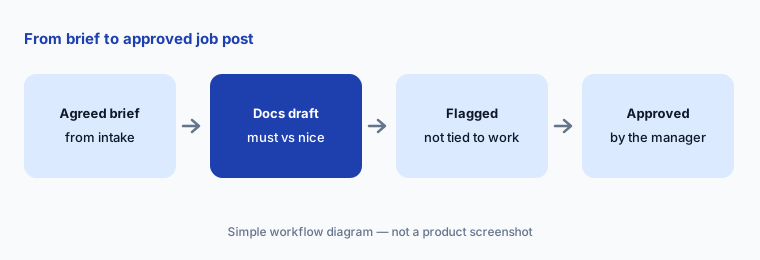
What it is: Paste the agreed brief from the hiring manager into a Doc and ask Gemini to draft a job post: what the person will do in the first months, the must-haves you would actually turn someone down for, the nice-to-haves clearly marked as optional, pay range and location if your policy or local rules require them, and how to ask for accommodations. Ask it to flag requirements that aren’t tied to the work (a degree the role doesn’t need, “digital native”, or years-of-experience caps). The hiring manager approves the final text.
Draft and flag:
Paste the agreed brief into a Doc. Ask Gemini for a job post that marks must-haves and nice-to-haves, and a list of requirements not tied to the work. Have the hiring manager approve the final text.
3. Scheduling and status notes in Gmail
What it is: Coordinators write the same emails all week: interview invitations, reschedules, “we’re still reviewing” updates, and next-step notes. In Gmail, Help me write drafts from a short prompt and can make a draft more formal, friendlier, or shorter. Give it the facts you have already confirmed — the times, the interviewers’ roles, the format — and check every date and time before sending. If an interview will be recorded or use a notetaker, the invitation should say so in advance and tell the candidate how to opt out without affecting their application.
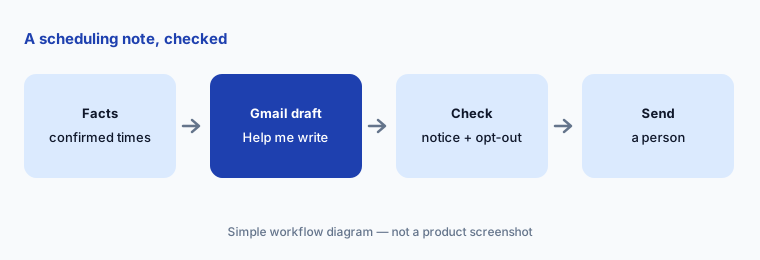
Draft from confirmed facts:
In Gmail, use Help me write for one interview invitation with three times you have already confirmed. Check every date and time, and add a recording notice with an opt-out line if the call will be recorded.
4. Status updates for candidates who are waiting
What it is: The list from section 1 is only useful if someone acts on it. For each candidate who has waited too long, the recruiter decides the next step — move forward, schedule, or close the application — and Gemini drafts the note. Rejection notes should be short, respectful, and free of reasons that could be read as personal (age, family, health, background); the decision and its reason stay with the hiring team and your ATS records.
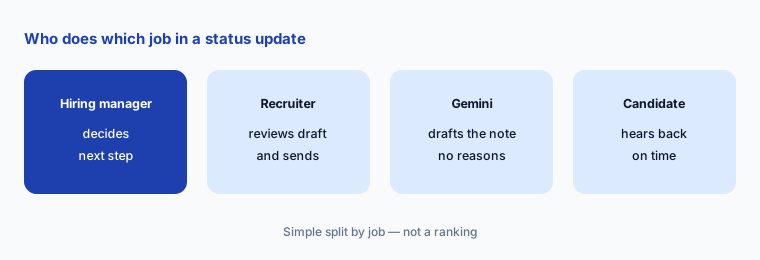
Decide first, then draft:
For each candidate on your waiting list, write the decision (move forward, schedule, or close) with the hiring manager first. Then ask Gemini in Gmail to draft the note, and remove anything that guesses at personal traits.
5. Where candidate data belongs (plans and data controls)
What it is: Google’s Workspace privacy hub (read Oct 6, 2026) says Gemini in Workspace only accesses content the user already has permission to see, that your content is not human reviewed or used for generative AI model training outside your domain without permission, and that existing Workspace data protections apply. Gemini prompts and responses in Workspace can be retained from 90 days to indefinitely depending on settings. Help me write is also offered on personal Google Accounts (US only, per Google’s Gmail help), which is exactly why the rule below matters.
Practical rule: no candidate names, resumes, or interview notes in a personal Gmail or personal Gemini account. Use the company Workspace account, keep the pipeline Sheet shared only with the hiring team, and paste sanitized copies when names aren’t needed. Ask your Workspace admin how Gemini conversation history is set for your organization.
Check the account and plan first:
List everyone who uses Gemini for recruiting work, which account they use, and which Workspace plan it is on. Move any candidate data out of personal accounts, and confirm Docs and Sheets users are on a plan that includes Gemini there.
6. Guardrails + vs Claude and ChatGPT for recruiting
What it is: Gemini is strongest here when the work already lives in Docs, Gmail, and Sheets — there is no copy-paste into another tool. Prefer Claude for recruiting when a shared Project with intake notes and interview kit instructions is the team habit, and ChatGPT for recruiting when a ChatGPT Business workspace is already where recruiters draft. If your ATS already drafts job posts and emails, compare that first — see Workable AI, Greenhouse AI, or Ashby AI. Paying for two assistants to draft the same scheduling emails is usually seat overlap.
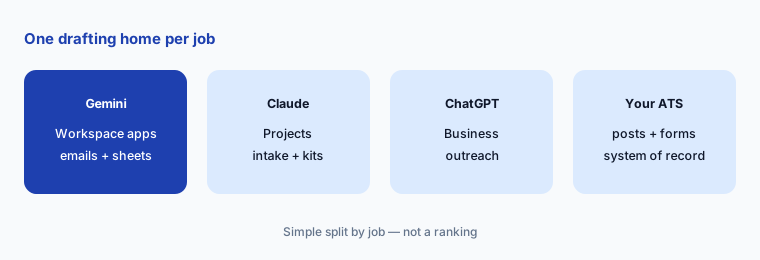
One drafting home:
List every paid AI seat your recruiting team uses to draft job posts, scheduling notes, or pipeline summaries. Pick one home per job for 30 days and note which seats nobody missed.
Pricing context (October 2026)
On Google’s Workspace pricing page (checked Oct 6, 2026, USD, monthly billing view, before tax and before introductory offers for new customers): Business Starter $7 per user per month; Business Standard $14; Business Plus $22; Enterprise through sales. Google says a one-year commitment saves 16%.
What matters for this guide: the same page lists Gemini in Gmail on every plan, but Gemini in Docs and Gemini in Sheets on Business Standard and above. A coordinator on Business Starter gets Help me write in Gmail but not the Ask Gemini panel in Sheets from section 1. Dated notes on Gemini plans are on the Gemini deep-dive.
Uncertainty: Google shows introductory and promotional prices for new customers that change often, and actual prices vary by country and currency. Gemini features roll out gradually and some Sheets features are listed under Workspace Experiments for personal accounts. Hiring rules differ by location (for example pay transparency or notice rules for automated tools); this is product education, not legal advice.
When it’s useful (honest take)
Useful when your recruiting team already works in Google Workspace on Business Standard or above, coordinators write the same emails every day, and a person reviews every draft before it goes to a candidate.
Useful when the pipeline lives in a Sheet and you want a quick follow-up list you can check row by row.
Less useful when people would paste candidate data into personal accounts, your ATS already drafts posts and emails you trust, or anyone expects Gemini to choose candidates. People decide: the hiring manager and panel make the call.
Paying for Gemini and a few other AI tools? The $9 AI toolkit spreadsheet lists every AI subscription you have, what each one costs, and how fast it pays for itself, so you can see which ones are worth the money.
Want someone to do it for you? AI toolkit audit — $19
Related options (educational)
| Need | Better home | Why |
|---|---|---|
| Intake briefs and interview kits in a shared project | Claude for recruiting | Projects with instructions and knowledge |
| Outreach drafts in a ChatGPT Business workspace | ChatGPT for recruiting | GPTs (moving to plugins) and Projects |
| Job posts and pipeline inside the ATS | Workable AI or Greenhouse AI | System of record for candidates |
| Job-post language guidance | Textio | Guidance on wording |
| Policy and people-ops drafts | Gemini for HR | Sibling role guide |
FAQ
How should a recruiting coordinator start with Gemini?
Start with the job you repeat most. Make a sanitized copy of the pipeline Sheet, ask Gemini which candidates have waited more than seven days at one stage, and check each row. Then draft the follow-up notes in Gmail with Help me write and review every one before sending.
Can Gemini decide which candidates move forward?
It should not, and this guide never asks it to. Gemini lists, summarizes, and drafts; the hiring manager and interview panel decide, and the recruiter runs the process. Never ask it to infer protected traits.
Which Workspace plan do I need for Gemini in Sheets?
On Oct 6, 2026, Google’s pricing page listed Gemini in Docs and Sheets on Business Standard ($14 per user per month on the monthly view), Business Plus, and Enterprise, but not on Business Starter. Check workspace.google.com/pricing before budgeting.
Is it safe to use Gemini with candidate data?
Not in a personal account. Google says Gemini in Workspace only accesses content the user can already see and that your content is not used to train generative AI models outside your domain without permission. Use the company Workspace account, limit sharing to the hiring team, and sanitize when names aren’t needed.
What about recorded interviews and notetakers?
Tell candidates in advance what is recorded and why, and let them opt out without affecting their application. Put that line in the invitation itself. For notetaker tools, see Metaview vs BrightHire.
Optional next step (if seats overlap)
If recruiting pays for Workspace with Gemini, a second assistant, an ATS AI add-on, and a notetaker that all draft the same emails and summaries, fix that overlap before adding another seat. Map the overlap with the $19 AI toolkit audit or the $9 AI toolkit spreadsheet. Email Audit $19 or Toolkit spreadsheet $9.
Checkout is live via Stripe. After you pay, we email delivery (spreadsheet) or intake next steps (audit).