How-to · Ops trackers · Airtable AI · Oct 9, 2026
Clean messy status text in Airtable before you buy another tracker
“Status cleanup” here means mapping free-text status into values you already agreed on — not inventing rows, owners, or due dates. Try Airtable AI on the base you have before buying another project tracker for the same job.
Who this is for
Ops leads whose trackers already live in Airtable bases and whose status column is a mess of free text (“almost done!!”, “waiting on Sam”, blank). If Smartsheet is already the grid everyone works in, see Smartsheet AI instead of moving for cleanup alone. If you are about to buy a second project-management tool for the same status job, read Three checks before you add another AI seat first.
How to do it
This page is a how-to. It is not a ranking of tracker AI products. The Airtable AI review covers the AI features and the plan and credit notes; this page is the narrower routine — one status field, a twenty-row sample, and a person who promotes each mapped value. Check AI credits and Field Agent settings in your workspace before you let anything run on every row.

1. Step 1 — Agree the allowed status values
What it is: Agree the allowed status values and which fields AI may fill before any Field Agent runs. Clean rules first; the model second.
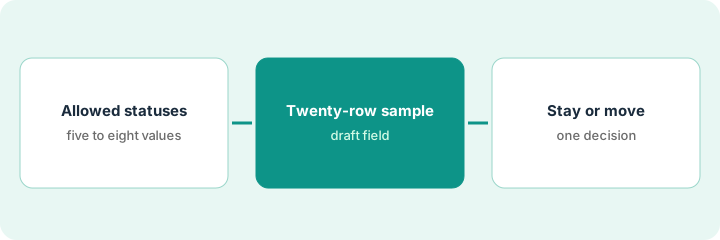
- Define five to eight allowed statuses (for example Not started, In progress, Blocked, Waiting on vendor, Done).
- Name the person who owns bad mappings.
- Make a filtered view of messy rows to use as a sample (twenty is enough).
- Ban new records, owners, or due dates in this pilot.
Messy free text is input to the mapping, not a new status. If people keep inventing statuses, the form or field options are the real fix.
Allowed statuses: Not started | In progress | Blocked | Waiting on vendor | Done. Free text like “almost!!” and “sam??” is mapping input — not a new status. The Owner field stays edited by people.
Write the allowed status list in the base description. Create a view called “Status cleanup sample” with twenty messy rows. If you cannot name the allowed values, stop — do not run AI yet.
2. Step 2 — Run a Field Agent on the sample
What it is: Use an Airtable AI Field Agent (or Omni, Airtable’s AI assistant, for summaries) on the sample only. Map free text to an allowed status; write Unknown when the text is ambiguous.
- Prompt pattern: map Status_raw to the allowed list; if unclear, write Unknown; never create rows; never invent owners.
- Sample before running on the whole base — credit use and bad mappings grow fast.
- Write into a draft field (Status_ai_draft) that people promote to Status.
- Delete any AI output that adds records or changes unrelated fields.
Each paid seat comes with a monthly AI credit allowance (see the price check below). Twenty rows is a cheap test; the whole base on auto-run is not.
The Field Agent maps “waiting on Sam for quote” to Waiting on vendor and “almost!!” to Unknown (a person picks In progress or Done). No new rows. Two guessed owners are discarded.
Run the agent on twenty rows into Status_ai_draft. A person accepts or corrects each one. Count the Unknowns. If more than a third are Unknown, fix the intake options before you go further.
3. Step 3 — Decide whether to stay in Airtable
What it is: After the sample, decide whether Airtable stays the tracker’s system of record or whether a different grid or project-management home is the real need. One sentence, not a points table.
- Stay: statuses map cleanly, owners exist, and views already drive standups — keep Airtable AI for field cleanup only.
- Move (or run both carefully for a short time): leadership already lives in Smartsheet or another tool and Airtable is a shadow tracker — see Smartsheet AI and Airtable vs Smartsheet AI.
- Do not buy a third tracker “for AI status” while two bases already hold the same work.
- Keep auto-run off until credit use and error rates are acceptable.
Clean statuses are what weekly updates are built from — see Draft standup notes from ClickUp tasks you already trust and Write Friday’s leadership update from the monday board for the same routine in other trackers, and Link three focus holds to Notion tasks without inventing attendees for blocking time on the real work.
The sample works: eighteen of twenty rows map cleanly. The team stays in Airtable and promotes Status_ai_draft weekly. A parallel Smartsheet “AI pilot” for the same vendor tracker is cancelled as overlap.
Write one decision sentence: “Stay in Airtable for vendor status” or “Move the status system of record to ___.” Add the base owner and a cancel-by date for any overlapping tracker seat.
Pricing context (October 2026)
This how-to is not a price sheet. Plan detail for Airtable AI and Smartsheet AI lives on those reviews. Recheck each vendor’s site before you budget. Dated October 2026.
Checked Oct 9, 2026 on the vendor’s own pricing page: airtable.com/pricing lists Free at $0 (up to 5 editors, 500 AI credits per editor each month); Team at $20 per seat per month billed annually or $24 monthly, with 15,000 AI credits per paid user each month; Business at $45 billed annually or $54 monthly, with 20,000 credits; and Enterprise Scale at custom pricing, with 25,000 credits. Extra credits come in packs, starting at $20 a month for 10,000 credits on Team and Business. Omni and AI Field Agents are listed as new in the comparison table. Smartsheet was not rechecked.
Uncertainty: Which collaborators are billable, the monthly credit allowances, model choice, and how fast auto-run uses credits change. If an invoice and a review disagree, trust the invoice. Do not paste a marketing list price you did not pay. The only prices this site sells here are the optional $9 AI toolkit spreadsheet and $19 AI toolkit audit.
When this helps (honest take)
Useful when Airtable is already the tracker, free-text status blocks reporting, and a person will promote the drafts.
Not useful when the base has no owners, you want AI to invent work items, or another tool is already the real system of record. Buying Smartsheet (or ClickUp, monday.com, and so on) only to “get AI status” while Airtable stays messy usually creates two messy systems.
Related options (educational)
| Need | Where to look | Why |
|---|---|---|
| Field Agents and Omni on bases | Airtable AI | When Airtable is the system of record |
| Grid AI elsewhere | Smartsheet AI | When Smartsheet already holds the grid |
| Compare | Airtable vs Smartsheet AI | Educational only |
| Before another seat | Three checks before you add another AI seat · See which AI tools you pay for and never open | Live how-tos |
| Weekly update from clean statuses | Draft standup notes from ClickUp tasks you already trust · Write Friday’s leadership update from the monday board | Same routine in other trackers |
Related reviews: Airtable AI · Smartsheet AI · Airtable vs Smartsheet AI. Related how-tos: Three checks before you add another AI seat · See which AI tools you pay for and never open · Rewrite one Coda runbook section without adding new policy. Free: seat-waste calculator if Airtable AI and another tracker AI cover the same status job.
FAQ
Can Field Agents create new rows with this routine?
No. Cleanup maps fields. People create rows when the work is real.
Should I auto-run on the whole base first?
No. Sample first. Auto-run on messy text uses up credits and spreads bad mappings.
Will the cleanup fit inside the included credits?
Usually, for a twenty-row sample. On Oct 9, 2026, Airtable listed 15,000 AI credits per paid user each month on Team. Watch the usage page before turning on auto-run for a whole base.
Where do dated prices live?
On the Airtable AI review (and Smartsheet AI if relevant) plus airtable.com/pricing. This October 2026 how-to only repeats prices we checked on the vendor’s own pricing page on Oct 9, 2026.
Optional next step
Free reviews stay free. Neither offer is required to use this page. If Airtable AI and another tracker AI seat already clean the same status job, optional help: $9 AI toolkit spreadsheet (seats, spend, owner, cancel-by, overlap) or $19 AI toolkit audit when you want a written memo.