How-to · Work trackers · ClickUp · Oct 7, 2026
Draft standup notes from ClickUp tasks you already trust
“Standup notes” here does not mean an assistant writes a cheerful script about work nobody is doing. It means a short, editable draft built only from tasks that already exist in ClickUp — owners, statuses, and blockers your team would recognize.
Who this is for
Ops leads, project managers, and small-team founders who already run daily or thrice-weekly standups out of ClickUp and spend fifteen minutes beforehand copying task names into a doc. If ClickUp is not where work is actually tracked — or half the team updates a spreadsheet instead — fix that first. Brain (ClickUp’s built-in AI) can only summarize the list it can see.
How to do it
This page is a how-to. It is not a ranking of work trackers. Product detail and dated pricing live on the ClickUp Brain review.

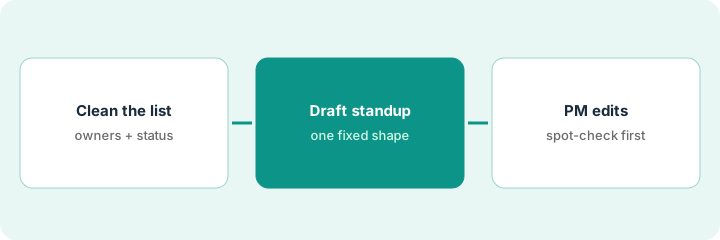
1. Step 1 — Hygiene before Brain
What it is: Open the list, sprint, or view your standup actually covers. Fix the fields a human must own before you ask Brain for anything.
- Every active task has an Assignee. Blank stays Unknown — do not let a summary guess who “probably” owns it.
- Status reflects reality. A task sitting in “In progress” for three weeks is either blocked or abandoned; say which.
- Due dates are real, not fake dates set to make a view look tidy.
- Blockers are written in the task (comment or field), not only in someone’s head.
If two lists feed the same standup, decide which one is the source. Brain mirrors whatever you point it at — including duplicates.
An ops sprint list has 34 open tasks. Five have no assignee, four have been “In progress” since early September, and two are duplicates created from a Slack message. The lead assigns three, marks two Unknown, moves the four stale ones to Blocked with a one-line reason, and merges the duplicates. Now the list has 32 real rows that a standup can defend.
Filter your standup list to open tasks. Count: blank assignees, tasks unchanged for 14+ days, and missing due dates. Fix or mark Unknown until blank assignees are under five. Do not open Brain until that count is honest.
2. Step 2 — Use one standup draft pattern
What it is: Use the Brain Assistant on the cleaned list (or paste the list into Brain) and ask for one fixed standup shape — not open-ended prose. See the ClickUp Brain review for the Assistant, summaries, and how credit-metered features like AI Fields and agents are packaged.
- Ask for yesterday / today / blocked by owner, using only tasks in the list.
- Require Unknown wherever assignee or due date is blank.
- Forbid new tasks. If the draft names work that is not in ClickUp, that line is wrong.
- Keep it to one screen. The full list stays in ClickUp.
Brain returns 22 lines. The PM keeps 14: each in the shape Owner — task — status — blocker or none. One line says “Finalize Q4 vendor plan,” which is not a task anywhere. It gets deleted, and the PM makes a note to ask whether it should become one.
On your cleaned list, ask: Using only these ClickUp tasks, draft a standup in this shape: Owner — task — status — blocker or none. Group by owner. Mark blank owners or dues as Unknown. Do not add tasks that are not in the list. Max 15 lines.
3. Step 3 — PM edits before send
What it is: A person reads the draft before it reaches the team. Brain drafts; the PM decides what is said in standup.
- Check every blocker against the task. If the draft softened or invented a blocker, fix it.
- Leave Unknown owners as Unknown in the share — then ask in standup. A guessed name causes more damage than a visible gap.
- Post the edited note where the team already looks (the ClickUp list comment, a Doc, or the standup Slack thread). Do not maintain a second task list in chat.
The draft says a finance review is “on track.” The PM opens the task: no update in nine days and a comment asking for a missing contract. The line becomes “Blocked — waiting on signed contract (Owner: Dana).” That one edit is the reason the gate exists.
Before today’s standup, spend five minutes on the Step 2 draft: open three random tasks and compare status and blocker to the draft line. If any of the three is wrong, check all of them. Send only after the spot check passes.
Pricing context (October 2026)
This how-to is not a price sheet. Plan detail for ClickUp Brain lives on that review. Recheck the vendor’s site before you budget. Dated October 2026.
Checked Oct 7, 2026 on the vendor’s own pricing page: clickup.com/pricing lists the core plans as Free Forever, Unlimited at $7 per user per month billed yearly ($10 billed monthly), Business at $12 per user per month billed yearly ($19 billed monthly), and Enterprise by quote. AI is sold on top: the Brain AI add-on at $9 per user per month (includes 1,500 AI Super Credits per user per month) and Everything AI at $28 per user per month (5,000 credits). Extra credits are $10 per 10,000. The page says yearly billing saves up to 20%, so confirm which billing period applies to the AI figure you see.
Uncertainty: Add-on names, fair-use limits, model routing, and credit meters change. If an invoice and a review disagree, trust the invoice. Do not paste a marketing list price you did not pay. The only prices this site sells here are the optional $9 AI toolkit spreadsheet and $19 AI toolkit audit.
When this helps (honest take)
Useful when ClickUp is the system of record, assignees and statuses are mostly current, and a PM will read the draft before standup every time.
Not useful when the list is half-empty, the real work lives in Slack threads, or you want AI to decide priorities for the team. That is a hygiene or management problem first. If you are also paying for a separate chat tool just to retype the ClickUp list, that overlap is worth a look.
Related options (educational)
| Need | Where to look | Why |
|---|---|---|
| Brain Assistant, summaries, credits | ClickUp Brain | Overview when ClickUp is already the tracker |
| Same job in Asana | Asana AI | Only if Asana is the system of record |
| Same job in monday.com | monday.com AI | Board-based teams; same no-invention rule |
| Deciding between trackers | ClickUp vs Asana AI · monday vs ClickUp AI | Educational compare, not a migration push |
Related reviews: ClickUp Brain · Asana AI · monday.com AI. Related how-to: Write Friday’s update from the monday board. Free: seat-waste calculator if two trackers or two AI seats cover the same standup job.
FAQ
Will Brain invent tasks for standup?
It can if you let it. Ask for a fixed shape, forbid new tasks, and delete any line that is not in ClickUp.
Should I run Brain before cleaning the list?
No. Blank assignees and stale statuses make the draft confidently wrong. Clean first.
Can the draft go straight to Slack?
Not on this page’s pattern. A PM spot-checks blockers and owners first, every time.
Where do dated prices live?
On the ClickUp Brain review and clickup.com/pricing. This October 2026 how-to only repeats prices we checked on the vendor’s own pricing page on Oct 7, 2026.
Optional next step
Free reviews stay free. Neither offer is required to use this page. If two seats already cover the same standup or tracker job, optional help: $9 AI toolkit spreadsheet (seats, spend, owner, cancel-by, overlap) or $19 AI toolkit audit when you want a written memo.