How-to · Ops and product · Figma AI · Oct 10, 2026
Prepare an eng handoff in Figma AI without a parallel design seat
“Eng handoff” here means notes and a few layout variants on mocks you already own in Figma, so engineering can build the next screen. It is not inventing a redesign or buying a second design tool for the same file.
Who this is for
Ops and product people whose mocks already live in Figma and who need a clearer handoff to engineering without starting a parallel design seat. If the job is a quick internal screen for engineering (a form, a side drawer, an admin tab) and Figma is not the home, see v0. If the job is marketing one-pagers or social images, see Canva Magic Studio. If you are about to buy another design AI for the same handoff, read Three checks before you add another AI seat first.
How to do it
This page is a how-to. It is not a ranking of design AI products. The Figma AI review covers the features and the seat and credit notes; this page is the narrower routine: one flow, one page of frames, one set of notes attached to the engineering ticket, and a cap on regenerations. Check your AI credit allowance and admin settings before you regenerate variants on every frame.
1. Step 1 — Freeze the mock and variants you already have
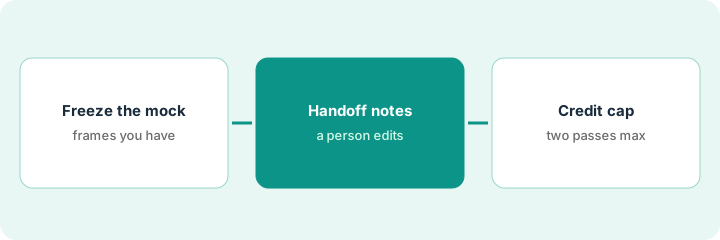
What it is: Pick one flow (or one set of screens) that engineering will build next. List the frames that already exist. Do not generate a full redesign from a blank page.
- Name the flow and the engineering ticket (a Linear or Jira ID if one exists).
- List the frames in scope (desktop, plus one mobile frame if it is real).
- Mark missing states (empty, error, loading) as Unknown. Do not generate every state yet.
- Agree which components and colors in your shared library are the source of truth.
Freezing the scope first is what keeps the AI pass cheap. Ten frames nobody asked for are ten things engineering has to ask about.
Frames: closed drawer, open form, success message. Error and loading states are Unknown. Engineering ticket OPS-214. Components: the existing buttons and inputs only, with no new visual style this week.
Create a page named “Handoff — [flow] — Oct 10.” Move the in-scope frames there. Write three Unknowns at the top. If you cannot name the engineering ticket, stop and get one before any AI variants.
2. Step 2 — Draft handoff notes from the selected frames
What it is: Use Figma’s AI tools (where your plan includes them) to draft layout variants or short handoff notes grounded in the frames you selected. A person edits the notes for engineering.
- Ask only for spacing and alignment notes and missing-state callouts from the selected layers.
- Put the notes in a “Handoff notes” text frame people edit, rather than auto-generated specs nobody reads.
- Ban new wording that changes policy, pricing, or legal text.
- Attach the notes to the engineering ticket yourself.
Engineers do not need a paid Full seat to read the handoff. Figma’s pricing page says people on a paid plan’s files can view and comment without extra seats, and free viewers can still see measurements and copy code. If the ticket lives in Linear, Cut a sprint line from Linear issues without inventing scope covers the planning side.
AI draft: “Form uses 16 px padding; main button full-width on mobile; error state Unknown.” A person adds: “Do not write new validation text; use the existing error messages from the system.” The notes go into OPS-214. Nobody opens a parallel Canva file for the same drawer.
Select the open-form frame. Ask for a short bullet list: layout, notes for small screens, Unknowns. Paste it into the ticket. Delete any new on-screen wording that is not already in the mock.
3. Step 3 — Be honest about AI credits before you scale
What it is: Check how many AI credits are left and decide whether more variants are worth it. Engineering usually needs one clean handoff more than ten AI options.
- Note current credit use from your account or admin AI settings.
- Cap regenerations (for example two variant passes) for this handoff.
- Use v0 only when the deliverable is a code-first internal screen and Figma is not the home.
- Use Canva Magic Studio only for marketing visuals that are not product screens.
Credits are shared across Figma’s AI features and come as a monthly allowance that depends on plan and seat type (see the price check below). A Full seat on Professional comes with far more than a Dev or Collab seat.
The team has a limited number of monthly AI credits left. They ship one handoff with two variants and stop. A parallel “design AI” seat bought for the same vendor drawer is cancelled as overlap.
Write: “Credits remaining: ___ · Max regenerations this handoff: 2 · Owner: ___.” Link the Figma page and the engineering ticket. Do not open a second design tool for the same frames unless the home really changes.
Pricing context (October 2026)
This how-to is not a price sheet. Plan detail for Figma AI, v0 and Canva Magic Studio lives on those reviews. Recheck each vendor’s site before you budget. Dated October 2026.
Checked Oct 10, 2026 on the vendor’s own pricing page: figma.com/pricing, with the Annual option selected for Professional, lists Starter free with 150 AI credits a day, up to 500 a month; Professional at $16 a month for a Full seat (3,000 AI credits a month), $12 for a Dev seat and $3 for a Collab seat (500 credits each); Organization, billed annually, at $55 for a Full seat (3,500 credits); and Enterprise, billed annually, at $90 for a Full seat (4,250 credits). Extra AI credits can be bought on your plan. We did not record Professional’s monthly-billing figures, so confirm them at checkout. v0 and Canva were not rechecked.
Uncertainty: Full-seat credit allowances, Starter caps, Organization and Enterprise meters, and pay-as-you-go top-ups change. If an invoice and a review disagree, trust the invoice. Do not paste a marketing list price you did not pay. The only prices this site sells here are the optional $9 AI toolkit spreadsheet and $19 AI toolkit audit.
When this helps (honest take)
Useful when Figma already holds the product mocks, engineering needs clearer notes or a couple of variants, and a person owns the ticket.
Not useful when there is no engineering owner, you want AI to invent a brand system, or marketing one-pagers are the real job (use Canva). Paying for v0, Figma AI, and Canva for the same screen usually wastes seats. If the design question is still a workshop, Outline an ops workshop board in Miro before the sticky storm comes first.
Related options (educational)
| Need | Where to look | Why |
|---|---|---|
| Product mocks and handoff | Figma AI | When Figma is the system of record |
| Internal screen to code | v0 | When a code-first mock is the job |
| Marketing visuals | Canva Magic Studio | When product Figma is the wrong home |
| Planning the work | Cut a sprint line from Linear issues without inventing scope | Live how-to for the cut line |
| Before another seat | Three checks before you add another AI seat · See which AI tools you pay for and never open | Live how-tos |
Related reviews: Figma AI · v0 · Canva Magic Studio. Related how-tos: Cut a sprint line from Linear issues without inventing scope · Outline an ops workshop board in Miro before the sticky storm · Three checks before you add another AI seat. Free: seat-waste calculator if several design AI seats cover the same handoff.
FAQ
Should I generate every empty, error, and loading state with AI first?
No. Mark them Unknown, then generate only the states engineering will build this cycle.
Is this a reason to buy Figma if we live in Canva?
No. Stay in Canva for marketing visuals. Move to Figma only when product mocks are the system of record.
Does the engineer need a paid seat to use the handoff?
Not to read it. On Oct 10, 2026, Figma’s pricing page said that on paid plans others can view and comment without buying extra seats, and that free viewers can see measurements, copy code, and export. A Dev seat ($12 a month on Professional, annual) adds full Dev Mode.
Where do dated prices live?
On the Figma AI review (and the v0 and Canva reviews if relevant) plus figma.com/pricing. This October 2026 how-to only repeats prices we checked on the vendor’s own pricing page on Oct 10, 2026.
Optional next step
Free reviews stay free. Neither offer is required to use this page. If Figma AI and another design AI seat already cover the same handoff, optional help: $9 AI toolkit spreadsheet (seats, spend, owner, cancel-by, overlap) or $19 AI toolkit audit when you want a written memo.