How-to · Internal video · Descript · Oct 10, 2026
Edit one internal talking-head update like a doc in Descript
“Edit like a doc” here means cutting and tightening a short internal update from its transcript. It is not building a branded film in a full video editor, and it is not putting words in the speaker’s mouth with AI voice.
Who this is for
Ops leads who need a talking-head or screen-and-face internal update (a weekly status, a process change, an FAQ walkthrough) and want transcript-first editing without a full video editor such as Premiere or Final Cut. If a two-minute async clip is enough and you already use Loom, start with Loom AI and Replace one status meeting with a Loom and an owner list. If you are about to pay for Descript, Loom, and another video app for the same weekly update, read Three checks before you add another AI seat first.
How to do it
This page is a how-to. It is not a ranking of video editors. The Descript review covers the features and the media-hour and AI credit notes; this page is the narrower routine: one topic, one short take, one transcript pass, and a decision about where future updates live. Check your plan’s media hours before you import a long recording.

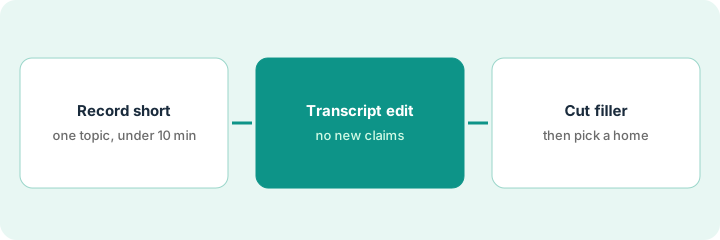
1. Step 1 — Record one short internal update
What it is: Record one topic in under about ten minutes of raw talking. Longer recordings use up media hours and editing patience.
- One topic, one audience (for example, “how accounts-payable exceptions are handled this month”).
- Write three bullets first and speak to them. Do not improvise a keynote.
- Record somewhere quiet; share your screen only if the screen is the point.
- Name where it will be posted (wiki, chat channel, a video link) before you edit.
Media hours count everything you upload or record, whether or not you transcribe it, so one short take is the cheapest version of this routine.
Topic: the new exceptions queue in accounts payable. Audience: finance and ops. Three bullets: when to escalate, who watches the #ap-exceptions channel, what “Unknown vendor” means. Raw take: seven minutes. Posted to: the company wiki, with a link in the chat channel.
Write the three bullets. Record one take under ten minutes. If you have more than one topic, make separate projects — not a thirty-minute ops dump.
2. Step 2 — Edit from the transcript
What it is: In Descript, delete words and sentences in the transcript and the video follows. Fix meaning; do not add claims.
- Correct obvious name and product misspellings in the transcript.
- Delete false starts and repeated sentences by selecting the text.
- Pin a note on any factual claim that needs a source and mark it Unknown; re-record if needed.
- Do not use Descript’s AI Speech tools (custom voice clones and Regenerate; older guides call this Overdub) on policy, pricing, or legal lines unless your team has a written voice-consent policy and a person reviews every replacement.
Deleting a wrong sentence is honest. Having AI produce a corrected one in the speaker’s voice is a different thing, and viewers cannot tell which lines were spoken.
Two “um, so basically” loops and one repeated channel name are deleted. “Exceptions auto-approve under five hundred dollars” was a slip — it was not in the bullets — so it is deleted, not regenerated with a different number. A pinned note says: confirm the threshold with the controller (Unknown until confirmed).
Import the take. Do one transcript pass that deletes filler sentences only. Highlight any number or policy claim; verify it or remove it. Do not regenerate finance or policy lines.
3. Step 3 — Cut filler, then decide Descript or Loom
What it is: Use filler-word removal carefully, export, and decide whether Descript stays the home for this kind of update or Loom is enough next time.
- Run filler-word removal on a copy and spot-check that the meaning did not break.
- Export and post to the named channel with a one-line summary you wrote yourself.
- Next time, use Loom AI if the job is a quick async status clip rather than a tight, edited explainer.
- Cancel a parallel AI video seat if both tools only ship the same weekly update.
If the update replaces a recurring meeting, Replace one status meeting with a Loom and an owner list covers the owner list that should go with it.
The finished update is four minutes and goes on the wiki. The team keeps Descript for monthly process explainers and moves weekly “what shipped” clips to Loom. A CapCut seat bought for the same internal updates is cancelled as overlap.
Export. Write a three-bullet chat message yourself. Record the decision: “Descript for ___ / Loom for ___.” Put a cancel-by date on any unused video AI seat.
Pricing context (October 2026)
This how-to is not a price sheet. Plan detail for Descript and Loom AI lives on those reviews. Recheck each vendor’s site before you budget. Dated October 2026.
Checked Oct 10, 2026 on the vendor’s own pricing page: descript.com/pricing, with Annual selected (the page says annual saves up to 35%), lists Free at $0 with 60 media minutes a month; Hobbyist at $16 per person per month billed annually or $24 monthly (10 media hours, 400 AI credits); Creator at $24 annually or $35 monthly (30 media hours, 800 AI credits); Business at $50 annually or $65 monthly (40 media hours, 1,500 AI credits); and Enterprise at custom pricing. Remove Filler Words and AI Speech (voice clones and Regenerate) are in the Hobbyist feature list. Loom was not rechecked.
Uncertainty: Media-hour and AI credit allowances by plan, AI Speech limits, and which Loom plans include AI change. If an invoice and a review disagree, trust the invoice. Do not paste a marketing list price you did not pay. The only prices this site sells here are the optional $9 AI toolkit spreadsheet and $19 AI toolkit audit.
When this helps (honest take)
Useful when you need transcript-first edits on a short internal update and will post something people actually watch.
Not useful when a two-minute Loom clip would do, you need polished film-style editing, or you plan to regenerate policy numbers in someone’s voice without review. Paying for Descript, Loom, and another video app for the same weekly update usually wastes seats.
Related options (educational)
| Need | Where to look | Why |
|---|---|---|
| Transcript-first editing | Descript | When doc-like editing is the job |
| Quick async status clip | Loom AI · Replace one status meeting with a Loom and an owner list | When speed matters more than polish |
| Fewer meetings overall | One week of meetings, one list of seats, one thing you cancel | Live how-to |
| Before another seat | Three checks before you add another AI seat · See which AI tools you pay for and never open | Live how-tos |
Related reviews: Descript · Loom AI. Related how-tos: Replace one status meeting with a Loom and an owner list · One week of meetings, one list of seats, one thing you cancel · Draft a Teams meeting recap that marks Unknown owners. Free: seat-waste calculator if several video AI seats cover the same updates.
FAQ
Should I fix mistakes on finance or policy lines with AI voice?
Not with this routine. Delete the line or re-record it. AI voice needs a written consent policy and a person reviewing every replacement, even for small fixes.
Is Descript required if Loom already works?
No. Use Loom for short async clips. Use Descript when transcript editing matters.
Which Descript plan fits one short weekly update?
Count your real recordings first. On Oct 10, 2026, Free listed 60 media minutes a month and Hobbyist listed 10 media hours with watermark-free 1080p export ($16 a month billed annually, $24 monthly). Four seven-minute takes are about half an hour a month, so minutes are rarely the limit; export quality and AI credits usually decide it.
Where do dated prices live?
On the Descript review and Loom AI plus descript.com/pricing. This October 2026 how-to only repeats prices we checked on the vendor’s own pricing page on Oct 10, 2026.
Optional next step
Free reviews stay free. Neither offer is required to use this page. If Descript and another video AI seat already produce the same internal updates, optional help: $9 AI toolkit spreadsheet (seats, spend, owner, cancel-by, overlap) or $19 AI toolkit audit when you want a written memo.