Tool · Digital adoption · Whatfix · Oct 2026
Whatfix AI review (Oct 2026): ScreenSense and AI copilots for software adoption
Whatfix is a digital adoption platform: software that sits on top of the apps your people already use (a CRM, an HR system, an ordering tool) and adds step-by-step walkthroughs, tips, help search, and usage analytics without changing the app itself. Its AI layer has two parts. ScreenSense is Whatfix’s name for the technology that works out which screen a person is on, what they are clicking, and what they are probably trying to do. On top of it sit three AI agents — Authoring (builds guidance from prompts and clicks), Guidance (short answers inside the app), and Insights (answers questions about usage). Whatfix says its AI assists people and does not make decisions for them. This page shows each feature with a Try this.
What this Whatfix page covers
This page is for an application owner, a training or change lead, or an IT product manager who is responsible for getting people to use a business app correctly — usually an internal one with a steady stream of “how do I…?” tickets. The question it answers: which Whatfix AI features cut the time it takes to build and maintain guidance, what each one reads, and where the app owner still has to check the result before employees or customers see it.
Whatfix announced its AI Agents on 9 September 2025, built on ScreenSense and spread across its three products: Digital Adoption (in-app guidance), Product Analytics, and Mirror (practice copies of apps for hands-on training, plus AI roleplay). Its help center (agents overview updated 8 October 2026) lists the same three agent families. Some pieces are labelled Beta, and the AI step-writing in Quick Capture Flows is part of a DAP AI add-on package (DAP is short for digital adoption platform) that you enable through your customer success manager — so what you see depends on your contract.
Everything below comes from Whatfix’s pricing, AI and ScreenSense pages, its September 2025 announcement, and its help-center articles as we read them on 9 October 2026. Whatfix’s pricing page does not publish prices. Productivity and support-ticket figures on Whatfix’s site are vendor claims from its own customer stories; we don’t repeat them as expected results.

Major features (with how someone uses them)
Examples at a glance: each feature has a concrete example from a real job plus a short Try this you can run this week.
1. Draft one walkthrough with Quick Capture, then have the app owner check each step (primary)
What it is: A Flow is Whatfix’s step-by-step walkthrough: a bubble points at one field or button, says what to do, then moves to the next. With Quick Capture Flows you click through the task once and Whatfix turns each click into a step. Its built-in AI writes a title and description for every step from the labels of the buttons and fields you clicked, and Enhance with AI can then rewrite the whole Flow in one of five ways (Polish, Formalize, Elaborate, Shorten, or a custom prompt). Whatfix says the AI does not read data from your application — only the labels it captured — and does not use your prompts to train models.
Limits worth knowing before you start: the AI part works in English only, on web apps only (not desktop or mobile), and Enhance with AI rewrites every step at once — Undo reverts the whole change, not one step. The AI title and description generation in the enhanced form is part of the Authoring Agent in the DAP AI add-on package; standard title generation is in the default product. Pick a task with lots of “how do I” tickets, because that is the only way you will know later whether the walkthrough helped.
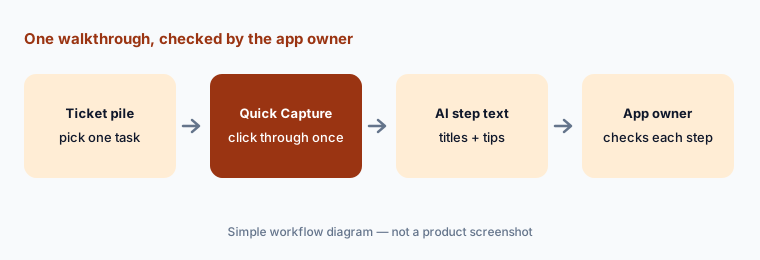
Primary workflow:
Pick one internal app with lots of “how do I” tickets. Let Whatfix AI draft one walkthrough and have the app owner check each step. Count that task’s tickets for four weeks before and four weeks after the walkthrough goes live.
2. Visibility Rules AI and AI pop-ups: who sees what, and when
What it is: Every Whatfix item has Visibility Rules: when, where, and to whom it appears. Writing those rules by hand is fiddly. Visibility Rules AI (Beta; you ask Whatfix support to turn it on) lets you describe the rule in plain language — “show this pop-up every Monday at 5 PM to all users” — and it produces a structured rule for you to review and edit before publishing. It works for Smart Tips, Beacons, Launchers, Blockers, Pop-ups, Surveys, Self Help, and Task Lists, and only with Whatfix’s newer rule format. The Authoring Agent can also generate several pop-up designs from a prompt and apply custom styling.
Whatfix says it strips personal details such as email addresses from your prompt before sending it to the AI model. The main risk is a rule that is almost right — shown to every user instead of new hires, or on every page instead of one. Test with two people: one who should see the item and one who should not.
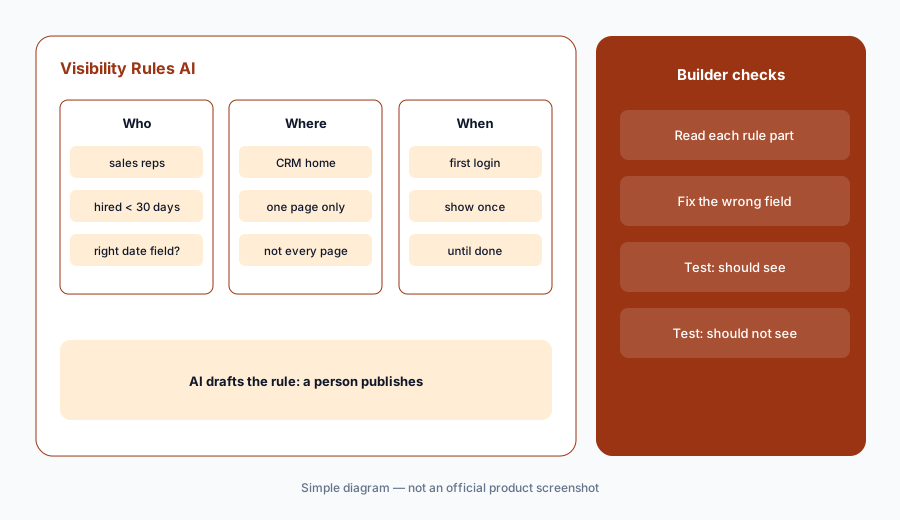
Two-user test:
Write one targeting rule in a single sentence and let Visibility Rules AI build it. Before publishing, test it with one person who should see the item and one who should not.
3. ScreenSense: reading the screen and surviving app changes
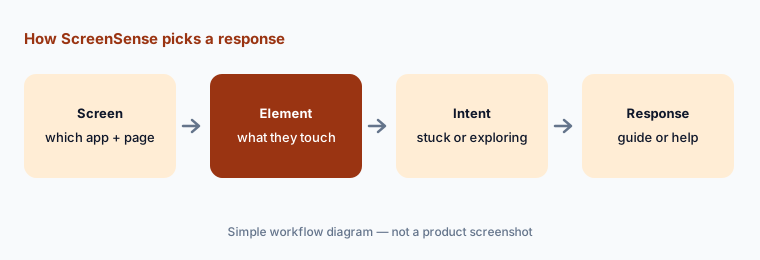
What it is: ScreenSense is what Whatfix calls its “patented context and intent engine.” In plain terms: it identifies which app and screen a person is on and which element they are interacting with, guesses whether they are stuck, exploring, or finishing a task, and then triggers the matching walkthrough, help article, or automation. Whatfix also says ScreenSense adapts when an app’s screens change (a button moves, the language or color changes) and uses AI models to find hard-to-target elements — which matters because a walkthrough that points at the wrong button is worse than none.
Those are vendor claims about how the engine behaves; you can only check them on your own apps. Whatfix’s plans also list Auto Testing, which runs your Flows automatically and emails a report with videos when an app change breaks a step. The practical habit is the same either way: after each release of the underlying app, check your most-used walkthroughs before your users find the broken ones.
After each release:
After the next update of one business app, run your five most-used walkthroughs end to end (or check the Auto Testing report if your plan has it). Fix any broken step before you announce the update.
4. QuickRead: short answers inside the app (Guidance Agent)
What it is: The Guidance Agent answers questions where people work. Its QuickRead feature sits in Whatfix’s Self Help panel (the searchable help widget inside the app): when someone types “How do I reset my password?” it shows a one-line summary and a link to the source article. Whatfix’s example is a person searching “return policy exceptions” inside an order system and getting a short summary from internal documents without leaving the screen.
A summary is only as good as the article behind it. Old or conflicting help articles produce confident but wrong one-liners. Whatfix says it stores AI queries and responses so you can see what people asked — use that list to find the articles that need rewriting. Whatfix’s AI runs on private Azure OpenAI instances in your region, according to its privacy article.
Check the source:
Type your three most common “how do I” questions into Self Help. Compare each QuickRead summary with its source article, and fix the article — not the summary — when they disagree.
5. Ask Whatfix AI and Deep think: questions about usage (Insights Agent)
What it is: The Insights Agent lets you ask questions about app usage in plain language. Ask Whatfix AI answers questions like “How many users interacted with the ‘Create a Lead’ action?” with trend, funnel, or user-journey charts; Deep think tries to interpret the data and suggest what to do; and a survey summary sorts open-text survey answers into positive and negative themes. Whatfix’s press example: ask “How is the new workflow performing?” and get a visual summary with friction points and a suggested next step.
Treat a chart from a question like any other report: check which events and date range it used. Start with a question you already know the answer to from an existing dashboard, so you can see whether the agent counts the same way you do. Whatfix’s privacy article says its AI always needs human supervision to validate and act on outputs.
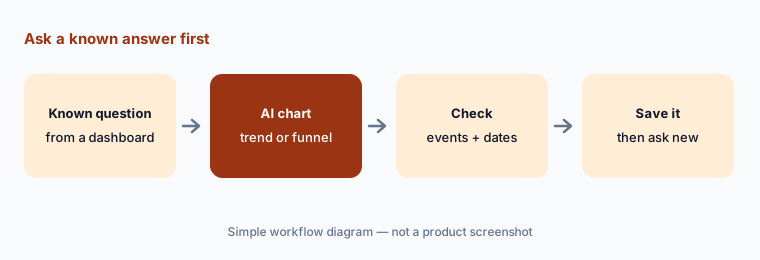
Known answer first:
Ask Whatfix AI one usage question you already know the answer to from a dashboard. If the numbers differ, find out which events or dates the AI used before you ask it anything new.
6. Plans, products, and where Whatfix fits
What it is: Whatfix sells three products — Digital Adoption, Product Analytics, and Mirror — and its pricing page lists Standard, Premium, and Enterprise plans for web and desktop apps, each with a “Get a demo” button and no price. Plans differ in things like the number of integrations (Standard is limited to two), how many help articles you can pull in, automatic translation, and Auto Testing. Whatfix offers cloud and self-hosted options, offline mode, and support for apps in virtual desktops such as Citrix.
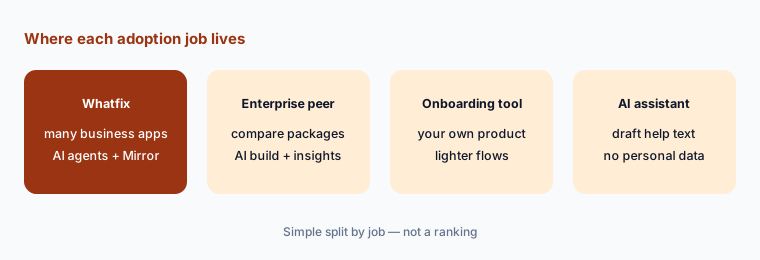
Whatfix fits companies rolling out several business apps to many employees (or guiding customers through a complex product) who want one guidance layer across them. Teams comparing enterprise options look at WalkMe AI; product-led software companies guiding their own customers often compare Pendo, Userpilot, or Appcues.
Count before the demo:
List the apps you want covered, how many people use each, and whether any run in a virtual desktop. Bring the list to the demo and ask which plan covers it and whether the AI features need the DAP AI add-on.
Pricing context (October 2026)
Whatfix does not publish prices. Its pricing page on 9 October 2026 listed Standard (“for employee or customer-facing applications”), Premium, and Enterprise plans for web and desktop apps, plus separate products for Product Analytics and Mirror. Every plan leads to a demo request, not a price. Feature differences shown include integrations (Standard limited to two), help-article import limits (2,000 articles on one tier; up to 50,000 on another), automatic translation, Auto Testing, cloud or self-hosted setups, and a named customer success manager.
Whatfix’s help center says the AI step-writing in Quick Capture Flows is part of a DAP AI add-on package enabled through your customer success manager, and Visibility Rules AI is a Beta you request from support. Ask for a quote that names the plan, the number of apps and users covered, and exactly which AI features are included or extra.
Uncertainty: Whatfix lists no prices, so any figure you see elsewhere is not from Whatfix. We read the plan table and help articles on 9 October 2026; some AI features are Beta or part of an add-on, and which AI agents are switched on depends on your contract. We could not confirm from public pages which plans include which AI agents.
When it’s useful (honest take)
Useful when an enterprise rolls out or maintains several business apps for many people, has a steady flow of “how do I” tickets, and has named app owners who will check AI-drafted walkthroughs, targeting rules, and in-app answers before they go live.
Less useful when you have one simple product and a small team, nobody owns the help articles that QuickRead summarizes, or you need guidance on desktop or mobile apps from the AI capture feature (it is web-only today). Teams that need published prices to budget will have to go through a demo first.
Paying for Whatfix AI and a few other AI tools? The $9 AI toolkit spreadsheet lists every AI subscription you have, what each one costs, and how fast it pays for itself, so you can see which ones are worth the money.
Want someone to do it for you? AI toolkit audit — $19
Related options (educational)
| Need | Better home | Why |
|---|---|---|
| Guidance across many internal business apps | Whatfix AI (this page) | ScreenSense, AI agents, Mirror training |
| Comparing enterprise adoption platforms | WalkMe AI | SAP-owned; AI Authoring and AI Insights |
| Guides plus product analytics for your own software | Pendo AI | Product-led adoption suite |
| Onboarding flows for a product-led company | Userpilot AI or Appcues AI | Lighter in-app onboarding |
| Getting employees to use Microsoft 365 Copilot | Microsoft 365 Copilot | Know the tool you are guiding |
| Drafting help articles before they become guidance | Claude or ChatGPT | General assistants; paste no personal data |
FAQ
What is ScreenSense?
ScreenSense is Whatfix’s name for its patented engine that identifies the app, screen, and element a person is using, guesses what they are trying to do, and triggers the matching walkthrough, help article, or automation. Whatfix says it also adapts guidance when an app’s screens change.
What are Whatfix’s AI agents?
Three families: Authoring (Quick Capture Flows with AI step text, Visibility Rules AI, AI pop-ups and styling), Guidance (QuickRead answers inside the Self Help panel), and Insights (Ask Whatfix AI charts, Deep think, and survey summaries). Whatfix announced them on 9 September 2025.
How much does Whatfix cost?
Whatfix does not publish prices. Its pricing page lists Standard, Premium, and Enterprise plans for web and desktop apps, each with a demo request. The enhanced AI authoring features are part of a DAP AI add-on package. See whatfix.com/pricing.
Does Whatfix AI publish guidance by itself?
No. Whatfix says its AI assists people and does not make decisions for them. AI-written steps and generated visibility rules are drafts you review and edit before publishing. Have the app owner check every step of a walkthrough before it reaches users.
Whatfix or WalkMe?
Both are enterprise digital adoption platforms with AI for building guidance and answering usage questions. Whatfix leans on ScreenSense, Quick Capture, and its Mirror training product; WalkMe, owned by SAP, leans on its new conversational AI Authoring and AI Insights. See WalkMe AI.
Optional next step (if seats overlap)
If you pay for a digital adoption platform, a separate training-video tool, a survey tool, and a general AI assistant that writes the same help text, that overlap is worth a look. Map the overlap with the $19 AI toolkit audit or the $9 AI toolkit spreadsheet. Email Audit $19 or Toolkit spreadsheet $9.
Checkout is live via Stripe. After you pay, we email delivery (spreadsheet) or intake next steps (audit).