How-to · Digital adoption · Whatfix · Oct 13, 2026
Record one Whatfix Quick Capture flow and fix the AI step text before rollout
Recording a walkthrough is fast now. Whatfix's Quick Capture turns each click into a step and its AI writes the text. The slow part is noticing that step six names the wrong field and that the company's approval rule never made it in. This page shows an application owner how to record one task, have the process owner fix every step, and check who will see it before anyone does.
Who this is for
Application owners, training and change leads, and IT product managers rolling out or maintaining an internal web app (an ordering tool, a CRM, an HR system) with Whatfix already licensed. You get a steady stream of "how do I…?" tickets and want walkthroughs out faster without publishing AI text nobody checked. If you're comparing platforms, see Whatfix vs WalkMe.
How to do it
This is a how-to, not a ranking of adoption platforms. Feature detail lives on the Whatfix AI review. Per that review, the AI step-writing in Quick Capture Flows works in English only, on web apps only, and the enhanced AI authoring is part of a DAP AI add-on package (DAP means digital adoption platform) that your Whatfix customer success manager enables. Check what's on in your account before you start.
1. Step 1 — Pick one task and count its tickets
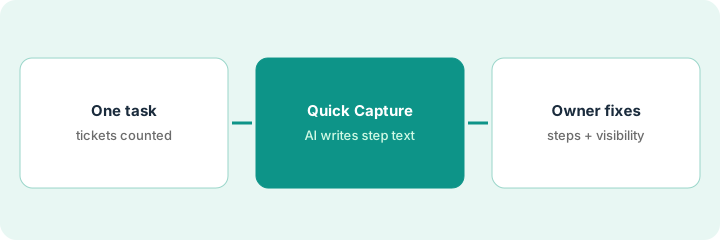
What it is: One task, chosen because it causes the most "how do I" tickets, with a ticket count before anything goes live. The count is the only way you'll know later whether the walkthrough helped. Also name the process owner: the person who knows how the task should be done, which isn't always the app owner.
- Pull the last four weeks of tickets for one web app and group them by task.
- Pick the top task. Write the ticket count and the date range.
- Name the process owner who'll check the steps (for purchasing, often someone in procurement).
- Confirm the app is a web app. Per the review, the AI capture doesn't cover desktop or mobile apps.
The top ticket is "how do I raise a purchase order for a new supplier?" with 41 tickets in four weeks. The app owner names the procurement lead as process owner, since the supplier approval rule is hers.
Write one line before you record anything: "Task: ___. Tickets in the last four weeks: ___. Process owner: ___. Web app: yes/no." If the last answer is no, the AI capture won't help with this task.
2. Step 2 — Record it once with Quick Capture
What it is: With Quick Capture Flows you click through the task once and Whatfix turns each click into a step. Per the review, its AI writes a title and description for each step from the labels of the buttons and fields you clicked, and doesn't read data from your application. Enhance with AI can then rewrite the whole flow (Polish, Formalize, Elaborate, Shorten, or a custom prompt), but it rewrites every step at once, and Undo reverts the whole change, not one step.
- Record in a test record, not a real supplier or customer.
- Click through the task exactly the way the process owner says it should be done, including any approval step.
- If you use Enhance with AI, do it once, before anyone edits individual steps, so Undo doesn't wipe the edits.
- Save the flow as a draft. Don't publish yet.
The app owner records the task in a test supplier record. Whatfix creates nine steps with AI-written text. She asks Enhance with AI to shorten them, reads the result once, and saves it as a draft for the procurement lead.
Record one task end to end with Quick Capture. Run Enhance with AI once if you want it, then export or copy the step list (step number, title, description) into a sheet for the process owner.
3. Step 3 — The process owner fixes the steps and the visibility rule
What it is: The process owner walks through the draft flow in the app and marks each step "right," "wrong field," "missing rule," or "unclear." AI text written from button labels can't know your company's rules, so missing approvals are the usual gap. Then set who sees it. Per the review, Visibility Rules AI (a Beta you ask Whatfix support to enable) turns a plain sentence into a structured rule you review and edit before publishing.
- The process owner walks through the flow step by step and marks each one.
- The app owner fixes each marked step one at a time (not with another whole-flow rewrite).
- Write the visibility rule in one sentence, such as "show only to the finance operations department," and review the generated rule part by part: who, where, and when.
- Test with two people: one who should see the flow and one who shouldn't.
- Publish to one department and count that task's tickets for the next four weeks.
The procurement lead marks two steps "wrong field" (the AI named "Vendor" where the screen says "Supplier") and one "missing rule": new suppliers over a spending limit need a second approver. The app owner fixes all three by hand. The generated visibility rule targets the right department but every page of the app, so she narrows it to the purchase order screen, tests with two colleagues, and publishes.
Before publishing, have the process owner sign one line in the sheet: "All [n] steps checked by [name] on [date]; [x] fixed." Then test the visibility rule with one person who should see the flow and one who shouldn't.
Pricing context (October 2026)
This how-to isn't a price sheet. Per the Whatfix AI review, Whatfix doesn't publish prices: its pricing page on 9 October 2026 listed Standard, Premium, and Enterprise plans for web and desktop apps, each with a demo request and no dollar figure. The AI step-writing in Quick Capture Flows is part of a DAP AI add-on package, and Visibility Rules AI is a Beta you request from support. Dated October 2026.
Checked Oct 13, 2026 on the vendor’s own pricing page: Whatfix shows no public list price. Whatfix’s pricing page lists Standard, Premium, and Enterprise plans for employee- or customer-facing applications, each leading to a demo request, with no dollar figures. This page quotes no Whatfix dollar figure; confirm what your contract includes with Whatfix or your admin.
Uncertainty: We couldn't confirm from public pages which plans include which AI agents; it depends on your contract. If your contract and our review disagree, trust your contract. The only prices this site sells here are the optional $9 AI toolkit spreadsheet and $19 AI toolkit audit.
When this helps (honest take)
Useful when one internal web app produces a steady stream of "how do I" tickets, there's a named process owner who'll check the steps, and you can count tickets before and after. One task done properly shows you how much editing AI step text really needs.
Not useful when the task lives in a desktop or mobile app (the AI capture is web-only), nobody owns the process, or the problem is a confusing screen that should be fixed in the app itself. A walkthrough over a broken process just teaches people the broken process faster.
Related options (educational)
| Need | Where to look | Why |
|---|---|---|
| Whatfix AI features | Whatfix AI | Primary path on this page |
| Comparing enterprise adoption platforms | Whatfix vs WalkMe | Quick Capture vs AI Authoring, and who approves |
| The enterprise peer | WalkMe AI | SAP-owned; AI Authoring and AI Insights |
| Onboarding inside your own SaaS product | Userpilot AI | Lighter, product-led onboarding |
| Writing down the clicks without a platform | Capture the clicks once | Live how-to |
| Guidance and analytics tools in one view | Stack map for product ops | Spot overlapping seats |
FAQ
Can Whatfix's AI publish a walkthrough by itself?
Per our review, Whatfix says its AI assists people and doesn't make decisions for them. AI-written steps and generated visibility rules are drafts you edit before publishing. This routine adds a process owner's step-by-step check.
Why not use Enhance with AI after the process owner's edits?
Because, per the review, Enhance with AI rewrites every step at once, and Undo reverts the whole change. Run it once at the start, then fix steps by hand.
Where do current prices live?
With Whatfix's sales team. Whatfix publishes no prices, and this page doesn't invent any. Our Oct 13, 2026 check of the vendor’s own pricing page is summarized in the pricing section above.
How do we know the walkthrough helped?
Compare that task’s ticket count for four weeks before and four weeks after it goes live, for the department that sees it.
Optional next step
Free reviews stay free. If you pay for an adoption platform, a training-video tool, and a chat assistant that all write the same help text, the $9 AI toolkit spreadsheet helps you lay them out, or the $19 AI toolkit audit gets you a written memo.