Tool · Digital adoption · WalkMe (SAP) · Oct 2026
WalkMe AI review (Oct 2026): AI agents for digital adoption (an SAP company)
WalkMe is a digital adoption platform: it adds step-by-step guidance, pop-up announcements, menus, and automations on top of the business apps employees already use — Salesforce, Workday, ServiceNow, SAP and others — and measures how those apps are used. SAP completed its purchase of WalkMe on 12 September 2024, so WalkMe is now an SAP company. In late August 2026 WalkMe added two conversational, “agentic” features: AI Authoring (describe a problem, approve a plan, and WalkMe builds the guidance) and AI Insights (ask a usage question, get a chart). Its Contextual AI Assistance puts AI help inside the apps themselves. This page shows each feature with a Try this.
What this WalkMe page covers
This page is for a digital adoption manager, an application owner, or a change and training lead at a large company who has to get employees using software correctly — often a newly rolled-out system or an AI assistant the company is paying for. The question it answers: which WalkMe AI features save build and analysis time, what each one can and cannot do, and which decisions stay with a person.
WalkMe’s AI as we found it on 9 October 2026: AI Authoring (released 31 August 2026, rolling out gradually; help article updated 1 October 2026), AI Insights (generally available since 31 August 2026, with an MCP server on request), and Contextual AI Assistance in three forms — Pinned AI attached to a field or step, Proactive AI in the Action Bar, and On-Demand AI in the WalkMe Menu. WalkMe’s release notes say the new AI experiences are available to customers with WalkMe’s AI terms and conditions in place.
Everything below comes from WalkMe’s pricing, AI, and agentic-experiences pages, its 1 September 2026 blog post, its help-center articles, and SAP’s 12 September 2024 announcement, as we read them on 9 October 2026. WalkMe’s pricing page does not publish prices. Return-on-investment figures on WalkMe’s site come from a study WalkMe promotes and are vendor claims, not expected results.
Major features (with how someone uses them)
Examples at a glance: each feature has a concrete example from a real job plus a short Try this you can run this week.
1. Five tasks people get wrong: which WalkMe’s AI can guide and which need training (primary)
What it is: Not every mistake is a guidance problem. WalkMe’s tools split roughly into two kinds. In-app help — Smart Walk-Thrus (step-by-step guides), SmartTips (field-level hints), and Pinned AI, which WalkMe says attaches AI checks and guidance “at the field where they start,” grounded in your own policies — works when a person knows the goal but trips on the screen. Training first — WalkMe’s learning and simulation tools, or a class — is better when the person doesn’t understand the rule behind the task, or when a mistake is costly enough that they should practice before touching real data.
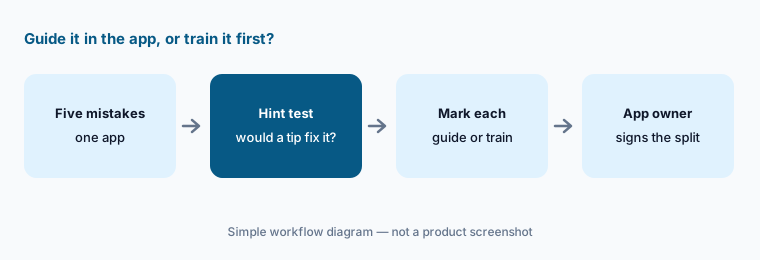
A quick test for each task: if a short hint at the right field would have stopped the mistake, it is a guidance task. If the person needed to understand a policy, a judgment call, or a sequence across several systems, it needs training (and maybe guidance afterwards). Write the decision down with the app owner, because they know which mistakes are expensive.
Primary workflow:
List the five tasks employees most often get wrong in one app. Mark which ones WalkMe’s AI could guide and which need training. For each guide task, write the exact field or step where the mistake starts.
2. AI Authoring: describe the problem, approve the plan
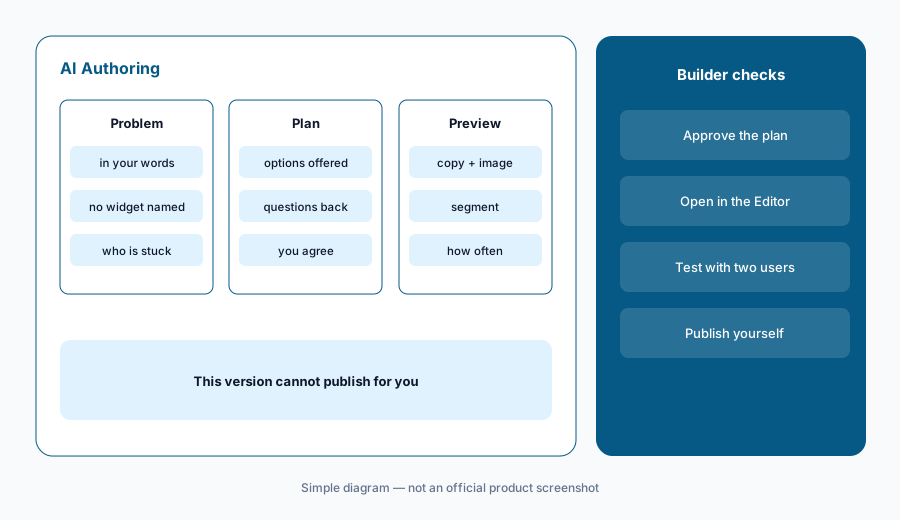
What it is: With AI Authoring you describe a business problem in your own words — “Sales reps aren’t using Copilot when they write follow-up emails” — and talk it through with WalkMe. It suggests options, asks clarifying questions (every email, or only long ones?), shows a live preview you can edit (copy, images, buttons, colors), and builds segments and display conditions from plain-language descriptions. When you approve the plan, it creates the item in the WalkMe Editor. Project sessions let a writer edit text while a builder edits logic at the same time.
Know the limits from WalkMe’s own help article: this version cannot publish or archive content, does not build Smart Walk-Thrus or SmartTips yet, cannot pick screen elements for you, and is not available on unlimited, lite, or trial systems. An admin turns it on under AI Settings. WalkMe says it uses Gemini for text and images and Perplexity for web search (vendor may change), keeps conversation history for 18 months, does not use it for training, and warns that “AI may include inaccuracies.” A person publishes, after testing.
Problem, not widget:
Describe one adoption problem to AI Authoring without naming the type of guidance you want. Check the segment and how often it shows in the preview, then test it with two real users before you publish it yourself.
3. Contextual AI Assistance: Pinned, Proactive, and On-Demand AI
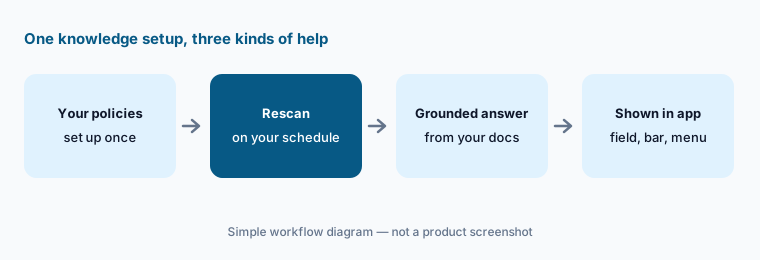
What it is: WalkMe’s Contextual AI Assistance puts AI help inside the apps employees use. Pinned AI is attached to a specific field or workflow step. Proactive AI appears through the Action Bar, an on-screen overlay that reads what’s on the screen and suggests the next step without being asked. On-Demand AI lives in the WalkMe Menu, where people type a question and get an answer with an action ready to run. All three draw on one knowledge setup: you connect your policies and documents once, and WalkMe retrieves the relevant passages before answering — a method called retrieval-augmented generation. You choose how often it rescans those sources.
The answers can only be as current as the documents behind them, so set the rescan schedule to match how often policies change, and retire old documents rather than leaving them in. WalkMe’s pricing page lists “WalkMe Action Bar with Default Settings (No AI)” separately from the Contextual AI section, so confirm which AI forms your package includes.
Five known answers:
Connect one policy document, then ask On-Demand AI five questions whose answers you already know. Remove or update any source behind a wrong answer before employees see it.
4. AI Insights: usage questions with a data trail
What it is: AI Insights is a chat inside WalkMe Insights (the analytics area). You ask “Break license use down by department” and get an answer with a chart or table and a suggested next step; follow-up questions dig deeper, answers can be saved to a dashboard, and WalkMe says each answer shows where the data came from and how it was calculated. WalkMe’s help article lists what it cannot do: it cannot create or change content, cannot see tracked events or saved filters, cannot read your screen, and cannot compare you with other companies. If the data doesn’t support a clear answer, WalkMe says it tells you instead of guessing.
AI Insights is also available as an MCP server (Model Context Protocol, a standard way to connect AI assistants such as Claude to other software) — on request through WalkMe support, using a WalkMe API token. Treat that token like a password and give it to a named owner. Admins can switch AI Insights on or off in AI Settings.
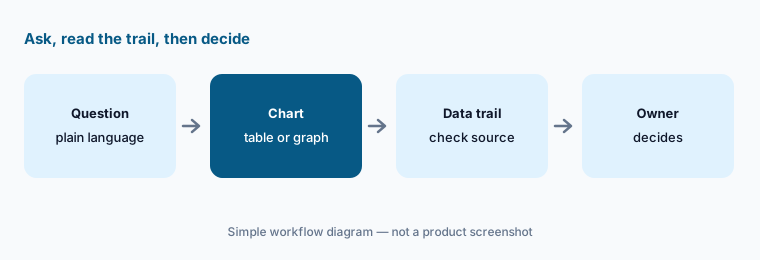
Check the trail:
Ask AI Insights for license use by department for one app. Open where the data came from, and check the totals against your own license list before you share the chart.
5. Discovery and UI Intelligence: unused apps and form drop-off
What it is: Two analytics features on WalkMe’s pricing page support the decisions above. Discovery shows company-wide web app usage down to the user level, so you can spot apps that are paid for but rarely used. UI Intelligence analyzes form interactions, shows where people drop off, compares results before and after WalkMe guidance, and offers AI-powered recommendations. Both are listed in the package for employee apps.
Usage data about named employees is sensitive. Agree with HR and your privacy owner what is collected and who can see user-level views; WalkMe lists controls such as blocking collection of sensitive data and scrambling user IDs before they reach WalkMe. Use the AI recommendations as a list of places to look, then confirm with the app owner.
Before renewals:
Use Discovery to list apps with many licenses but few weekly users. Send the list to each app owner and ask them to confirm or explain the numbers before any renewal decision.
6. Packages, SAP, and where WalkMe fits
What it is: WalkMe’s pricing page shows two packages of its Digital Adoption Platform — one for employee-facing apps and one for customer-facing apps and websites — each with “Request a quote.” Features listed include the Editor, AI Authoring, AI Insights, ActionBot (a chatbot that automates processes), AI-assisted surveys, localization, and WalkMe for SAP GUI (support for SAP’s desktop interface, including moves from SAP’s older ECC system to its newer S/4HANA). WalkMe’s help center lists US, EU, and SAP data centers, and new features sometimes arrive in the SAP data center a few weeks later.
WalkMe fits large companies running many business apps, especially SAP customers, who want guidance and usage analytics across them and are now also paying for AI assistants they want people to use. Teams comparing enterprise options look at Whatfix AI; software companies guiding their own customers often compare Pendo, Userpilot, or Appcues.
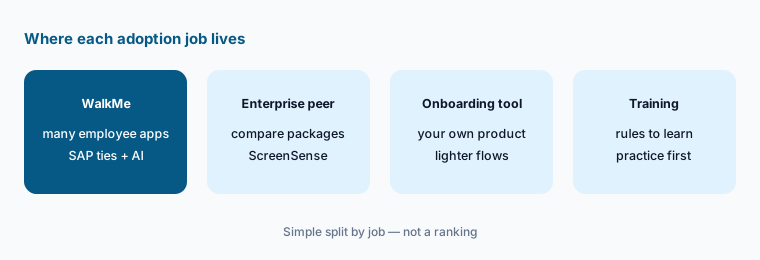
Quote checklist:
Ask for a quote that names the package, the number of apps (WalkMe calls them systems), your data center, and whether AI Authoring, AI Insights, and the AI forms of the Action Bar and Menu are included.
Pricing context (October 2026)
WalkMe does not publish prices. Its pricing page on 9 October 2026 showed the WalkMe Digital Adoption Platform in two packages — one to “reduce digital friction for your employees” and one for “customer-facing applications and websites” — each with “Request a quote” or “Get a quote.” Listed features include AI Insights, AI Authoring, Contextual AI Assistance (Pinned, Proactive, On-Demand AI, and AI analytics), Discovery, UI Intelligence, ActionBot, behavioral segments (up to 10 per system and 50,000 users per segment), and US or EU data residency.
WalkMe’s Q3 2026 release notes say the new AI experiences need WalkMe’s AI terms and conditions in place, AI Authoring is rolling out gradually, and the AI Insights MCP server is enabled on request. Ask for a quote that shows the price at your number of apps and users, and which AI features are included.
Uncertainty: WalkMe lists no prices, so any figure you see elsewhere is not from WalkMe. We read the packages and help articles on 9 October 2026; AI Authoring is in gradual release and some features reach SAP data centers later, so what you see may differ. We could not confirm from public pages which AI features cost extra.
When it’s useful (honest take)
Useful when a large company runs many employee apps (especially SAP), has named app owners and a digital adoption manager, and wants AI to speed up building guidance and answering usage questions — with a person approving every plan, publishing every item, and checking answers against the source.
Less useful when you have one product and a small team, your policy documents are out of date (the in-app AI will repeat them), or you need AI Authoring to build step-by-step walkthroughs today — this version does not build Smart Walk-Thrus or SmartTips. Budgeting also has to wait for a quote.
Paying for WalkMe AI and a few other AI tools? The $9 AI toolkit spreadsheet lists every AI subscription you have, what each one costs, and how fast it pays for itself, so you can see which ones are worth the money.
Want someone to do it for you? AI toolkit audit — $19
Related options (educational)
| Need | Better home | Why |
|---|---|---|
| Guidance and usage analytics across many employee apps, SAP-heavy | WalkMe AI (this page) | AI Authoring, AI Insights, Contextual AI |
| Comparing enterprise adoption platforms | Whatfix AI | ScreenSense, Quick Capture, Mirror |
| Guides plus analytics for your own software | Pendo AI | Product-led adoption suite |
| Onboarding inside a product-led app | Userpilot AI or Appcues AI | Lighter in-app flows |
| Knowing the AI assistant you want people to adopt | Microsoft 365 Copilot | What the licenses actually do |
| Drafting training scripts and policy summaries | Claude or ChatGPT | General assistants; paste no personal data |
FAQ
Is WalkMe an SAP company?
Yes. SAP announced on 12 September 2024 that it had completed its acquisition of WalkMe, and WalkMe became a wholly owned SAP subsidiary. WalkMe still sells its platform for many business apps, not only SAP, and offers WalkMe for SAP GUI.
What are WalkMe’s AI agents?
WalkMe calls AI Authoring and AI Insights its agentic experiences, released on 31 August 2026: AI Authoring builds guidance from a conversation and an approved plan; AI Insights answers usage questions with charts. Separately, Contextual AI Assistance (Pinned, Proactive, and On-Demand AI) helps employees inside their apps.
How much does WalkMe cost?
WalkMe does not publish prices. Its pricing page shows two packages (employee apps and customer-facing apps) with a request-a-quote button. See walkme.com/pricing.
Can WalkMe’s AI publish content by itself?
Not in the current version. WalkMe’s help article says AI Authoring does not support publishing or archiving content; it builds the item in the Editor after you approve the plan, and a person publishes. AI Insights cannot create or change content at all.
WalkMe or Whatfix?
Both are enterprise digital adoption platforms. WalkMe brings SAP ownership, WalkMe for SAP GUI, and conversational AI Authoring and AI Insights; Whatfix brings ScreenSense, Quick Capture Flows, and its Mirror training product. See Whatfix AI.
Optional next step (if seats overlap)
If you pay for a digital adoption platform, a license-tracking tool, a training platform, and AI assistant seats nobody uses, that overlap is worth a look. Map the overlap with the $19 AI toolkit audit or the $9 AI toolkit spreadsheet. Email Audit $19 or Toolkit spreadsheet $9.
Checkout is live via Stripe. After you pay, we email delivery (spreadsheet) or intake next steps (audit).