Tool · Recruiting · Sourcing agent · Oct 2026
LinkedIn Hiring Assistant review (Oct 2026): agentic sourcing inside LinkedIn Recruiter
Hiring Assistant is an AI agent built into LinkedIn Recruiter. You give it a job description, an intake note, or a strong past candidate; it drafts the qualifications, sources candidates into your project, drafts or sends outreach, prescreens people who reply, and evaluates applicants. It learns from what you approve and reject. This page walks through each piece with a real sourcing job, a Try this, and where the recruiter keeps the decision.
What this LinkedIn Hiring Assistant page covers
This page is for recruiters and talent leaders whose team already pays for LinkedIn Recruiter, and for the admins who have to decide who gets a Hiring Assistant license. The question it answers: what does the assistant do on its own, what does it need from you, and what limits come with each license?
Availability and packaging (checked 6 October 2026): LinkedIn’s help center says Hiring Assistant is an add-on license for LinkedIn Recruiter and Recruiter Professional Services Plus (RPS+) customers. A user needs an active Recruiter license and the Hiring Assistant permission, and must chat with it in a supported language — Dutch, English, French, German, Italian, Portuguese, or Spanish. Spanish, Portuguese, Italian, and Dutch were added in September 2026. LinkedIn also says it is rolling the experience out gradually, so some accounts may not have it yet.
To check access, sign in to Recruiter and look for the Sparkle icon in the top right; it opens the Hiring Assistant dashboard. If it is missing, your contract may not include the add-on or your admin has not assigned the permission. Everything below comes from LinkedIn’s Recruiter help center and Hiring Assistant pages as we read them on 6 October 2026.

Major features (with how someone uses them)
Examples at a glance: each feature has a concrete example from a real job plus a short Try this you can run this week.
1. Project intake and qualifications (primary)
What it is: From the dashboard, Start hiring for a new role opens a guided chat. You can give it a job description, an ideal candidate’s name, a LinkedIn job post URL, or a file. Hiring Assistant drafts the role, suggests required and nice-to-have qualifications for you to review (up to 35 per project), can pull requirements from similar projects you have created, and sets a hiring plan: how many candidates to review at a time and how many InMail accepts you want. The project’s Activity log shows every action it takes, suggestions to improve your criteria, and options to edit or revert its changes.
The qualifications are the brief. If a requirement is vague (“strong communicator”) or not really required, the assistant will source against it anyway, so edit the list before sourcing starts.
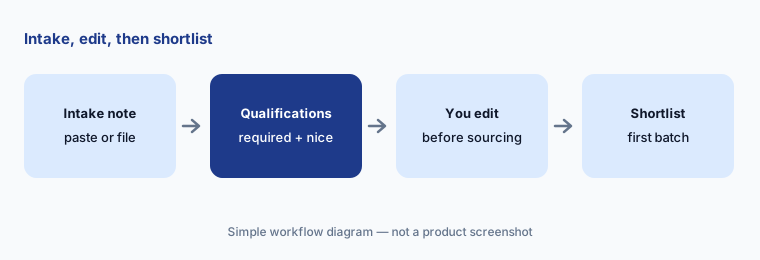
Primary workflow:
Give it one intake note (paste it or upload the file). Review the first shortlist. Reject three with a written reason (archive them with feedback) and see if the next batch changes.
2. Sourcing into your Pipeline
What it is: Hiring Assistant turns your hiring intent into search strategies, sources candidates, and saves them to the project Pipeline with a summary of why it thinks each one fits and how many qualifications they meet. LinkedIn says it draws on the member’s profile (experience, skills, education, location, certifications, summary, and more), a resume if available, screening-question answers, and recruiting notes, and that it does not use signals such as mutual connections. Spotlights filter by who saved the candidate, applicants, active talent, and missed candidates uncontacted for more than a week. It keeps sourcing until it reaches your goal, then pauses until you review.
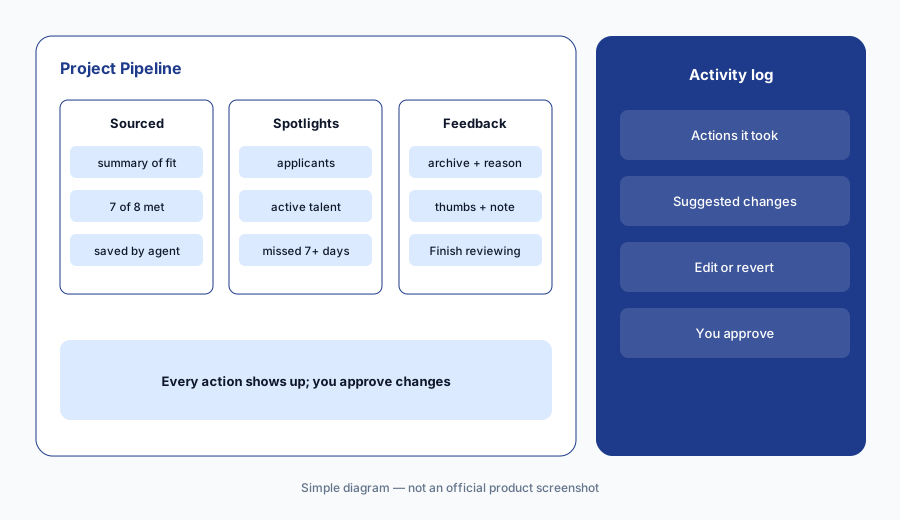
Count the real fits:
Open the first 20 candidates Hiring Assistant sourced for one project. For each, check one claimed qualification against the profile itself. Note how many summaries held up.
3. How it learns from your feedback
What it is: LinkedIn lists what Hiring Assistant learns from: rejecting an applicant with written feedback, archiving a candidate with written feedback, highlighting text on a profile and giving a thumbs up or down with a comment, running a manual search inside the project, and saving or InMailing a candidate. It waits until you click Finish reviewing or five minutes pass, applies the feedback together, proposes updates to your qualifications, and shows a new candidate to check. You choose which suggested updates to accept. When you change qualifications, it re-evaluates the remaining candidates.
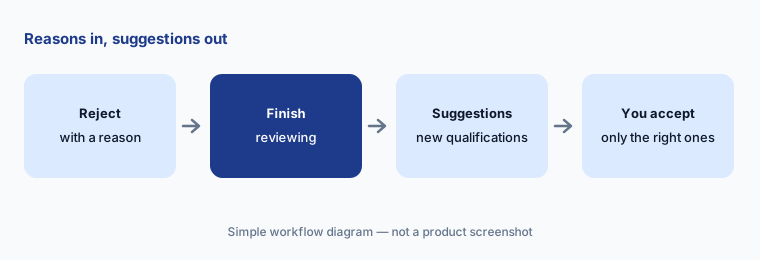
Accept on purpose:
After your next feedback round, read every suggested qualification change before accepting. Reject any suggestion that adds a requirement nobody asked for, and note it in the project.
4. AI outreach and instant outreach
What it is: Hiring Assistant drafts AI-generated messages you can edit and send to up to 25 candidates at a time, including follow-ups; with auto-draft on, each recipient gets a personalized draft you can open and review. With instant outreach turned on for a project, it drafts, sends, and follows up on your behalf based on the preferences you set. LinkedIn says auto-outreach is enabled by default at the contract level, and a Recruiter admin can turn it off for all users on the contract. Candidate-facing messages go out under your name, so decide where you want a person to read first.
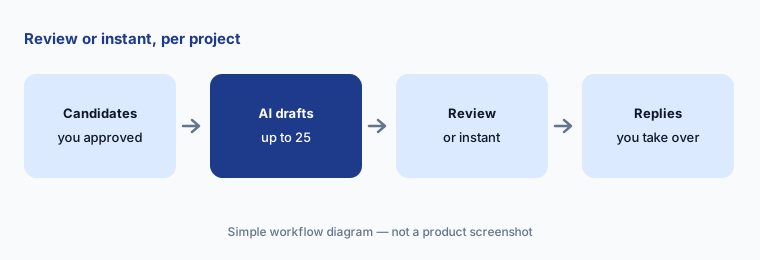
Read what was sent:
If instant outreach is on anywhere on your contract, read the last 20 messages it sent. Check every claim about the role, location, and pay against the job. Decide whether that project keeps instant outreach.
5. Prescreening candidates who reply
What it is: When a candidate accepts your InMail, Hiring Assistant can ask permission to prescreen, then ask the questions you reviewed and approved, adapting them to the person and the conversation so far. Messages appear as “[your name]’s Hiring Assistant,” so candidates know who they are talking to; they can ask to be connected back to you at any time, and declining routes them to you. It answers role questions from your custom text, uploaded files, role details, and the job post, and hands back anything it cannot answer. You can Take over any thread, and a summary of answers is saved to the profile. LinkedIn says prescreening is available in English only.
Test the conversation:
Before enabling prescreening on a project, use Test conversation and answer as a candidate who is unsure about the role. Rewrite any question that would confuse a real person, and add missing facts to the project’s custom text.
6. Applicant evaluation, licenses, and credits
What it is: Hiring Assistant can also evaluate applicants to your LinkedIn job against your qualifications; that setting is on by default for the contract and an admin can turn it off. Each license has monthly limits on sourced candidates and evaluated applicants. Credits are per license, not pooled, do not roll over, and refresh on the first of the month; sourcing credits are used only when it saves a candidate who passed its evaluation. You can cap a project by typing “Only evaluate [number] applicants” or pause evaluation in the Activity log. Hiring Assistant for Microsoft Teams lets hiring managers give feedback in Teams, and evaluating ATS applicants through Connected Projects is limited to some ATSs.
Cap the big jobs:
In Admin Center, check remaining Hiring Assistant credits per license. For any high-volume job post, set a project cap with “Only evaluate [number] applicants” so one posting cannot use the month’s allowance.
Pricing context (October 2026)
LinkedIn does not publish a price for Hiring Assistant. Its product page (checked 6 October 2026) says it is available for purchase as an add-on to LinkedIn Recruiter through sales or your LinkedIn representative. You need Recruiter seats first, and the number of Hiring Assistant licenses cannot exceed the Recruiter Searcher licenses on your contract.
LinkedIn’s help center does publish the monthly limits per license tier. Recruiter Corporate: Tier 1 — 200 sourced candidates and 3,500 evaluated applicants; Tier 2 — 800 and 9,000; Tier 3 — 1,500 and 25,000. RPS+: Tier 1 — 150 and 4,500; Tier 2 — 600 and 15,000; Tier 3 — 1,500 and 50,000. License reassignments within a 30-day period are limited by contract, and a reassigned license keeps its remaining credits for the month.
Uncertainty: Prices are quoted per contract and LinkedIn says Hiring Assistant is still rolling out, so features such as Connected Projects for ATS applicants and prescreening summaries in your ATS may not be on your account yet. Confirm the tier, credits, language support, and which settings (auto-outreach, applicant evaluation) are on by default before rollout.
When it’s useful (honest take)
Useful when your recruiters already live in LinkedIn Recruiter, source for several roles at once with clear qualifications, and want sourcing, outreach, prescreening, and applicant review in one place. Useful too when admins want monthly credits and reports to see who is actually using each license.
Less useful when your team has no Recruiter seats, hires a few people a year, or sources mostly outside LinkedIn. Less useful if nobody owns the qualifications and the auto-outreach and applicant-evaluation defaults: the assistant acts on them at scale. Recruiters approve the qualifications and make every hiring decision.
Paying for LinkedIn Hiring Assistant and a few other AI tools? The $9 AI toolkit spreadsheet lists every AI subscription you have, what each one costs, and how fast it pays for itself, so you can see which ones are worth the money.
Want someone to do it for you? AI toolkit audit — $19
Related options (educational)
| Need | Better home | Why |
|---|---|---|
| Agentic sourcing, outreach, and prescreening inside Recruiter | LinkedIn Hiring Assistant (this page) | Uses your Recruiter seats; monthly credits per license |
| Plain-English sourcing across the open web | Juicebox | Published per-seat prices; Agents add-on |
| Application review inside your ATS | Ashby AI or Greenhouse AI | Criteria review and match labels on your own applicants |
| Sourcing agents next to interview notes | Metaview | Notes plus recruiting agents |
| Small teams sourcing without Recruiter seats | Workable AI | AI Recruiter sourcing in a published-price ATS |
| Drafting outreach from a sanitized brief | ChatGPT for HR | General assistant; no candidate data in personal accounts |
FAQ
Who can use LinkedIn Hiring Assistant?
LinkedIn Recruiter and Recruiter Professional Services Plus (RPS+) customers who buy the add-on. Each user needs an active Recruiter license, the Hiring Assistant permission, and must chat in a supported language. LinkedIn says it is rolling out gradually.
How much does Hiring Assistant cost in October 2026?
LinkedIn does not publish a price; it is sold as a Recruiter add-on through sales. Its help center does list monthly sourcing and evaluation limits for three license tiers. See business.linkedin.com/hire/hiring-assistant.
Which languages does Hiring Assistant support?
Dutch, English, French, German, Italian, Portuguese, and Spanish, per LinkedIn’s help center in October 2026. Prescreening is English only.
Does Hiring Assistant message candidates without me?
Only with instant outreach turned on for a project. Otherwise it drafts messages for you to review and send. Auto-outreach is enabled by default at the contract level, and admins can turn it off for everyone.
Does it learn from candidates I reject?
Yes, when you reject or archive with written feedback, or highlight a profile and comment. It then suggests qualification changes, and you choose which to accept.
Optional next step (if seats overlap)
If you pay for LinkedIn Recruiter with Hiring Assistant, a separate sourcing tool, and an ATS with its own AI matching — and more than one is sourcing the same roles — that overlap is worth a look. Map the overlap with the $19 AI toolkit audit or the $9 AI toolkit spreadsheet. Email Audit $19 or Toolkit spreadsheet $9.
Checkout is live via Stripe. After you pay, we email delivery (spreadsheet) or intake next steps (audit).