How-to · Ops AI · Claude Projects · Oct 8, 2026
Set up one Claude Project for a recurring ops loop
“Recurring ops loop” here does not mean Claude invents your checklist or your owners. It means one Project holds the files and instructions you already trust, so Monday’s close, vendor intake, or meeting follow-up starts from the same rules instead of a blank chat and a fresh paste.
Who this is for
Ops leads who already use Claude and re-paste the same SOP, checklist, or export every week — a weekly close, vendor intake triage, or turning meeting notes into owners and dates. If the job is a one-off question, stay in a normal chat. If your team already shares SOP bots as Custom GPTs in ChatGPT, see Build a Custom GPT that only answers from your pasted SOP instead of paying for two tools to do one loop.
How to do it
This page is a how-to. It is not a ranking of chat tools. The Claude Projects review explains what a Project is and walks through the setup screens; this page is the narrower routine — one loop, one owner, and a weekly fifteen-minute run you can check. Dated pricing also lives on that review and on Claude for ops.

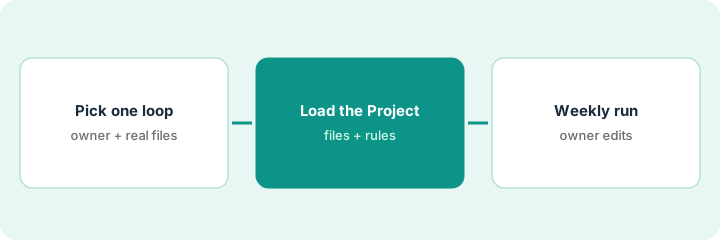
1. Step 1 — Pick one loop
What it is: Name one recurring job that already has a source of truth outside chat. The Project serves that loop — not “everything ops.”
- Write the loop in one line: “Weekly close from the P&L export and checklist,” “Vendor intake triage from the form export,” or “Meeting notes to owners and dates.”
- Name the person who owns mistakes (wrong numbers, guessed owners). That person edits before anything leaves the Project.
- List the two to five files that already exist — exports, an SOP, a checklist. Do not write a new policy doc just to fill the Project.
- Write down what is out of scope, so the Project does not turn into a junk drawer.
One loop per Project keeps the files and the rules short enough to check. A second loop with its own owner gets its own Project.
The weekly close already runs on last month’s P&L export and a close checklist in a shared drive. The ops lead creates one Project called “Weekly close” — not one Project covering hiring, vendors, and incidents. Finance owns any figure that leaves the chat.
On a sticky note, write three lines: loop name, owner, and the files you will upload. If you cannot name the files without making one up, fix the process first and do not create the Project yet.
2. Step 2 — Upload the files and write short instructions
What it is: Create the Project, upload only the files from Step 1, and set custom instructions that keep answers tied to those files — including Unknown when the files do not say.
- Upload the current export and the checklist or SOP. Put the date in each file name so last month’s file is obvious.
- Instruction pattern: use only Project files; answer in bullets with owner and date; write Unknown where the files are silent; never make up amounts, owners, or steps.
- Keep the instructions short enough that a person can read them in two minutes.
- If a file is stale or wrong, replace it in the Project. Do not try to fix bad data by explaining it in chat.
If a teammate needs to open the same Project, check your plan first: Claude’s pricing page marks Project sharing for Team and Enterprise plans only.
The instructions say: “Answer only from Project files. For each close item: status — owner — date — blocker or Unknown. Never invent dollar amounts or ledger accounts.” Last month’s P&L and the checklist are the only uploads. A draft line that gives a reason for a variance that is not in the export gets deleted.
Create the Project, upload your two files, and paste instructions that include the Unknown rule. Then ask once: List this week’s close items from the Project files only. One line each: item — owner — date — blocker or Unknown. Delete any line you cannot find in the files.
3. Step 3 — Run the same prompt every week
What it is: Each week, swap in the new export or notes, run the same prompt shape, and have the owner decide what ships.
- Replace or add this week’s file. Do not leave three months of similar exports with unclear names.
- Run the standing prompt — the same shape every week, so changes stand out.
- The owner cuts anything made up, keeps Unknowns visible, then posts the result where the team already works (close doc, tracker, or channel).
A second AI seat will not create the person who owns the numbers. One Project with a weekly habit does more than five blank chats.
Monday morning: the lead uploads this week’s export, runs the standing close prompt, keeps twelve lines, and marks two as Unknown. The close doc gets those twelve lines — not the whole chat.
Book a fifteen-minute Monday block for two weeks: swap the file, run the standing prompt, post at most fifteen lines. If you skip the post both weeks, the Project is not a loop yet — fix the habit before you add more files.
Pricing context (October 2026)
This how-to is not a price sheet. Plan detail for Claude Projects and Claude for ops lives on those reviews. Recheck each vendor’s site before you budget. Dated October 2026.
Checked Oct 8, 2026 on the vendor’s own pricing page: claude.com/pricing lists Free at $0 (Projects capped at five), Pro at $17 per month with the annual discount ($200 billed up front) or $20 billed monthly, and Max from $100 per month. “Project sharing and collaboration” is marked for Team and Enterprise only — not Free, Pro, or Max. Team is listed for 2 to 150 people, but the version of the page we read showed no Team seat price, and the FAQ describes Enterprise as $20 per seat per month plus usage billed at API rates, billed annually. Usage limits apply on every plan.
Uncertainty: Usage limits, seat types, and which plans can share a Project change. If an invoice and a review disagree, trust the invoice. Do not paste a marketing list price you did not pay. The only prices this site sells here are the optional $9 AI toolkit spreadsheet and $19 AI toolkit audit.
When this helps (honest take)
Useful when the same files and rules repeat every week, someone owns the edit before anything is sent, and you are tired of re-pasting the SOP into a blank chat.
Not useful when the source files do not exist yet, every request is a one-off, or you want Claude to decide owners and amounts. That is a process or ownership problem first. If a shared Custom GPT already does the identical loop, compare the two before adding a seat — Claude vs ChatGPT for ops covers the overlap.
Related options (educational)
| Need | Where to look | Why |
|---|---|---|
| Projects setup, files, instructions | Claude Projects | Feature walkthrough when Claude is the home tool |
| Ops week patterns (meeting to actions) | Claude for ops | Role guide with the same Unknown rule |
| Shared SOP bots in ChatGPT | ChatGPT Custom GPTs · Build a Custom GPT that only answers from your pasted SOP | Only if Custom GPTs are already the team habit |
| Write the SOP before you upload it | Stop rewriting the SOP. Capture the clicks once | Get a source document worth uploading |
Related reviews: Claude Projects · Claude for ops · Claude vs ChatGPT for ops. Related how-tos: Get a close checklist that answers from your books · Stop rewriting the SOP. Capture the clicks once. Free: seat-waste calculator if two chat seats cover the same recurring loop.
FAQ
Will the Project make up close items?
It can if the instructions allow it. Forbid invention, require Unknown, and delete any line you cannot find in the Project files.
Should every ops SOP go into one Project?
No. One recurring loop per Project keeps files and instructions easy to check. Start a second Project when a second loop has its own owner and files.
Can my teammate use the same Project?
Only on plans that include Project sharing. On Oct 8, 2026, Claude’s pricing page marked sharing for Team and Enterprise, not Free, Pro, or Max.
Claude Projects or ChatGPT Custom GPTs?
Use a Claude Project when Claude is already your weekly home and the files repeat. Use a Custom GPT when the team already shares bots in ChatGPT. Running both for the identical loop is usually seat overlap — see Claude vs ChatGPT for ops.
Where do dated prices live?
On the Claude Projects review and claude.com/pricing. This October 2026 how-to only repeats prices we checked on the vendor’s own pricing page on Oct 8, 2026.
Optional next step
Free reviews stay free. Neither offer is required to use this page. If two seats already cover the same recurring ops loop, optional help: $9 AI toolkit spreadsheet (seats, spend, owner, cancel-by, overlap) or $19 AI toolkit audit when you want a written memo.