How-to · Email · Shortwave · Oct 7, 2026
Triage renewals mail in Shortwave without inventing commitments
“Renewals triage” here does not mean an assistant confirms seat counts, accepts a quote, or books a call on your behalf. It means you see every open renewal thread in one place, know what each vendor is waiting on, and send short replies that only state facts already in the thread.
Who this is for
Ops leads, office managers, and finance-adjacent folks who own software and vendor renewals out of a Gmail inbox — and who already use (or are seriously trialing) Shortwave. If you are on Google Workspace and only touch renewals a few times a month, try Gemini in Gmail first; a dedicated AI email client is another seat to justify.
How to do it
This page is a how-to. It is not a ranking of email clients. Product detail and dated pricing live on the Shortwave review.

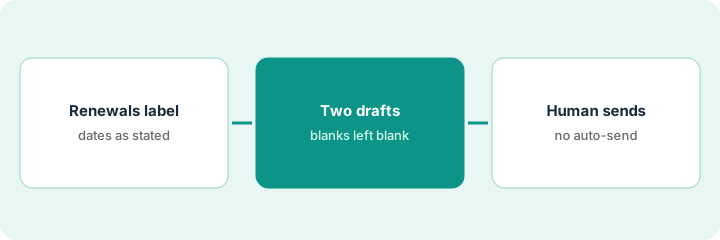
1. Step 1 — Label the renewals view
What it is: Put every open renewal or vendor-pricing thread behind one Gmail label you can open in Shortwave, so triage starts from a complete list instead of search.
- Create one label (for example
Renewals) and apply it to open vendor threads: quotes, seat-count asks, auto-renew notices, price-change emails. - Add a filter for the senders and subjects you already know (billing@, “renewal,” “your subscription”). Review it once — filters miss things.
- Remove threads that are already closed. The view should be “still needs something.”
- For each thread, note the one date that matters (renewal date or quote expiry) as written in the email — not estimated.
A search for “renewal” turns up 41 threads. Fourteen are open: six quotes, five auto-renew notices, three seat-count asks. The ops lead labels those fourteen, archives the rest, and writes each vendor’s stated renewal or expiry date in a scratch list. Two threads have no date in the email; those are marked Unknown.
Create a Renewals label. Apply it to every open vendor renewal thread from the last 60 days. Open the label in Shortwave and, for each thread, write Vendor — what they are waiting on — date as stated or Unknown. Stop when the list is complete, not when it looks tidy.
2. Step 2 — Draft two short replies
What it is: Pick the two most time-sensitive threads and use Shortwave’s thread summary and suggested replies (see the Shortwave review) to draft short answers grounded only in what the thread says.
- Summarize first: three bullets on what changed and what they asked for.
- Draft under 120 words. Confirm only facts already in the thread.
- Leave blanks for anything not decided: seat count, budget approval, contract terms.
- If a meeting is implied, the draft proposes options; a human checks the calendar before sending.
Thread one: a vendor asks for a seat count before Friday’s quote. The draft confirms the ops lead received the quote request and asks for the quote in writing — the seat count stays blank because nobody has approved it yet. Thread two: an auto-renew notice. The draft asks for the cancellation window and current terms in writing. Neither draft agrees to pay, sign, or renew.
On your two most urgent renewal threads, ask: Summarize this thread in 3 bullets. Then draft a reply under 120 words that confirms only facts in the thread. Leave blanks for seat count, budget, or dates that are not stated. Do not approve payment, accept terms, or propose a renewal.
3. Step 3 — Keep a human send gate
What it is: A person reads and sends every renewal reply. Nothing about money, seats, contracts, or cancellations goes out from a draft without an edit pass.
- Fill blanks only with decisions that have actually been made (and by whom).
- Check any date or number in the draft against the original email.
- Send from your own account. Do not set up automatic sends for vendor threads.
- After sending, update your scratch list:
waiting on vendor,waiting on us, orclosed.
The seat-count draft is ready except for the blank. The ops lead checks with the team lead, confirms 12 active users, fills the blank, and sends. The auto-renew draft goes out unchanged after a read. The other twelve threads wait for tomorrow’s triage — nothing is sent in bulk.
Before you send either Step 2 draft, read it once with three questions: Does every number match the thread or a decision someone made? Did it promise anything? Is there a blank left? Send only when the answers are yes, no, no.
Pricing context (October 2026)
This how-to is not a price sheet. Plan detail for Shortwave, Superhuman AI, and Gemini lives on those reviews. Recheck each vendor’s site before you budget. Dated October 2026.
Checked Oct 7, 2026 on the vendor’s own pricing page: shortwave.com/pricing (Business tab) lists Business at $30 per seat per month, Premier at $45 per seat per month, and Max at $120 per seat per month, with a 14-day free trial. Higher tiers add more AI usage, longer AI search history, and more AI filters. The page also has an Individual tab we did not restate. Superhuman and Gemini (which depends on your Google Workspace plan) were not rechecked for this page — see their reviews and your Workspace admin.
Uncertainty: AI limits, plan names, and which assists are included change. If an invoice and a review disagree, trust the invoice. Do not paste a marketing list price you did not pay. The only prices this site sells here are the optional $9 AI toolkit spreadsheet and $19 AI toolkit audit.
When this helps (honest take)
Useful when renewals arrive by email, one person owns them, Shortwave is already the inbox, and that person will read every draft before sending.
Not useful when you want an assistant to negotiate or approve renewals, or renewals are a handful a quarter. In that case, a label plus Gemini in Gmail (if Workspace already includes it) may be enough — and paying for Shortwave and Superhuman at the same time is two seats for one inbox.
Related options (educational)
| Need | Where to look | Why |
|---|---|---|
| AI-first Gmail client: summaries, drafts | Shortwave | When inbox triage is daily work |
| Speed-first email client with AI | Superhuman AI | Different take on the same inbox job |
| Native Google assist | Gemini | When Workspace already includes it |
| Shared team inbox | Front AI | When renewals are a team queue, not one person’s mail |
Related reviews: Shortwave · Superhuman AI · Gemini · Stack trim playbook. Related how-to: See which AI tools you pay for and never open. Free: seat-waste calculator when renewal triage shows you paying twice for one job.
FAQ
Will Shortwave send replies for me?
Not on this pattern. It drafts; you edit and send every renewal reply.
What if the thread does not say the renewal date?
Mark it Unknown and ask the vendor in writing. Do not estimate.
Shortwave, Superhuman, or Gemini in Gmail?
Stay with what you already pay for. Shortwave and Superhuman are separate seats; Gemini may already be in your Workspace plan. This page is not a ranking.
Where do dated prices live?
On the Shortwave, Superhuman AI, and Gemini reviews and the vendor sites. This October 2026 how-to only repeats prices we checked on the vendor’s own pricing page on Oct 7, 2026.
Optional next step
Free reviews stay free. Neither offer is required to use this page. If your renewals list shows two tools doing one job, optional help: $9 AI toolkit spreadsheet (seats, spend, owner, cancel-by, overlap) or $19 AI toolkit audit when you want a written memo.