How-to · Customer support · HubSpot Service Hub · Oct 12, 2026
Summarize HubSpot Service Hub tickets for handoff without guessing the resolution
When a ticket changes hands at the end of a shift, the next agent needs three things: what the customer asked, what's been tried, and what's still open. AI summaries help, but they like to tidy up, and a summary that says "resolved by resetting the password" when nobody confirmed that sends the next agent the wrong way. This page shows a support team on HubSpot Service Hub how to hand off tickets with summaries that mark open questions as open.
Who this is for
Support leads and agents on HubSpot Service Hub who hand tickets between shifts, regions, or tiers. This page is about the internal handoff, not the reply to the customer. For checks before an AI reply reaches a customer, see Intercom Fin human gates. If your desk is Zendesk or Kustomer, the same handoff works there; see the Zendesk AI and Kustomer AI reviews.
How to do it
This is a how-to, not a ranking of help desks. Feature detail lives on the HubSpot Service Hub AI review. Which AI summary features your portal has depends on your Service Hub tier, so confirm with your HubSpot admin. If you don't have them, the same template works as a handoff note the agent writes.

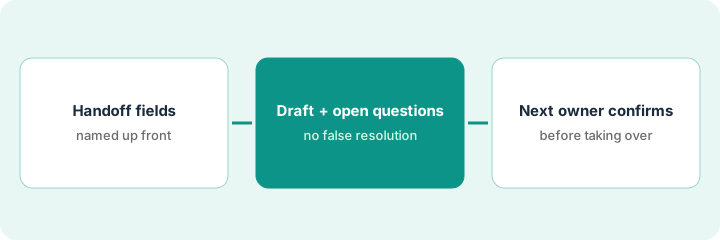
1. Step 1 — Pick the ticket fields every handoff needs
What it is: A fixed short list of facts every handoff includes, pulled from HubSpot records, not from memory.
- Customer and company, from the linked CRM records.
- Plan and any response-time target that applies, from the CRM, not from the ticket text.
- What the customer asked, in one sentence.
- What's been tried, with who tried it and when.
- What's still open, and who's waiting on whom.
- Any promise already made to the customer, word for word.
The day shift ends at 6 project management and the evening team takes open tickets. The lead writes the six fields into the handoff template and asks agents to use it for every open ticket over two hours old.
Handoff template: Customer | Plan and response-time target (from CRM) | Asked | Tried (who, when) | Still open (waiting on) | Promises made.
2. Step 2 — Draft a summary that lists open questions
What it is: AI drafts the handoff from the ticket thread. Anything not settled in the thread goes under "Still open," never under "Tried" as if it worked.
- Run the summary on the ticket conversation, using HubSpot's built-in AI where your tier has it, or the template by hand.
- Ask for each "Tried" item to say whether the customer confirmed it worked. If they didn't, it's not resolved.
- Plan, response-time target, and billing facts come from the CRM record, not from what the AI read in the email.
- Promises are copied exactly. "We'll refund you" and "we'll look into a refund" aren't the same.
The AI draft says: "Login issue resolved after password reset." In the thread, the agent suggested a reset and the customer never replied. The corrected handoff says: "Tried: password reset suggested 3:40 project management, no reply. Still open: waiting on customer to confirm. If no reply, check whether SSO is enabled on their plan."
Prompt: "Summarize this ticket for a handoff using these fields: [template]. For anything tried, say whether the customer confirmed it worked. Put anything unconfirmed under Still open. Copy any promise to the customer word for word. Don't state plan or response-time target unless it's in the CRM fields provided."
3. Step 3 — The next owner confirms before taking over
What it is: The agent taking the ticket reads the handoff, checks it against the thread, and then becomes the owner in HubSpot.
- The next agent opens the ticket and reads the handoff and the last few messages.
- If something in the handoff doesn't match the thread, they fix the handoff note before working the ticket.
- They change the ticket owner to themselves in HubSpot, so it's clear who has it.
- Any promise in the handoff that has a deadline goes on their task list first.
The evening agent reads a handoff that says "refund approved." The thread shows the day agent wrote "I've asked my manager about a refund." The evening agent changes the handoff to "Refund requested, waiting on manager," checks with the manager, and only then replies to the customer.
Lead's weekly check on five random handoffs: Matched thread Y/N | Unconfirmed fix listed as resolved Y/N | Owner changed Y/N | Promise met on time Y/N.
Pricing context (October 2026)
This how-to isn't a price sheet. When our HubSpot Service Hub AI review checked in October 2026, HubSpot published Service Hub and AI packaging on its pricing pages, and which tiers include which AI features changes. We don't list exact prices; confirm on HubSpot's Service Hub pricing page and in your portal. Dated October 2026.
Checked Oct 12, 2026 on the vendor’s own pricing page: HubSpot’s Service Hub pricing page publishes Free and paid Service Hub tiers (Starter / Professional / Enterprise style packaging) with dollar figures that vary by seat count and billing period on the interactive calculator. Because the visible numbers change with the controls, this page does not freeze a single HubSpot dollar figure; confirm current tier prices and which AI summary features your portal includes on HubSpot’s page and in your account.
Uncertainty: AI feature names and tier inclusion move often. The only prices this site sells here are the optional $9 AI toolkit spreadsheet and $19 AI toolkit audit.
When this helps (honest take)
Useful when tickets regularly change hands between shifts or regions, and customers have had to repeat themselves after a handoff.
Not useful when one agent owns each ticket start to finish. There's no handoff to summarize.
Related options (educational)
| Need | Where to look | Why |
|---|---|---|
| Service Hub features | HubSpot Service Hub AI | Primary path on this page |
| Other desks | Zendesk AI · Kustomer AI · Intercom Fin | Same handoff, different desk |
| Checks before AI replies | Intercom Fin human gates | Live how-to |
| Support ops stack | Stack map for support ops | Job, tool, and owner in one view |
| Before another seat | Three checks before an AI seat | Live how-to |
Free: seat-waste calculator if a chat seat and Service Hub are both summarizing the same tickets.
FAQ
Why not let the AI mark tickets resolved?
Only the customer can confirm a fix worked. A summary that says "resolved" too early is how tickets get closed and reopened angry.
Does the next agent really need to read the thread?
Just the last few messages. That's enough to catch a handoff that tidied something up.
Where do current prices live?
On HubSpot's Service Hub pricing page. The HubSpot Service Hub AI review notes what its public pages showed. This page doesn't invent prices. Our Oct 12, 2026 check of the vendor’s own pricing page is summarized in the pricing section above.
May the summary close the ticket?
No. Open questions stay open. The next owner confirms the handoff before anyone marks the issue resolved.
Optional next step
Free reviews stay free. If Service Hub, a chat seat, and a notetaker are all summarizing the same support work, the $9 AI toolkit spreadsheet helps you lay them out, or the $19 AI toolkit audit gets you a written memo.