How-to · Analytics · Hex AI · Oct 12, 2026
Turn the weekly metrics pull into one Hex notebook with a named owner
Many teams have someone who spends Monday morning running the same five queries and pasting the results into a deck. This page shows an analyst how to turn that repeated pull into one Hex notebook, built with the Hex agent's help in approval mode, with a named owner and a set day for checking it.
Who this is for
Analysts and finance or revenue operations people whose data lives in a warehouse and who rebuild the same weekly numbers by hand. If your data is a spreadsheet or CSV rather than a warehouse, see Hex vs Julius AI and the Julius AI review first.
How to do it
This is a how-to, not a ranking of analytics tools. Feature detail lives on the Hex AI review. The job here is one repeated pull, not a new dashboard.

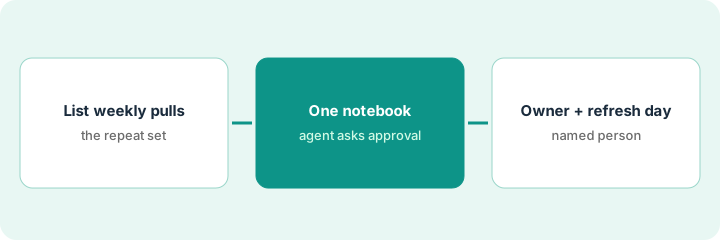
1. Step 1 — List the pulls you repeat every week
What it is: A plain list of every query, export, and paste that goes into the weekly numbers, so you build what's actually used and nothing more.
- Write down each number in the weekly update and where it comes from today (saved query, export, someone's spreadsheet).
- Note who reads each number and whether anyone has asked about it in the last month.
- Drop numbers nobody reads. Weekly updates collect them.
- Mark the definition for each number in one line (for example, "new pipeline = opportunities created this week, new business only").
The Monday update has nine numbers from four sources. Two haven't been mentioned in a meeting for months. Seven remain, and three of them come from the same revenue table.
Make a sheet: Number | Source today | Definition (one line) | Who reads it | Still needed? (yes/no).
2. Step 2 — Build one notebook with the agent asking for approval
What it is: Use the Hex agent inside a regular notebook to write the SQL and charts, with the prompt bar set to ask for approval so it pauses before deleting cells or publishing.
- Start a new notebook and set the agent to Ask for approval.
- Give it one number at a time, with the one-line definition from Step 1.
- Read each SQL cell it proposes before accepting. Reject anything that changes logic you didn't ask for.
- Rerun the whole notebook and compare each number to last week's manual figure. Any gap gets explained before the notebook replaces the manual pull.
She asks the agent to add new pipeline by region. It proposes two SQL cells and a chart. She accepts the SQL, rejects a cell that would have overwritten her existing currency conversion, reruns, and the total matches last Monday's manual number.
Prompt: "Add a cell for [number] defined as [definition], using [table]. Don't change existing cells. Show the SQL before running."
3. Step 3 — Name an owner and a refresh day
What it is: One person owns the notebook, and there's a set day they check it before the numbers go out.
- Put the owner's name and the refresh day at the top of the notebook.
- If you schedule a run or a CSV export, check the cell outputs first. Hex notes that scheduled exports use the underlying cell outputs, not filters someone applied in an app.
- Publishing to a wider audience stays a human step.
- Once a month, the owner reruns the Step 1 list and removes any number nobody uses.
The notebook header reads "Owner: Sam. Checked Mondays by 9 AM. Definitions in cell 1." When a sales leader asks why pipeline dropped, the answer starts from the notebook, not from someone's memory of the query.
First markdown cell of the notebook: "Owner | Refresh day | Readers | Definitions below." Fill it before sharing.
Pricing context (October 2026)
This how-to isn't a price sheet. When we checked in early October 2026, Hex's pricing page listed a free Community plan, Professional at $36 and Team at $75 per editor per month, and custom Enterprise, with AI use drawing on credits. Confirm on Hex's pricing page; notes live on the Hex AI review. Dated October 2026.
Checked Oct 12, 2026 on the vendor’s own pricing page: Hex’s pricing page lists Community at Free ($0), Professional at $36 per editor per month, Team at $75 per editor per month, and Enterprise as custom. AI use draws on plan credits; paid plans include a credit grant with optional add-on credits.
Uncertainty: Plans and credit rules may change. If Hex's page and our review disagree, trust Hex's page. The only prices this site sells here are the optional $9 AI toolkit spreadsheet and $19 AI toolkit audit.
When this helps (honest take)
Useful when the data is in a warehouse, the same numbers are rebuilt by hand every week, and one person can own the result.
Not useful when the weekly numbers come from a single spreadsheet. A chat-on-a-file tool may be simpler; see Hex vs Julius AI.
Related options (educational)
| Need | Where to look | Why |
|---|---|---|
| Hex AI features | Hex AI | Primary path on this page |
| Spreadsheet or CSV analysis | Julius AI · Hex vs Julius AI | Same job, different data |
| Data ops stack | Stack map for data ops | Job, tool, and owner in one view |
| Before another seat | Three checks before an AI seat | Live how-to |
Free: seat-waste calculator if several people hold editor seats but only one builds the weekly notebook.
FAQ
Should the agent run with approvals skipped?
Only on work you can undo and check. For the weekly numbers, Ask for approval is the safer default.
Do we need a warehouse?
Hex works best on one. If your data is a file, look at Julius first.
Where do current prices live?
On Hex's pricing page. The Hex AI review notes what it showed when we checked. Our Oct 12, 2026 check of the vendor’s own pricing page is summarized in the pricing section above.
Why approval mode for the agent?
So the notebook only changes when a person accepts the edit. Scheduled exports still need the named owner on the refresh day.
Optional next step
Free reviews stay free. If Hex, a BI tool, and a chat assistant are all producing the same weekly numbers, the $9 AI toolkit spreadsheet helps you lay them out, or the $19 AI toolkit audit gets you a written memo.