How-to · Work trackers · Asana · Oct 6, 2026
Build Monday’s overdue plan from Asana without inventing work
“Overdue plan” here does not mean a chatbot invents tasks. It means you leave Monday with a short list of real overdue items that already exist in Asana — owners, due dates, and blockers you can defend in standup.
Who this is for
Ops leads and project managers who already run the week in Asana and dread Monday’s “what’s overdue?” scramble. If Asana is not your system of record — or the overdue view is mostly blank owners and made-up due dates — fix the data first. AI will not invent a clean project for you.
How to do it
This page is a how-to. It is not a ranking of work trackers. Product detail and dated pricing live on the reviews linked below.

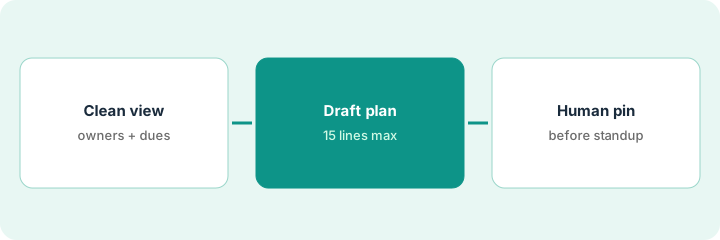
1. Step 1 — Clean the overdue view before you ask AI
What it is: Open the overdue (or “past due”) view you already trust. Fix the blanks humans must own before you ask for any summary.
- Confirm every row has an Owner. Blank stays Unknown — do not invent a person.
- Confirm Due dates are real. Fake “yesterday” dates set to game the view make the plan lie.
- Drop or complete junk tasks that should never have been there.
- Note blockers that are already written in the task — do not invent new ones in chat.
If two projects feed the same Monday plan and owners disagree, resolve that in Asana first. The AI summary only mirrors what is in the project.
A 40-row overdue view has six tasks with no assignee and three fake “due yesterday” dates from a rushed Friday. The lead assigns the six, deletes the three fake tasks, and only then asks for a summary. The plan now starts from thirty-one real rows — not forty.
Open your overdue view. Count blank owners and blank or fake due dates. Fix them or mark them Unknown before you open Asana’s AI. Do not draft Monday’s plan until blank owners are under five — or explicitly listed as Unknown.
2. Step 2 — Draft the Monday plan from the cleaned view
What it is: Use Asana’s built-in AI (see Asana AI) or the weekly outline pattern on Asana Intelligence to draft a short Monday plan from work already in the project.
- Ask for blockers, stale tasks, Unknown owners, and decisions needed — not an essay.
- Prefer one primary project or portfolio view, not five tools pasted into a chat.
- Keep an eye on the AI request meter: Asana counts complex Dash and AI Teammate work as AI requests on your plan (see the pricing note below).
- If the draft invents a task that is not in Asana, delete that line. The tracker wins.
The AI returns a page of prose. The ops lead keeps twelve lines in the shape owner — task — due — blocker. Two “nice-to-haves” that never existed as tasks get cut. The full project stays in Asana.
From today’s cleaned overdue view, ask for a Monday plan in this shape only: Owner — task — due — blocker or Unknown. Cap it at fifteen lines. Anything else stays in Asana.
3. Step 3 — Human-pin before standups
What it is: Before standup (or the Monday leadership note), a human pins which overdue items are in scope this week and which wait.
- Mark this week vs later on the short list — do not let AI promote everything.
- Paste the pinned list where the team already checks work: the standup doc, Slack, or a comment on the same Asana project.
- Leave Unknown owners as Unknown in the share. A fake owner is worse than an honest gap.
A second AI seat will not create the person who owns the work. One pinned list beats two summaries.
Fifteen overdue lines become nine for this week. Six are explicitly parked until Wednesday. Standup discusses the nine. Nobody pretends the parked six vanished.
Take the draft from Step 2. Highlight at most nine items as this week. Send only those nine (plus any Unknown-owner flags) to standup. Update due dates in Asana after standup — do not invent new tasks in the chat thread.
Pricing context (October 2026)
This how-to is not a price sheet. Plan detail for Asana AI and Asana Intelligence lives on those reviews. Recheck each vendor’s site before you budget. Dated October 2026.
Checked Oct 6, 2026 on the vendor’s own pricing page: asana.com/pricing says AI Teammates and Asana Dash share one pool of AI requests. Starter and Advanced include 5 requests per user per month, up to 50 per account; Enterprise plans include up to 250 per account. Extra requests are $0.50 each in prepaid usage packs or $0.60 each pay-as-you-go. Asana says simple admin work in Dash, like prioritizing your day, does not count. Seat prices change, so check that page for them.
Uncertainty: Seat tiers, AI request pools, and AI Studio credits change. If an invoice and a review disagree, trust the invoice. Do not paste a marketing list price you did not pay. The only prices this site sells here are the optional $9 AI toolkit spreadsheet and $19 AI toolkit audit.
When this helps (honest take)
Useful when Asana is already the system of record, someone will open the overdue view every Monday, and you can name owners without inventing people.
Not useful when the overdue pile is mostly blank assignees, or you want AI to invent next week’s roadmap. That is a cleanup problem first — or a job for a different tracker (see ClickUp Brain or monday.com AI if one of those is already where work lives).
Related options (educational)
| Need | Where to look | Why |
|---|---|---|
| Summaries, Dash, AI Studio, request meters | Asana AI | Overview when Asana is already the tracker |
| Fields, stale rules, weekly summary format | Asana Intelligence | Companion deep-dive for Monday formats |
| Same job in another tracker | ClickUp Brain · monday.com AI | Only if that tool is already the system of record |
| Asana vs Jira for ops | Asana vs Jira for ops | Different work graph, same rule: no invented work |
Related reviews: Asana AI · Asana Intelligence · ClickUp Brain · monday.com AI. Related how-to: Write Friday’s update from the monday board. Free: seat-waste calculator if two trackers already cover the same job.
FAQ
Does this page invent tasks for Monday?
No. Every line should already exist in Asana or be marked Unknown. Delete draft lines that are not in the tracker.
Should we ask Asana’s AI before cleaning the overdue view?
No. Blank owners and fake due dates poison the summary. Clean first, then draft.
Asana AI or Asana Intelligence — which review do I open?
Start with Asana AI for Dash, AI Studio, and request meters. Use Asana Intelligence when you care about field design, stale rules, and a repeatable weekly outline.
Where do dated prices live?
On the linked reviews and asana.com/pricing. This October 2026 how-to only repeats prices we checked on the vendor’s own pricing page on Oct 6, 2026.
Optional next step
Free reviews stay free. Neither offer is required to use this page. If two seats already cover the same work-tracker job, optional help: $9 AI toolkit spreadsheet (seats, spend, owner, cancel-by, overlap) or $19 AI toolkit audit when you want a written memo.