Tool · Accounting firm ops · TaxDome · Oct 2026
TaxDome AI review (Oct 2026): AI document checklists from prior-year returns, auto-tagging, Juno return prep, the Atlas agent beta, and MCP connections for tax firms
TaxDome is an all-in-one practice-management system with a client portal, used by tax, bookkeeping, and accounting firms for organizers, document collection, e-signatures, billing, and workflow. Its AI today sorts and renames client uploads and builds document checklists from last year's return; Juno turns those documents into a draft return; and Atlas (an AI operations agent) plus MCP and API connections are in beta. This page is about using them while the preparer of record still owns every checklist, field, and message that reaches a client. Each section has a Try this.
What this TaxDome page covers
This page is for a firm owner, tax manager, or firm administrator at a tax or bookkeeping practice that runs on TaxDome or is evaluating it. It is not tax advice, and nothing here replaces a CPA or EA reviewing the return.
TaxDome's AI page (read 21 Oct 2026) says document tagging and renaming are available today and that “this fall” TaxDome AI expands into Atlas, open MCP connections for Claude and ChatGPT, and a public API. The Summer Update recap said those three would be in beta over the summer and “available to all firms at the end of Q3 2026”; as of 21 Oct the AI page still says “coming soon” and points to a waitlist, and the MCP help article is labeled Beta. Treat Atlas, MCP, and the API as beta until your account shows them.
Ground rules: the preparer of record checks every AI checklist before a client sees it; a tax manager spot-checks AI tags before staff rely on them; nothing an agent drafts reaches a client until a named person has read it. TaxDome says AI access is opt-in, scoped to each user's permissions, and that firm data is not used to train public or third-party models.

Major features (with how someone uses them)
Examples at a glance: each feature has a concrete example from a real job plus a short Try this you can run this week.
1. AI document checklists from prior-year returns (primary)
What it is: TaxDome's checklist assistant builds a document checklist from a client's prior-year return, and as the client uploads, documents are matched to checklist items so you can see progress (Summer Update recap). TaxDome says more than 280,000 checklists were completed during the beta season, and that rollover, several checklists per client, and bulk generation are coming next season.
Last year's return knows last year. A closed brokerage account, a new rental, or a new K-1 changes the list.
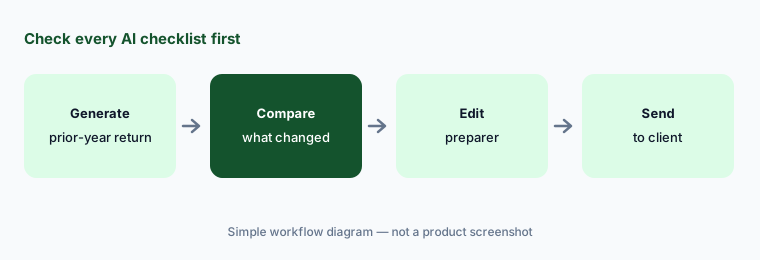
Primary workflow:
Generate AI document checklists from prior-year returns for ten returning clients. Have the preparer of record compare each checklist with last year's return before it goes to the client.
2. Auto-tagging and renaming of client uploads
What it is: With TaxDome AI turned on in Firm settings, client documents are automatically tagged (for example “W-2”), categorized, and renamed, so a file called 4353458223.pdf becomes something staff can find (TaxDome AI). The plan list says TaxDome AI delivers “organized workpapers automatically” on every plan (pricing plans).
A wrong tag hides a document. A 1099-K tagged as a 1099-MISC can sit unseen until review.
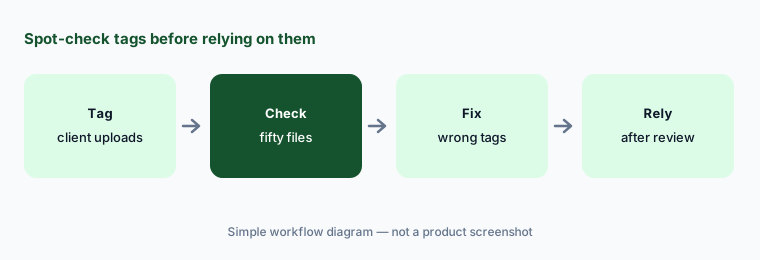
Spot-check first:
Turn on AI tagging for one week of uploads. Have the tax manager spot-check fifty tagged files against the documents before staff rely on the tags.
3. Juno return prep from TaxDome documents
What it is: Juno is a separate tax-prep company TaxDome integrates with: you send client documents from TaxDome, Juno extracts the data and drafts the return from current documents and prior-year data, and your team reviews before export to ProConnect, Drake, Lacerte, UltraTax, or CCH Axcess (ProSeries and ProSystem fx listed as coming soon) (TaxDome help). TaxDome and Juno cite “99% extraction accuracy” — their claim. Juno is billed by Juno per return, with a seven-day free trial of up to five returns.
Extraction errors are quiet: a transposed box number or a missed state line flows straight into the draft.
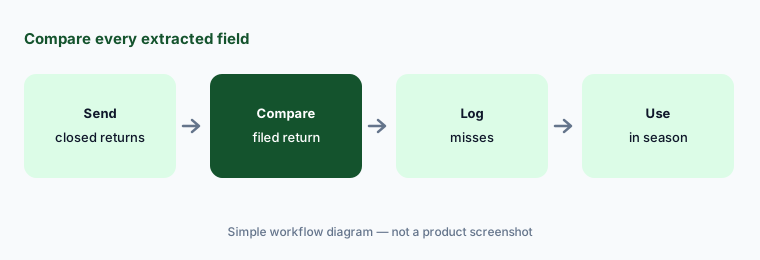
Compare before season:
Send five closed returns' documents to Juno. Have the preparer of record compare every extracted field with the filed return before using it in season.
4. Atlas AI operations agent (beta)
What it is: Atlas, per TaxDome's AI page, takes a request such as “draft a payment reminder for every overdue client,” plans the steps, pulls from practice data, and shows a log of every action before anything goes out. It ships with recommended agents (pipeline digests, new client setup) and can turn a plain-English description into a saved agent that runs on demand, on a schedule, or on an event, and “waits for your approval before anything sends.” As of 21 Oct 2026 the page still marks Atlas “coming soon” with a beta waitlist.
A reminder sent to the wrong client, or one who paid by check yesterday, costs goodwill. The action log is where you catch it.
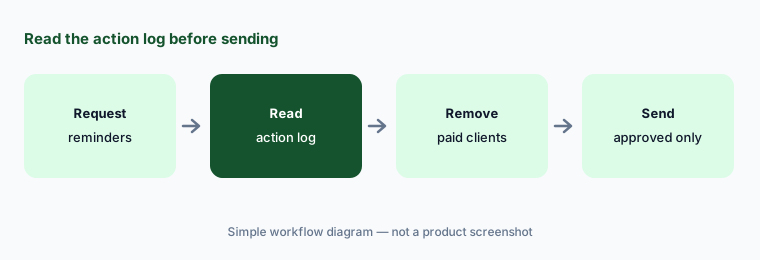
Read the action log:
If your firm has Atlas, ask it to draft payment reminders for every overdue client. Have the firm owner read each reminder and the action log before anything is sent.
5. MCP connections and public API (beta)
What it is: TaxDome's API & MCP help article (Beta) explains that both are off until a firm owner or admin turns them on, each connection acts as the user who made it, and each has its own access level: Read only, Manage, Full access, or a custom mix. Your assistant reads without asking but asks before anything that deletes data or reaches a client. The article warns there is no test mode: emails, texts, invoices, and engagement letters triggered through MCP or the API really send, so test on a test client first.
“Move this job to the next stage” can fire that stage's automations, including a real invoice to a real client.
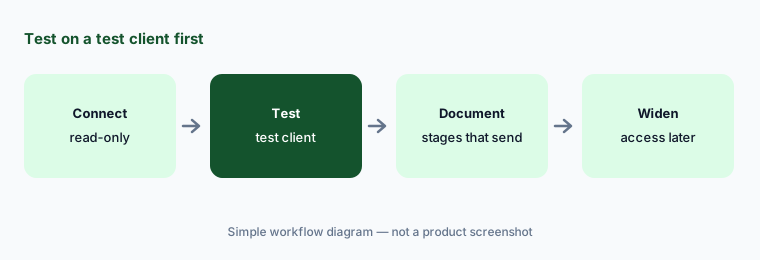
Test client first:
Connect one AI assistant with read-only access. Have the firm administrator test it on a test client and confirm nothing reached a real client before widening access.
6. AI-driven analytics, Work Forecaster, and Tax Return Delivery
What it is: Pro and Business include AI-driven analytics (plan list). The Summer Update recap (30 Jun 2026) describes Work Forecaster, which flags jobs trending toward a missed deadline, as “coming to beta soon” (the pricing page still says coming soon), and Tax Return Delivery, which presents a finished return with a video walkthrough, highlighted sections, e-signature, and payment in one flow. TaxDome says firms delivered over 120,000 returns this way last season with a 90%+ first-time completion rate, and that AI help placing signature fields and filling payment details is coming.
A forecast of “at risk” is a guess from pipeline data. Jobs parked in the wrong stage make the forecast wrong.
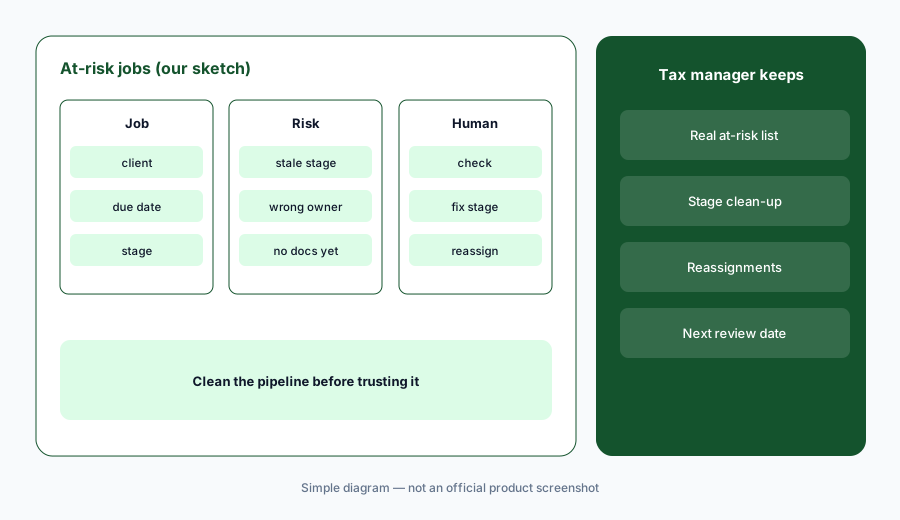
Check stages first:
Ask the AI analytics which jobs are at risk this week. Have the tax manager check each against the pipeline before reassigning any work.
Pricing context (October 2026)
TaxDome prints per-seat prices billed upfront (pricing page; help center, checked 21 Oct 2026). Per seat per year on a 1-, 2-, or 3-year term: Essentials $800 / $750 / $700 (one user only), Pro $1,000 / $950 / $900, Business $1,200 / $1,150 / $1,100. A three-year Pro seat at $900 a year is $2,700 upfront for the term.
Temporary seats: Pro monthly seats at $100 per month; Business seasonal seats at $500 per four-month term. Firms with 25+ seats are quoted. A white-labeled client app is a paid add-on with no printed price. AI-driven analytics are listed on Pro and Business; TaxDome has not announced a separate price for Atlas or MCP.
Juno is billed separately by Juno: one flat price per return that falls as volume rises, set on a slider at juno.tax/pricing (no single figure printed on the page), with a seven-day free trial of up to five returns. TaxDome's own pricing page also shows a cost-comparison calculator with other vendors' prices; those are TaxDome's figures, not ours.
Uncertainty: We did not test TaxDome or Juno. Features, dates, and prices come from TaxDome's pricing page, help center, AI page, and blog (read on 21 Oct 2026 through a reader because taxdome.com blocks plain scripted requests) and from juno.tax. Atlas, MCP, and the API are beta and may not be in your account yet; Work Forecaster is coming to beta. Accuracy, completion, and checklist figures are TaxDome's or Juno's claims.
When it’s useful (honest take)
Useful when your firm lives in tax season, clients upload through a portal, intake and document chasing eat staff time, and a named preparer of record will check every AI checklist and extracted field.
Less useful when your firm mainly runs collaborative email and recurring bookkeeping work (Karbon AI), you need cited answers to tax questions (Blue J), or you are managing your own company's books (QuickBooks AI).
Paying for TaxDome AI and a few other AI tools? The $9 AI toolkit spreadsheet lists every AI subscription you have, what each one costs, and how fast it pays for itself, so you can see which ones are worth the money.
Want someone to do it for you? AI toolkit audit — $19
Related options (educational)
| Need | Better home | Why |
|---|---|---|
| Client portal, AI checklists, auto-tagging, tax workflow | TaxDome AI (this page) | $800–$1,200 per seat/year (1-year) |
| Collaborative email, workflow, close checks | Karbon AI | $59 / $89 per user/month annual |
| Cited tax research and memos | Blue J | $1,498/year Individual |
| A small business's own books | QuickBooks AI | Different job |
| Sanitized client-email drafts in general chat | Claude for finance | No client data |
FAQ
What AI does TaxDome have in October 2026?
Auto-tagging and renaming of client uploads and AI checklists built from prior-year returns are available now. Atlas, MCP connections, and the public API are in beta, and TaxDome's AI page still lists them as coming this fall.
How much does TaxDome cost in October 2026?
Per seat per year, billed upfront: Essentials $800, Pro $1,000, Business $1,200 on a one-year term, with lower annual rates on two- and three-year terms. Pro monthly seats are $100 a month; Business seasonal seats are $500 for four months.
Is Juno part of TaxDome?
No. Juno is a separate tax-prep company that integrates with TaxDome and bills per return. TaxDome sends client documents to Juno, which drafts the return for your team to review before export to your tax software.
Can an AI assistant change data in TaxDome?
Through MCP or the API it can, within the access level you grant. Both are off until an owner or admin turns them on, and TaxDome warns there is no test mode, so test on a test client first.
Who should check TaxDome AI output?
The preparer of record for every checklist and Juno field; the tax manager for auto-tags and at-risk lists; the firm owner or a named manager for every Atlas action that reaches a client.
Optional next step (if seats overlap)
If you pay for TaxDome seats, a per-return prep tool, and a general chat seat that all touch the same client files, that overlap is worth mapping. Map the overlap with the $19 AI toolkit audit or the $9 AI toolkit spreadsheet. Email Audit $19 or Toolkit spreadsheet $9.
Checkout is live via Stripe. After you pay, we email delivery (spreadsheet) or intake next steps (audit).