How-to · FP&A / planning · Planful AI · Oct 13, 2026
Confirm every Planful Signals flag before it reaches the CFO deck
An anomaly check that returns fourteen flags is useful. A CFO deck with fourteen flags pasted into it is not. This page shows an FP&A manager on Planful how to triage Signals output: every flag gets a reason and an outcome from an analyst, and only the confirmed ones go up. It's not about writing variance commentary; it's about deciding which flags are real.
Who this is for
FP&A managers and directors at mid-size and enterprise companies who plan and consolidate in Planful, have Signals turned on, and prepare a monthly pack for the CFO. If your team works in Excel instead, the Vena AI review covers an Excel-native option with its own variance agent.
How to do it
This is a how-to, not a ranking of FP&A tools. Feature detail lives on the Planful AI review. Planful says Signals scans actuals, forecasts, and assumptions against your own historical trends, seasonality, and expected ranges, flags what falls outside, prioritizes anomalies by risk level, explains what caused each one, and lets your team confirm, resolve, or escalate variances in the platform. Planful's help center needs a customer login, so setup details such as how much history Signals needs weren't public when we checked; ask in a demo.

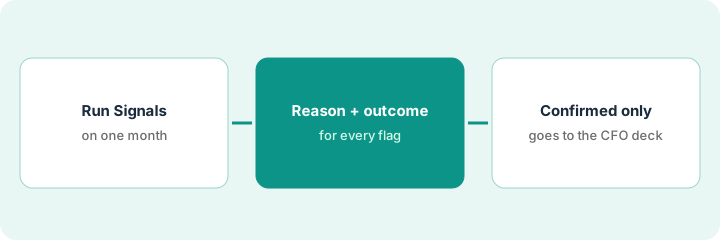
1. Step 1 — Run Signals on one month
What it is: One closed month, one time horizon, and a reviewer named before the flags arrive. Planful says you control the time horizon.
- Run it on the last closed month, not the open one, so actuals are settled.
- Name the analyst who triages the flags and the manager who reads the confirmed list.
- Before you look at any flag, list the planned changes that month: a sales kickoff, a price change, a reorg, a one-time bonus. A model trained on your past will find them unusual.
- Planful says Signals catches unexpected expense spikes, broken formulas, unusual headcount changes, forecast deviations, and data entry errors. Expect a mix.
She runs Signals on September and gets 14 flags, sorted by risk level. Her planned-changes list already has three items: the sales kickoff, a price increase on one product, and a one-time retention bonus in Engineering.
Write your planned-changes list for the month in five lines or fewer before you open the Signals results. Keep it beside the flags while you triage.
2. Step 2 — Give every flag a reason and an outcome
What it is: An anomaly is "unusual for your history," not "wrong." The analyst writes the real reason for each flag and picks one outcome. Nothing goes up without one.
- Confirm and escalate: a real problem someone else must fix or know about (a duplicated accrual, a vendor price jump nobody budgeted).
- Resolve: a real problem you fixed in place (a miscoded invoice, a broken allocation formula).
- Not an anomaly: a planned change from your Step 1 list, or noise. Write a one-line reason so the next reviewer doesn't re-check it.
- Record the outcome in Signals so the note stays with the flag, not in a side spreadsheet.
- Count the noise. If one account flags every month for no reason, ask Planful how its alert threshold is set.
Five are real: a duplicated accrual and an unbudgeted vendor price jump (escalated), two miscoded invoices and a broken allocation formula (resolved). Six are planned changes from her list. Three are noise. She writes a reason for all fourteen and raises the alert threshold on one noisy account.
Run Planful's anomaly check on one month. For every flag, write the real reason or "not an anomaly". Then confirm, resolve, or escalate each one in Signals so the next reviewer sees your note, and count how many flags were noise.
3. Step 3 — Only confirmed flags go up
What it is: The CFO deck gets a short list: the flags an analyst confirmed, each with its reason, its owner, and what happens next. Everything else stays in Signals with its note.
- Pull only the confirmed and escalated flags into the deck's "anomalies" slide.
- For each, write one line: what happened, the amount, who owns the fix, and by when.
- Add one summary line for the rest: "[n] other flags reviewed: [n] resolved, [n] planned changes, [n] noise."
- The manager who reads the list signs off before the deck goes out.
If you also use the Planner Assistant, Planful's own examples include asking it to "Detect anomalies in my current forecast." Treat those answers the same way: a flag, not a finding, until someone confirms it.
The slide has two lines: "Duplicated September accrual, $48k, accounts payable lead reversing by Oct 10" and "Vendor price jump on hosting, not in budget, procurement reviewing contract." The summary line reads: "12 other flags reviewed: 3 resolved, 6 planned changes, 3 noise." The CFO sees two problems, not fourteen.
Use one format for every flag that reaches the deck: "[What happened], [amount], [owner], [date]." If a flag can't fill all four, it stays in Signals until it can.
Pricing context (October 2026)
This how-to isn't a price sheet. Planful doesn't publish prices. When the Planful AI review checked on 7 October 2026, planful.com/pricing/ returned a "page not found" error, and the site offered demo forms instead. Its public pages don't say which AI features come with a base subscription. Ask which of Signals, Projections, Analyst, Planner, Help, and the MCP Server your quote covers. Dated October 2026.
Checked Oct 13, 2026 on the vendor’s own pricing page: Planful shows no public list price. Planful’s pricing address returned a page-not-found response on our check, and the site offers demo forms. This page quotes no Planful dollar figure; confirm what your contract includes with Planful or your admin.
Uncertainty: Planful's help center needs a login, so Signals setup details aren't verified here. If your contract and our review disagree, trust your contract. The only prices this site sells here are the optional $9 AI toolkit spreadsheet and $19 AI toolkit audit.
When this helps (honest take)
Useful when you plan and consolidate in Planful with several years of clean actuals, and miscodings keep reaching the monthly pack. Triage turns a long flag list into a short, owned one.
Not useful when your history is short or full of reorgs and one-offs. Signals learns from the past, so a messy past means noisy flags, and triage becomes most of the work.
Related options (educational)
| Need | Where to look | Why |
|---|---|---|
| Planful AI features | Planful AI | Primary path on this page |
| Excel-native planning with a variance agent | Vena AI | Analytics Agent (open beta) shows its steps for correction |
| Large connected planning | Anaplan AI | Forecaster backtests and Analyst sources |
| Mid-market planning with owner input | Abacum | Context Intelligence flags anomalies |
| Writing the variance note itself | Draft a variance note inside Excel with Microsoft 365 Copilot | Live how-to (a different job: commentary) |
| Finance AI seats in one view | Stack map for finance ops | Job, tool, and owner in one view |
FAQ
Does a Signals flag mean something is wrong?
No. It means the number is unusual for your history. Planned changes and one-offs flag too, which is why each one needs a reason from an analyst.
Can Planful's AI change my plan?
Planful says the MCP Server is read-only, and Planner's scenario write-back is labeled coming soon. Signals lets your team confirm, resolve, or escalate each flag.
Where do current prices live?
With Planful's sales team. Planful published no prices when we checked on 7 October 2026, and this page doesn't invent any. Our Oct 13, 2026 check of the vendor’s own pricing page is summarized in the pricing section above.
What happens to a flag that isn’t a real anomaly?
The analyst writes a one-line reason and records the outcome. It doesn’t go into the CFO deck.
Optional next step
Free reviews stay free. If finance pays for Planful, a BI copilot, and chat seats that all scan the same actuals, the $9 AI toolkit spreadsheet helps you lay them out, or the $19 AI toolkit audit gets you a written memo.