How-to · Explainer video · HeyGen · Oct 22, 2026
Make one HeyGen explainer with scenes and a call to action, and keep the human-filmed parts where trust matters
HeyGen makes avatar video for short explainers. Credits and avatar models are expensive to spend on vague briefs, and some scenes fail the job when an avatar carries them. This page shows how to lock a three-scene outline first, mark which parts a person should film, and end on one real next step.
Who this is for
Go-to-market and ops leads who need a short product or process explainer, not an ad campaign. The job here is one 60-second video with clear human-filmed parts and one call to action.
How to do it
This is a how-to, not a ranking of video tools. Per the HeyGen review, avatar scenes can carry the hook and product narration, while trust shots, live product screens with real (sanitized) data, and faces your audience already knows should stay human-filmed. The call to action should name a real next step such as a doc link, form, or calendar, never an invented result. The review places Synthesia for reusable training and procedure videos, Loom for human async updates, and Descript for editing footage you already shot. The ground rule: lock the outline before you generate anything.

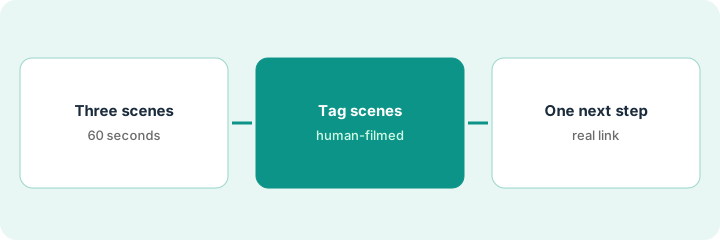
1. Script a 60-second explainer in three scenes
What it is: Write the outline before opening the editor: three scenes, one sentence of purpose each, and the line each scene must land.
- Write the one job this video does for one audience.
- Split it into three scenes: hook, how it works, next step.
- Write the narration for each scene in under 60 seconds total.
- Read it aloud with a timer before generating.
The manager writes three scenes for a new booking-page feature: the problem in one line, a 30-second walk-through, and where to turn it on. Read aloud, it runs 70 seconds, so she cuts the second scene to the two steps that matter.
Write a three-scene outline with narration for a 60-second explainer and read it aloud with a timer before generating anything in HeyGen.
2. Tag which scenes stay human-filmed
What it is: Before spending credits, tag each scene Avatar-OK or Must-stay-human. Cap human-filmed scenes at two for a 60-second cut and name who films them.
- Tag each scene Avatar-OK or Must-stay-human.
- Keep live product screens with real data and known faces human-filmed.
- Name who films each human scene and when.
- Generate only the Avatar-OK scenes.
The hook and narration scene go to an avatar. The product walk-through stays a real screen recording with sanitized data, and the closing line is filmed by the support manager customers already know from webinars.
Tag every scene Avatar-OK or Must-stay-human, keep real product screens and known faces human-filmed, name who films them, and generate only the avatar scenes.
3. Write one honest call to action, then compare the job
What it is: End on one next step you own: a doc link, a form, or a calendar. Then check whether this video job belongs in HeyGen, Synthesia, Loom, or Descript.
- Write one call-to-action sentence that names a real page or calendar.
- Remove any invented number or page you do not own.
- List this quarter’s video jobs and assign each to HeyGen, Synthesia, Loom, or Descript.
- Keep one tool per job.
The first call to action promised “cut scheduling time in half,” which nobody had measured. The ops lead rewrites it to link the setup doc. Listing six video jobs, she keeps HeyGen for two customer explainers and moves internal status updates to Loom.
Write one call to action that points to a real page you own, remove any invented claim, and assign this quarter’s video jobs to one tool each.
Pricing context (October 2026)
This how-to isn’t a price sheet. Per the HeyGen review, packaging includes Free, Creator, Pro credit tiers, Business, and Enterprise, and credit rates vary by avatar model. We rechecked plan prices on HeyGen’s pricing page on Oct 22, 2026 (below). Dated October 2026.
Checked Oct 22, 2026 on the vendor’s own site: HeyGen’s pricing page lists Free at $0, Creator at $29/month ($24/month billed annually), Pro from $49/month, and Business at $149/month plus $20 per seat per month; Enterprise is custom. These match the October 2026 figures in our review.
Uncertainty: The only prices this site sells here are the optional $9 AI toolkit spreadsheet and $19 AI toolkit audit.
When this helps (honest take)
Useful when you need a short explainer more than once a quarter, the outline is locked before generating, and someone will film the trust scenes.
Not useful when the video is mostly a live demo with a known presenter, the brief is vague, or nobody owns the call to action.
Related options (educational)
| Need | Where to look | Why |
|---|---|---|
| Avatar explainers with scenes and a call to action | HeyGen | Primary path |
| Reusable training and procedure videos | Synthesia | Different job |
| Human async status updates | Loom AI | Different job |
| Editing footage you already shot | Descript | Different job |
FAQ
What should stay human-filmed?
Per our review: trust shots, live product screens with real (sanitized) data, and any face the audience already knows.
How long should the explainer be?
This page uses 60 seconds and three scenes, which keeps credit spend small and the message to one job.
HeyGen, Synthesia, or Loom?
Explainers with scenes and a call to action fit HeyGen; reusable training videos fit Synthesia; human status updates fit Loom.
What does HeyGen cost?
On Oct 22, 2026 HeyGen’s pricing page listed Free at $0, Creator at $29 a month (or $24 a month billed annually), Pro from $49 a month, and Business at $149 a month plus $20 per seat; Enterprise is custom (checked Oct 22, 2026).
Optional next step
If you want a one-page toolkit map for the tools you already pay for, use the optional $9 AI toolkit spreadsheet. If you want a short review of seat waste and unused tools, use the optional $19 AI toolkit audit. Neither is required to follow this how-to.