How-to · Finance ops · Expensify · Oct 7, 2026
Flag expense policy issues before submit — without inventing amounts
“Policy flags” here does not mean AI approves or rejects expenses. It means the obvious problems — missing attendees, no receipt image, rideshare coded as mileage — get raised before the report is submitted, while the submitter still owns every merchant, date, and amount.
Who this is for
Finance leads, office managers, and controllers at small companies where expenses already run through Expensify — and where month-end means chasing the same missing attendee lists and receipt photos. This is not tax or accounting advice. If expenses still arrive as emailed PDFs and a spreadsheet, get them into one expense tool first.
How to do it
This page is a how-to. It is not a ranking of expense tools. Product detail and dated pricing notes live on the Expensify AI review. SmartScan is Expensify’s receipt scanning, which reads text from the receipt image (OCR, optical character recognition).

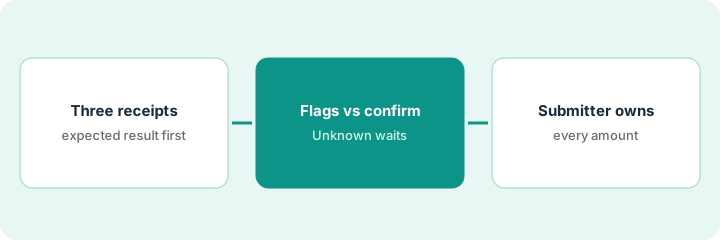
1. Step 1 — Test on three receipt examples
What it is: Before you change any policy settings or rely on flags, pick three real (or sanitized) receipts that represent your most common problems and see what gets flagged.
- One that should pass cleanly.
- One with a policy issue your team hits often (meals without attendees, alcohol, over a per-diem you already have written down).
- One with a data problem (blurry image, missing receipt, wrong category).
- Write down your own expected result for each before you see any AI output.
Three sanitized notes: “Team dinner, 4 people, receipt attached,” “Rideshare to client office,” “Office snacks, no receipt photo.” Expected: dinner needs attendee names under your policy; rideshare should be coded as rideshare, not mileage; snacks need an image or a missing-receipt note. Any amounts come from the receipts themselves — not from the test.
Pick three receipts from last month: one clean, one policy issue, one data issue. For each, write what your written policy says should happen. Keep that list next to you while you check Expensify’s SmartScan and policy output in Step 2.
2. Step 2 — Separate flags from fields a human confirms
What it is: Sort everything into two buckets. Flags are prompts (“attendees required,” “receipt missing”). Confirm fields are facts a person checks against the receipt every time (merchant, date, amount, currency, category). See the Expensify AI review for receipt scanning and policy-flag patterns.
- Scanned output is a draft. Merchant spelling, amount, and date are confirmed by the submitter against the receipt.
- Flags are not rejections. They are reminders the submitter clears or explains.
- If a field is unreadable, it stays Unknown and the expense waits — nobody types a plausible number.
- Compare flags to your Step 1 expectations. Missed flags mean policy settings need a human fix, not more AI.
On the dinner receipt, the scan reads the merchant and amount correctly and flags “attendees required.” On the snacks entry, there is no image, so there is no amount to read; the flag is “receipt missing,” and the amount field stays empty until the submitter adds the receipt or a missing-receipt note. On the rideshare, the scan suggests a mileage category — the submitter changes it to rideshare.
Make a two-column note for your three receipts: Flags (submitter clears or explains) and Confirm fields (merchant, date, amount, currency, category). Mark each confirm field Confirm / Edit / Unknown. Anything Unknown holds the expense.
3. Step 3 — The submitter owns the truth
What it is: Write a short rule your team can follow: the person submitting is responsible for every fact on the expense, flags or no flags. Managers review flagged items; finance exports to the ledger (the accounting books).
- Submitter: confirms every field against the receipt and clears or explains every flag before submit.
- Manager: reviews flagged expenses and a small sample of unflagged ones — not auto-approval from a clean flag list.
- Finance: exports to the ledger after approval. Ledger-side close work is separate (see QuickBooks AI or Get a close checklist that answers from your books).
Monday: submitters clear flags on last week’s receipts. Wednesday: the manager reviews the four flagged expenses and spot-checks two clean ones, catching a duplicate that no flag raised. Friday: finance exports approved reports. No step lets a flag decide an amount.
Write a three-line expense rule and pin it in your finance channel: Submitter confirms every field and clears every flag. Manager reviews flagged + 2 random. Finance exports after approval. Unknown amounts wait. Run it for one week before changing any policy settings.
Pricing context (October 2026)
This how-to is not a price sheet. Plan detail for Expensify AI lives on that review. Recheck the vendor’s site before you budget. Dated October 2026.
Checked Oct 7, 2026 on the vendor’s own pricing page: expensify.com/pricing lists Submit as free for all members (receipt scanning, expense reports, mileage), Collect at $5 per member per month (adds reimbursements, corporate card management, approvals, and QuickBooks/Xero integrations), and Control at custom pricing that the page says starts as low as $9 per active member per month. Custom expense rules and multiple approval flows are listed on Control. The page says discounts are available for annual commitments and when using the Expensify Card.
Uncertainty: Plan names, per-seat rules, scan limits, and which AI assists appear by plan change. If an invoice and a review disagree, trust the invoice. Do not paste a marketing list price you did not pay. The only prices this site sells here are the optional $9 AI toolkit spreadsheet and $19 AI toolkit audit.
When this helps (honest take)
Useful when Expensify is already the expense home, your policy is written down, and submitters will confirm fields before submit.
Not useful when the policy itself is unclear, you want AI to approve expenses, or the real pain is invoice payables or ledger close. Those are different jobs (see BILL AI, QuickBooks AI, or Ramp). If a corporate card tool and an expense tool both chase the same receipts, look at that overlap.
Related options (educational)
| Need | Where to look | Why |
|---|---|---|
| Receipt scanning and policy flags | Expensify AI | Overview when Expensify is the expense home |
| Card spend with built-in receipt matching | Ramp · Brex AI | When the card program is the system of record |
| Vendor invoices (accounts payable), not expenses | BILL AI | Different job: vendor bills |
| Ledger and close | QuickBooks AI | After export, not before submit |
| File-heavy finance write-ups | Claude for finance | Outside the expense tool |
Related reviews: Expensify AI · Ramp · BILL AI · Finance ops stack map. Related how-to: Get a close checklist that answers from your books. Free: seat-waste calculator if two finance tools chase the same receipts.
FAQ
Do policy flags reject expenses?
No. Flags are prompts the submitter clears or explains. A manager still reviews.
What if the scan cannot read the amount?
The amount stays Unknown and the expense waits for the receipt. Nobody types a guess.
Is this tax or accounting advice?
No. It is a workflow pattern. Your written policy and your accountant decide what is allowed.
Where do dated prices live?
On the Expensify AI review and expensify.com/pricing. This October 2026 how-to only repeats prices we checked on the vendor’s own pricing page on Oct 7, 2026.
Optional next step
Free reviews stay free. Neither offer is required to use this page. If an expense tool and a card program already cover the same receipt job, optional help: $9 AI toolkit spreadsheet (seats, spend, owner, cancel-by, overlap) or $19 AI toolkit audit when you want a written memo.