How-to · Revenue operations · Salesforce Einstein · Oct 12, 2026
Summarize opportunity notes with Salesforce Einstein without overwriting rep fields
AI summaries of opportunity activity save managers a lot of reading. The risk is that a summary quietly replaces what the rep wrote: the next step, the amount, the close date. This page shows a revenue operations team on Salesforce how to add Einstein summaries next to rep-entered fields, never instead of them.
Who this is for
Revenue operations leads and Salesforce admins at companies already on Sales Cloud who are turning on Einstein or Agentforce summaries for opportunities. If Salesforce isn't your CRM, this page isn't your question; see the Salesforce Einstein review for why we don't recommend buying it for AI alone. For a stale-deal sweep in a smaller CRM, see the Pipedrive AI review.
How to do it
This is a how-to, not a ranking of CRMs. Feature and edition detail lives on the Salesforce Einstein review. Which summary features you have depends on your edition and add-ons, so confirm with your admin before setting anything up.

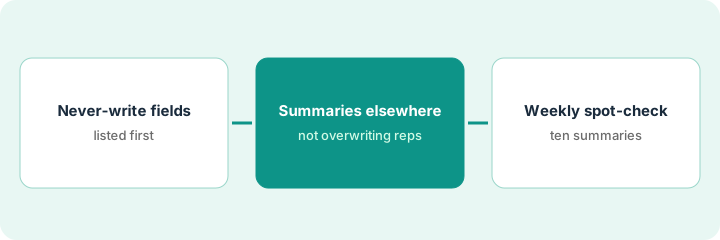
1. Step 1 — List the fields AI never writes
What it is: A short written list of opportunity fields that only a person may change. Admins enforce it with permissions, not just a policy.
- Start with the fields the forecast depends on: Amount, Close Date, Stage, Forecast Category, and Next Step.
- Add any field your managers use in pipeline reviews, such as a deal risk field or a decision-maker contact role.
- For each one, write who may change it: usually the opportunity owner and their manager.
- Ask your admin to check that any AI or automation feature you turn on can't write to these fields. If you can't confirm that, keep the feature draft-only.
Revenue operations lists six protected fields: Amount, Close Date, Stage, Forecast Category, Next Step, and Primary Contact. The admin confirms the summary feature they're enabling only writes to its own field and that no flow copies its output into Next Step.
Make a short list: Field | Who may change it | Can any AI or flow write to it? Y/N/Unknown. Every Unknown gets checked before go-live.
2. Step 2 — Give summaries their own place
What it is: The AI summary lives in its own spot, clearly labeled, so nobody mistakes it for something the rep wrote.
- Use a dedicated place for the summary, such as its own long-text field or the summary panel your edition provides. Don't reuse Description or Next Step.
- Label it plainly, for example "AI summary of activity," with the date it was generated.
- The summary should come from logged activity like emails, meetings, and notes. If Einstein Activity Capture isn't syncing for a rep, their summaries will be thin, and that's worth knowing.
- When the summary and a rep field disagree, the rep field wins until the rep changes it.
The AI summary says "Buyer mentioned a Q1 start." The rep's Close Date says end of November. The manager doesn't change the close date. They ask the rep in the pipeline review, and the rep, who knows the buyer, updates it.
Admin checklist: Summary location | Label text | Generated date shown Y/N | Fields it reads from | Fields it writes to (should be only its own).
3. Step 3 — Spot-check ten summaries a week
What it is: Revenue operations reads ten summaries a week against the actual activity, so problems show up before managers stop trusting them.
- Pick ten opportunities at random from different reps.
- For each, check: Does the summary match the logged activity? Did it add anything that isn't there, like a number, a date, or a promise? Did any protected field change without the rep?
- Note anything wrong in one line and send it to the admin.
- If the same kind of mistake shows up three weeks in a row, turn the feature off for that use until it's fixed.
Two of ten summaries mention a discount the buyer asked about but that was never offered. Revenue operations reports it, and managers are reminded that summaries describe what was discussed, not what was agreed.
Weekly log: Date | Opportunities checked | Summaries with added facts | Protected fields changed by AI (should be zero) | Sent to admin Y/N.
Pricing context (October 2026)
This how-to isn't a price sheet. When our Salesforce Einstein review re-checked Salesforce's public pricing on 9 October 2026, Sales Cloud public pricing we re-checked on Oct 12, 2026 showed Starter Suite at $25 per user per month and Agentforce for Sales from $125 per user per month, with other Agentforce and add-on lines on the same page. Edition names and bundle figures change by view, so confirm your edition on Salesforce’s pricing page and with your admin. Which Einstein features come with which edition changes, so confirm with Salesforce and your admin. Dated October 2026.
Checked Oct 12, 2026 on the vendor’s own pricing page: Salesforce’s Sales Cloud pricing page on Oct 12, 2026 listed Starter Suite at $25 per user per month (also stated in the page FAQ) and Agentforce for Sales from $125 per user per month, with other Agentforce / add-on lines such as from $100, $200 and $220 per user per month and $10 per login per month depending on package. Full edition card figures can vary by view and region; confirm your edition and which Einstein features it includes with Salesforce and your admin before budgeting. Flex Credits are sold in packs on the same family of pages.
Uncertainty: Salesforce has renamed and repackaged its AI several times. If summaries run on credits, name an owner and a monthly ceiling before turning them on for everyone. The only prices this site sells here are the optional $9 AI toolkit spreadsheet and $19 AI toolkit audit.
When this helps (honest take)
Useful when you're already on Salesforce, activity is being logged, and managers spend pipeline reviews reading long activity histories.
Not useful when reps don't log activity. The summary will be empty or wrong, and the first fix is getting activity into Salesforce.
Related options (educational)
| Need | Where to look | Why |
|---|---|---|
| Salesforce AI and editions | Salesforce Einstein | Primary path on this page |
| Hygiene from an export | ChatGPT for revenue operations · Claude for revenue operations | Chat-based option without CRM writes |
| Call coaching | Gong | Many-call themes, not opportunity notes |
| Sales ops stack | Stack map for sales ops | Job, tool, and owner in one view |
| Before another seat | Three checks before an AI seat | Live how-to |
Free: seat-waste calculator if a chat seat and Einstein are both summarizing the same opportunities.
FAQ
Can Einstein update Next Step for the rep?
Some features can suggest updates. This page's rule is that Next Step stays a person's field, so suggestions are drafts the rep accepts or ignores.
Why spot-check only ten a week?
Ten is enough to catch a pattern and small enough that it actually happens. Add more if the first few weeks turn up mistakes.
Where do current prices live?
On Salesforce's pricing pages. The Salesforce Einstein review records what we saw on 9 October 2026. This page doesn't invent prices. Our Oct 12, 2026 check of the vendor’s own pricing page is summarized in the pricing section above.
May Einstein overwrite amount or close date?
Not in this routine. Those fields stay on the never-write list. Summaries live in their own place so rep-entered fields stay authoritative.
Optional next step
Free reviews stay free. If Einstein, a chat seat, and a notetaker are all summarizing the same deals, the $9 AI toolkit spreadsheet helps you lay them out, or the $19 AI toolkit audit gets you a written memo.