How-to · Learning & development · Docebo · Oct 14, 2026
Turn one policy document into a Docebo Creator lesson, then have the content owner approve it
Docebo's Creator can turn a document into a lesson with screens and knowledge checks in minutes. The risk is a confident lesson that paraphrases the policy slightly wrong. This page shows an L&D team how to take one document, get a Creator draft, and put the person who owns the policy between the draft and the learners.
Who this is for
L&D partners and learning operations leads on Docebo who have a stack of policy PDFs (expenses, data handling, safety) and a request to "turn them into training." It assumes Creator is switched on in your platform. The job here is one lesson from one document with one accountable owner. For practicing conversations instead, see the roleplay section of the Docebo AI review.
How to do it
This is a how-to, not a ranking of learning platforms. Feature detail lives on the Docebo AI review. Per that review, Creator is Docebo's built-in authoring tool, and Docebo Agents and Docebo Knowledge are labeled beta in the help center, so this page uses Creator only.
1. Step 1 — Pick one document and name its owner
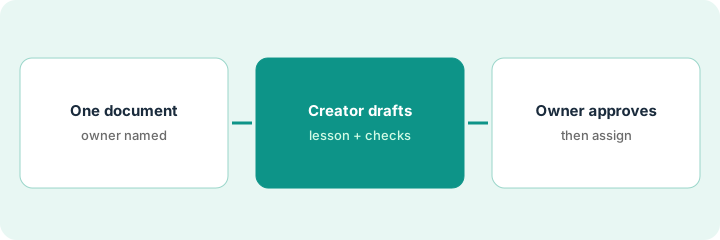
What it is: Creator works from what you give it, so the source document decides the quality of the draft. Before you open Creator, pick the current version of one policy and write down the one person who can say "that's not what the policy says." That person is the content owner for the lesson, not the L&D partner who builds it.
- Choose a document that changed recently or is often misread.
- Confirm it is the current version with the owner, and note the version or date.
- Name the owner in writing: one person, not "Finance."
- Agree a turnaround: for example, two working days to review.
The L&D partner picks the updated travel and expense policy. The finance controller confirms the PDF on the intranet is current (version dated September) and agrees to review the lesson within two days.
Write one line at the top of your build notes: "Source: [document name, version or date]. Owner: [name]. Review by: [date]." Don't open Creator until all three are filled in.
2. Step 2 — Let Creator draft the lesson
What it is: Per the review, you open a blank page or drop in a document or prompt, and Creator generates a structured lesson with screens, images, and knowledge checks (multiple choice, true/false, fill-in-the-blank) drawn from your source. You then edit in a drag-and-drop canvas. The draft is a starting point for the owner's review, not a finished lesson.
- Upload the single document you chose. Don't mix in older versions.
- Read the draft once yourself and flag anything that sounds more certain than the document.
- Check that every knowledge-check answer can be found in the document.
- Keep the source file name and version in the lesson notes.
Creator returns six screens and eight questions. The L&D partner notices one question asks about a receipt limit that appears twice in the policy with two different numbers (one in a table, one in the text). She flags it for the owner instead of guessing.
Before sending the draft to the owner, list each knowledge-check question with the page of the document its answer comes from. Any question without a page number goes to the owner as a question, not as a finished item.
3. Step 3 — The owner approves or sends it back with notes
What it is: The owner reads the lesson against the current policy, not against the draft. They either approve it, or send it back with specific notes. Nobody is assigned the lesson until the owner has approved it in writing.
- Share the draft and your list of questions with page numbers.
- The owner checks every screen and every answer key against the document.
- The owner replies "approved" or returns numbered notes.
- You fix each note and send it back; repeat until approved.
- Record who approved it and when, then assign it.
The controller flags two answers that still use last year's receipt limit and one screen that implies managers can approve their own expenses. The L&D partner fixes all three, the controller replies "approved" in a comment, and only then is the lesson assigned to new hires.
Add a final screen to your lesson notes (not shown to learners): "Approved by [owner] on [date] against [document version]." If the policy changes, the next update starts from that line.
Pricing context (October 2026)
This how-to isn't a price sheet. Per the Docebo AI review, Docebo publishes no prices: its pricing page shows custom pricing, and AI features are listed as usage-based AI credits with no published cost or allowance. Dated October 2026.
Checked Oct 14, 2026 on the vendor’s own pricing page: Docebo shows no public list price. Docebo’s pricing page describes custom pricing that scales with your user model and lists AI features as usage-based AI credits, with no dollar figures. This page quotes no Docebo dollar figure; confirm what your contract includes with Docebo or your admin.
Uncertainty: Docebo doesn't publish what AI credits cost or how many come with each tier, so ask for Creator by name in your quote. Agents and Knowledge are labeled beta in Docebo's help center; this routine doesn't rely on them. If your contract and our review disagree, trust your contract. The only prices this site sells here are the optional $9 AI toolkit spreadsheet and $19 AI toolkit audit.
When this helps (honest take)
Useful when you have more policy documents than designer time, each policy has a clear owner, and Creator is already in your platform. One lesson, one owner, one approval keeps the speed of the draft without training people on a paraphrase.
Not useful when nobody owns the policy, the document itself is out of date, or the training is mainly about practice and judgement rather than facts. Fix the document first; a lesson built on an old policy teaches the old policy faster.
Related options (educational)
| Need | Where to look | Why |
|---|---|---|
| Docebo AI features | Docebo AI | Primary path on this page |
| Expert-written courses instead of L&D-built ones | Docebo vs 360Learning | Two different authoring models |
| Expert-built course with confirmed bulk changes | 360Learning course builder | Same day's how-to |
| Course drafts reviewed before admins publish | Absorb LMS AI | Aura Create plus reviewer workflow |
| A whole map of learning tools | Stack map: learning ops | Where Creator fits |
FAQ
Can Creator publish a lesson on its own?
In this routine, no. Creator drafts; the L&D partner edits; the content owner approves before anyone is assigned the lesson.
What if the owner disagrees with the policy document?
Then fix the document first. A lesson should match the current approved policy; if the owner says the PDF is wrong, update the PDF and rebuild from it.
Where do current prices live?
With Docebo's sales team. Docebo publishes no prices, including for AI credits, and this page doesn't invent any. Our Oct 14, 2026 check of the vendor’s own pricing page is summarized in the pricing section above.
How long should the owner’s review take?
Agree it up front. Two working days is a common target for a single lesson; longer policies may need a call to walk through the answer key.
Optional next step
Free reviews stay free. If you pay for an LMS authoring tool, a separate course builder, and a general AI chat tool that all draft training, the $9 AI toolkit spreadsheet helps you lay them out, or the $19 AI toolkit audit gets you a written memo.