How-to · Learning & development · 360Learning · Oct 14, 2026
Let an internal expert build a course with 360Learning's AI course builder, and confirm every bulk action
360Learning is built on the idea that the people who do the work should write the training. Its AI course builder makes that faster, and its AI Companion can then tag, share, or archive courses in bulk. This page shows how to let one expert build one course with AI, and how to make sure a named course owner confirms every bulk change that follows.
Who this is for
L&D managers and learning operations leads on 360Learning whose courses are mostly written by people outside L&D: engineers, sales leads, operations managers. The job here is one expert-built course, plus a rule for bulk changes. For a quiz checked by an expert on a different platform, see a different job: Generate a TalentLMS AI test and have an expert check it.
How to do it
This is a how-to, not a ranking of learning platforms. Feature detail lives on the 360Learning AI review. Per that review, the AI course builder combines documents and prompts in one flow, inline AI editing reworks text, and the AI Companion's Action Mode proposes and carries out bulk catalog changes.

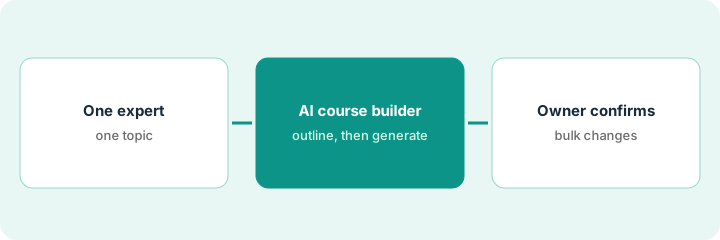
1. Step 1 — Pick the expert and one topic
What it is: The expert is the person whose knowledge the course captures, and they own its accuracy. Pick one person and one narrow topic they explain often. A narrow topic keeps the AI draft close to what the expert actually knows.
- Choose a topic the expert answers questions about every week.
- Ask the expert for one document they trust: a checklist, a slide deck, or a how-we-do-it note.
- Name a course owner (often the expert) who will confirm later changes.
- Agree when the expert will review: a 30-minute slot is usually enough.
The support lead explains refund escalations to every new hire. She agrees to build a short course from her escalation checklist and to own the course afterwards.
Write down: "Expert: [name]. Topic: [one sentence]. Source: [document]. Course owner: [name]." If the topic needs more than one sentence, split it.
2. Step 2 — Shape the outline, then generate the course
What it is: Per the review, you work with the AI on an outline, refine it, add documents, and only then click Generate course to create the activities. Inline AI editing can then rework tone, examples, simpler language, or length. The expert's job is to fix the outline before generating and to check every question after.
- Ask the expert to reorder and cut outline items before generating.
- Generate the course only when the outline matches how the expert teaches it.
- Have the expert read every activity and every quiz answer.
- Use inline AI editing for wording, not for facts.
The AI outline has seven sections, including one on chargebacks the support team doesn't handle. The expert deletes it, merges two sections, and only then generates. In the quiz, one answer says refunds over a limit go to finance; the real rule is the support manager. She fixes it.
Before you click Generate course, ask the expert to mark each outline line "keep," "change," or "remove." Generate only after every line is marked.
3. Step 3 — The course owner confirms bulk changes
What it is: Per the review, Action Mode lets admins describe what they want in plain language; the AI Companion finds the content, proposes a list of actions, and carries them out. 360Learning can revert those changes, but revert is a safety net, not a review. This routine asks for the list first and has each course owner confirm before anything is applied.
- Ask the AI Companion for the list only (for example, courses to tag or archive).
- Export or copy the list.
- Send each course's line to its owner.
- Apply only the changes the owners confirmed.
- Keep a short log of what changed and who confirmed it.
The L&D manager asks Action Mode for courses not edited or attempted in six months. The list includes the refund course's older version and an annual safety course. The support lead confirms archiving her old version; the safety owner says the annual course must stay. Only the confirmed archive runs.
Next time you use Action Mode, ask for the list first. Send it to the course owners and apply only what they confirm in writing.
Pricing context (October 2026)
This how-to isn't a price sheet. Per the 360Learning AI review, the Team plan has a published per-active-user price, while Business and Enterprise are custom-priced; 360Learning doesn't list which AI Companion modes come with each plan. Dated October 2026.
Checked Oct 14, 2026 on the vendor’s own pricing page: 360Learning’s pricing page lists the Team plan at $8 per active user per month (up to 100 users, billed monthly, 30-day free trial); Business and Enterprise are custom-priced.
Uncertainty: Some AI features are switched on by request or rolled out progressively, so check what is active in your platform. If your contract and our review disagree, trust your contract. The only prices this site sells here are the optional $9 AI toolkit spreadsheet and $19 AI toolkit audit.
When this helps (honest take)
Useful when your best teachers are experts outside L&D, they have a document they already trust, and you have a growing catalog that needs cleanup. The outline-first habit keeps the AI close to the expert's knowledge.
Not useful when no expert has time to review, or the topic is mostly policy owned by a different team. In that case the policy owner, not the expert, should approve the course.
Related options (educational)
| Need | Where to look | Why |
|---|---|---|
| 360Learning AI features | 360Learning AI | Primary path on this page |
| L&D-built lessons from documents | Docebo vs 360Learning | Two authoring models compared |
| One policy lesson approved by its owner | Docebo Creator lesson | Same day's how-to |
| A quiz checked question by question | TalentLMS AI test | A different job |
| A whole map of learning tools | Stack map: learning ops | Where 360Learning fits |
FAQ
Does the expert need to be an admin?
No. The expert builds and reviews the course; an admin runs Action Mode and sends the list to course owners.
Can we skip the outline step?
You can, but it is where the expert removes topics they don't teach. Skipping it means more fixing after the course is generated.
Where do current prices live?
On 360Learning's pricing page for the Team plan, and with its sales team for Business and Enterprise. Our Oct 14, 2026 check of the vendor’s own pricing page is summarized in the pricing section above.
Can a bulk change be undone?
Per our review, 360Learning can revert Action Mode changes. This routine still asks the course owner to confirm first, because revert is a safety net, not a review.
Optional next step
Free reviews stay free. If you pay for an LMS course builder, a separate authoring tool, and a general AI chat tool that all draft training, the $9 AI toolkit spreadsheet helps you lay them out, or the $19 AI toolkit audit gets you a written memo.