How-to · Meetings & notes · Oct 4, 2026
Three steps to take the best meeting notes ever, automatically
“Best” here does not mean the longest transcript. It means you leave the call with owners and dates, and you can find the same notes next week without opening three apps.
Who this is for
Ops leads, founders, and small-team managers who already sit in recurring calls and keep losing the “who owns what by when” line. If you only need a personal scratchpad and never share notes, you may not need an automatic notetaker at all.
How to do it
This page is a how-to. It is not a ranking of meeting bots. Product detail and dated pricing live on the reviews linked below.

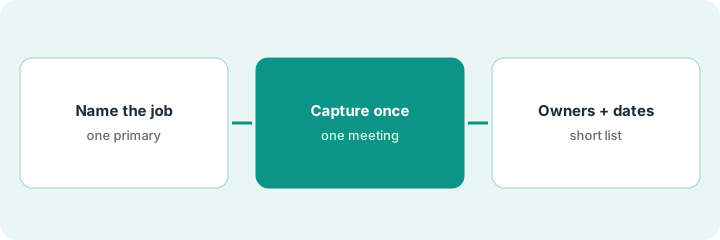
1. Step 1 — Name the job before you name the tool
What it is: Pick one job for this week before you open a vendor page.
- Owners and dates after the call (notes tool).
- A searchable transcript archive (notes tool with search).
- A few coaching clips or CRM fields (clip tool — different job).
- Notes without a bot joining the room (device-side notes).
- Notes that stay inside Zoom because you already pay Zoom (Companion).
If two products on your card claim the same bullet, you are paying twice for one job. Map the jobs first; then open a review.
A founder lists five meetings. Customer standup needs owners and dates. All-hands needs a searchable archive. Founder 1:1s cannot have a bot in the room. That is three jobs — still one primary tool per job, not a bot on every calendar invite “just in case.”
Write five recurring meetings from last week. For each, write one job from the list above. If two meetings need different jobs, that is fine — still pick one primary tool per job, not one tool per meeting “just in case.”
2. Step 2 — Turn capture on for one recurring meeting
What it is: Do not roll out company-wide on day one. Pick the messiest recurring meeting you own.
- If a bot in the room is fine and someone will open the transcript: start with Fireflies or Otter.
- If you want free capture first and will pay only when CRM sync or team search is a named job: read Fathom.
- If a bot in the room is a bad look: read Granola.
- If meetings are already on Zoom and notes can stay there: read Zoom AI Companion.
Tell attendees that notes or a bot will be present when your policy requires it. This page does not tell you to record people who were not told.
The messiest weekly is the customer standup. A bot in the room is fine, and someone will open the transcript. Capture starts there only — not on every external call the same day.
Enable capture on one weekly meeting only. After the call, open the notes once within 24 hours. If nobody opens them, the tool is not the problem yet — the habit is.
3. Step 3 — Leave with owners and dates, not a novel
What it is: Before you leave the room (or within ten minutes after):
- Skim the auto summary.
- Rewrite every action as
Owner — task — date. Drop lines with no owner. - Paste that short list into the place your team already checks (Slack, Asana, Notion — wherever work actually lives).
A second notetaker will not create the person who opens the pile. One clean list beats two archives.
The auto summary is a page long. The Slack share is seven lines: owner, task, date. The full transcript stays in the notetaker.
From today’s auto notes, extract at most seven lines in the Owner — task — date shape. Delete everything else from the share. If you need the full transcript later, keep it in the notetaker — do not paste the novel into Slack.
Pricing context (October 2026)
This how-to is not a price sheet. Public list prices for Fireflies, Otter, Fathom, Granola, tl;dv, and Zoom AI Companion live on those reviews. Recheck each vendor’s site before you budget. Dated October 2026.
Uncertainty: Free tiers, seat minimums, bot add-ons, and CRM connectors change. If an invoice and a review disagree, trust the invoice. Do not paste a marketing list price you did not pay. The only prices this site sells here are the optional $9 AI toolkit spreadsheet and $19 AI toolkit audit.
When this helps (honest take)
Useful when recurring meetings lose owners, someone will open the notes weekly, and you can name one primary tool per job.
Not useful when you want a perfect archive of every word and nobody owns follow-up, or when you are stacking Fireflies and Otter “just in case.” That overlap is a trim problem — see Cancel the second notetaker, or use the stack trim playbook.
Related options (educational)
| Need | Where to look | Why |
|---|---|---|
| Owners and dates, bot is fine | Fireflies or Otter | Someone will open the transcript |
| Free capture before you pay | Fathom | Pay only when CRM sync or team search is a named job |
| No bot in the room | Granola | Device-side notes |
| Notes stay inside Zoom | Zoom AI Companion | You already pay Zoom |
| Clips or a few CRM fields | tl;dv | A different job than a notes archive |
Related reviews: Fireflies · Otter · Fathom · Granola · tl;dv · Zoom AI Companion. Free: seat-waste calculator if two notetakers are already on the card.
FAQ
What does “best meeting notes” mean on this page?
A short list of owners and dates you can find next week, not the longest transcript.
Should we turn a notetaker on for every meeting on day one?
No. Start with one messy recurring meeting you own, and open the notes within 24 hours.
Which notetaker should we buy?
Name the job first. Fireflies or Otter when a bot is fine, Fathom when you want free capture first, Granola when a bot is a bad look, Zoom AI Companion when notes can stay in Zoom. This page is not a ranking.
Where do dated prices live?
On the linked reviews and the vendor sites. This October 2026 how-to does not invent list prices.
Optional next step
Free reviews stay free. Neither offer is required to use this page. If two seats already cover the same job, optional help: $9 AI toolkit spreadsheet (seats, spend, owner, cancel-by, overlap) or $19 AI toolkit audit when you want a written memo.