How-to · FP&A / planning · Anaplan AI · Oct 13, 2026
Check Forecaster's backtest before an ML forecast goes in the plan
A machine-learning forecast arrives looking finished. The question to ask first is how that same model would have done last year. This page shows an FP&A analyst on Anaplan how to read Forecaster's backtest on one line item first, and how to leave the use-it-or-not decision with the person who owns that number.
Who this is for
FP&A analysts, planning leads, and model builders at large companies already running connected plans in Anaplan, who have Forecaster (or are trialing it) and want a safe first use. If you're still comparing planning platforms, Pigment vs Anaplan covers how each handles ML forecasts.
How to do it
This is a how-to, not a ranking of forecasting tools. Feature detail lives on the Anaplan AI review. Anaplan Forecaster is an ML time-series tool that runs inside your models, on Classic and Polaris. You build Forecaster modules, create a data collection from model history, create a forecast model with an algorithm and horizon, then run a forecast action that writes results back.

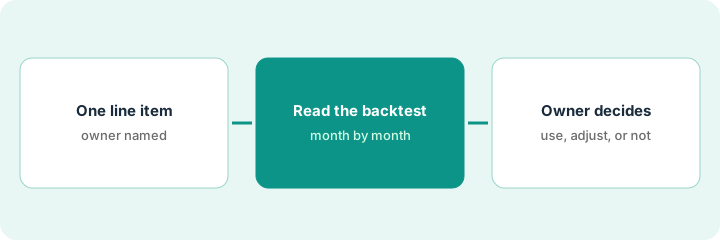
1. Step 1 — Pick one line item and name its owner
What it is: One line item with clean history, a clear pattern, and a person who already forecasts it by hand. That person is the one who decides in Step 3.
- Choose a stable line: several years of monthly history, few one-off events, no recent reorg. Facilities cost or a mature subscription line works better than a new product.
- List the known one-offs in the history (a lease renewal, an office move, a large prepayment) before you run anything, so you don't explain them after the fact.
- Check your tier. Anapedia says Standard suits simpler cases with a clear trend or seasonal pattern; Advanced adds the full range of algorithms, data insights, and per-item, per-period driver explanations.
She picks facilities cost for one region: three years of monthly history, little noise. The regional operations lead owns the number and forecasts it from the lease schedule. Known events: a lease renewal last March and a one-time move last September.
Write a four-line brief before you start: Line item | Owner | How it's forecast today | Known one-offs in the history. If you can't fill in the owner, pick a different line.
2. Step 2 — Turn on backtests and read them month by month
What it is: When you create a forecast model, you can turn on Write backtest results to Anaplan. That puts a comparison of the forecast against actuals in the model, so you can see how it would have done before you run the forward-looking action.
- Turn the setting on when you create the forecast model, not after.
- Compare the backtest with last year's actuals one month at a time. An annual total can hide two bad months that cancel out.
- For each month outside your tolerance, write the business reason. If it matches a known one-off from Step 1, note it. If you can't explain it, mark it Unknown.
- If you're on the Advanced tier, read the driver explanations for the months that diverge. On Standard, Anaplan shows the relative impact of each driver.
The backtest tracks within a couple of percent in ten of twelve months. March and September diverge: those are the lease renewal and the move. Both match the list from Step 1, so neither is a surprise. No month is marked Unknown.
Run one AI forecast for a stable line item. Compare it to last year's actuals by month and note where it diverges. Turn on "Write backtest results to Anaplan" so the comparison sits in the model, and write the business reason for each month that diverges.
3. Step 3 — The owner decides: use, use with adjustments, or don't use
What it is: The analyst brings the backtest; the line item's owner chooses one of three outcomes.
- Use as the starting point: the backtest tracks well and every divergence is explained.
- Use with adjustments: the pattern is right, but known future events (next year's lease, a planned price change) need manual adjustments on top.
- Don't use for this line: too many Unknown months, or the history doesn't reflect how the business runs now. The owner's current method stays.
- Record the decision, the date, and the reason next to the line item.
- If the answer is "use," keep the owner's manual forecast beside it for one cycle as a cross-check.
The regional operations lead reads the backtest and the two explained months. Her decision: use Forecaster as the starting point, with a manual adjustment for next year's lease renewal, which the history can't know about.
Add one line beside the line item: "Forecaster decision: [use / use with adjustments / don't use]. Owner: [name], [date]. Unknown months: [list, or none]. Manual adjustments: [list, or none]."
Pricing context (October 2026)
This how-to isn't a price sheet. Anaplan doesn't publish prices. When the Anaplan AI review checked on 7 October 2026, anaplan.com/pricing/ redirected to Anaplan's contact page. Forecaster comes in Standard and Advanced tiers, and usage is counted in prediction points: items forecast × successful forecast action runs, against a monthly quota set by your subscription. Creating a forecast action uses no points; each successful run does. Anapedia lists monthly quotas of 240,000 points for Standard and Advanced tier 1, and higher quotas for Advanced tiers 2–4. Those are usage allowances, not prices. Ask your account team for a written quote. Dated October 2026.
Checked Oct 13, 2026 on the vendor’s own pricing page: Anaplan shows no public list price. Its /pricing/ address redirected to Anaplan’s contact page on our check. This page quotes no Anaplan dollar figure; confirm what your contract includes with Anaplan or your admin. Prediction-point quotas mentioned above are usage allowances, not prices.
Uncertainty: Anaplan's AI naming has shifted (PlanIQ still appears in some menus; the current product is Forecaster). If your contract and our review disagree, trust your contract. The only prices this site sells here are the optional $9 AI toolkit spreadsheet and $19 AI toolkit audit.
When this helps (honest take)
Useful when you already run Anaplan with clean history, Forecaster is in your subscription, and line-item owners are willing to compare an ML baseline with their own method.
Not useful when the history is short or full of reorgs and one-offs, or when nobody owns the line item. A backtest can show you the model missed; it can't tell you whether next year looks like last year. That's the owner's judgment.
Related options (educational)
| Need | Where to look | Why |
|---|---|---|
| Anaplan AI features | Anaplan AI | Primary path on this page |
| Comparing planning platforms | Pigment vs Anaplan | Forecaster vs Pigment Predictions |
| ML forecasts in Pigment | Pigment AI | Predictions shown as a cross-check line |
| ML baselines with boundaries | Planful AI | Projections and Signals |
| Finance AI seats in one view | Stack map for finance ops | Job, tool, and owner in one view |
| Variance notes in a spreadsheet | Draft a variance note inside Excel with Microsoft 365 Copilot | Live how-to (a different job: explaining actuals) |
FAQ
What does a backtest show?
How the forecast model would have done on history you already have. With "Write backtest results to Anaplan" on, the comparison with actuals sits in the model, so you can read it before running the forward-looking forecast.
Standard or Advanced tier?
Anapedia says Standard suits simpler cases with a clear trend or seasonal pattern; Advanced adds more algorithms and per-item, per-period driver explanations. Start with a line Standard is meant for.
Where do current prices live?
With Anaplan's account team. Anaplan published no prices when we checked on 7 October 2026, and this page doesn't invent any. Our Oct 13, 2026 check of the vendor’s own pricing page is summarized in the pricing section above.
Is a good backtest enough to put the forecast in the plan?
No. It shows how the model did on past months. The line-item owner still decides whether to use it, adjust it, or leave it out.
Optional next step
Free reviews stay free. If finance pays for a planning platform, forecasting add-ons, and chat seats that all produce forecasts for the same lines, the $9 AI toolkit spreadsheet helps you lay them out, or the $19 AI toolkit audit gets you a written memo.