How-to · Maintenance · UpKeep · Oct 14, 2026
Schedule one UpKeep Nova Pulse insight and make a supervisor approve any work it creates or closes
UpKeep's Nova agent can run Pulse jobs on a schedule: recurring checks that report on your work orders and, if you let them, draft new work or close stale items. Work that appears or disappears on its own is hard to trust. This page shows how to start with one report-only Pulse and add a supervisor gate before Nova touches real work.
Who this is for
Maintenance supervisors, planners, and facilities leads on UpKeep who want to try the Nova agent without letting it change the work queue unattended. The job here is one scheduled insight and an approval rule. For hands-free work-order entry, see the Voice Fill section of the UpKeep AI review.
How to do it
This is a how-to, not a ranking of maintenance software. Per the UpKeep AI review, Nova includes chat, Pulse scheduled recurring tasks, a Knowledge Base that learns team rules, and bulk fixes; UpKeep says results land for review and drafts that create work should be approved by a reviewer. Monthly Nova credits scale by plan.

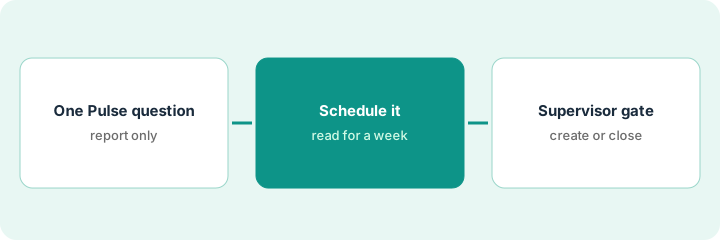
1. Step 1 — Pick one Pulse question that only reports
What it is: Start with a question whose answer is a list, not an action. "Which work orders have been open more than fourteen days?" is a good first Pulse. Nothing is created or closed.
- Choose one question you already ask every week.
- Make sure the answer is a list someone reads.
- Name who reads it (the supervisor).
- Decide the schedule: once a week is enough at first.
The supervisor's Monday question is always "What's been open too long?" She sets Pulse to list work orders open more than fourteen days, every Monday at 7 a.m.
Write your Pulse as a question that ends with "list them." If it ends with "and close them," start with a different one.
2. Step 2 — Schedule it and read a week of results
What it is: Run the report-only Pulse for at least a week (or two runs) and check it against what you know. Look for items it missed and items it listed wrongly.
- Read every result the day it arrives.
- Spot-check three items against the work-order list.
- Note anything missing or wrong.
- Adjust the question or the Knowledge Base rules.
The first run lists 18 work orders. Three are waiting on parts and already have notes. The supervisor adds a Knowledge Base rule that parts-waiting items should be listed separately.
For each run, mark every listed item "real problem," "known and handled," or "wrong." Change the Pulse until "wrong" is rare.
3. Step 3 — A supervisor approves anything Pulse creates or closes
What it is: Only after the report-only Pulse is reliable, allow a second Pulse that drafts work. It should never auto-close or auto-create work without a named supervisor's approval. Per the review, a Nova Pulse action that creates or closes work needs a named approver.
- Create a second Pulse that drafts actions into a review queue.
- The supervisor reads each draft.
- Approve, edit, or reject each one.
- Nothing is closed without a supervisor's approval.
- Log approvals for the first month.
After two weeks, she allows a Pulse that drafts closure for corrective work with no activity in sixty days, into her review queue. She approves four and rejects two that are seasonal equipment waiting for spring.
Set one rule in writing: "No Pulse closes or creates work without [supervisor]'s approval." Share it with anyone who can configure Nova.
Pricing context (October 2026)
This how-to isn't a price sheet. Per the UpKeep AI review, UpKeep publishes per-user prices for Essential and Premium, with Professional and Enterprise by quote; Nova is included with paid plans and monthly credits scale by tier. Dated October 2026.
Checked Oct 14, 2026 on the vendor’s own pricing page: UpKeep’s pricing page lists Essential at $24 per user per month and Premium at $55 per user per month, with Professional and Enterprise by quote; each tier shows a monthly Nova credit allowance.
Uncertainty: Exact Nova credit counts and which features appear can differ by account; confirm in the app. UpKeep says packaging may change with advance notice. The only prices this site sells here are the optional $9 AI toolkit spreadsheet and $19 AI toolkit audit.
When this helps (honest take)
Useful when you already ask the same weekly questions about your queue and want them answered on schedule, with a supervisor who reads results.
Not useful when work orders are rarely updated (the agent will list noise) or nobody reads the results. A report nobody reads is just credit spend.
Related options (educational)
| Need | Where to look | Why |
|---|---|---|
| UpKeep AI features | UpKeep AI | Primary path on this page |
| A close alternative | MaintainX vs UpKeep | Side-by-side |
| Planner-approved maintenance routines | MaintainX planner approval | Same day's how-to |
| Weekly insights a planner owns | Fiix Work Order Insights | Same day's how-to |
| A whole map of field-service tools | Stack map: field service ops | Where UpKeep fits |
FAQ
Do Pulse runs use credits?
Per our review, Nova uses monthly credits that scale by plan. Check your account's credit usage after the first week.
Can a technician approve Pulse actions?
Keep it with the supervisor at first. Widen it only once the drafts are consistently right.
Where do current prices live?
On UpKeep's pricing page; Professional and Enterprise are quoted. Our Oct 14, 2026 check of the vendor’s own pricing page is summarized in the pricing section above.
How many Pulse jobs should we start with?
One. Add a second only after the first has run for a week and the supervisor has read every result.
Optional next step
Free reviews stay free. If you pay for a maintenance system, an AI agent add-on, and a general AI chat tool that all summarize work orders, the $9 AI toolkit spreadsheet helps you lay them out, or the $19 AI toolkit audit gets you a written memo.