How-to · Field service · Salesforce · Oct 17, 2026
Let Salesforce's Scheduling Agent propose changes, and have the dispatcher approve every moved appointment
Salesforce's Scheduling Agent can book, change, and reshuffle appointments through Agentforce, and the dispatcher console can suggest moves. Any change that moves a customer's appointment affects someone's day. This page shows how to read the brief, check the proposal, and have the dispatcher approve every moved appointment.
Who this is for
Dispatch teams on Salesforce Field Service using or piloting Agentforce for Field Service. For Dynamics 365 Copilot summaries and customer messages approved by a service manager — a different stack and a different job — see Dynamics 365 Copilot message approval.
How to do it
This is a how-to, not a ranking of field service platforms. Per the Salesforce Field Service AI review and Salesforce's pricing page, the Scheduling Agent requires Flex Credits on every edition except Agentforce 1 Field Service; Pre-Work Brief, Post-Work Summary, and Appointment Assistant are available for purchase on lower editions. The ground rule: a named dispatcher approves every AI change that moves a customer appointment.

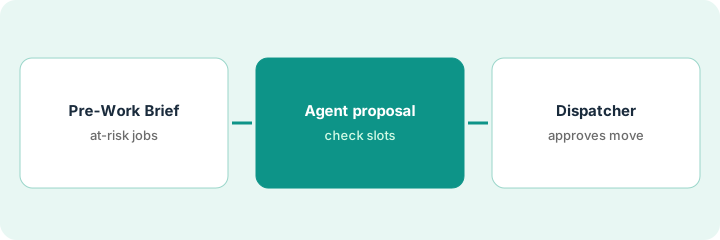
1. Read the Pre-Work Brief
What it is: Before the day starts, read the Pre-Work Briefs for jobs most likely to move.
- Open briefs for jobs with parts or access risk.
- Check customer history and equipment notes against the record.
- Flag any brief that is wrong about the equipment or last visit.
- Write booking rules: job types the agent may move, minimum notice, customers who always go to a person.
The brief for a grocery store visit says the last repair was a fan motor; the record shows a thermostat. The dispatcher flags it as a data fix.
List the day's at-risk jobs and your booking rules on one sheet.
2. Review the Scheduling Agent's proposal
What it is: When the Scheduling Agent or console suggests a change, read what it would move and why.
- Check which appointments move and by how much.
- Check the technician's skills and parts for the new slot.
- Check the customer's access hours.
- Reject proposals that break your booking rules.
A technician is delayed. The agent proposes moving two afternoon visits to tomorrow morning. One customer only allows access after 2 in the afternoon, so the dispatcher rejects that half.
Write each proposal, your decision, and the reason.
3. Dispatcher approves before the customer is notified
What it is: The dispatcher approves each moved appointment, and only then is the customer told.
- Approve or adjust each move.
- Send the customer a note after approval.
- Use Appointment Assistant updates only for approved times.
- Review every agent-moved appointment weekly.
- Track complaints tied to moves.
The dispatcher approves one move and reshuffles the other within today. The customer gets an update with the new window.
Keep a weekly list: appointment, moved by, approved by, customer reaction.
Pricing context (October 2026)
This how-to isn't a price sheet. Per the Salesforce Field Service AI review and Salesforce's pricing page (checked Oct 17, 2026), Dispatcher and Technician list at $175, Field Service Plus at $230, and Agentforce 1 Field Service at $650 per user per month, billed annually. On lower editions, Salesforce’s Field Service AI pricing page lists the Agentforce for Field Service add-on at $125 per user per month (checked Oct 21, 2026); Scheduling Agent use still draws on Flex Credits. Dated October 2026.
Checked Oct 17, 2026 on the vendor’s own pricing page: Salesforce’s Field Service pricing page lists Dispatcher and Technician at $175, Field Service Plus at $230, and Agentforce 1 Field Service at $650 per user per month, billed annually. The Scheduling Agent requires Flex Credits below Agentforce 1.
Uncertainty: The only prices this site sells here are the optional $9 AI toolkit spreadsheet and $19 AI toolkit audit.
When this helps (honest take)
Useful when you dispatch on Salesforce Field Service and appointments often move during the day.
Not useful when you run Dynamics 365 Field Service — see the Dynamics how-to — or you have no written booking rules yet.
Related options (educational)
| Need | Where to look | Why |
|---|---|---|
| Salesforce Field Service AI | Salesforce Field Service AI | Primary path |
| Dynamics 365 Copilot messages | Dynamics 365 Copilot message approval | A different stack |
| Small-business AI booking checks | Service Fusion ZyraTalk | Smaller teams |
| Field service stack map | Stack map: field service ops | Where Salesforce fits |
FAQ
How is this different from the Dynamics 365 how-to?
Different stacks and a different approval point: this page is Scheduling Agent appointment moves approved by the dispatcher. The Dynamics page is Copilot customer messages approved by the service manager.
Does the Scheduling Agent cost extra?
Per Salesforce's pricing page, it requires Flex Credits on every edition except Agentforce 1 Field Service, which includes 1M Flex Credits per org per year.
Where do Salesforce Field Service prices live?
$175, $230, and $650 per user per month billed annually on the page we checked; see the pricing section. Our Oct 17, 2026 check of the vendor’s own pricing page is summarized in the pricing section above.
Why do some screens still say Einstein?
Salesforce renamed Einstein for Field Service to Agentforce for Field Service; older Setup screens and docs may still use the old name.
Optional next step
If you want a one-page toolkit map for the tools you already pay for, use the optional $9 AI toolkit spreadsheet. If you want a short review of seat waste and unused tools, use the optional $19 AI toolkit audit. Neither is required to follow this how-to.