How-to · Field service · Dynamics 365 · Oct 17, 2026
Use Dynamics 365 Field Service Copilot work-order summaries, and have the service manager approve every customer message
Copilot in Dynamics 365 Field Service summarizes work orders, answers plain-language questions about your data, and drafts customer responses in Outlook. A draft email that invents an arrival window or price becomes a promise once sent. This page shows how to use the summaries and questions and keep the service manager on every customer message.
Who this is for
Service managers and dispatchers on Dynamics 365 Field Service who want Copilot's help on paperwork while keeping customer messages under human control. For Salesforce's Scheduling Agent with the dispatcher approving moved appointments — a different stack and a different job — see Salesforce Scheduling Agent approval.
How to do it
This is a how-to, not a ranking of field service platforms. Per the Dynamics 365 Field Service AI review and Microsoft Learn, Copilot generates on-demand work-order summaries and answers natural-language questions; AI-powered work-order update on mobile is labelled preview; and agents require Copilot Credits. The ground rule: a named service manager approves every Copilot-drafted customer message.
1. Summarize one day's work orders
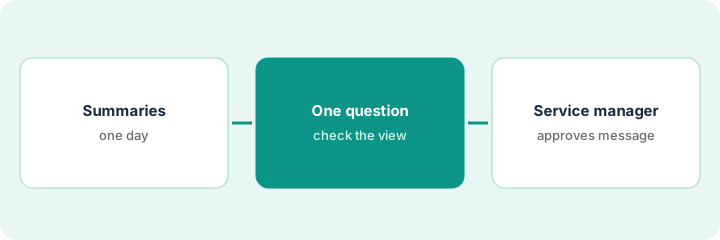
What it is: Generate Copilot summaries for tomorrow's work orders and check each against the form.
- Pick one day's open work orders.
- Generate a summary for each.
- Check equipment tags and symptom lines against the work-order form.
- Remove anything the summary added that is not on the record.
- Name the service manager who approves customer messages.
The dispatcher summarizes 18 work orders. Two summaries mention a compressor fault that is not on the form; it came from an older visit's notes. She removes it.
Mark each summary checked or corrected before the techs roll.
2. Ask one scheduling question
What it is: Ask Copilot one plain-language question about scheduling data and check the answer in the view.
- Ask, for example, which high-priority work orders have no booking yet.
- Open the view and confirm the list.
- Do not let preview mobile updates change fields without someone accepting each one.
- Note any answer that did not match.
Copilot lists four high-priority orders with no booking. The view shows five; one was created after the last refresh. The dispatcher books all five.
Write the question, Copilot's answer, and what the view showed.
3. Service manager approves any customer message
What it is: When Copilot drafts a customer response in Outlook, the service manager reads and approves it before it is sent.
- Check arrival windows against the booking.
- Check prices and warranty lines against the approved work order.
- Remove anything not on the work order.
- Send only approved messages.
- Log approvals for the weekly review.
Copilot drafts a reply promising a technician 'first thing tomorrow'. The booking is for between 1 and 3 in the afternoon. The service manager corrects it before sending.
Keep a message log: work order, draft, edits, approved by, sent time.
Pricing context (October 2026)
This how-to isn't a price sheet. Per the Dynamics 365 Field Service AI review and Microsoft's Field Service pricing page (checked Oct 17, 2026), Dynamics 365 Field Service is $105 and Field Service Contractor $50 per user per month paid yearly; Resource Scheduling Optimization is $30 per resource per month. Agents use Copilot Credits. Dated October 2026.
Checked Oct 17, 2026 on the vendor’s own pricing page: Microsoft’s Field Service pricing page lists Dynamics 365 Field Service at $105 per user per month and Field Service Contractor at $50 per user per month paid yearly, and Resource Scheduling Optimization at $30 per resource per month. Agents need Copilot Credits.
Uncertainty: The only prices this site sells here are the optional $9 AI toolkit spreadsheet and $19 AI toolkit audit.
When this helps (honest take)
Useful when you dispatch on Dynamics 365 Field Service and send customers updates by email.
Not useful when you run Salesforce Field Service — see the Salesforce how-to — or nobody owns customer messages.
Related options (educational)
| Need | Where to look | Why |
|---|---|---|
| Dynamics 365 Field Service AI | Dynamics 365 Field Service AI | Primary path |
| Salesforce Scheduling Agent | Salesforce Scheduling Agent approval | A different stack |
| Small-business field booking | Workiz Genius Answering | Smaller teams |
| Field service stack map | Stack map: field service ops | Where Dynamics fits |
FAQ
How is this different from the Salesforce how-to?
Different stacks and a different approval point: this page is Dynamics 365 Copilot summaries and customer messages approved by the service manager. The Salesforce page is Scheduling Agent appointment moves approved by the dispatcher.
Is the mobile work-order update generally available?
Microsoft Learn labels AI-powered work-order update as preview. Accept each suggested field by hand.
Where do Dynamics 365 Field Service prices live?
$105 and $50 per user per month paid yearly, and $30 per resource for scheduling optimization, on the page we checked. Our Oct 17, 2026 check of the vendor’s own pricing page is summarized in the pricing section above.
Do Field Service agents cost extra?
Per Microsoft’s pricing page, agents require Copilot Credits, sold as prepaid units or pay-as-you-go. Get your expected credit use in a quote.
Optional next step
If you want a one-page toolkit map for the tools you already pay for, use the optional $9 AI toolkit spreadsheet. If you want a short review of seat waste and unused tools, use the optional $19 AI toolkit audit. Neither is required to follow this how-to.