How-to · Ecommerce · Wix · Oct 17, 2026
Draft product descriptions with Wix AI, and have the owner approve every page and price
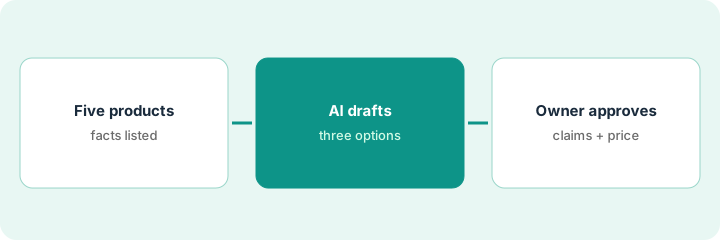
Wix's AI writes three product descriptions for you to choose from, cleans up product photos, and lets Aria change site data from a chat line. All of that is useful, and all of it can put a wrong material, size, or price on a live page. This page shows how to draft five products and approve every page and price yourself.
Who this is for
Owners and managers of small online stores on Wix who write their own product pages and want AI help without handing over the final word. For a larger BigCommerce catalog where a merchandiser approves enriched fields — a different job — see BigCommerce Catalog Enrichment.
How to do it
This is a how-to, not a ranking of store builders. Per the Wix AI review, Wix's AI writes three description options per product from the name and key details you enter, Photo Studio offers AI enhance, background, and erase tools, and Wix describes its agents (such as Kleo) as working on your approval. The ground rule: the owner approves every product description, edited photo, and price before customers see it.

1. Pick five products and gather the facts
What it is: Start with five products you know well, and put their real specs and prices on one sheet.
- Choose five products with a supplier spec or your own measurements.
- Write the price, sizes, materials, and care line for each.
- Mark any line that reads like a safety or health claim.
- Decide which photos need clean-up and which must stay as they are.
An owner picks five candles. She writes the wax type, burn time she has measured, and wick material for each, and flags the 'non-toxic' line her supplier uses as something to check.
Fill one row per product — name, price, specs, photo note — before you open the product editor.
2. Generate descriptions and photo edits
What it is: In the product editor, enter the product name and key details, let Wix AI write its three description options, and use Photo Studio for clean-up.
- Pick the description that is closest to true, then edit it.
- Delete any material, size, or care line the AI added that is not on your sheet.
- Use background removal or enhance, but never change the product itself in the photo.
- Leave prices alone in this step; do not change them through Aria or the Gemini app.
- Save as hidden or draft until step 3.
Wix AI suggests 'hand-poured soy blend with cotton wick' for a candle that uses coconut wax. She edits the line and keeps the background-removed photo, which still shows the real jar colour.
Read each draft out loud next to your spec sheet and strike anything you cannot prove.
3. Owner checks every claim and price before publish
What it is: The owner reads each page as a customer would, confirms the price, and only then makes it visible.
- Compare every claim with the spec sheet one more time.
- Confirm the price on the product page matches your sheet.
- Check the edited photo against the real product for colour and size.
- Publish only the approved products.
- If you use an agent such as Kleo, approve each post or email it drafts the same way.
Four candles go live. One stays hidden because the burn-time line still says 50 hours and her own test showed 40. She fixes it the next morning.
Keep a short change log: product, what the AI wrote, what you changed, price, approved by, date.
Pricing context (October 2026)
This how-to isn't a price sheet. Per the Wix AI review and Wix's own pricing article (checked Oct 17, 2026), Wix has a free plan and paid plans from $17 to $159 a month billed yearly; Core at $29 a month is the first plan that takes payments. Some AI features need an upgraded site. Dated October 2026.
Checked Oct 17, 2026 on the vendor’s own pricing page: Wix’s plans page fills in prices by location, so we read Wix’s pricing article (Wix’s own article): a free plan, then Light $17, Core $29, Business $39, and Business Elite $159 per month on yearly billing. Light cannot take payments. Prices vary by location and exclude tax.
Uncertainty: The only prices this site sells here are the optional $9 AI toolkit spreadsheet and $19 AI toolkit audit.
When this helps (honest take)
Useful when you run a small Wix store, write your own product pages, and want help with first drafts and photo clean-up.
Not useful when you have a large catalog or several channels to feed — see the BigCommerce how-to — or nobody has time to read each page before it goes live.
Related options (educational)
| Need | Where to look | Why |
|---|---|---|
| Wix AI features | Wix AI | Primary path |
| Bigger catalog enrichment | BigCommerce Catalog Enrichment | A different job |
| Customer reviews and public replies | Yotpo reply approval | After the sale |
| Ecommerce stack map | Stack map: ecommerce ops | Where Wix fits |
FAQ
Can Wix AI change my prices?
Per our review, Wix says its Gemini app can update product pricing from a chat. In this routine the owner changes prices by hand and approves every one. Our Oct 17, 2026 check of the vendor’s own pricing page is summarized in the pricing section above.
Should edited photos change the product?
No. Clean the background or lighting, but the product's colour, size, and contents must match what you ship.
Where do Wix prices live?
Free plan, then $17 to $159 a month billed yearly on the article we checked; see the pricing section. Our Oct 17, 2026 check of the vendor’s own pricing page is summarized in the pricing section above.
How is this different from the BigCommerce how-to?
A different job: this page is a small Wix store where the owner approves every page and price. The BigCommerce page is bulk Catalog Enrichment approved field by field by a merchandiser.
Optional next step
If you want a one-page toolkit map for the tools you already pay for, use the optional $9 AI toolkit spreadsheet. If you want a short review of seat waste and unused tools, use the optional $19 AI toolkit audit. Neither is required to follow this how-to.