How-to · Ecommerce fulfillment · ShipBob · Oct 22, 2026
Ask ShipBob’s Bobby about stockouts and exception orders, and have the ops lead approve every inventory transfer and order change
Bobby is ShipBob’s AI agent inside the merchant dashboard. It answers questions from live fulfillment data and can swap items, reassign fulfillment centers, and create warehouse receiving orders after you confirm a summary. This page shows how to make the ops lead the person who reads and approves every one of those changes, and how to add ShipBob MCP without giving every AI tool write access.
Who this is for
Ecommerce ops leads, inventory planners, and founders whose orders ship from ShipBob. The job here is using Bobby for stockouts and exception orders with a named person approving every change. For letting Shipwell’s Document AI read freight paperwork with a freight manager approving every rate — a different job for shipper freight teams, also MCP-capable — see Shipwell Document AI and rate approval.
How to do it
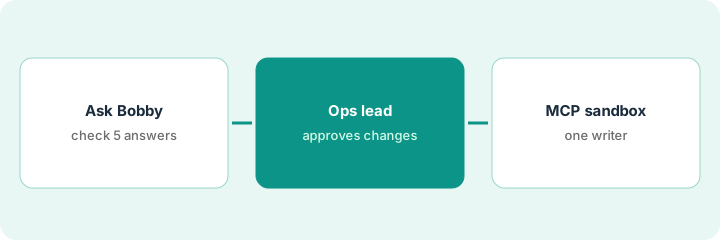
This is a how-to, not a ranking of fulfillment providers. Per the ShipBob AI review, Bobby flags at-risk items from recent sales velocity, fixes out-of-stock exception orders by swapping to an in-stock variant, reassigning to a center with stock, or expediting shipping, and “confirms before executing,” logging the change under your user in the order’s timeline. ShipBob MCP connects Claude, ChatGPT, and other MCP clients; an account admin grants MCP Read and MCP Write separately, and ShipBob says the server does not enforce a prompt, so the AI client decides whether a person approves each write. ShipBob’s figures are its claims. The ground rule: the confirmation summary is the approval step, so the ops lead reads it every time.
1. Ask Bobby three stockout questions and check the answers
What it is: Bobby projects stockouts from recent sales. A forecast built on 30 days of sales misses promotions, seasonality, and inbound stock already on the water, so check a few answers against your own inventory report.
- Ask which items will run out at any ShipBob warehouse in the next 14 days.
- Ask which fulfillment center holds the most stock of each at-risk item.
- Ask which at-risk items already have an inbound receiving order.
- Check five answers against your inventory report before sending more units.
Bobby flags nine items at risk. The ops lead checks five against the inventory report: three are right, one already has stock arriving next week, and one is a holiday bundle that will not sell again. She replenishes only the three.
Ask Bobby which items will run out in the next 14 days and check five of its answers against your inventory report before sending a replenishment.
2. The ops lead approves every exception fix and receiving order
What it is: Bobby shows a summary before it changes an order or creates a receiving order. Make the ops lead the person who reads that summary and approves anything that changes what a customer receives or where inventory goes.
- Name the ops lead as the approver for item swaps, center reassignments, and expedited shipping.
- Read the item, quantity, destination, and shipping method on every summary.
- For receiving orders, check quantity, destination hub, arrival date, and tracking number.
- Check the order timeline after approval to confirm the change was logged.
Bobby proposes fixes for three exception orders: two swaps to a different color and one reassignment. The ops manager approves the reassignment, rejects one swap because the customer ordered a specific color, and asks support to email the customer instead. Every change shows in the order timelines.
Have the ops lead read every Bobby confirmation summary before approving an order change or receiving order, and check the order timeline afterwards.
3. Connect ShipBob MCP read-only in the sandbox first
What it is: ShipBob MCP lets outside AI tools read and write orders, products, and receiving orders. Start in the sandbox, give write access to one person, and confirm the client asks before every write tool runs.
- Connect your AI assistant to the sandbox server, not production.
- Have the account admin grant MCP Read to the team and MCP Write to one named person.
- Confirm your AI client asks before write tools; ShipBob says some clients do not by default.
- Read MCP Insights in the AI Hub once a week for every AI action taken.
The founder connects Claude to the sandbox with read access and asks for last week’s exception orders. Write access goes only to the ops lead. Each Monday the ops lead opens MCP Insights and checks every AI action against the order it touched.
Connect ShipBob MCP to the sandbox first, give MCP Write to one named person, confirm the client asks before writes, and read MCP Insights weekly.
Pricing context (October 2026)
This how-to isn’t a price sheet. Per the ShipBob AI review, ShipBob does not publish a fulfillment price list: its pricing page lists the standard fees (implementation, receiving, warehousing, and pick, pack, and ship) and says quotes are customized for each customer. The same page says ShipBob’s software is free for all customers, and the review found no separate price for Bobby, ShipBob MCP, or the AI Hub. Dated October 2026.
Checked Oct 22, 2026 on the vendor’s own site: ShipBob’s pricing page says “All quotes are customized for each customer” and “ShipBob’s software is completely free for all customers.” It lists no separate price for Bobby, ShipBob MCP, or the AI Hub. This page quotes no ShipBob dollar figure; see our review for what is known and ShipBob’s own site before you budget.
Uncertainty: The only prices this site sells here are the optional $9 AI toolkit spreadsheet and $19 AI toolkit audit.
When this helps (honest take)
Useful when your orders ship from ShipBob, exception orders and stockouts eat time each week, and the ops lead will read every confirmation before approving.
Not useful when nobody reads the confirmation summaries, or you would hand MCP Write to every AI tool in the company.
Related options (educational)
| Need | Where to look | Why |
|---|---|---|
| Outsourced fulfillment with an in-app agent and MCP | ShipBob AI | Primary path; fulfillment quoted, software free |
| Freight paperwork and rate approval in a TMS | Shipwell Document AI and rate approval | A different job |
| Inventory and reorder AI for your own stock | Cin7 AI | Your own warehouse |
| Where ecommerce ops tools fit | Stack map: ecommerce ops | Broader map |
FAQ
What can Bobby change?
Per our review, Bobby can reship orders, swap items, reassign fulfillment centers, and create receiving orders after you confirm a summary. Each change is logged in the order timeline.
Does ShipBob MCP ask before making changes?
ShipBob says the server does not enforce a prompt; your AI client decides. Claude apps and VS Code ask before write tools; ChatGPT developer-mode connectors do not by default.
Who should approve Bobby’s changes?
A named ops lead approves receiving orders, inventory transfers, item swaps, and order changes; an account admin controls MCP Write access.
How much does ShipBob cost?
ShipBob customizes every fulfillment quote, and its pricing page says the software is free for all customers (checked Oct 22, 2026).
Optional next step
If you want a one-page toolkit map for the tools you already pay for, use the optional $9 AI toolkit spreadsheet. If you want a short review of seat waste and unused tools, use the optional $19 AI toolkit audit. Neither is required to follow this how-to.