How-to · Launcher AI · Raycast · Oct 22, 2026
Use Raycast AI quick drafts from the launcher, and decide if it can replace a heavier AI seat
Raycast AI puts rewrite, summarize, and draft-from-snippet commands in the Mac launcher, and extensions can pipe a selection or the clipboard into AI. For short drafting jobs that can be faster than opening a full chat app. This page shows how to set up three commands, add one extension safely, and use a week of real use to decide what happens to your other AI seat.
Who this is for
Ops makers and individuals on Mac who already live in a launcher and pay for, or are weighing, a heavier AI chat seat. The job here is quick drafts from the launcher and an honest seat decision.
How to do it
This is a how-to, not a ranking of AI tools. Per the Raycast AI review, Raycast AI suits quick rewrites, snippet summaries, and status drafts, while jobs that need full ticket context, CRM truth, or board ownership should stay in their own app. Outputs are drafts a person edits before a customer or executive sees them. The review stresses paste hygiene: strip personal data, secrets, and customer identifiers, and mark Unknown when the snippet lacks the facts. Feature names and packaging change, so verify on Raycast’s site. The ground rule: the launcher drafts; the system of record stays where it is.

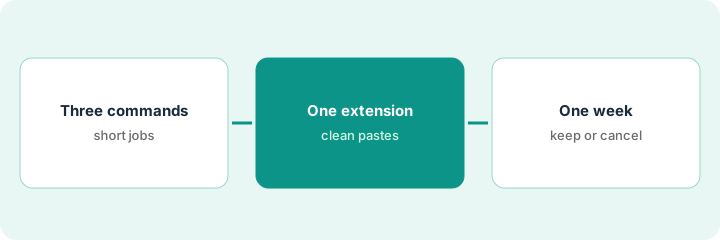
1. Set three quick-draft commands for recurring jobs
What it is: List your recurring drafting jobs and move only the short ones to the launcher. Set one command for each of the three most frequent.
- List eight recurring drafting jobs from last week.
- Mark each launcher or stay-in-app, with one sentence why.
- Set quick-draft commands for the three most frequent launcher jobs.
- Keep jobs that need live system data in their own app.
The analyst lists eight jobs. Three go to the launcher: tightening Slack status updates, summarizing a pasted email thread, and drafting meeting follow-ups. Ticket replies stay in the help desk because they need the customer’s history.
List eight recurring drafting jobs, mark each launcher or stay-in-app with a reason, and set Raycast AI commands for the three most frequent launcher jobs.
2. Add one extension with clean pastes
What it is: Pick one extension that sends a selection or clipboard into AI. Before using it on real work, write a short paste-hygiene rule and check one real paste against it.
- Add one extension that fits a launcher job from step 1.
- Write a paste rule: no personal data, secrets, or customer identifiers.
- Redact one real paste and list what still needs facts from the system of record.
- Mark those gaps Unknown in the draft instead of guessing.
The team lead adds an extension that summarizes selected text. Her first real paste contains an employee’s salary; she redacts it, and the draft marks the effective date Unknown until she checks the payroll system.
Add one Raycast AI extension, write a paste rule against personal data and secrets, and redact one real paste before using it on live work.
3. Track a week of use, then decide on the heavier seat
What it is: For one week, note each time you used the launcher command and each time you still opened the full chat app. Then decide whether the heavier seat is still needed.
- Tally launcher uses and full-chat uses each day.
- Note which jobs still needed the full chat app and why.
- List the six drafting jobs this quarter and assign each to Raycast AI, ChatGPT or Claude, or Notion or ClickUp.
- Cancel the seat only if no job still needs it.
In a week the founder used the launcher 41 times and the full chat app 6 times, all for long documents. She keeps the chat seat for long documents and drops a second assistant subscription that duplicated the launcher jobs.
Tally a week of launcher uses against full-chat uses, assign this quarter’s drafting jobs to one tool each, and cancel a seat only if no job still needs it.
Pricing context (October 2026)
This how-to quotes no Raycast dollar figure. Per the Raycast AI review, Raycast publishes Pro and AI packaging on its own site, and the review does not state per-seat or AI prices. Check Raycast’s pricing page before budgeting. Dated October 2026.
Checked Oct 22, 2026 on the vendor’s own site: Raycast publishes plans on its pricing page; our review states no per-seat or AI price, so this page does not repeat one. This page quotes no Raycast dollar figure; see our review for what is known and Raycast’s own site before you budget.
Uncertainty: The only prices this site sells here are the optional $9 AI toolkit spreadsheet and $19 AI toolkit audit.
When this helps (honest take)
Useful when you work on a Mac, live in a launcher, and many of your drafting jobs are short rewrites and summaries.
Not useful when your drafting jobs need live system data, you do not use a launcher, or pastes would carry personal data.
Related options (educational)
| Need | Where to look | Why |
|---|---|---|
| Quick drafts and extensions from the Mac launcher | Raycast AI | Primary path |
| Heavier chat seats compared | ChatGPT vs Gemini for ops | For long documents |
| Projects and long files | Claude vs ChatGPT for ops | Deeper work |
FAQ
Should Raycast AI replace the help desk?
No. Per our review, use it for quick drafts and stay in the help desk when you need the customer’s history.
What should never go into a launcher paste?
Personal data, secrets, and customer identifiers. Redact first and mark missing facts Unknown.
Raycast AI or ChatGPT?
Keep the tool each job needs: launcher for short drafts, a chat seat for long documents and projects.
How much does Raycast AI cost?
Our review does not state a price; check Raycast’s pricing page (checked Oct 22, 2026).
Optional next step
If you want a one-page toolkit map for the tools you already pay for, use the optional $9 AI toolkit spreadsheet. If you want a short review of seat waste and unused tools, use the optional $19 AI toolkit audit. Neither is required to follow this how-to.