How-to · Endpoint management · NinjaOne · Oct 19, 2026
Use NinjaOne Patch Intelligence AI on Windows patches, and have a technician approve every AI override
NinjaOne’s Patch Intelligence AI can suggest overrides on Windows patches so urgent fixes move faster. A wrong override still lands on every device in the ring. This page shows how to use Patch Intelligence with a technician approval on every AI override.
Who this is for
Internal IT and MSP technicians who already manage Windows fleets in NinjaOne. The job here is approving AI patch overrides. For letting Atera’s AI Copilot draft a script with technician approval and keeping Robin to a short self-service list — a different job — see Atera Copilot script tech approve.
How to do it
This is a how-to, not a ranking of RMM tools. Per the NinjaOne AI review, Patch Intelligence AI and AI approval overrides focus on Windows patches, vulnerability management is AI-driven, and Katana AI for ticket help is Early Access. The ground rule: no AI override patches a device until a technician approves it.

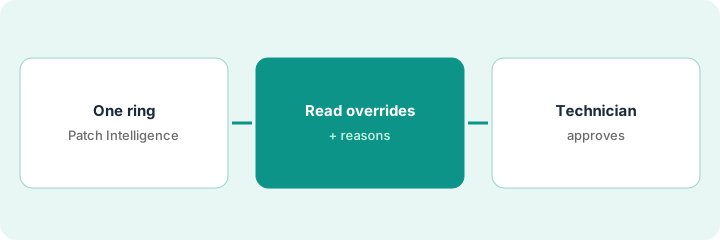
1. Turn on Patch Intelligence for one ring
What it is: Pick a small Windows ring (lab or canary), enable Patch Intelligence there only, and leave production rings on manual approval.
- Name the ring and the technician who owns approvals.
- Confirm Patch Intelligence covers Windows OS patches in your build — per our review that is its focus.
- Do not enable Katana Early Access for this routine.
- Write the rule: every AI override needs a tech approve or reject.
- Snapshot the current patch policy before you change it.
An MSP enables Patch Intelligence on a 15-device canary ring. Production stays manual. One senior tech owns the override queue.
Write the ring name and “AI overrides need tech approve” in the change ticket.
2. Read each AI override and its reason
What it is: Open the override queue, read the reason next to each suggestion, and cross-check the vulnerability view when a CVE is named.
- List patch, devices affected, and AI reason.
- Open the vulnerability view for anything labeled critical.
- Reject overrides you cannot explain in one sentence.
- Do not batch-approve the queue.
- Note known broken patches your customers already reported.
AI suggests approving a cumulative update early for ten canary devices citing a critical CVE. The tech opens the vulnerability view, confirms the CVE, and still checks NinjaOne’s release notes for known issues.
For each override, write one sentence you would tell a customer before you approve.
3. Technician approves or rejects before devices patch
What it is: A named technician marks approve or reject; only approved overrides reach the ring, and the decision is logged.
- Approve or reject with a short note.
- Watch the canary for a day before widening.
- If devices fail, roll back per your normal NinjaOne process.
- Keep Katana Early Access out of this path unless your account manager enabled it and you have a separate pilot.
- Review reject reasons weekly to tune the ring.
The tech approves the cumulative for canary, rejects an optional .NET preview override, and files both notes. After 24 clean hours the same process is offered to the next ring.
Approve or reject every AI override yourself before any device in the ring patches.
Pricing context (October 2026)
This how-to isn’t a price sheet. Per the NinjaOne AI review and NinjaOne’s pricing page (checked Oct 19, 2026), NinjaOne starts as low as $1.50 per month at 10,000 endpoints, increasing to $3.75 at 50 or fewer endpoints; pricing varies by region and products, commercial non-FedRAMP only. Patch Intelligence has no separate public price. Dated October 2026.
Checked Oct 19, 2026 on the vendor’s own pricing page: NinjaOne’s pricing page FAQ says NinjaOne starts as low as $1.50 per month at 10,000 endpoints, increasing to $3.75 at 50 or fewer endpoints; pricing varies by region and products on the commercial non-FedRAMP instance. Patch Intelligence has no separate public price.
Uncertainty: The only prices this site sells here are the optional $9 AI toolkit spreadsheet and $19 AI toolkit audit.
When this helps (honest take)
Useful when you already patch Windows fleets in NinjaOne and need a human gate on every AI override.
Not useful when your fleet is mostly Mac (see Jamf), or nobody will read override reasons.
Related options (educational)
| Need | Where to look | Why |
|---|---|---|
| NinjaOne AI features | NinjaOne AI | Primary path |
| NinjaOne vs Atera | NinjaOne vs Atera | Compare RMM AI paths |
| Atera script approval | Atera Copilot script tech approve | A different job |
FAQ
Does Patch Intelligence cover Mac?
Per our review it focuses on Windows OS patches. Use Jamf’s AI Assistant path for Apple policy explanations.
What about Katana AI?
Per our review Katana is Early Access via your account manager. This routine does not use it.
Optional next step
If you want a one-page toolkit map for the tools you already pay for, use the optional $9 AI toolkit spreadsheet. If you want a short review of seat waste and unused tools, use the optional $19 AI toolkit audit. Neither is required to follow this how-to.