How-to · Fleet · Geotab · Oct 16, 2026
Ask Geotab Ace one fleet question, and verify the insight against the trip data before you act
Geotab Ace in MyGeotab can answer fleet questions in plain language. Acting on an insight before you open trip data still mis-coaches drivers. This page shows how to ask one question, verify against trip data, and only then act.
Who this is for
Fleet or field-ops managers using Geotab Ace. For Workiz Genius Answering — a different job — see Workiz Genius Answering owner approve.
How to do it
This is a how-to, not a ranking. Per the Geotab AI review, Geotab Ace is included with a Geotab subscription; commercial hardware and packages are reseller quote. The fleet manager verifies every insight against trip data.

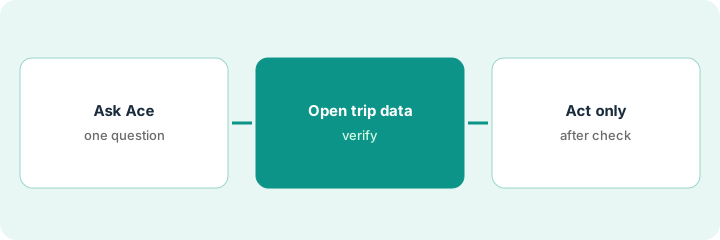
1. Ask Ace one idling or route question
What it is: Ask one concrete question (idling, route time, or harsh events) for a defined date range.
- Ask about one vehicle group or route.
- Keep the date range short.
- Do not brief drivers yet.
- Skip camera coaching claims until you open the evidence.
Manager asks which five vans idled over thirty minutes yesterday. Ace returns a list.
Write the question and Ace's list before opening trips.
2. Open the matching trip data
What it is: Open trip history (and camera clips if relevant) for the cited vehicles.
- Confirm timestamps and locations.
- Exclude known job-site idle if policy allows it.
- Note false positives.
- Do not send driver messages from Ace alone.
Two of five vans were on approved job-site idle. Three need coaching.
Mark each Ace hit as confirmed / excluded.
3. Act only after verification
What it is: Coach, route-change, or policy updates only for verified insights.
- Message only confirmed cases.
- Update dispatch rules if routes are the issue.
- Re-ask Ace next week to see if behavior moved.
- Keep reseller quote separate from Ace usage (Ace is included per Geotab).
Three drivers get a short idle coaching note. Two exclusions documented for the auditor.
Log: question, Ace hits, verified count, actions.
Pricing context (October 2026)
This how-to isn't a price sheet. Per the Geotab AI review, Geotab Ace is included with a Geotab subscription; package and dash-cam pricing comes from authorized resellers with no general public list on Geotab's own pages we checked. Dated October 2026.
Checked Oct 16, 2026 on the vendor’s own pricing page: Geotab Ace is included with a Geotab subscription per our review. Package and dash-cam pricing comes from authorized resellers — Geotab’s site does not publish a general public dollar list. This page quotes no Geotab packages dollar figure; confirm what your contract includes with Geotab packages or your admin.
Uncertainty: The only prices this site sells here are the optional $9 AI toolkit spreadsheet and $19 AI toolkit audit.
When this helps (honest take)
Useful when you have MyGeotab with Ace and will open trip data before coaching.
Not useful when you need phone booking for a trades shop — see Workiz or Service Fusion how-tos.
Related options (educational)
| Need | Where to look | Why |
|---|---|---|
| Geotab AI | Geotab AI | Primary path |
| Workiz Genius Answering | Workiz Genius owner approve | A different job |
| Field service stack map | Stack map: field service ops | Related field ops |
FAQ
Is Ace an extra license?
Per our review, Geotab says Ace is included with a Geotab subscription — confirm on your reseller quote for cameras and add-ons.
Should we coach from Ace without trip data?
No. Verify every insight first.
Does Geotab publish package prices?
Not as a general public list on the pages we checked; use your reseller quote. Our Oct 16, 2026 check of the vendor’s own pricing page is summarized in the pricing section above.
Should we coach from Ace without trip data?
No. Verify every insight first.
Optional next step
If you want a one-page toolkit map for the tools you already pay for, use the optional $9 AI toolkit spreadsheet. If you want a short review of seat waste and unused tools, use the optional $19 AI toolkit audit. Neither is required to follow this how-to.