How-to · Meetings & notes · Fellow · Oct 7, 2026
Build next week’s agenda from last week’s open items in Fellow
“Agenda from open items” here does not mean an assistant adds a strategy brainstorm because it sounded productive. It means next week’s meeting starts with the actions people already said they would do — and topics with no owner get dropped or asked about, not quietly carried forward.
Who this is for
Team leads and facilitators who already keep recurring-meeting agendas and action items in Fellow — weekly staff meetings, ops syncs, 1:1s — and notice the same items rolling forward for a month. If your actions live in a transcript bot or a Slack thread instead, start there; Fellow can only draft from what is in Fellow.
How to do it
This page is a how-to. It is not a ranking of meeting tools. Product detail and pricing notes live on the Fellow AI review.
1. Step 1 — Pull last week’s open items
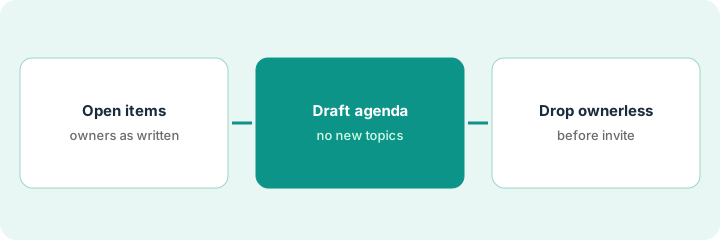
What it is: Before you draft anything, get the list of action items from last week’s meeting that are still open — from the Fellow meeting note or action-item view, or copied into a scratch doc.
- Only items still open. Done items belong in a short “closed since last week” line, not the agenda.
- Keep each item’s owner exactly as recorded. Blank stays Unknown.
- Add the meeting’s purpose in one sentence (“weekly ops sync: unblock this week’s work”).
- Do not add new topics yet. Step 1 is a copy, not a brainstorm.
Last week’s ops sync ended with nine actions. Four are done, three are open with owners, and two are open with no name attached (“look into vendor renewal,” “fix the intake form”). The facilitator copies the five open items and the purpose line into the draft area.
Open last week’s Fellow note for one recurring meeting. List every open action item with its owner as written. Mark blank owners Unknown. Count them — if more than a third are Unknown, that is the real agenda topic.
2. Step 2 — Draft the agenda from those items only
What it is: Use Fellow’s AI assists where your workspace shows them (see the Fellow AI review) — or paste the list into a chat tool you already use — and ask for a short agenda built only from the open items and the purpose line.
- One agenda line per open item, with the owner and a time box.
- Group related items so two owners can resolve them together.
- Forbid new topics. If the draft adds something that is not an open item, delete it.
- Keep the agenda shorter than the meeting: a 30-minute sync should not carry eight 5-minute items.
The draft returns six lines. Five match open items. The sixth — “Q4 strategy brainstorm (15 min)” — is new. The facilitator deletes it. The two vendor items get grouped under one owner-led line.
Paste your Step 1 list and ask: From these open action items and this meeting purpose only, draft an agenda: one line per item with owner and a time box. Group related items. Do not add topics that are not on the list. Total time must fit 30 minutes.
3. Step 3 — Drop ownerless topics before the invite
What it is: A human facilitator decides what survives. Any item with no owner either gets one (ask before the meeting) or comes off the agenda.
- For each Unknown owner, send one short ask in the team channel: “Who owns X? If nobody by Thursday, it comes off the agenda.”
- Items that still have no owner drop off and go into a parked list — visible, not hidden.
- Send the agenda with the invite or in the Fellow note. The draft is not the minutes; decisions that have not happened yet are not written down.
“Fix the intake form” gets an owner after one Slack ask. “Look into vendor renewal” does not; it moves to the parked list. The final agenda has four owned items and fits in 25 minutes. Nobody sits through a topic that nobody is accountable for.
Before you send next week’s invite, highlight every agenda line without a named owner. Post one ask per line in the team channel. Anything still unowned 24 hours before the meeting moves to a “Parked — no owner” list under the agenda.
Pricing context (October 2026)
This how-to is not a price sheet. Plan detail for Fellow AI lives on that review. Recheck the vendor’s site before you budget. Dated October 2026.
Checked Oct 7, 2026 on the vendor’s own pricing page: fellow.ai/pricing lists Free at $0 (5 AI notes and 5 AI recordings per user, lifetime), Team at $7 per user per month billed annually ($11 billed monthly, 10 AI notes per user per month), Business at $15 per user per month billed annually ($23 monthly, unlimited AI notes), and Enterprise at $25 per user per month billed annually, starting at 10 users. Its feature list includes AI meeting agendas and AI action items. Our Fellow AI review did not quote a price, so these figures come only from Fellow’s page on this date.
Uncertainty: Plan names, AI limits, and which workspaces see which assists change. If an invoice and a review disagree, trust the invoice. Do not paste a marketing list price you did not pay. The only prices this site sells here are the optional $9 AI toolkit spreadsheet and $19 AI toolkit audit.
When this helps (honest take)
Useful when a recurring meeting already runs on Fellow, action items are recorded with names, and the facilitator will spend five minutes on the agenda before each invite.
Not useful when actions are never written down, or you want an agenda tool to also record and transcribe every meeting. That is a capture job — and if Fellow plus a notetaker bot plus Zoom’s assistant all sit on the same series, you may be paying three times to remember one meeting.
Related options (educational)
| Need | Where to look | Why |
|---|---|---|
| Agendas and action items you edit | Fellow AI | Overview when Fellow holds the meeting record |
| Full transcript capture | Fireflies · Otter | Different job: the words, not the agenda |
| Free capture first | Fathom | When you are not sure you need paid notes |
| Notes that stay inside Zoom | Zoom AI Companion | When Zoom is where you meet and you avoid extra bots |
Related reviews: Fellow AI · Fireflies · Fathom · Zoom AI Companion. Related how-tos: Cancel the second notetaker in four steps · Turn one messy call into owners and dates.
FAQ
Can Fellow’s AI add topics I forgot?
It can suggest them, but this pattern forbids it. New topics come from people, with an owner.
What happens to items nobody owns?
Ask once. If still unowned before the meeting, they move to a visible parked list — not the agenda.
Do I also need a transcript bot?
Only if you truly need the words. An agenda tool and a capture tool are different jobs; pick one capture tool, if any.
Where do dated prices live?
On fellow.ai/pricing and your invoice. The Fellow AI review does not quote one. This October 2026 how-to only repeats prices we checked on the vendor’s own pricing page on Oct 7, 2026.
Optional next step
Free reviews stay free. Neither offer is required to use this page. If an agenda tool, a notetaker, and a video assistant all sit on the same meetings, optional help: $9 AI toolkit spreadsheet (seats, spend, owner, cancel-by, overlap) or $19 AI toolkit audit when you want a written memo.