How-to · Insurance claims · CLARA Analytics · Oct 20, 2026
Read CLARA’s DocIntel Pro medical summaries with citations, and have the claims supervisor approve every reserve and attorney referral
CLARA’s DocIntel Pro groups medical records into visit-level summaries with in-line citations to the exact page, and its Triage alerts and Risk Notes now read those documents. A citation makes checking fast, which is the point. This page shows how to click through on what matters and keep every reserve and attorney referral with the claims supervisor.
Who this is for
Casualty and workers’ comp claims supervisors, adjusters, and nurse case managers at carriers, MGAs, third-party administrators, and self-insured employers. The job here is casualty medical summaries feeding reserve and attorney-referral decisions. For having adjusters approve coverage positions, payments, and messages on claims prepared by Five Sigma’s Clive agents — a different job — see Five Sigma Clive coverage position approval.
How to do it
This is a how-to, not a ranking of claims tools. Per the CLARA Analytics AI review, DocIntel Pro (formerly CLARA Optics) added Visit Level Summary and In-Line Citations in July 2026; Triage sends severity, attorney-involvement, subrogation, and custom alerts explained in Risk Notes; and CLARA Litigation shows attorney-involvement signals and counsel history. CLARA’s own line: adjusters keep the decision. The ground rule: the claims supervisor approves every reserve change and every attorney referral.

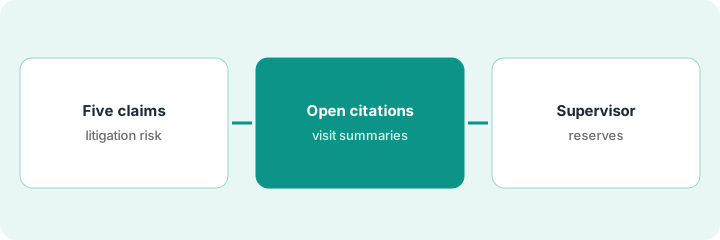
1. Pick five claims with litigation risk
What it is: Choose five open claims where CLARA shows attorney-involvement or rising-severity signals and the medical file is long.
- Pick claims with recent medical records and legal demands.
- Include at least one claim where the claimant is already represented.
- Note the current reserve on each before reading anything.
- Name the nurse case manager who checks medical lines.
- Do not change any reserve during the reading.
A claims supervisor picks five lost-time claims with attorney-involvement signals, including one already represented, and notes each current reserve. A nurse case manager joins for the medical reading.
List five claims with their current reserve and the CLARA signal shown, before opening any summary.
2. Open each citation on the visit summaries
What it is: Read each visit-level summary and click through every in-line citation on anything that could change the claim’s direction: prior injuries, surgery recommendations, time off work.
- Click every citation on prior-injury, surgery, and work-status lines.
- Mark any line the source does not support.
- Read the Risk Notes reasoning and check it points to current records.
- Flag reasoning that relies on a superseded record.
- Report unsupported lines to CLARA.
Almost every citation lands on the right passage. One summary lists a prior injury the record describes as family history. One Risk Note relies on a medical record that was already superseded. The nurse case manager corrects her notes and the supervisor reports both.
On each summary, click every citation on prior-injury, surgery, and work-status lines, and mark yes or no: does the page say this?
3. Supervisor approves reserve changes and attorney referrals; log Risk Notes outcomes
What it is: After the reading, the claims supervisor decides each reserve change and attorney referral and records whether the Risk Notes signal led to action.
- Approve each reserve change with a one-line reason from the file.
- Decide each attorney referral with the legal panel manager where relevant.
- Log each Risk Notes alert as acted on, noted, or not useful.
- Review the log monthly and decide which alert types go to adjusters.
- Keep fraud referrals with the SIU lead.
The supervisor raises reserves on three claims after her own review of the cited records, keeps two unchanged, and refers one claim to defense counsel. The Risk Notes log shows severity and attorney alerts led to action; one custom alert fired on nearly every claim and moves to a weekly team-lead report.
For each claim, write the reserve decision, the reason from the file, and whether the CLARA signal led to action.
Pricing context (October 2026)
This how-to isn’t a price sheet. Per the CLARA Analytics AI review, CLARA does not publish prices. When we checked on Oct 20, 2026, claraanalytics.com/pricing returned not found and the site offers demos. Treat it as quote-only and ask whether DocIntel Pro is priced per page or per claim. Dated October 2026.
Checked Oct 20, 2026 on the vendor’s own site: CLARA publishes no prices; claraanalytics.com/pricing returned not found and CLARA’s site lists no prices. This page quotes no CLARA dollar figure; ask CLARA for a written quote and see our review for what is known.
Uncertainty: The only prices this site sells here are the optional $9 AI toolkit spreadsheet and $19 AI toolkit audit.
When this helps (honest take)
Useful when you handle workers’ comp, auto liability, or general liability claims with long medical files and a claims supervisor will approve every reserve and attorney referral.
Not useful when your main need is fraud screening across personal lines, or you want reserves to move on an alert alone.
Related options (educational)
| Need | Where to look | Why |
|---|---|---|
| Medical summaries with citations | CLARA Analytics AI | Primary path; quote only |
| Coverage, payments, and messages | Five Sigma Clive coverage position approval | A different job |
| Group health and workers’ comp pricing | Gradient AI | Different stage |
| Claim summaries on Guidewire | Guidewire claim summary reserve check | Related claims job |
FAQ
What is DocIntel Pro?
Per our review, CLARA’s document tool (formerly CLARA Optics) that indexes and summarizes medical records and legal demands, with visit-level summaries and in-line citations since July 2026.
Does a severity alert change the reserve?
No. It is an invitation to look. The claims supervisor reads the file and decides.
How much does CLARA cost?
CLARA does not publish prices. Treat it as quote-only (checked Oct 20, 2026).
Optional next step
If you want a one-page toolkit map for the tools you already pay for, use the optional $9 AI toolkit spreadsheet. If you want a short review of seat waste and unused tools, use the optional $19 AI toolkit audit. Neither is required to follow this how-to.