Feature how-to · Approvals · Power Automate · Sep 2026
Power Automate AI how-to (Sep 2026): approvals in the Microsoft stack
Approvals and alerts for Microsoft 365-centered ops — Form → Approver → SharePoint with reminder and timeout — and when Zapier / Make are the better home. Companion to Microsoft 365 Copilot and Copilot Studio.
What this how-to covers
This page teaches ops teams already in Microsoft 365 how to design a reliable approval flow in Power Automate — Forms intake, Approvals, SharePoint list write, reminder, and timeout — and when to prefer Zapier or Make instead. It is not a full Power Platform catalog and not a Copilot Studio bot tutorial (see Copilot Studio). Cross-links: Microsoft 365 Copilot.

How to design an M365 approval flow
Examples at a glance: each step has a concrete ops example plus a short Try this.
1. Form → Approver → SharePoint (primary)
What it is: A narrow flow: Microsoft Forms (or similar) captures a request → Start and wait for an approval assigned to the right manager → on Approve, create/update a SharePoint list row. Keep fields explicit (requester, amount, reason, status, approver, timestamp).
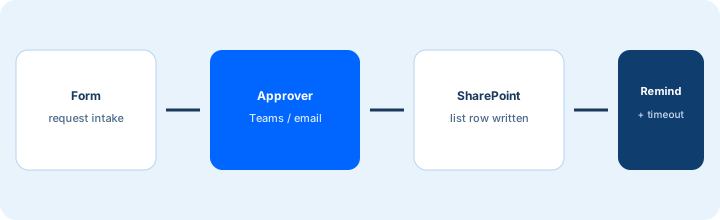
Primary SoT workflow:
Flow: Form → Approver → SharePoint list. Include reminder and timeout path.
2. Reminder and timeout path
What it is: Approvals stall without nudges. Add a reminder (for example after 24 hours) and a timeout (for example after 72 hours) that escalates to a backup approver and logs the timeout state — so “stuck in Approvals” does not silently die.
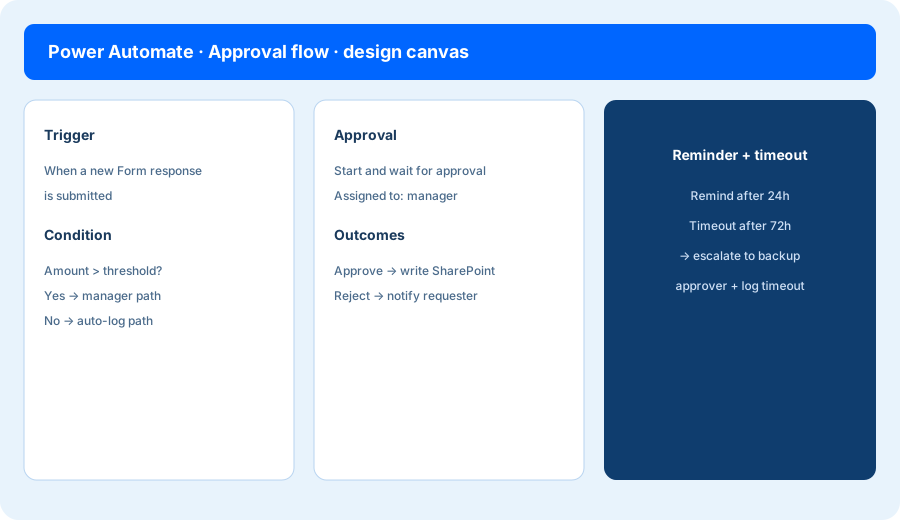
Reminder + timeout design:
For the Form → Approver → SharePoint flow, write reminder timing, timeout timing, backup approver rule, and the exact SharePoint status values for Approve / Reject / Timed out.
3. AI assists inside Power Automate
What it is: Power Automate’s AI / Copilot-style assists can help draft expressions, suggest next actions, or summarize flow failures — useful for builders already in Power Platform. Treat AI-suggested expressions as drafts: test with sample Form responses before production.
AI-assisted condition check:
Draft a Power Automate condition: if Amount ≥ threshold, assign director; else assign manager. List 3 test Form answers you will run before go-live.
4. When Zapier / Make fit better
What it is: Stay in Power Automate when Forms, Approvals, SharePoint, Teams, and Outlook are the center. Prefer Zapier or Make when the flow spans many non-Microsoft SaaS apps, when your team already owns those platforms, or when you need scenario patterns that are awkward in Power Platform. Chat status bots belong in Copilot Studio, not in a long Approvals chain.
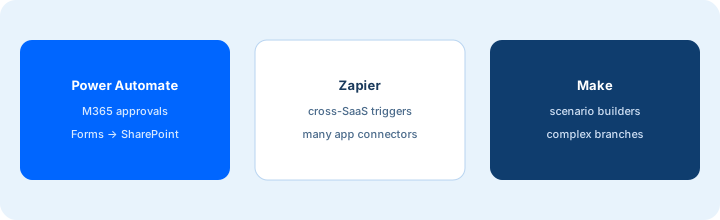
Home-for-the-job:
List 3 of our real approval/alert jobs. For each, pick Power Automate, Zapier, Make, or Copilot Studio — one sentence why.
Pricing / licensing context (September 2026)
Power Automate and Power Platform packaging (included with some Microsoft 365 plans, premium connectors, attended/unattended RPA, AI Builder credits) is documented on Microsoft’s public Power Automate / Power Platform pages (start from microsoft.com/power-automate). This page is dated September 2026 and is not a price sheet — we do not invent exact per-flow or per-user prices.
Uncertainty: Which Approvals and premium connectors are included vs paid, and how AI Builder / Copilot assists are metered, change. Always verify on live Microsoft pages and your admin center before budgeting.
When Power Automate is useful (honest take)
Useful when ops already lives in Microsoft 365 and needs durable approvals/alerts into SharePoint with reminder and timeout paths. Less useful when most systems sit outside Microsoft, when you hoped a chat bot would replace Approvals, or when nobody will own failed runs. Soft $19/$9 below only if Power Automate, Copilot Studio, Zapier, and ChatGPT seats overlap on the same approval job.
Paying for Power Automate AI and a few other AI tools? The $9 AI toolkit spreadsheet lists every AI subscription you have, what each one costs, and how fast it pays for itself, so you can see which ones are worth the money.
Want someone to do it for you? AI toolkit audit — $19
Related options (educational)
| Need | Better home | Why |
|---|---|---|
| M365 Form → Approver → SharePoint | Power Automate (this page) | Native Approvals + list write + reminders |
| Guarded chat status bot | Copilot Studio | Topics + knowledge + deny/escalate |
| In-file Word/Excel/Teams assists | Microsoft 365 Copilot | Seat inside Office apps |
| Cross-app SaaS triggers | Zapier · Make | Many non-Microsoft connectors |
Compare hand-copy hours to automation cost on the automation glue calculator.
FAQ
What is Power Automate AI useful for in ops?
Approvals and alerts in Microsoft-centered stacks — Forms into Approver into SharePoint — with reminder and timeout. Less ideal as general cross-SaaS glue outside Microsoft.
How do I design a Form → Approver → SharePoint flow?
Trigger on Form response, wait for approval, write SharePoint on Approve, and add reminder + timeout escalation.
When should we use Zapier or Make instead?
When most apps sit outside Microsoft or your team already standardizes on Zapier/Make scenarios.
How does Power Automate relate to Copilot Studio and M365 Copilot?
Automate = flows/approvals. Studio = guarded bots. M365 Copilot = in-app seats. See copilot-studio.html and microsoft-365-copilot.html.
Optional next step (if seats overlap)
If Power Automate would sit beside Copilot Studio, Zapier, ChatGPT, and Claude on the same approval jobs, optional help mapping overlap: $19 AI toolkit audit or $9 AI toolkit spreadsheet. Email Audit $19 or Toolkit spreadsheet $9.
Checkout is live via Stripe. After you pay, we email delivery (spreadsheet) or intake next steps (audit).